🔴 Day 2 — Setting up your lab – How to Install Kali Linux
Day 100 — Professional Penetration Tester 02
You showed up for Day 2. That already puts you ahead of most people who say “I’ll start learning ethical hacking” and never open a single tab.
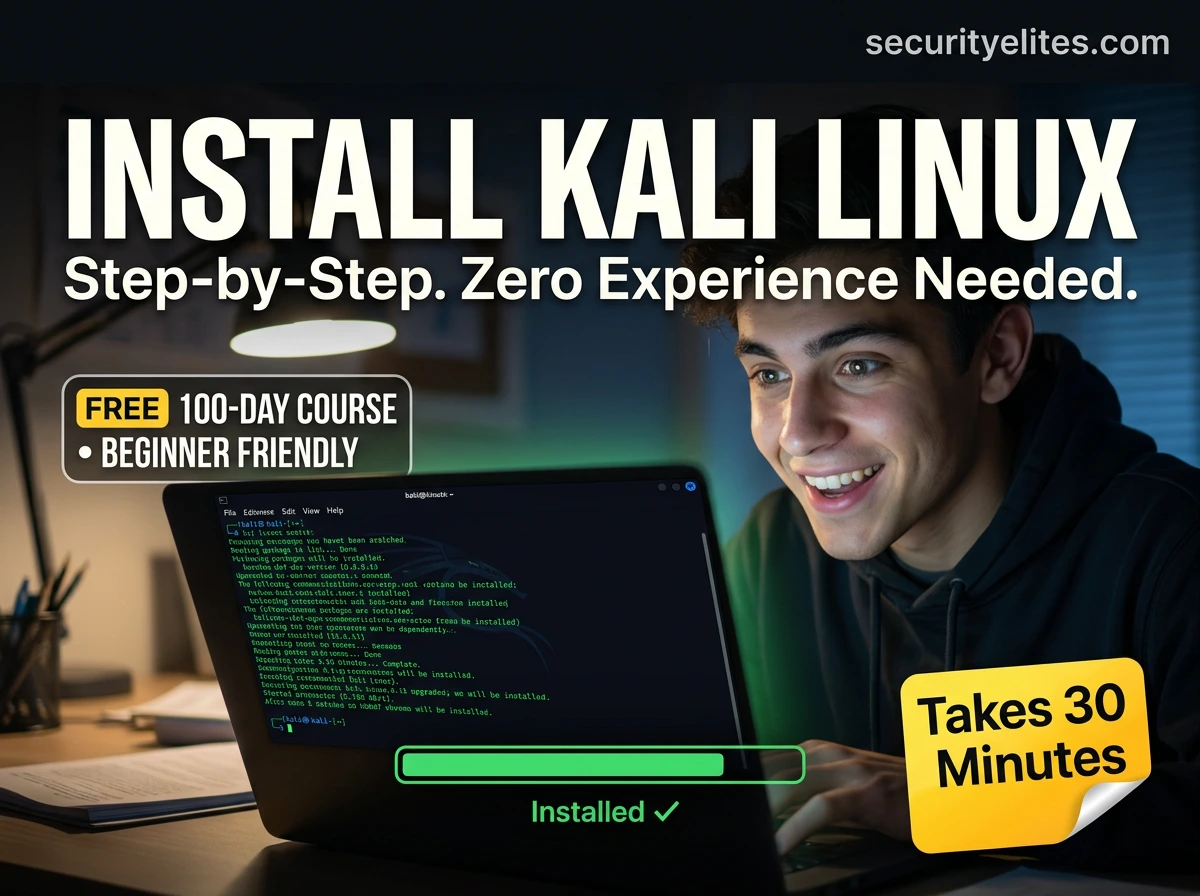
Today we do something real. By the end of this lesson, you will have Kali Linux — the operating system used by professional penetration testers worldwide — running on your machine. Not tomorrow. Today. Let’s go.
Kali Linux is to ethical hacking what a scalpel is to surgery. It’s the tool that every professional in this field uses — not because it’s cool or because movies show hackers using it, but because it comes pre-loaded with over 600 security tools that would take days to install individually on a standard OS.
We’re going to install it inside VirtualBox — a free program that creates a “computer within your computer.” This is the safest approach for students because it keeps your lab completely isolated from your main machine. If something goes wrong (and eventually something always does in a lab — that’s learning), you just reset the virtual machine. Your real computer stays untouched.
🏗️ WHAT WE’RE BUILDING TODAY
🖥️
Your Computer
Windows / Mac / Linux
→
📦
VirtualBox
Free VM manager
→
🐉
Kali Linux VM
Your hacking lab
Kali runs inside a sandboxed virtual machine — isolated from your host OS. Safe, reversible, professional.
What Is Kali Linux — And Why Do All Ethical Hackers Use It?
Kali Linux is a free, open-source Linux distribution built and maintained by Offensive Security — the same company behind the OSCP certification. It’s specifically designed for digital forensics, penetration testing, and security research.
What makes it special for us is what comes pre-installed: over 600 security tools, all configured and ready to use. Nmap for network scanning. Burp Suite for web application testing. Metasploit for exploitation. Wireshark for traffic analysis. Aircrack-ng for wireless testing. Tools that would take you days to install and configure manually are available the moment you boot Kali for the first time.
600+ Tools
Security tools pre-installed and configured — zero setup time
100% Free
Always free. No licence. No subscription. Open source forever.
Rolling Release
Continuously updated — always has the latest tool versions
Industry Standard
Used by professionals globally — learning on it = learning the right way
⚠️ Important for Students: Kali Linux is a tool — exactly like a chef’s knife. In professional hands, with proper authorisation, it’s used to protect systems. Used irresponsibly against systems you don’t own, the same tools become illegal weapons. We only ever use Kali on systems we own or have explicit written permission to test. This applies to every single day of this course.
Before You Start — Complete Requirements Checklist
✅ PRE-FLIGHT CHECKLIST
✓Computer RAM: 8GB minimum (16GB recommended). Your VM needs 2–4GB, your host OS needs the rest.
✓Free Disk Space: At least 30GB free. Kali installation uses ~15–20GB; give yourself breathing room.
✓64-bit CPU: Any computer bought after 2012 will be 64-bit. Check: Windows → System → System Type. Mac: any Intel/Apple Silicon Mac is fine.
✓Virtualisation Enabled: VT-x (Intel) or AMD-V must be enabled in BIOS/UEFI. On most modern computers this is on by default. We’ll verify this in Step 1.
✓Internet Connection: You need to download VirtualBox (~120MB) and the Kali ISO (~4GB). WiFi is fine.
✓Time: Approximately 30–45 minutes total. Most of that is download time, not active work.
STEP 1
Download and Install VirtualBox
VirtualBox is the free, open-source virtualisation software made by Oracle. It lets you run a completely separate operating system inside a window on your computer. Think of it as a “computer inside your computer” — and it’s completely free.
Download VirtualBox — where to get it
FREE
# Official download page — always use the official site
https://www.virtualbox.org/wiki/Downloads
# Choose your host OS:
Windows hosts → VirtualBox-7.x.x-Win.exe
macOS / Apple Silicon → VirtualBox-7.x.x-macOSAarch64.dmg
Linux hosts → See package manager instructions on the page
# Also download the Extension Pack (same page)
Oracle VirtualBox Extension Pack → Oracle_VirtualBox_Extension_Pack-7.x.x.vbox-extpack
# Extension Pack adds USB 2.0/3.0, drag-and-drop, shared clipboard
Once downloaded, run the installer and click through the defaults. On Windows, it will ask to install network adapters — say Yes. This is normal; VirtualBox needs virtual network adapters to give your VMs internet access. After installing VirtualBox, double-click the Extension Pack file to install it automatically.
✅ Check virtualisation is enabled: Open VirtualBox → Help → About VirtualBox. If you see any error about VT-x/AMD-V not available, you need to enter your BIOS/UEFI settings and enable it. Search “enable virtualisation [your laptop brand]” for specific instructions.
STEP 2
Download the Kali Linux ISO
The ISO is the installation image — a single file that contains the entire Kali Linux operating system. It’s about 4GB and completely free from the official Kali website.
Kali Linux download — official source only
# Official Kali download page — ONLY use this URL
https://www.kali.org/get-kali/
# Choose: “Installer Images” → “64-bit” (amd64)
Kali Linux 2026.x — 64-Bit Installer
File size: ~3.9 GB — be patient, this will take a while
# IMPORTANT: Verify the SHA256 checksum after download
# Windows (PowerShell):
Get-FileHash kali-linux-2026.x-installer-amd64.iso -Algorithm SHA256
# Linux/Mac terminal:
sha256sum kali-linux-2026.x-installer-amd64.iso
# Compare output with the checksum listed on kali.org
# Match = download is authentic and uncorrupted ✓
🚨 Security Warning: Only download Kali from kali.org. Fake Kali ISO files circulate online — some contain malware. Verifying the SHA256 checksum is not optional; it’s how you confirm your download is legitimate. Takes 30 seconds. Do it every time.
STEP 3
Create the Kali Linux Virtual Machine
Now we create the virtual machine that will run Kali. Think of this as building a new computer entirely in software — you decide how much RAM, CPU, and storage to give it.
VirtualBox — creating the VM, step by step
# 1. Open VirtualBox → click “New” (top left)
Name: Kali Linux 2026
Type: Linux
Version: Debian (64-bit)
Click → Next
# 2. Hardware — Base Memory
Minimum: 2048 MB (2GB) ← usable but slow
Recommended: 4096 MB (4GB) ← comfortable
Processors: 2 CPUs (1 if you only have 4 cores total)
Click → Next
# 3. Virtual Hard Disk
Create a Virtual Hard Disk Now → Next
Disk Size: 30 GB minimum ← 40–50 GB is better
(Dynamically allocated = only uses what’s needed)
Click → Next → Finish
# 4. Attach the Kali ISO to the VM
Select your new VM → Settings → Storage
Click the empty optical drive icon → Add → browse to your .iso file
Click OK
# 5. Optional but recommended — set up display
Settings → Display → Video Memory: 128 MB
Enable 3D Acceleration: ON
STEP 4
Run the Kali Linux Installer
Now we actually install Kali. Click Start on your VM and follow the installer. I’m going to walk you through every screen so nothing is a surprise.
Kali Linux installer — every screen explained
SCREEN 1: Boot Menu
Select: “Graphical Install” ← easier for beginners
(not “Install” — we want the GUI installer)
SCREEN 2: Language
Select your language → Continue
SCREEN 3: Location / Timezone
Select your country → Continue
SCREEN 4: Keyboard
Select your keyboard layout → Continue
SCREEN 5: Network Configuration — Hostname
Hostname: kali ← just leave this default
Domain: (leave blank) → Continue
SCREEN 6: User Accounts — IMPORTANT
Full name: Your name or “Student”
Username: kali ← or choose your own
Password: Choose a STRONG password — write it down
Do NOT use “kali” as the password. Seriously.
SCREEN 7: Partition Disks
Select: “Guided – use entire disk”
Select the virtual disk → All files in one partition → Finish
Confirm: “Yes” to write changes
⏳ Installation now runs — takes 10–20 minutes
SCREEN 8: Software Selection
Leave defaults checked: ✓ Kali desktop environment (XFCE)
✓ Top 10 most popular tools
Continue → this installs packages (another 10–15 min)
SCREEN 9: GRUB Bootloader
Install GRUB: Yes → Select the virtual disk (/dev/sda)
SCREEN 10: Installation Complete 🎉
Continue → VM reboots → Kali Linux desktop appears
STEP 5
First Boot — Update Kali and Run Your First Commands
Kali is installed. You’re looking at the Kali Linux desktop for the first time. Now we do three essential things: install VirtualBox Guest Additions (for a better experience), run a system update, and type your very first terminal commands. This moment matters — take it in.
Open a terminal. You’ll find it in the taskbar at the top — it looks like a black rectangle. Or right-click the desktop → Open Terminal Here. Type the following commands exactly.
Kali Linux terminal — your very first commands
# Step 1: Switch to root / enter sudo mode
sudo su
# Enter your password when prompted
# Step 2: Update the package list (fetch latest versions)
apt update
# You’ll see a list of packages being fetched — this is normal
# Step 3: Upgrade all installed packages
apt upgrade -y
# This may take 5–15 minutes on a fresh install
# If it asks questions, press Enter to accept defaults
# Step 4: Install VirtualBox Guest Additions tools
apt install -y virtualbox-guest-x11
# This enables: copy-paste between host/VM, shared folders,
# better screen resolution, drag-and-drop files
# Step 5: Reboot to apply all changes
reboot
# After reboot — log in and try these exploration commands:
whoami # Who are you? (shows your username)
pwd # Present Working Directory (where are you?)
ls # List files in current directory
uname -a # Show system info — kernel version, architecture
ifconfig # Show your network interfaces and IP address
nmap –version # Confirm Nmap is installed (it should be!)
When nmap --version shows you a version number — congratulations. You have a fully functional ethical hacking environment running on your machine. That was Day 2. It was real. It counts.
⚠️ Common Errors — Fixed
If something went wrong, don’t panic. These are the errors I see most often from students and exactly how to fix each one.
❌ Error: “VT-x is not available” or “AMD-V disabled”
Fix: Restart your computer and enter BIOS/UEFI (usually Del, F2, or F12 on startup). Look for “Virtualisation Technology”, “VT-x”, “AMD-V”, or “SVM”. Enable it. Save and reboot. On Windows 11 with Hyper-V enabled, also check: search “Turn Windows features on or off” → ensure Hyper-V is off if you want VirtualBox to work properly.
❌ Error: Black screen after login
Fix: Inside VirtualBox, go to Settings → Display → turn OFF 3D Acceleration. Then reboot the VM. This is a common driver conflict on some hardware. Disabling 3D Acceleration fixes it in nearly all cases.
❌ Error: Kali is very slow / laggy
Fix: Three things to check. (1) Make sure Guest Additions is installed (apt install virtualbox-guest-x11). (2) Increase VM RAM to 4096 MB if you haven’t. (3) Close unnecessary programs on your host machine while running the VM. If your host has less than 8GB RAM total, this is a hardware limitation — the VM will be slow.
❌ Error: “apt update” fails — “Failed to fetch”
Fix: Your VM has no internet access. In VirtualBox, go to your VM’s Settings → Network → Adapter 1 → change “Attached to: NAT”. This gives the VM internet via your host’s connection. Click OK, then restart the VM.
❌ Error: Screen resolution is stuck small (640×480 or 800×600)
Fix: Install Guest Additions (apt install virtualbox-guest-x11 and reboot). Then inside the running VM, go to View → Virtual Screen 1 → and select a higher resolution. Or just drag the VM window to resize — Guest Additions will auto-resize the desktop.
❌ Error: Forgot the Kali login password
Fix: Boot the VM, at the GRUB menu select “Advanced options for Kali” → “recovery mode” → “root shell”. Then type: passwd yourusername to reset it. This is also a good lesson in why physical access to a machine is the most powerful kind of access — which we’ll cover on Day 18.
📸 Take Your First Snapshot — Do This Now
This is the most important habit I can give you for lab work — and the one most students skip until they regret it. A VirtualBox snapshot saves the exact state of your VM at this moment. If you ever break something (and you will — that’s how you learn), you restore the snapshot and you’re back to this working state in 60 seconds.
VirtualBox — taking a snapshot of your clean Kali install
# With your VM running (or powered off):
VirtualBox main window → Select your Kali VM
Click the dropdown arrow next to the VM name
→ Snapshots → Take
Name: “Clean Kali Install — Day 2”
Description: “Fresh install, updated, Guest Additions installed”
Click → OK
# Snapshot saved. You now have a permanent restore point.
# To restore: Snapshots → right-click → Restore Snapshot
# Takes 30–60 seconds to restore. Zero reinstall needed.
# Rule: Take a snapshot BEFORE every new lab exercise.
Professional penetration testers use snapshots before every major phase of testing in their lab environments. It’s not laziness — it’s professional discipline. Develop this habit now and it will save you hours of frustration over the next 100 days.
🎯 Day 2 Practical Task — Your Checklist
📋 DAY 2 CHECKLIST — DO ALL 5
✓
VirtualBox installed and working on your host machine
Extension Pack also installed. No VT-x errors when you start a VM.
✓
Kali Linux ISO downloaded and SHA256 checksum verified
Only from kali.org. Checksum matches. File is authentic.
✓
Kali Linux fully installed and boots to desktop
You can see the XFCE desktop with the Kali dragon. You can open a terminal.
✓
System updated and Guest Additions installed
apt update && apt upgrade -y completed. Copy-paste between host and VM works.
★
Snapshot taken — “Clean Kali Install — Day 2”
Named, described, saved. Your first restore point exists. You are now protected from future mistakes.
⭐ BONUS CHALLENGE — For Students Who Want More
Open a Kali terminal and type these commands. Look up what each one does — don’t just run them blindly. Understanding why a command works is ten times more valuable than memorising it.
cat /etc/os-release # What exact version of Kali is this?
df -h # How much disk space do you have?
free -h # How much RAM is available?
ip a # What is your VM’s IP address?
ls /usr/share/ # Explore what’s installed — wordlists, tools…
ls /usr/share/wordlists/# The rockyou.txt wordlist is here — remember this
Post your results in the SecurityElites Telegram community with #Day2Done 🔥
🐉
Kali Linux is running on your machine.
That is not a small thing.
Most people spend months talking about learning ethical hacking. You’ve already installed the professional tool used by the best in the world. Two days in. The foundation is built. Day 3: we learn the Linux command line — the language this entire field runs on.
Day 3: Linux Terminal Basics →
Frequently Asked Questions — Day 2
Can I install Kali Linux directly on my laptop instead of a VM?
Yes — this is called a “bare metal” installation and gives you the best performance. However, I strongly recommend beginners start with VirtualBox because: (1) You can take snapshots and undo mistakes, (2) You don’t risk wiping your main OS during installation, (3) You can run Kali alongside Windows/Mac simultaneously. Once you’re comfortable with Kali (after about 30 days in this course), you can consider a dual-boot or dedicated machine if you want the performance.
Can I use VMware instead of VirtualBox?
Yes — VMware Workstation Player (free for personal use) and VMware Workstation Pro (paid) both work perfectly with Kali. The process is nearly identical. In fact, VMware often provides better performance than VirtualBox on the same hardware. I use VirtualBox in this course because it’s 100% free with no limitations, but if you already have VMware the steps are the same — just the menu names differ slightly.
Is it safe to have Kali Linux installed on my computer?
Completely. Kali Linux is just an operating system — having it installed on your machine doesn’t make you a criminal or make your computer dangerous. The tools are only active when you run them intentionally. It’s like having a set of lock-picking tools in your house — the tools aren’t illegal to own, and they don’t pick any locks by themselves. What you do with those tools is what matters legally and ethically.
Why is my Kali ISO 4GB but people say the full install is 20GB?
The ISO contains the compressed installer. During installation, files are extracted and the system is set up properly — that’s why the installed size is larger than the ISO. This is normal for any operating system. The ISO is a delivery container; the installed OS is the fully unpacked product.
ME
Mr Elite
Founder, SecurityElites.com | Penetration Tester | Educator
The first time I booted Kali Linux, I felt like I had just unlocked a door I didn’t know existed. That feeling — of a whole new world opening — is what I want every student to experience. Day 2 is where it becomes real. Welcome to the lab.