🔴 Day 4 — Linux File System for Hackers
Day 100 — Professional Pentester
04
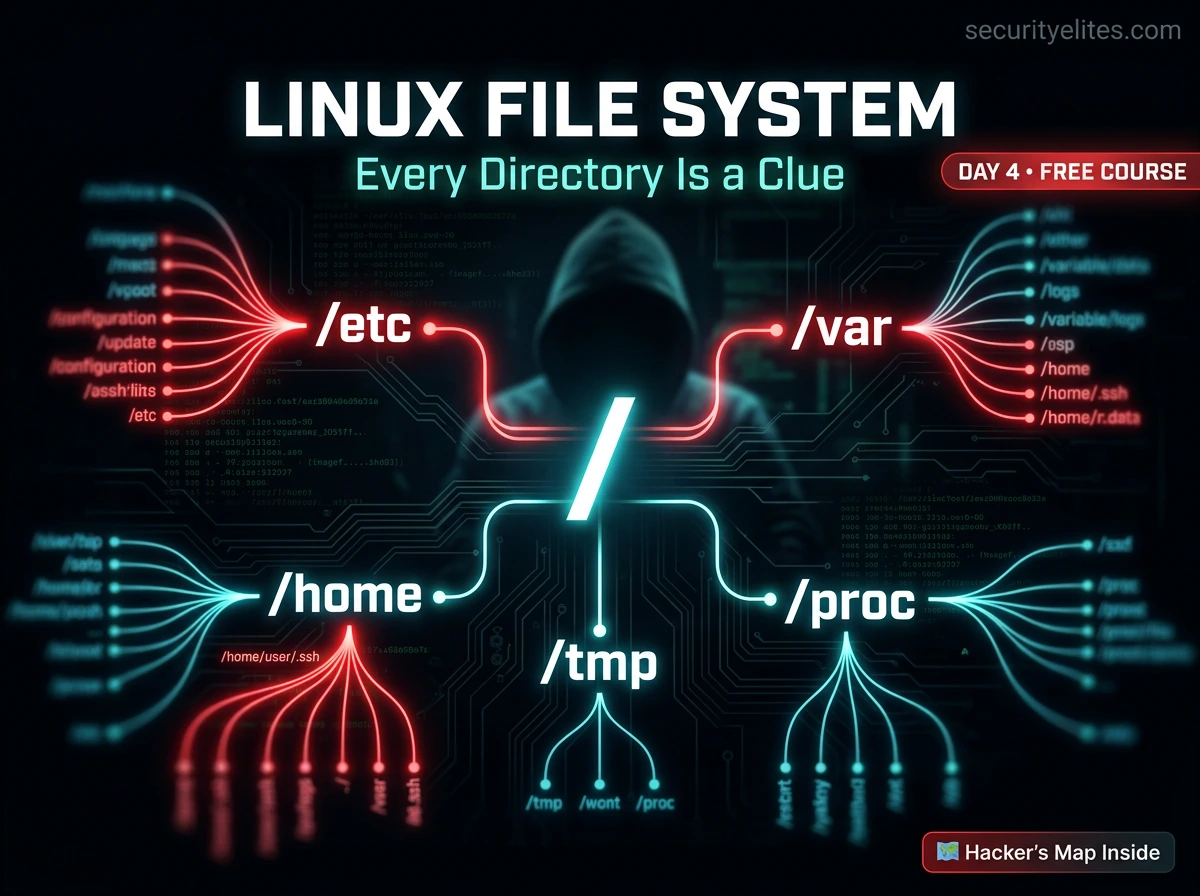
When I first gained access to a Linux system during a penetration test, the first thing I did wasn’t run a fancy exploit. I typed ls / and looked at the directories. Because once you know where everything lives, the system tells you everything you need to know.
The Linux filesystem is not random. It follows a standard called the FHS (Filesystem Hierarchy Standard). Every directory has a specific purpose. Every sensitive file has a predictable location. Today you learn to read that map.
This lesson has two audiences and both of them are you — the student and the future professional. As a student, you need to navigate Kali comfortably and understand where your tools, configs, and files live. As a penetration tester, you need to know exactly where to look when you land on an unfamiliar Linux system. Same knowledge, two applications. Let’s build it.
The FHS — Linux’s Master Plan
Linux systems follow the Filesystem Hierarchy Standard (FHS) — an agreed-upon structure that defines where different types of files should live. This is why a file you find in /etc on an Ubuntu server, a Kali VM, and a Raspberry Pi all behave the same way. The standard applies across almost all Linux distributions.
Everything in Linux starts at / — called “root” (not to be confused with the root user). It’s the top of the directory tree. Every single file on a Linux system — regardless of what physical disk or partition it’s on — exists somewhere under /. There are no drive letters like Windows. One tree. Everything in it.
Linux Filesystem Tree — run: tree -L 1 /
/
├── etc ← System configuration files
├── home ← User home directories
├── var ← Logs, databases, mail, web data
├── tmp ← Temporary files — world-writable
├── proc ← Virtual filesystem — live kernel data
├── usr ← User programs, libraries, docs
├── bin ← Essential binaries (ls, cp, cat…)
├── sbin ← System binaries (for root/admin)
├── lib ← Shared libraries for /bin and /sbin
├── root ← Home directory for root user
├── dev ← Device files (disks, terminals, etc.)
├── mnt ← Mount points for external drives
├── opt ← Optional/third-party software
├── boot ← Bootloader, kernel images
└── sys ← Virtual filesystem — hardware info
Colour guide: red = critical config | green = user data | yellow = logs/variable | purple = world-writable | blue = live kernel data
Root-Level Directories — What Each One Does
Before we go deep into the most important directories, here is a clean reference for every root-level folder. I want you to understand the purpose of each one — not memorise the tree, but know instinctively where to look for any type of file.
| Directory | Purpose | Security Relevance |
|---|
| /etc | System-wide configuration files | 🔴 Highest — credentials, users, services |
| /home | User home folders (/home/username) | 🟡 High — SSH keys, browser data, files |
| /var | Variable data — logs, databases, web | 🟡 High — logs reveal activity, web files |
| /tmp | Temporary files — world-writable | 🟣 Medium — tool upload staging area |
| /proc | Live kernel/process data (virtual) | 🔵 Medium — enumerate processes, network |
| /root | Home directory of the root user | 🔴 Critical — root’s files, history, keys |
| /usr | User programs and libraries | 🔘 Low — installed tools, exploits here |
| /bin | Essential user binaries (ls, cat, cp) | 🔘 Low — SUID check on these |
| /sbin | System admin binaries (root tools) | 🔘 Low — check for unusual binaries |
| /dev | Device files (disks, terminals, null) | 🔘 Low — /dev/null, /dev/random useful |
| /boot | Kernel and bootloader files | 🔘 Low — kernel version fingerprinting |
| /opt | Optional third-party software | 🔘 Low — sometimes holds custom apps |
/etc
Configuration Files — The Brain of the System
/etc stands for “et cetera” historically, but in practice it means system configuration. Almost every service, program, and system setting on a Linux machine is controlled by a plain text file somewhere in /etc. This is the first directory I check on any new system — it tells me everything about what’s running and how it’s configured.
Critical files in /etc — explore these in your Kali VM
# User accounts — who exists on this system?
cat /etc/passwd
root:x:0:0:root:/root:/bin/bash
kali:x:1000:1000:Kali:/home/kali:/bin/bash
# Format: username:password(x):UID:GID:comment:home:shell
# “x” means password is in /etc/shadow
# Password hashes — ROOT ACCESS REQUIRED
sudo cat /etc/shadow
root:$6$xyz…:19000:0:99999:7:::
# Format: username:hash:last_change:min:max:warn:…
# $6$ = SHA-512 hash — if you capture this, you can crack it offline
# Groups — who belongs to which group?
cat /etc/group
sudo:x:27:kali ← kali user is in the sudo group (admin access)
# Hostname resolution — local DNS overrides
cat /etc/hosts
127.0.0.1 localhost
127.0.1.1 kali
# Attackers sometimes modify /etc/hosts to redirect traffic
# Scheduled tasks running as root
cat /etc/crontab
ls /etc/cron.d/
ls /etc/cron.daily/
# Every script here runs automatically — check for writable scripts!
# SSH server configuration
cat /etc/ssh/sshd_config
PermitRootLogin yes ← This is a serious misconfiguration
PasswordAuthentication yes ← Allows password brute force
# Network interfaces — static IP configuration
cat /etc/network/interfaces
cat /etc/resolv.conf # DNS servers configured
🔴 Security note: /etc/shadow is only readable by root. If you can read it on a target machine, you’ve already achieved privilege escalation. The SHA-512 hashes inside can then be cracked offline using tools like Hashcat with a wordlist — something we’ll cover in depth on Day 28.
/home
User Directories — Personal Data & Secrets
Each regular user on a Linux system gets a folder under /home. This is where their personal files, application settings, and sensitive data live. In a penetration test, accessing a user’s home directory often yields credentials, private keys, and configuration files containing passwords.
/home — what to look for in a user’s home directory
# List all home directories (all users on system)
ls /home/
alice bob kali
# Hidden files — bash history (commands they’ve run)
cat /home/alice/.bash_history
mysql -u root -pSecretPassword123 ← password in command history!
ssh admin@192.168.1.50 ← reveals internal IPs
scp backup.zip user@192.168.1.20: ← reveals other hosts
# SSH keys — gold for lateral movement
ls -la /home/alice/.ssh/
id_rsa ← PRIVATE key — can authenticate as alice to other servers
id_rsa.pub ← Public key
authorized_keys ← Who can log in as alice
known_hosts ← Systems alice has connected to
# Hidden config files often contain credentials
ls -la /home/alice/ # -a shows hidden (dot) files
cat /home/alice/.bashrc # Shell config — sometimes has aliases with creds
cat /home/alice/.profile
find /home -name “*.txt” 2>/dev/null # Hunt for notes, credentials
find /home -name “*.conf” 2>/dev/null # Config files with embedded passwords
# Your own home in Kali
ls -la ~ # ~ is shorthand for your home directory
ls -la /root/ # Root user’s home (requires sudo)
💡 Key insight: .bash_history is one of the most valuable files on a system during an assessment. People type passwords, internal hostnames, and credentials directly into the terminal — and history records all of it. Always check it. And in your own lab, be mindful of what you type because history records everything.
/var
Variable Data — Logs, Web Files & Databases
/var holds data that changes continuously while the system runs — log files, mail spools, database files, and web content. For ethical hackers it has two important angles: log files reveal system activity and user behaviour, and /var/www contains the web application files you might be targeting or assessing.
/var — key subdirectories and their security significance
# Log files — a record of everything that happened
ls /var/log/
auth.log syslog kern.log apache2/ nginx/ mysql/
# auth.log — login attempts, sudo usage, SSH access
tail -50 /var/log/auth.log
Mar 21 14:22:01 kali sshd: Failed password for root from 10.0.0.5
Mar 21 14:22:03 kali sshd: Failed password for root from 10.0.0.5
Mar 21 14:23:01 kali sudo: kali : TTY=pts/0 ; COMMAND=/bin/bash
# syslog — general system activity
grep “error\|fail\|denied” /var/log/syslog | tail -20
# Web server logs — who visited what pages
cat /var/log/apache2/access.log | tail -20
192.168.1.100 – – [21/Mar/2026] “GET /admin HTTP/1.1” 200
192.168.1.100 – – [21/Mar/2026] “GET /wp-login.php HTTP/1.1” 401
# Web application files — the actual website
ls /var/www/html/ # Apache web root — web files live here
cat /var/www/html/config.php # Config files often contain DB credentials
$db_password = “SuperSecret123!”; ← hardcoded credentials in web config
# Database files (MySQL/MariaDB)
ls /var/lib/mysql/ # Raw database files
/tmp
World-Writable Territory — Every User Has Access
/tmp is one of the most interesting directories from a security perspective. It is world-writable — any user on the system can create, read, and write files here, without any elevated privileges. This has important implications in both directions.
✅ Legitimate Uses
- Staging area for file transfers between machines
- Uploading tools to a compromised system (no write restrictions)
- Storing temporary outputs from scans and scripts
- Compiling small exploits or payloads during an engagement
🔴 Security Risks
- Attackers use /tmp to stage payloads after initial access
- Symlink attacks exploit /tmp’s open permissions
- Sensitive data written here is readable by all users
- Race conditions in /tmp can lead to privilege escalation
/tmp — working with it in Kali
# Check what’s currently in /tmp
ls -la /tmp/
# Anyone can write here — no sudo needed
echo “test file” > /tmp/testfile.txt
cat /tmp/testfile.txt
# Permissions — sticky bit (t) prevents deletion by other users
ls -ld /tmp
drwxrwxrwt 15 root root 4096 Mar 21 /tmp
# └── t = sticky bit: you can only delete your OWN files in /tmp
# /tmp clears on reboot — files don’t survive restarts
# Use /var/tmp for persistence across reboots
ls /var/tmp/ # This persists across reboots
/proc
The Live System Window — Real-Time Kernel Data
/proc is unique — it doesn’t exist on your hard disk. It’s a virtual filesystem generated live by the Linux kernel. Every number you see as a subdirectory inside /proc is a running process’s PID (Process ID). Reading files in /proc gives you live information about the system’s state — no special tools required.
/proc — reading live system data
# CPU information
cat /proc/cpuinfo
model name : Intel(R) Core(TM) i7-12700K CPU @ 3.60GHz
# Memory information
cat /proc/meminfo
MemTotal: 16777216 kB
MemFree: 8234512 kB
# Kernel version
cat /proc/version
Linux version 6.x.x-kali (Debian) #1 SMP Tue Jan 2026
# All running processes — one directory per PID
ls /proc/ | head -20
1 2 3 … 1337 1338 … cpuinfo meminfo version
# Inspect a specific process (replace 1337 with real PID)
cat /proc/1337/status # Name, state, PID, memory usage
cat /proc/1337/cmdline # Exact command used to launch this process
ls -la /proc/1337/fd/ # Open file descriptors (what files it has open)
# Active network connections (no netstat needed)
cat /proc/net/tcp # Raw TCP connection table (hex encoded)
cat /proc/net/tcp6 # IPv6 connections
# Environment variables of a process (may contain secrets!)
sudo strings /proc/1337/environ # Readable env vars — sometimes passwords here
💡 Why /proc matters: On a minimal compromised system with no standard tools installed, /proc lets you enumerate processes and network connections with nothing but cat and ls. In situations where ps and netstat aren’t available, /proc becomes your recon toolkit.
/usr, /bin, /sbin — Where Programs Live
These three directories together make up the “programs” layer of Linux. On modern systems, /bin and /sbin are often symbolic links to /usr/bin and /usr/sbin respectively — but understanding the distinction still matters for reading older documentation and working with servers.
/bin
Essential binaries needed even in single-user recovery mode. ls, cp, mv, cat, bash. Available to all users. Check for SUID misconfigurations here.
/sbin
System administration binaries. fdisk, iptables, reboot. Intended for root, though some can be run with sudo. Worth checking for unusual binaries placed here.
/usr/share
Architecture-independent shared data. In Kali, /usr/share/wordlists/ (rockyou.txt) and /usr/share/metasploit-framework/ live here — important to know for Day 15+.
Kali-specific paths you’ll use constantly
# Wordlists for password attacks
ls /usr/share/wordlists/
rockyou.txt.gz fasttrack.txt dirbuster/ SecLists/
ls /usr/share/nmap/scripts/ | head -20
# Metasploit modules
ls /usr/share/metasploit-framework/modules/exploits/
# Web application exploit payloads
ls /usr/share/webshells/
asp/ aspx/ cfm/ jsp/ perl/ php/
🗺️ The Hacker’s Map — Most Sensitive Files on a Linux System
This is the section I want you to bookmark and return to every time you land on a new Linux target in your lab or during a CTF. This is not a complete list — it is the most commonly valuable list. Learning these locations is like knowing where all the rooms are before searching a building.
Sensitive file locations — reference this on every new Linux system
🔴 CREDENTIALS & ACCOUNTS
/etc/passwd # All user accounts
/etc/shadow # Password hashes (root only)
/etc/group # Group memberships
~/.bash_history # Command history (may have passwords)
~/.ssh/id_rsa # SSH private key
~/.ssh/authorized_keys # Who can SSH in
🟡 CONFIGURATION WITH CREDS
/etc/ssh/sshd_config # SSH server config
/var/www/html/*.php # Web app DB credentials
/etc/mysql/my.cnf # MySQL configuration
/etc/crontab # Scheduled tasks (privesc)
/etc/sudoers # Who can run what as root
/etc/hosts # Local hostname resolution
🔵 LOGS & ACTIVITY
/var/log/auth.log # Login events, sudo use
/var/log/syslog # General system log
/var/log/apache2/ # Web server access log
/var/log/mysql/ # Database query log
/root/.bash_history # Root’s command history
/proc/net/tcp # Active network connections
🟢 PRIVILEGE ESCALATION TARGETS
/etc/cron.d/* # Writable cron scripts?
/etc/sudoers.d/ # Sudo rules that can be abused
/tmp/ # World-writable — tool staging
/var/tmp/ # Persists across reboots
find / -perm -4000 # SUID binaries (Day 3 command!)
/usr/local/bin/* # Custom scripts — may be writable
🎯 Day 4 Practical Task — Explore Your Own Kali Filesystem
Open your Kali terminal. Everything you need is already there. Work through each task in order — each one builds on the previous and gives you real hands-on familiarity with the directories we covered today.
📋 DAY 4 CHECKLIST
1
Map /etc — find three config files you didn’t know existed
ls /etc/
cat /etc/passwd
sudo cat /etc/shadow | head -5
cat /etc/hosts
Note what’s in each file. Can you count how many user accounts exist on your system?
2
Read your own bash history — how many commands do you have?
cat ~/.bash_history
wc -l ~/.bash_history
ls -la ~/.ssh/ 2>/dev/null
If you completed Days 1–3, there should be at least 15–20 commands in your history. Notice anything sensitive you accidentally typed?
3
Explore /proc — see your system’s live data
cat /proc/version
cat /proc/cpuinfo | grep “model name”
cat /proc/meminfo | grep “MemTotal”
ls /proc/ | grep -E ‘^[0-9]+$’ | wc -l
That last command counts how many processes are running right now on your Kali VM. How many did you get?
4
Hunt sensitive files — run the full recon checklist
find / -perm -4000 2>/dev/null
cat /etc/crontab
ls /var/log/
ls /usr/share/wordlists/
Save the output: find / -perm -4000 2>/dev/null > ~/Day4/suid_files.txt — first real evidence file you’ve captured.
⭐ BONUS CHALLENGE
Find every file on your Kali system that is writable by all users (world-writable) — not just /tmp. How many do you find? Are any of them scripts being run by cron? This is a real misconfiguration check used in professional privilege escalation enumeration.
find / -perm -0002 -type f 2>/dev/null | grep -v “/proc”
Share your count in the Telegram community with #Day4Done 🗺️
🗺️
You now know where everything is.
Linux is no longer a black box.
Four days in — you’ve built the mindset, the environment, the commands, and the map. Day 5 is where things get seriously interesting: networking fundamentals. How does the internet actually work? What is TCP/IP? What happens between your keyboard and a website? The answers change how you see every connection you’ve ever made.
Day 5: Networking Fundamentals →
Frequently Asked Questions — Day 4
Why does /etc/shadow require root to read it?
Because it contains password hashes — and if any regular user could read it, they could take those hashes and try to crack them offline. By restricting access to root only (chmod 640, owned by root:shadow), the system ensures only privileged processes can read credential data. This is exactly why gaining root access on a target makes /etc/shadow accessible and therefore very valuable.
Is /proc the same on every Linux system?
The core structure is consistent — you’ll always find per-process directories, /proc/cpuinfo, /proc/meminfo, and /proc/net/. Specific files may vary by kernel version and configuration. The fundamentals we covered today apply to any Linux system you’ll ever encounter, from Kali in a VM to a production Ubuntu server to an Android device.
What does the “sticky bit” on /tmp actually do?
The sticky bit (shown as t in ls -ld /tmp) means that even though everyone can write to /tmp, you can only delete or rename files that you own. Without it, any user could delete any other user’s files in /tmp — which would be chaos. The sticky bit is what makes /tmp practically usable as a shared space while preventing one user from sabotaging another’s temporary files.
What’s the difference between /root and /home?
/home contains directories for regular users — /home/alice, /home/bob, etc. /root is the home directory specifically for the root (superuser) account. It’s separate from /home intentionally — even if /home is on a different partition or is unavailable, /root remains accessible, ensuring the root user always has a working home directory for system recovery and administration.
ME
Mr Elite
Founder, SecurityElites.com | Penetration Tester | Educator
Knowing the filesystem is what separates a hacker who gets stuck from one who finds the path. Every system is a puzzle — and now you know where all the pieces are kept. Four days in, you’re ahead of where most people are after four months of “thinking about” starting.