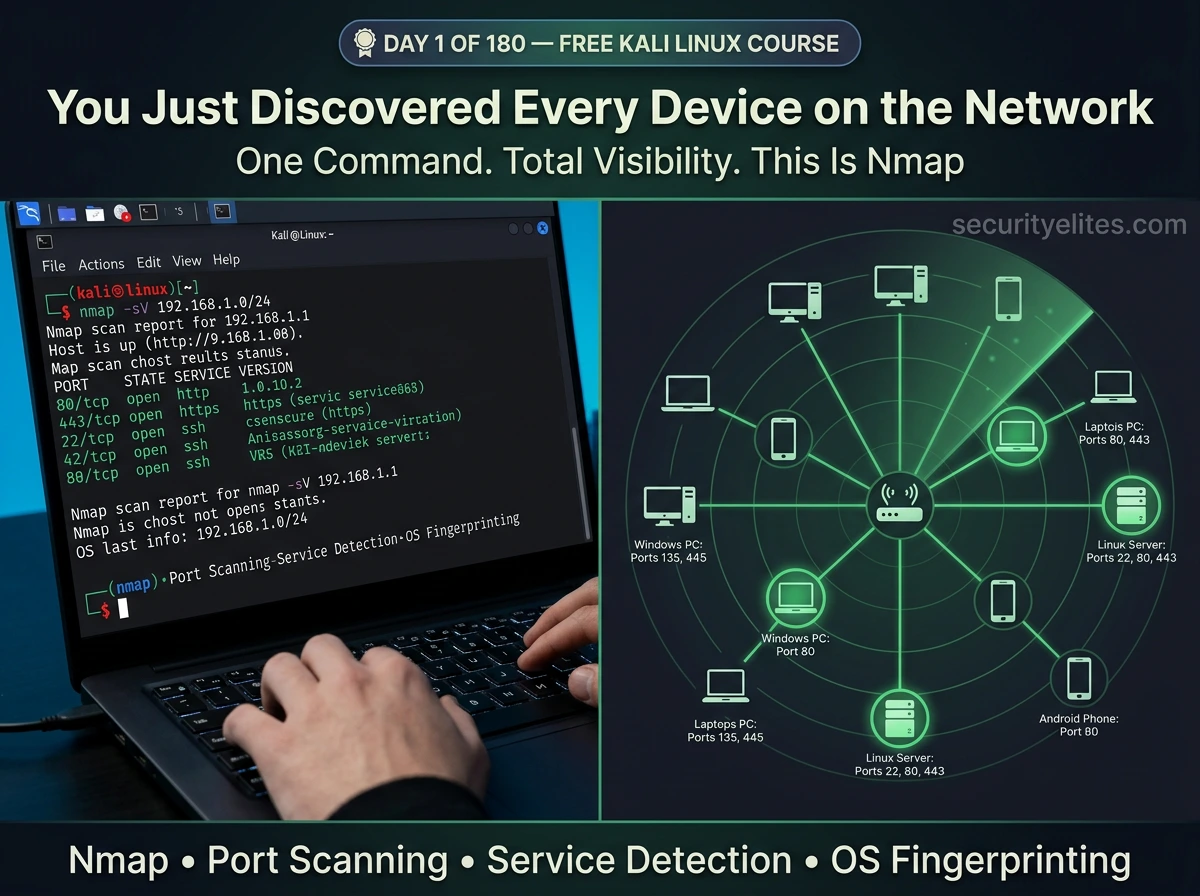
🔵 Day 1 — Nmap Tutorial: Network Mapper
Day 180 — Advanced Kali Mastery
🎉 Welcome to the 180-Day Kali Linux Mastery Course
180 days. 180 tools. One goal: make you a complete, job-ready Kali Linux practitioner. Every day you learn one tool — in full depth, step by step, from the very first command to professional-level use. No shortcuts. No skipping steps. No assuming you already know something.
This course is designed for absolute beginners who have never opened a terminal — and scales to cover the same tools professionals use in real penetration tests. Spend 60–90 minutes per day and by Day 180 you will have hands-on experience with the most important security tools in the world.
01
Right now, on any network you’re connected to — your home WiFi, your office LAN, a hotel network — there are devices you have never seen, running services you do not know about, with ports open that nobody has reviewed. Routers, smart TVs, printers, cameras, old laptops that someone forgot to turn off. A security professional can map every single one of them in under 60 seconds. Today you learn exactly how.
Nmap — the Network Mapper — is the first tool every penetration tester, every security researcher, and every ethical hacker learns. It is on Kali Linux by default. It is used in every professional engagement. It was featured in the films The Matrix Reloaded, Die Hard 4, and Bourne Ultimatum because it is the real tool actual hackers use. Not a Hollywood prop. The real thing.
By the end of this lesson you will understand what Nmap is, why it is the foundation of network security work, and — most importantly — you will have run your own scans, read real output, and understood every line of it. Let’s begin.
🖥️
Day 1 Requirements
Kali Linux (VirtualBox, VMware, bare metal, or WSL2) — Nmap comes pre-installed. A target to scan: your own home router IP (e.g. 192.168.1.1), a Metasploitable2 VM in your lab, or a TryHackMe/Hack The Box machine. Never scan networks or systems you do not own or have explicit written permission to scan.
Before we type a single command, let’s understand what we’re actually doing. The biggest mistake beginners make in Kali Linux is typing commands without understanding them. In this course, you will never type a command you do not understand. Every flag, every option, every output line — explained. That is the promise of this course, and we start it right now on Day 1.
What Is Nmap and Why Is It the First Tool Every Security Pro Learns?
Nmap stands for Network Mapper. It was created by Gordon Lyon (known as “Fyodor”) in 1997 and is still actively maintained nearly 30 years later. That longevity says everything about its quality — in a field where tools become obsolete in months, Nmap is as essential today as it was when Bill Clinton was president.
At its core, Nmap does one thing: it sends carefully crafted network packets to a target and analyses the responses. From those responses it can determine which hosts are alive, which ports are open, what services are running on those ports, what software versions those services are running, and what operating system the target is using. This is called network reconnaissance or network enumeration — and it is always the first phase of any authorised security assessment.
🎯 What Nmap Can Discover
LIVE HOSTS
Which IP addresses have active devices — computers, phones, printers, routers
OPEN PORTS
Which network ports are open and accepting connections (65,535 possible ports)
SERVICES
What applications are running on those ports: HTTP, SSH, FTP, SMB, MySQL…
VERSIONS
Exact software versions: Apache 2.4.51, OpenSSH 8.9, Nginx 1.20 — crucial for CVE lookup
OS TYPE
Operating system fingerprinting: Windows 10, Ubuntu 22.04, Cisco IOS, Android…
VULNERABILITIES
Via NSE scripts — check for known CVEs, default credentials, misconfigurations
STEP 1
Install and Verify Nmap in Kali Linux
Nmap comes pre-installed on Kali Linux. But we always verify before assuming. Open your Kali Linux terminal — press Ctrl+Alt+T or click the terminal icon in the taskbar.
┌──(kali㉿kali)-[~]
└─$ nmap –version
Nmap version 7.94SVN ( https://nmap.org )
Platform: x86_64-pc-linux-gnu
Compiled with: liblua-5.4.6 openssl-3.1.4 libssh2-1.11.0 libz-1.2.13 libpcre2-10.42
Compiled without: liblinear
Available nsock engines: epoll poll select
You should see the Nmap version information. If you get a “command not found” error, install it with:
└─$ sudo apt update && sudo apt install nmap -y
Reading package lists… Done
Building dependency tree… Done
nmap is already the newest version (7.94+git20230807.3be01efb1+dfsg-3)
securityelites.com┌──(kali㉿kali)-[~]
└─$ nmap –version
Nmap version 7.94SVN ( https://nmap.org )
Platform: x86_64-pc-linux-gnu
Compiled with: liblua-5.4.6 openssl-3.1.4 libpcre2-10.42
Available nsock engines: epoll poll select
┌──(kali㉿kali)-[~]
└─$ █
Kali Linux terminal — nmap –version confirms Nmap 7.94SVN is installed. The green version line confirms Nmap is ready to use. If you see a version number, you are good to go to Step 2.
STEP 2
Your First Nmap Scan — The Most Basic Command
The most basic Nmap scan sends probes to the 1,000 most common ports on a single target host and reports which are open. The syntax is simply: nmap [target]. The target can be an IP address, a hostname, or a URL. Let’s scan your own router first — the safest and most immediate target you own.
🔍 Finding Your Router’s IP Address First
└─$ ip route show
default via 192.168.1.1 dev eth0 proto dhcp src 192.168.1.105
Note your router’s IP address. Now run your first scan:
└─$ nmap 192.168.1.1
Starting Nmap 7.94SVN ( https://nmap.org ) at 2026-03-25 10:14 IST
Nmap scan report for 192.168.1.1
Host is up (0.0014s latency).
Not shown: 994 closed tcp ports (reset)
PORT STATE SERVICE
22/tcp open ssh
53/tcp open domain
80/tcp open http
443/tcp open https
8080/tcp open http-proxy
8443/tcp filtered https-alt
Nmap done: 1 IP address (1 host up) scanned in 3.42 seconds
Congratulations — you just ran your first Nmap scan. But what does all of this mean? Let’s decode every line.
STEP 3
Reading and Understanding Nmap Output — Line by Line
Every single line in Nmap’s output means something specific. This is where most beginners get lost — they see the output but cannot interpret it. Let’s fix that right now with a complete annotated breakdown:
securityelites.comAnnotated Nmap Output — Every Line Explained
Starting Nmap 7.94SVN at 2026-03-25 10:14 IST
Version + timestamp. Useful when saving reports.
Nmap scan report for 192.168.1.1
The target being reported on. May include hostname if DNS resolves.
Host is up (0.0014s latency).
✅ Host is alive. Latency = round-trip time. 1.4ms = very fast, local network.
Not shown: 994 closed tcp ports (reset)
994 of 1000 ports tested are closed. Only the interesting ones shown below.
PORT STATE SERVICE
Column headers: port number/protocol, state (open/closed/filtered), and service name.
22/tcp open ssh
Port 22 is open. SSH is running. Remote login possible. Always note open SSH.
80/tcp open http
Port 80 is open. Web server running. Visit http://192.168.1.1 to see it.
8443/tcp filtered https-alt
Filtered = firewall blocking. Port might be open but firewall drops our probe packets.
Annotated Nmap Output — Each line decoded. Green = open ports (service accessible), amber = filtered (firewall present), red = closed (nothing listening). The latency figure tells you network proximity. Scan report time tells you scan efficiency.
The Three Port States — What Each Means
OPEN
A service is actively listening on this port and accepting connections. This is what you look for — open ports mean running services, and services have potential vulnerabilities.
FILTERED
A firewall, packet filter, or router is blocking the probe. Nmap cannot tell if the port is open or closed. The port might actually be open behind the firewall.
CLOSED
No service is listening on this port. The host received our probe and responded with a TCP RST (reset), confirming nothing is running there.
STEP 4
Port Range Scanning — The -p Flag
By default, Nmap scans only the 1,000 most common ports. But there are 65,535 total TCP ports and 65,535 UDP ports. Security professionals often need to scan more broadly. The -p flag controls which ports you scan.
└─$ nmap -p 80 192.168.1.1
└─$ nmap -p 1-1000 192.168.1.1
└─$ nmap -p 22,80,443,3306,8080 192.168.1.1
└─$ nmap -p- 192.168.1.1
└─$ nmap –top-ports 100 192.168.1.1
💡 Mr Elite’s Tip: In real penetration tests, I always run two Nmap scans on each target: first a fast scan of the top 1000 ports to get quick results, then a full -p- scan of all 65,535 ports running in the background. Services hiding on non-standard ports (like a web server on port 8888 or SSH on port 2222) only appear in the full scan. Never assume the default 1000-port scan finds everything.
STEP 5
Nmap Scan Types — Understanding the Difference
Nmap has multiple scan techniques, each with a different mechanism and different use cases. This is one of the most important concepts in this Nmap tutorial for beginners because choosing the right scan type affects speed, detectability, and accuracy.
securityelites.comNMAP SCAN TYPES — COMPLETE REFERENCE
FLAG
NAME
HOW IT WORKS
REQUIRES
-sS
TCP SYN
(Default)
Sends SYN, waits for SYN/ACK (open) or RST (closed). Never completes handshake. Fast and stealthy.
sudo (root)
-sT
TCP Connect
Completes full TCP 3-way handshake. Slower, more detectable, logged by target. Use when no root.
No root needed
-sU
UDP Scan
Scans UDP ports. Very slow (no guaranteed responses). Critical for DNS (53), SNMP (161), TFTP (69).
sudo (root)
-sn
Ping Sweep
No port scan — only discovers which hosts are alive. Perfect for
network mapping before deep scanning.
No root needed
-Pn
Skip Ping
Treats all hosts as up — skips host discovery. Use when ICMP is blocked and host appears offline but is actually running.
No root needed
Nmap Scan Types Reference — -sS (TCP SYN) is the default and most used. -sU (UDP) is slowest but reveals services that TCP scanning misses. -sn is your first step when mapping a new network. -Pn is essential when firewalls block ping responses.
└─$ sudo nmap -sS 192.168.1.1
└─$ nmap -sT 192.168.1.1
└─$ sudo nmap -sU –top-ports 100 192.168.1.1
└─$ nmap -sn 192.168.1.0/24
Starting Nmap 7.94SVN…
Nmap scan report for 192.168.1.1
Host is up (0.0014s latency).
Nmap scan report for 192.168.1.105
Host is up (0.000080s latency).
Nmap scan report for 192.168.1.112
Host is up (0.0044s latency).
Nmap done: 256 IP addresses (3 hosts up) scanned in 4.81 seconds
STEP 6
Service and Version Detection — The -sV Flag
Knowing a port is open is just the beginning. The real intelligence comes from knowing what software version is running on that port. A port 80 might be Apache 2.2.31 (known vulnerabilities) or Nginx 1.24.0 (current). The -sV flag enables service and version detection — it is one of the most valuable Nmap options and you will use it on every professional scan.
└─$ nmap -sV 192.168.1.1
Starting Nmap 7.94SVN at 2026-03-25 10:22 IST
Nmap scan report for 192.168.1.1
Host is up (0.0015s latency).
PORT STATE SERVICE VERSION
22/tcp open ssh OpenSSH 8.9p1 Ubuntu 3ubuntu0.6 (Ubuntu Linux; protocol 2.0)
53/tcp open domain dnsmasq 2.90
80/tcp open http lighttpd 1.4.73
443/tcp open ssl/http lighttpd 1.4.73
8080/tcp open http-proxy Squid http proxy 5.7
Service Info: OS: Linux; CPE: cpe:/o:linux:linux_kernel
Nmap done: 1 IP address (1 host up) scanned in 11.38 seconds
Look at the difference. With -sV we now know specific version numbers. OpenSSH 8.9p1, lighttpd 1.4.73, Squid 5.7. Each of these can be checked against CVE databases for known vulnerabilities. This is the direct bridge between Nmap output and vulnerability identification.
STEP 7
OS Fingerprinting — The -O Flag
Nmap can determine the operating system of a target by analysing subtle differences in how different operating systems respond to specific network packets. This is called OS fingerprinting. The -O flag enables it. Note: requires root/sudo privileges.
└─$ sudo nmap -O 192.168.1.112
PORT STATE SERVICE
22/tcp open ssh
80/tcp open http
Device type: general purpose
Running: Linux 4.X|5.X
OS CPE: cpe:/o:linux:linux_kernel:4 cpe:/o:linux:linux_kernel:5
OS details: Linux 4.15 – 5.8
Network Distance: 1 hop
OS details: Microsoft Windows 10 1903 – 20H2, Microsoft Windows Server 2019
STEP 8
The Aggressive Scan (-A) — Everything at Once
The -A flag is the power flag. It enables OS detection (-O), service version detection (-sV), default script scanning (-sC — which runs the Nmap Scripting Engine), and traceroute — all in one command. This is what most professionals use for a comprehensive target assessment.
└─$ sudo nmap -A 192.168.1.112
Starting Nmap 7.94SVN at 2026-03-25 10:31 IST
Nmap scan report for 192.168.1.112
Host is up (0.00021s latency).
PORT STATE SERVICE VERSION
22/tcp open ssh OpenSSH 7.9p1 Debian 10+deb10u2 (protocol 2.0)
| ssh-hostkey:
| 2048 fd:3e:39:9f:5d:f0:02:c4:84:c0:dc:c4:0f:00:90:5f (RSA)
|_ 256 5e:66:40:5c:7b:98:dd:d2:d9:e2:90:dc:d9:28:ce:b9 (ECDSA)
80/tcp open http Apache httpd 2.4.38 ((Debian))
|_http-title: Apache2 Debian Default Page: It works
|_http-server-header: Apache/2.4.38 (Debian)
3306/tcp open mysql MySQL 5.5.5-10.3.23-MariaDB-0+deb10u1
| mysql-info:
| Protocol: 10
| Version: 5.5.5-10.3.23-MariaDB-0+deb10u1
|_ Status: Autocommit
Device type: general purpose
OS details: Linux 3.2 – 4.9
TRACEROUTE
HOP RTT ADDRESS
1 0.21ms 192.168.1.112
Nmap done: 1 IP address (1 host up) scanned in 34.17 seconds
💡 What we just learned from -A: This target is running Apache 2.4.38 (outdated — check CVEs), MySQL MariaDB (database exposed!), SSH on port 22, and the web server title says “Apache2 Debian Default Page” — meaning the web server was never configured. These are all actionable findings in an authorised security assessment.
STEP 9
Scanning an Entire Subnet — Network Discovery
In real security assessments, you rarely scan just one host. You scan entire network ranges to discover all assets. Nmap supports CIDR notation to specify subnet ranges. Always confirm you are authorised to scan every IP in the range before running subnet scans.
└─$ nmap 192.168.1.0/24
└─$ nmap -sn 192.168.1.0/24
└─$ nmap 192.168.1.1-50
└─$ nmap 192.168.1.1 192.168.1.105 192.168.1.112
└─$ nmap -iL targets.txt
STEP 10
Saving Nmap Scan Results — Output Formats
In professional security work, documenting your findings is not optional — it is a requirement. Nmap provides multiple output formats. Save your scans from Day 1. Good documentation habit built early saves hours of work later.
└─$ nmap -sV -oN scan_normal.txt 192.168.1.0/24
└─$ nmap -sV -oX scan_results.xml 192.168.1.0/24
└─$ nmap -sV -oG scan_grep.txt 192.168.1.0/24
└─$ nmap -sV -O -A -oA full_scan_20260325 192.168.1.0/24
└─$ cat full_scan_20260325.nmap
└─$ grep “open” scan_grep.txt
⭐ Bonus — The Nmap Scripting Engine (NSE)
Nmap includes a powerful scripting engine with over 600 scripts that extend its capabilities far beyond port scanning. NSE scripts can check for specific vulnerabilities, enumerate services, detect default credentials, and much more. This is a preview — we go deep on NSE on Day 15 of this course.
└─$ nmap -sC -sV 192.168.1.112
└─$ nmap –script smb-vuln-ms17-010 192.168.1.112
└─$ nmap –script http-title,http-headers,http-methods -p 80,443 192.168.1.1
└─$ ls /usr/share/nmap/scripts/ | grep http
http-auth.nse
http-backup-finder.nse
http-default-accounts.nse
… (dozens more)
Nmap Commands Cheat Sheet — Save This Forever
securityelites.comNMAP COMMANDS CHEAT SHEET — COMPLETE REFERENCE
DISCOVERY
nmap 192.168.1.1
Basic scan (top 1000 ports)
nmap -sn 192.168.1.0/24
Ping sweep — find live hosts
nmap -Pn 192.168.1.1
Skip ping, treat as up
PORT SPECIFICATION
nmap -p 80
Single port
nmap -p 1-1000
Port range
nmap -p-
All 65535 ports
nmap –top-ports 100
Top 100 common ports
SERVICE AND OS DETECTION
nmap -sV
Service version detection
nmap -O
OS detection (sudo)
nmap -A
Aggressive: -sV -O -sC traceroute
OUTPUT AND SPEED
nmap -oA scan
Save all formats
nmap -T4
Faster timing (T0=slowest, T5=fastest)
nmap -v
Verbose — show progress live
nmap -vv
Very verbose
PROFESSIONAL SCAN COMBINATIONS
nmap -sV -sC -O -p- -oA full_scan TARGET
Full professional scan
nmap -sn SUBNET/24 -oN hosts.txt
Discover all live hosts
nmap -sV –script vuln TARGET
Vulnerability scan with NSE
IMPORTANT REMINDERS
⚠️ Always get written permission before scanning
⚠️ sudo/root needed for -sS, -O, -A flags
⚠️ -A is noisy — triggers IDS/IPS in prod
⚠️ -p- is slow — background it on large networks
✅ Use -T4 for faster scans on local networks
Nmap Commands Cheat Sheet — The complete reference card for Day 1 through professional use. The professional scan combination (nmap -sV -sC -O -p- -oA) is what real penetration testers use on authorised targets. Screenshot and save this.
🎯 Day 1 Task — Your Nmap Practical Challenge
📋 COMPLETE ALL TASKS BEFORE DAY 2
1
Run a basic scan on your own router
Find your router IP with ip route show, then run nmap [your-router-ip]. Note every open port. What is running on each port? Can you identify the services from their port numbers?
✅ Goal: Identify at least 3 open ports and their services
2
Run a service version scan (-sV) on the same target
Run nmap -sV [router-ip]. Compare the output to your basic scan. What additional information did -sV reveal? Note the software versions shown. Can you find the router’s firmware/software version in the output?
✅ Goal: Document all service versions found
3
Discover all live hosts on your home network
Run nmap -sn 192.168.1.0/24 (adjust subnet to match yours). How many devices are on your network? Are there devices you did not know about? This is exactly what a security professional does at the start of an authorised network assessment.
✅ Goal: List every live host found on your network
4
Save your scan results to a file
Run nmap -sV -oA day1_scan [router-ip]. Check the three files created. Read the .nmap file with cat day1_scan.nmap. Start building the habit of saving every scan — from Day 1 to Day 180.
✅ Goal: Three output files (day1_scan.nmap, .xml, .gnmap) created
★
BONUS: Scan a Practice Target on TryHackMe or Hack The Box
Sign up for
TryHackMe.com (free) or
HackTheBox.com and connect to a beginner machine. Run a full
nmap -A scan on it. These platforms provide authorised targets specifically designed for learning. TryHackMe’s “Basic Pentesting” room is perfect. Share your results with #Day1Done 🔵
🎉
Day 1 Complete. You now know Nmap.
The most important
network scanning tool in security.
Day 2 is Netcat — the “Swiss Army Knife of networking.” You’ll learn to create TCP connections, send files, open backdoor shells, chat between computers, and set up listeners. Netcat is built into Kali and it’s the foundation of understanding how shells and reverse connections work — knowledge that underpins Metasploit, Meterpreter, and every reverse shell technique in this course.
Day 2: Netcat Tutorial →
Frequently Asked Questions — Nmap Tutorial
What is Nmap and what is it used for?
Nmap (Network Mapper) is a free, open-source tool for network discovery and security auditing. It discovers live hosts, identifies open ports and running services, detects software versions, performs OS fingerprinting, and runs vulnerability detection scripts. It is the foundational tool in every penetration tester’s toolkit and the most widely used network scanning tool in the world.
Is Nmap legal to use?
Nmap is legal on networks and systems you own or have explicit written authorisation to scan. Scanning networks without permission is illegal in most countries regardless of the tool used. Always ensure you have authorisation. For practice, use TryHackMe, Hack The Box, or your own lab environment — all provide explicitly authorised targets for learning.
What is the difference between a TCP SYN scan and a TCP Connect scan?
TCP SYN scan (-sS) sends a SYN and waits for SYN/ACK but never completes the handshake — it is a “half-open” scan. Faster, stealthier, requires root. TCP Connect scan (-sT) completes the full three-way handshake. Slower, more detectable, logs on target, but does not require root. SYN scan is preferred for authorised testing.
How do I scan an entire subnet with Nmap?
Use CIDR notation: nmap 192.168.1.0/24 scans all 254 hosts in the range. For host discovery only (no port scanning): nmap -sn 192.168.1.0/24. For a full scan of all hosts: nmap -sV -A 192.168.1.0/24. Always ensure you are authorised to scan every host in the subnet.
What does the Nmap -A flag do?
The -A flag enables aggressive scan mode — it combines service version detection (-sV), OS detection (-O), default Nmap Scripting Engine scripts (-sC), and traceroute in a single command. It provides the most comprehensive result but takes longer and is more detectable. Use it on authorised targets when you want a complete picture in one pass.
← Your Kali Linux Journey Starts Here180-DAY KALI LINUX COURSE — DAY 1 COMPLETE
1 of 180 days complete — Tool: Nmap ✓
Day 2: Netcat →
📚 Further Reading and Resources
ME
Mr Elite
Founder, SecurityElites.com | Penetration Tester | Kali Linux Educator
The first tool I opened when I started learning security was Nmap. The first time I ran nmap -sV on my home network and saw every device, every service, every version laid out in that terminal output — it completely changed how I understood what a network actually is. Not a vague invisible thing, but a precise, inspectable collection of services. That mental model, built in one afternoon with Nmap, underpins everything else in security. Day 1 done. 179 to go.