🔵 Day 2 — Netcat Tutorial
Day 180 — Advanced Kali Mastery
✅
Before You Start Day 2 — Day 1 Quick Check
Completed Day 1’s Nmap tasks? You should have run a basic scan on your router, used -sV for version detection, discovered live hosts on your subnet, and saved output with -oA. If yes — let’s go. If not — Day 1 takes 90 minutes. Do it first. The course builds cumulatively.
02
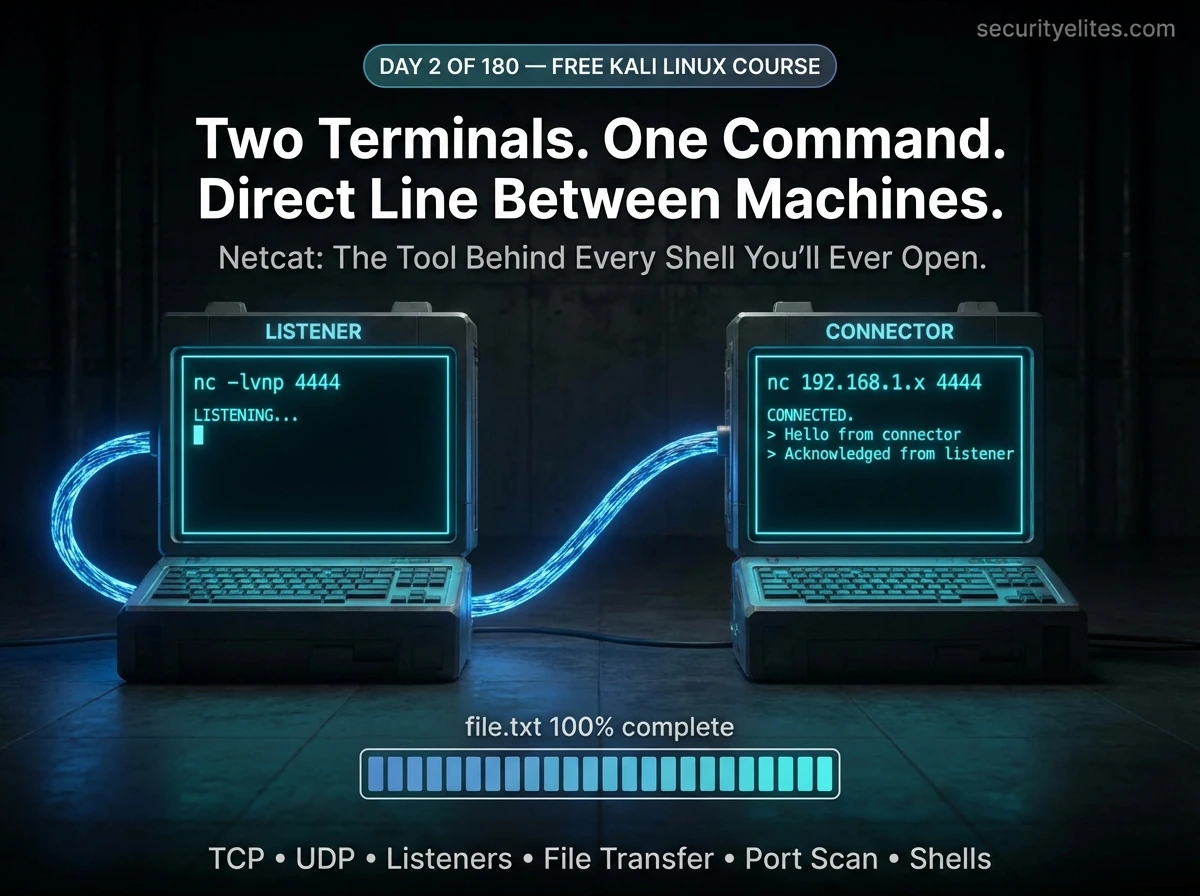
Yesterday you used Nmap to see everything on a network. Today you’re going to reach out and touch it. Netcat — shortened to nc — is the raw, direct way to make a network connection with nothing between you and the destination except TCP or UDP packets. No browser. No client software. Just you, a port number, and a stream of bytes flowing both directions.
People call it the Swiss Army Knife of networking because it does an extraordinary number of things with a tiny, single tool: connect to any port, listen on any port, send files, receive files, scan ports, grab service banners, and create direct communication channels between machines. Almost every advanced technique in this course — reverse shells in Metasploit, file exfiltration in penetration tests, catching callbacks from exploited systems — uses Netcat or relies on the same concepts Netcat teaches.
When you finish today, you will understand networking at a level most developers never reach. Let’s begin with the fundamentals — and build up to the techniques that matter in real security work.
What Is Netcat and Why Is It Called the Swiss Army Knife of Networking?
Netcat was originally written by Hobbit in 1995 — one year before the first iPhone prototype was even conceived. Like Nmap, it has outlasted a generation of flashier tools because its design is fundamentally correct: do one thing (move bytes across a network connection) and do it perfectly, without unnecessary complexity.
The reason Netcat is called the Swiss Army Knife is not marketing — it is literal. A Swiss Army Knife has the same physical blade performing different functions depending on which attachment you flip open. Netcat has the same underlying mechanism (TCP/UDP socket) performing completely different functions depending on which flags you give it:
🔧 The Same Tool — Completely Different Jobs
🔌
TCP/UDP CLIENT
Connect to any port on any host
👂
PORT LISTENER
Wait for incoming connections on any port
📁
FILE TRANSFER
Send and receive files without SCP/FTP
🔍
PORT SCANNER
Quick check — which ports are open?
🏷️
BANNER GRABBER
Read what a service announces when you connect
💬
NETWORK CHAT
Raw terminal-to-terminal communication
STEP 1
Verify Netcat Is Installed in Kali Linux
Kali Linux ships with multiple Netcat variants. The two you will encounter most are nc (the traditional OpenBSD Netcat) and ncat (the modern Nmap reimplementation). Let’s verify both are available.
# Check the traditional nc command
┌──(kali㉿kali)-[~]
└─$ nc -h
OpenBSD netcat (Debian patchlevel 1.226-1)
usage: nc [-46CDdFhklNnrStUuvZz] [-I length] [-i interval] [-M ttl]
[-m minttl] [-O length] [-P proxy_username] [-p source_port]
[-q seconds] [-s sourceaddr] [-T keyword] [-V rtable] [-W recvlimit]
[-w timeout] [-X proxy_protocol] [-x proxy_address[:port]]
[destination] [port]
# Check the modern ncat (from Nmap)
└─$ ncat –version
Ncat: Version 7.94SVN ( https://nmap.org/ncat )
# Confirm which nc binary is actually running
└─$ which nc
/usr/bin/nc
└─$ ls -la /usr/bin/nc
lrwxrwxrwx 1 root root 20 Feb 12 2026 /usr/bin/nc -> /etc/alternatives/nc
If you see “command not found,” install with sudo apt install netcat-openbsd -y. For ncat: sudo apt install ncat -y. Both come with Kali by default.
STEP 2
Netcat Flags Explained — Know Every Option Before You Type
The power of Netcat is in its flags. Understanding what each flag does before you combine them eliminates confusion. Here are the flags you will use in every real-world scenario:
securityelites.comNETCAT (nc) FLAGS — COMPLETE REFERENCE
-l
Listen
Put Netcat in server mode — wait for an incoming connection instead of initiating one. The most important flag you will use.
-v
Verbose
Print status messages to stderr — shows “Listening on…” and “Connection received from…” confirmation messages.
-n
Numeric
No DNS resolution — use raw IP addresses only. Faster connections. Prevents information leakage via DNS queries.
-p
Port
Specify the source port (client mode) or the listening port (server mode). Always combine with -l to specify which port to listen on.
-u
UDP
Use UDP instead of TCP. Required for services like DNS (53), SNMP (161), TFTP (69). Default is TCP.
-z
Zero I/O
Scanning mode — connect but send no data. Used for port scanning. Netcat connects, checks if open, and immediately disconnects.
-w
Timeout
Set connection timeout in seconds. Essential for port scanning to avoid hanging on filtered ports: -w 1 = 1 second timeout.
The magic combination: nc -lvnp 4444 = Listen (-l) + Verbose (-v) + No-DNS (-n) + Port 4444 (-p 4444). This is the standard listener command you will type hundreds of times throughout this course.
Netcat Flags Reference — The seven core flags. Memorise the combination: nc -lvnp [port]. This sets up a verbose, no-DNS listener on your chosen port — the foundation of dozens of techniques throughout the 180-day course.
STEP 3
Connect to a Remote Port — The Client Side
In client mode, Netcat reaches out and connects to a specified IP address and port. This is what happens when you connect to any network service — Netcat just does it in its most primitive, transparent form. Let’s connect to a real web server on port 80 and see what happens at the raw HTTP level.
# Basic syntax: nc [target-ip-or-hostname] [port]
# Connect to a web server on port 80
└─$ nc scanme.nmap.org 80
GET / HTTP/1.1 <– type this, press Enter
Host: scanme.nmap.org <– type this, press Enter twice
HTTP/1.1 200 OK
Date: Wed, 25 Mar 2026 05:14:22 GMT
Server: Apache/2.4.7 (Ubuntu)
X-Powered-By: PHP/5.3.10-1ubuntu3.21
Content-Length: 7671
Content-Type: text/html
<html><head><title>Go ahead and ScanMe!</title>…
# What just happened:
# 1. nc connected to port 80 on scanme.nmap.org
# 2. We manually typed a raw HTTP GET request
# 3. The server responded with raw HTTP — exactly what your browser receives
# 4. We see the web server version: Apache/2.4.7
Notice what this tells you: we just manually spoke HTTP to a web server and it responded. This is exactly what your browser does — except the browser renders the HTML. Netcat shows you the raw exchange. scanme.nmap.org is a machine maintained by the Nmap project specifically for authorised scanning and testing practice.
# Connect to port 22 (SSH) — see the SSH banner immediately
└─$ nc 192.168.1.1 22
SSH-2.0-OpenSSH_8.9p1 Ubuntu-3ubuntu0.6
# The SSH daemon announces itself immediately on connection
# This is banner grabbing — getting free information just by connecting
# Connect with verbose flag to see connection details
└─$ nc -v 192.168.1.1 80
Connection to 192.168.1.1 80 port [tcp/http] succeeded!
STEP 4
Set Up a Netcat Listener — The Server Side
A listener is Netcat running in server mode — waiting on a port for someone to connect. This is one of the most important concepts in all of network security work. Every time you catch a reverse shell, receive a file over the network, or set up a backdoor for a penetration test, you start with a Netcat listener.
⚠️ Important — Use Two Terminals: For this step you need two terminal windows open simultaneously — one for the listener, one for the connector. In Kali, right-click the desktop → Open Terminal. Or press Ctrl+Alt+T for a new terminal. Arrange them side by side.
securityelites.comKali Linux — Two Terminals Side by Side
└─$ nc -lvnp 4444
Listening on 0.0.0.0 4444
█ (waiting for connection…)
-l = listen mode
-v = verbose (show connection status)
-n = no DNS resolution
-p = specify port (4444)
└─$ nc 127.0.0.1 4444
← connects to localhost port 4444
Hello from Terminal B!
(text typed here appears in Terminal A)
127.0.0.1 = localhost
Use actual IP for different machines
Any port number works (1–65535)
✓
After Terminal B connects, Terminal A shows: “Connection received on 127.0.0.1 [some port]” — the two terminals are now connected.
Two Terminals Side by Side — Terminal A runs the listener (nc -lvnp 4444), Terminal B connects to it (nc 127.0.0.1 4444). After connection, anything typed in either terminal appears in the other. This is the fundamental model of Netcat communication.
## ── TERMINAL A (run this first) ───────────────────────────
└─$ nc -lvnp 4444
Listening on 0.0.0.0 4444
# Netcat is now waiting. Nothing more happens until someone connects.
## ── TERMINAL B (open a new terminal, run this second) ─────
└─$ nc -v 127.0.0.1 4444
Connection to 127.0.0.1 4444 port [tcp/*] succeeded!
## ── Back in TERMINAL A ─────────────────────────────────────
Connection received on 127.0.0.1 49832
# The two terminals are now connected.
# Type anything in either terminal — it appears in the other.
# Press Ctrl+C in either terminal to close the connection.
STEP 5
Two-Machine Communication — Network Chat with Netcat
This exercise uses two machines on the same network — or two virtual machines in your lab. It perfectly demonstrates the listener/connector model that every network shell, reverse connection, and file transfer in this course builds upon.
## ── MACHINE A: Start the listener ──────────────────────────
kali@machineA:~$ nc -lvnp 9001
Listening on 0.0.0.0 9001
## ── MACHINE B: Connect to Machine A ────────────────────────
kali@machineB:~$ nc -v 192.168.1.10 9001
Connection to 192.168.1.10 9001 port [tcp/*] succeeded!
## ── Back on Machine A: Connection confirmed ────────────────
Connection received on 192.168.1.20 54312
## ── Now type on Machine B ───────────────────────────────────
Hello Machine A! Can you see this?
# This text appears on Machine A’s terminal instantly
## ── Machine A replies ──────────────────────────────────────
Yes! This is raw TCP communication. No app. No protocol overhead.
# Direct bytes flowing over the network connection
# Ctrl+C on either side closes the connection
💡 Mr Elite’s Insight: What you just built is the simplest possible network application — two endpoints connected by a TCP stream, passing bytes in both directions. This is the exact same model used by SSH, FTP, HTTP, and every other network protocol. The only difference is that those protocols define a structured conversation over that raw stream. Netcat skips the structure — giving you direct access to the pipe itself.
STEP 6
File Transfer with Netcat — No SCP, No FTP, No Hassle
One of Netcat’s most practical capabilities is file transfer. In penetration testing, you frequently need to move files between machines — uploading tools to a compromised system, exfiltrating data back to your Kali machine, or transferring scripts between VMs in your lab. When SCP is unavailable or too conspicuous, Netcat transfers files directly over any open TCP port.
The mechanism is shell redirection: < feeds file content into Netcat’s connection, and > writes everything Netcat receives into a file. No special protocol needed.
## ── RECEIVER MACHINE: Set up listener, redirect output to file ─
receiver:~$ nc -lvnp 4444 > received_file.txt
Listening on 0.0.0.0 4444
# Everything received on port 4444 goes into received_file.txt
## ── SENDER MACHINE: Connect and redirect file as input ─────
sender:~$ nc -w 3 192.168.1.10 4444 < secret_notes.txt
# -w 3 = close connection 3 seconds after EOF (file end)
# < secret_notes.txt feeds the file into the connection
# The connection auto-closes when transfer completes
## ── RECEIVER: Verify the file arrived intact ────────────────
receiver:~$ cat received_file.txt
This is my secret notes file contents…
## ── Compare sizes to verify complete transfer ───────────────
sender:~$ wc -c secret_notes.txt
1843 secret_notes.txt
receiver:~$ wc -c received_file.txt
1843 received_file.txt ✓ Sizes match — transfer complete
# Transfer a zip archive
receiver:~$ nc -lvnp 5555 > tools.zip
sender:~$ nc -w 3 192.168.1.10 5555 < tools.zip
# Transfer an entire directory (compress first)
sender:~$ tar czf – /opt/tools/ | nc -w 3 192.168.1.10 5555
receiver:~$ nc -lvnp 5555 | tar xzf –
# This compresses, transfers, and extracts in a single pipeline
STEP 7
Port Scanning with Netcat — Quick Open Port Check
Netcat is not a port scanner — use Nmap (Day 1) for proper scanning. But in situations where Nmap is not available (perhaps you’re on a system without it installed), Netcat’s -z (zero I/O) flag offers basic port checking capability.
# Check a single port
└─$ nc -zv 192.168.1.1 80
Connection to 192.168.1.1 80 port [tcp/http] succeeded!
# Check a range of ports (with timeout to skip closed/filtered)
└─$ nc -zvn -w 1 192.168.1.1 20-100
Connection to 192.168.1.1 22 port [tcp/*] succeeded!
Connection to 192.168.1.1 53 port [tcp/*] succeeded!
Connection to 192.168.1.1 80 port [tcp/*] succeeded!
# Only open ports print success messages
# -w 1 = 1 second timeout per port (don’t hang on filtered)
# Check specific named ports
└─$ nc -zv 192.168.1.1 22 80 443 3306 5432
Connection to 192.168.1.1 22 port [tcp/ssh] succeeded!
Connection to 192.168.1.1 80 port [tcp/http] succeeded!
nc: connect to 192.168.1.1 port 3306 (tcp) failed: Connection refused
# 3306 (MySQL) not running on this target
STEP 8
Banner Grabbing — Free Intelligence from Open Ports
Many network services announce themselves the moment you connect — they send a “banner” containing the service name, software version, and sometimes operating system details. This is called banner grabbing, and it is one of the simplest forms of passive intelligence gathering in penetration testing. Netcat makes it trivial.
# ── SSH banner (port 22) — immediate response ────────────────
└─$ nc 192.168.1.112 22
SSH-2.0-OpenSSH_7.9p1 Debian-10+deb10u2
# Software: OpenSSH 7.9p1 | OS hint: Debian 10 (Buster)
# Research CVEs for OpenSSH 7.9: multiple known issues
# ── FTP banner (port 21) ─────────────────────────────────────
└─$ nc 192.168.1.112 21
220 (vsFTPd 3.0.3)
# FTP server: vsFTPd 3.0.3 — check for anonymous login
# ── SMTP banner (port 25) ────────────────────────────────────
└─$ nc 192.168.1.112 25
220 mail.example.com ESMTP Postfix (Ubuntu)
# Mail server: Postfix on Ubuntu. Try VRFY command to enum users
# ── HTTP banner — manual request to get server header ────────
└─$ echo -e “HEAD / HTTP/1.0\r\n\r\n” | nc 192.168.1.112 80
HTTP/1.1 200 OK
Server: Apache/2.4.38 (Debian)
X-Powered-By: PHP/7.3.27-1~deb10u1
# Apache version + PHP version in one banner grab
STEP 9
UDP Mode — The -u Flag
Everything above used TCP — a connection-oriented protocol that guarantees delivery. UDP is connectionless — it fires packets without confirmation. Many critical services use UDP: DNS (port 53), SNMP (161), TFTP (69), and DHCP (67/68). Netcat supports UDP with the -u flag.
# ── UDP listener ─────────────────────────────────────────────
└─$ nc -lvnup 5005
Listening on 0.0.0.0 5005
# -u flag added = UDP mode listener
# ── UDP client (different terminal) ─────────────────────────
└─$ nc -u 127.0.0.1 5005
Hello over UDP!
# UDP has no connection confirmation — no “succeeded” message
# Data still flows, but no delivery guarantee
# ── DNS query test via UDP (port 53) ─────────────────────────
└─$ nc -u -w 1 -zv 8.8.8.8 53
Connection to 8.8.8.8 53 port [udp/domain] succeeded!
# Google DNS port 53 UDP is open and responding
STEP 10
Understanding Bind vs Reverse — The Most Important Concept in Network Security
This is the most conceptually important section of Day 2. The distinction between a bind connection and a reverse connection is foundational to understanding how network shells work — a concept that appears constantly in Metasploit, penetration testing methodology, and CTF challenges throughout this course.
securityelites.comBIND CONNECTION vs REVERSE CONNECTION — CONCEPT DIAGRAM
🖥️
ATTACKER
initiates
connection
→ CONNECTS →
attacker reaches out
🎯
TARGET
listening on
a port
# Target runs listener:
nc -lvnp 4444
# Attacker connects:
nc 192.168.1.target 4444
Problem: Most firewalls block inbound connections to target machines. Bind often fails in real-world scenarios.
🖥️
ATTACKER
listener
waiting
← CONNECTS ←
target reaches out
# Attacker runs listener:
nc -lvnp 4444
# Target connects back:
nc 192.168.1.attacker 4444
Why it works: Firewalls allow outbound connections. Target initiates the connection — so firewall lets it through. Used in 95% of real penetration tests.
Bind vs Reverse Connection — In a bind connection the attacker connects to the target. In a reverse connection the target connects back to the attacker. Reverse connections bypass firewalls because firewalls typically allow outbound traffic. This concept is fundamental to Metasploit and all exploit delivery throughout this course.
⭐ Bonus — Ncat: The Modern, Encrypted Netcat
Ncat is the Nmap project’s modern reimplementation of Netcat. The syntax is almost identical to nc, but Ncat adds powerful features that make it preferable for professional use — most importantly, SSL/TLS encryption for encrypted file transfers and communication channels.
# ncat syntax is largely identical to nc
└─$ ncat -lvnp 4444 # Same as nc -lvnp 4444
# ── Encrypted listener with SSL ──────────────────────────────
└─$ ncat -lvnp 4444 –ssl
Ncat: Generating a temporary 2048-bit RSA key. Use –ssl-key and –ssl-cert to use a permanent one.
Ncat: SHA-1 fingerprint: A4B2 3F1C … (fingerprint shown)
Ncat: Listening on 0.0.0.0:4444
# ── Encrypted client connection ──────────────────────────────
└─$ ncat –ssl 192.168.1.10 4444
# All data now flows encrypted — cannot be intercepted in transit
# ── Encrypted file transfer ──────────────────────────────────
receiver:~$ ncat -lvnp –ssl 5555 > secret_file.zip
sender:~$ ncat –ssl 192.168.1.10 5555 < secret_file.zip
# Transfer is now TLS-encrypted — ideal for sensitive data
Netcat Commands Cheat Sheet — The Complete Reference
securityelites.comNETCAT COMPLETE CHEAT SHEET — DAY 2 REFERENCE
LISTENER SETUP
nc -lvnp 4444
Standard TCP listener
nc -lvnup 5005
UDP listener
ncat -lvnp 4444 –ssl
Encrypted listener
CLIENT CONNECTIONS
nc [ip] [port]
Basic TCP connect
nc -v [ip] [port]
Verbose (see status)
nc -u [ip] [port]
UDP connect
FILE TRANSFER
# Receive:
nc -lvnp 4444 > file.txt
# Send:
nc -w 3 [ip] 4444 < file.txt
# Dir transfer (pipe):
tar czf – /dir | nc [ip] 4444
PORT SCAN + BANNER GRAB
nc -zv [ip] 80
Single port check
nc -zvn -w1 [ip] 20-100
Port range scan
nc [ip] 22
Grab SSH banner (immediate)
USEFUL COMBINATIONS
echo “HEAD / HTTP/1.0\n\n” | nc [ip] 80
HTTP header grab
nc -lvnp 4444 | tee captured.txt
Receive and log data
ncat –ssl [ip] 4444
Encrypted connection
IMPORTANT NOTES
⚠️ Only scan/connect to authorised systems
⚠️ nc -lvnp closes after 1st connection by default
✅ Ctrl+C closes either end of a connection
✅ Use -w [secs] to timeout stuck connections
✅ Prefer ncat for encrypted transfers
Netcat Complete Cheat Sheet — Every command pattern you need for Day 2 through professional security work. The file transfer and listener patterns will appear in dozens of future days in this course. Screenshot and save this reference.
🎯 Day 2 Task — Your Netcat Practical Challenge
📋 COMPLETE ALL TASKS BEFORE DAY 3
1
Set up a listener and connect to it from a second terminal
Open two terminals. Run nc -lvnp 4444 in Terminal A. Connect with nc -v 127.0.0.1 4444 in Terminal B. Type a message in Terminal B and confirm it appears in Terminal A. This is the foundational exercise — do not skip it.
✅ Goal: Two-way text flow confirmed between two terminals
2
Transfer a file between two terminals
Create a test file: echo "Day 2 Netcat Test" > test.txt. Use the receiver/sender pattern to transfer it. Verify the received file matches using wc -c on both sides.
✅ Goal: File transferred and byte counts match
3
Grab banners from 3 open ports on your router
From your Day 1 Nmap scan results, pick 3 open ports on your router. Connect to each with Netcat and note what banner (if any) each service displays. Which services announce their software version? Compare what Netcat banner-grabbing reveals vs what nmap -sV showed.
✅ Goal: Document 3 service banners and their version info
4
Connect to scanme.nmap.org port 80 and manually request a page
Run nc scanme.nmap.org 80, then type GET / HTTP/1.0 followed by pressing Enter twice. Read the full response. Note the Server header. This is authorised — scanme.nmap.org exists specifically for this kind of practice.
✅ Goal: Receive and read the HTTP response, note server version
★
BONUS: Complete TryHackMe’s “What the Shell?” Room
TryHackMe’s
Intro to Shells room covers the exact concepts from today — listeners, connections, and the bind vs reverse distinction — with guided hands-on exercises. It is free with a TryHackMe account and takes 60–90 minutes. Completing it cements everything from Day 2 with practical repetition. Share your completion badge with #Day2Done 🔵
🔌
Day 2 Complete. You can make raw network connections,
listen on ports, transfer files, and grab service banners.
Day 3 of the Kali Linux Course teaches you Gobuster completely — every mode, every important flag, the right wordlists for every situation, and hands-on practice against DVWA. By the end you will have found your first hidden directory, understand how to hunt for file extensions and subdomains, and know exactly when to use Gobuster versus ffuf.
Day 3: Gobuster Tutorial →
Frequently Asked Questions — Netcat Tutorial
What is Netcat and what is it used for?
Netcat is a command-line networking utility that reads and writes data across TCP and UDP connections. It creates raw network connections, listens on ports, transfers files, scans ports, and grabs service banners. Called the Swiss Army Knife of networking because one tool — with different flags — handles many completely different jobs.
What is the difference between nc -l and nc -lvnp?
nc -l is the minimum listener. nc -lvnp adds: -v (verbose — shows connection status messages), -n (numeric — no DNS, faster and quieter), -p (port — explicitly specify the listening port). The combination nc -lvnp [port] is the standard form used in all professional security work because the verbose output confirms when connections arrive.
What is the difference between a bind connection and a reverse connection?
In a bind connection, the target runs a listener and the attacker connects to it. In a reverse connection, the attacker runs the listener and the target connects back out to the attacker. Reverse connections are used far more in practice because most firewalls allow outbound connections from targets but block inbound connections to them — so a reverse connection bypasses the firewall restriction.
How do I transfer files with Netcat?
Receiver runs: nc -lvnp 4444 > output_file. Sender runs: nc -w 3 [receiver-ip] 4444 < file_to_send. The < feeds file content into Netcat, and > writes received data to a file. Use -w 3 on the sender to close the connection 3 seconds after the file ends. Verify integrity by comparing file sizes with wc -c on both sides.
Is Ncat different from Netcat?
Ncat is the Nmap project’s modern reimplementation of Netcat. The syntax is almost identical but Ncat adds SSL/TLS encryption (–ssl flag), IPv6 support, and proxy support. For most tasks nc and ncat are interchangeable. For encrypted transfers or encrypted listeners, use ncat –ssl. Both come pre-installed on Kali Linux.
📚 Further Reading and Resources
ME
Mr Elite
Founder, SecurityElites.com | Penetration Tester | Kali Linux Educator
The first time I sent a file across a network using only Netcat and shell redirection — no SCP, no FTP, no protocol overhead, just raw bytes flowing through a TCP connection — was the moment I understood that “networking” is really just bytes moving between sockets, and everything else is just agreed-upon structure on top of that. Netcat strips away the structure and shows you the socket. Once you see that, every other networking tool makes sense immediately. Day 2 done. 178 to go.