
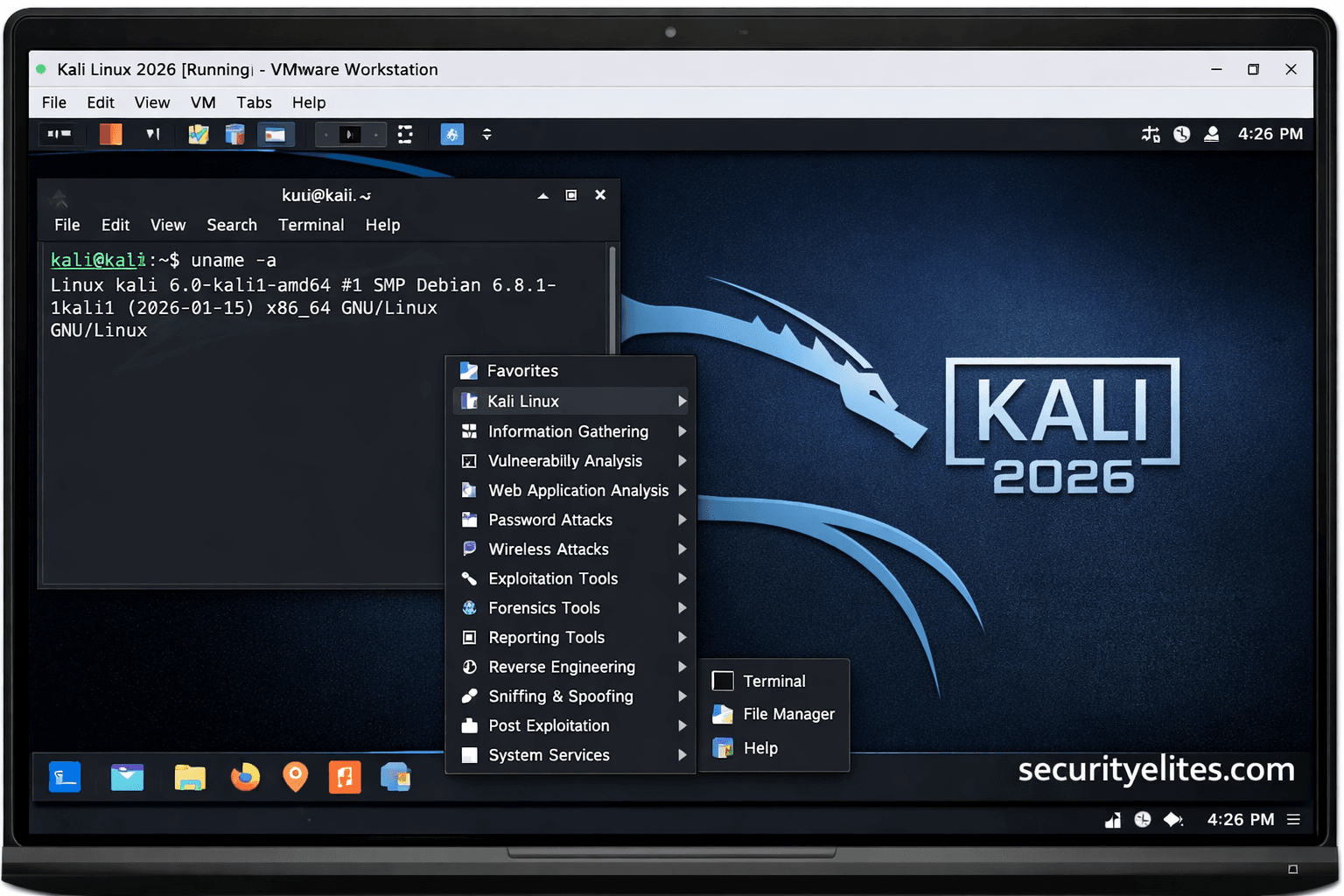
I still remember the first time I installed Kali Linux.
Not in a lab. Not in a classroom. But in the middle of a live incident response case where we had to analyze a compromised server overnight. No fancy UI walkthroughs, no YouTube safety net — just raw necessity.
And that’s the thing about Kali Linux installation…
Most beginners treat it like installing Windows. Click-next-next-finish.
But Kali isn’t just an operating system — it’s a full-blown offensive security platform. Install it wrong, and tools break, drivers fail, updates crash, and suddenly your “ethical hacking lab” becomes a troubleshooting nightmare.
So let me walk you through this the way I teach junior analysts and red-team trainees — step-by-step, with real-world clarity, not lab-manual stiffness.
Understanding What Kali Linux Really Is
Let me break this down in simple terms…
Kali Linux is a Debian-based Linux distribution built specifically for:
- Penetration Testing
- Ethical Hacking
- Digital Forensics
- Wireless Attacks
- Reverse Engineering
- Red Team Operations
It comes preloaded with 600+ security tools — from network scanners to exploit frameworks.
Now here’s where most beginners get confused…
They think Kali makes hacking “automatic.”
Nope.
Kali is just the toolbox. You’re the mechanic.
Installing it properly ensures:
- Tool stability
- Driver compatibility
- GPU acceleration (for password cracking)
- Secure lab isolation
Choosing Your Installation Method
Before we jump into the Kali Linux Installation Guide 2026 steps, you need to decide how you want to install it.
In professional environments, we use multiple setups depending on engagement needs.
Option 1 — Virtual Machine (Recommended for Beginners)
Best for:
- Practice labs
- Learning tools
- Safe testing
Tools used:
- VMware Workstation / Player
- VirtualBox
Option 2 — Dual Boot
Best for:
- Students with one system
- Hardware tool testing
- GPU cracking labs
This Kali Linux Installation Guide 2026 will help you navigate the installation process smoothly.
Risk: Can break Windows bootloader if done wrong.
Option 3 — Bare Metal (Full Install)
Best for:
- Red Team operators
- Field pentesters
- Dedicated security laptops
Option 4 — Live USB (Portable Kali)
Used in real assessments when you don’t want traces on hardware.
Step-by-Step Kali Linux Installation (VM Method)
We’ll start with the safest and most practical route — Virtual Machine installation.
This is how 80% of my trainees begin.
Step 1 — Download Kali Linux ISO
Go to the official Kali website and download:
- Installer ISO (64-bit)
- Choose: Kali Linux Installer (not Live)
File size: ~4 GB
Checklist Before Downloading
- Stable internet
- 10 GB free disk space
- Torrent or direct download
Step 2 — Verify ISO Integrity (Often Ignored)
Beginner Mistake Alert 🚨
Most people skip checksum verification.
In real assessments, corrupted ISOs cause:
- Tool crashes
- Update failures
- Kernel panics
Use:
sha256sum kali-linux-2026.iso
Match it with the official hash.
Takes 30 seconds. Saves hours.
Step 3 — Install Virtualization Software
You can use either:
- VMware Workstation Player
- Oracle VirtualBox
In professional labs, VMware is preferred for:
- Better USB support
- Wireless adapter passthrough
- Performance stability
Minimum VM Specs:
- RAM: 4 GB (8 GB recommended)
- CPU: 2 cores
- Disk: 60 GB
Step 4 — Create New Virtual Machine
Steps:
- Click Create New VM
- Select Installer Disc Image File (ISO)
- Choose Kali ISO
- OS Type → Linux
- Version → Debian 64-bit
Now allocate resources:
- RAM → 4096 MB+
- CPU → 2–4 cores
- Disk → 60 GB (Thin Provisioned)
Pro Tip from Field Experience 💡
Always allocate more disk than you think you need. Tool datasets, wordlists, and captures grow fast.
Step 5 — Start Kali Linux Installer
Boot the VM.
You’ll see the Kali boot menu.
Select:
Graphical Install
Why?
- Easier partitioning
- Driver auto-detection
- Beginner friendly
Step 6 — Language, Region & Keyboard
Choose:
- Language → English
- Location → Your Region
- Keyboard → Default
No hacking magic here — just system localization.
Step 7 — Network Configuration
If using NAT (default in VM):
- Auto DHCP assignment works fine.
In real pentest labs, we sometimes use:
- Bridged networking
- Host-only labs
- Isolated VLAN ranges
But for beginners — keep it simple.
Step 8 — Set Username & Password
You’ll create:
- Full Name
- Username
- Password
Since 2020+, Kali uses non-root default user for safety.
Example:
- Username: kali
- Password: Strong custom pass
Beginner Mistake Alert 🚨
Using weak passwords in a hacking OS is ironic — but extremely common.
Step 9 — Disk Partitioning
Now this part scares beginners unnecessarily.
Select:
Guided – Use Entire Disk
Then:
- All files in one partition
That’s enough for lab use.
In enterprise forensic systems, we use:
- Separate /home
- Encrypted partitions
- LVM setups
But not needed here.
Step 10 — Installation Process
Now Kali installs:
- Base system
- Desktop environment
- Tool repositories
Time required:
- SSD → 15–25 mins
- HDD → 30–50 mins
Go grab coffee ☕
Step 11 — GRUB Bootloader Installation
Select:
Yes → Install GRUB
Choose primary disk:
- /dev/sda
Without GRUB, system won’t boot.
Step 12 — Installation Complete
Reboot VM.
Login using credentials you created.
And there it is…
Your first Kali desktop.
Post-Installation Essential Setup
Now here’s where real professionals differ from hobbyists…
We never use Kali “as installed.”
First thing we do — update everything.
sudo apt update && sudo apt full-upgrade -y
Why?
- Tool patches
- Exploit updates
- Kernel fixes
- Repository sync
Tools Commonly Used After Installation
In real assessments, these tools are opened within hours of installation:
Reconnaissance
- Nmap
- Amass
- Maltego
Exploitation
- Metasploit Framework
- Searchsploit
Web Testing
- Burp Suite
- OWASP ZAP
- Nikto
Wireless Testing
- Aircrack-ng
- Wifite
- Reaver
Password Attacks
- Hydra
- John the Ripper
- Hashcat (GPU dependent)
Pro Tip from Field Experience 💡
Always test GPU compatibility early if you plan password cracking labs.
Mini Real-World Scenario
Let me share a quick field story…
During a banking security assessment, a junior analyst installed Kali the night before testing.
He skipped updates.
Metasploit database failed. Exploits crashed. Modules missing.
We lost half a day fixing repositories instead of testing vulnerabilities.
Lesson?
Installation isn’t complete until the environment is operationally ready.
Common Mistakes Seen in the Field
1. Installing on Low RAM Systems
Result:
- Freezing tools
- Slow scans
- VM crashes
Minimum practical RAM → 8 GB host system.
2. Ignoring Wireless Adapter Compatibility
Not all adapters support:
- Monitor mode
- Packet injection
Chipsets matter more than brand.
3. Using Kali as Daily OS
Big no.
Kali is not designed for:
- Gaming
- Office work
- Personal browsing
Keep it lab-focused.
4. Skipping Snapshots (VM Users)
Before major tool installs:
Take snapshots.
Saved me countless rebuild hours during malware testing.
Pro Tips from 20 Years of Experience
🔐 Use Separate Lab Networks
Never scan public IPs without authorization.
⚡ Enable Clipboard Isolation in VMs
Prevents malware escape vectors.
💾 Maintain Tool Backups
Custom scripts & wordlists are gold.
🧠 Document Your Install Steps
In incident work, reproducibility matters.
Defensive & Ethical Considerations
Let’s address the elephant in the room…
Kali Linux is powerful.
Misused, it becomes illegal very quickly.
Golden Rules I teach every student:
- Never scan systems without written consent
- Use lab environments (TryHackMe, HackTheBox, local labs)
- Follow responsible disclosure
- Understand cyber laws in your country
Ethical hacking without ethics… is just hacking.
Quick Installation Checklist
✔ Download official ISO
✔ Verify checksum
✔ Install VMware / VirtualBox
✔ Allocate 4–8 GB RAM
✔ Use Guided Disk Partition
✔ Install GRUB
✔ Update system post install
✔ Test core tools
Quick Recap Summary
Let’s compress everything we covered:
- Kali Linux is a penetration testing OS
- VM install is safest for beginners
- Always verify ISO integrity
- Allocate proper resources
- Use guided partitioning
- Update tools immediately
- Avoid using Kali as daily driver
- Follow ethical usage laws
If installation is done right… learning ethical hacking becomes 10× smoother.
FAQs
Is Kali Linux free?
Yes. Completely open-source.
No licensing cost. Just hardware requirements.
Can I install Kali on 4 GB RAM?
You can… but you’ll suffer.
Tools like Burp + browser + scanner will lag heavily.
8 GB is practical minimum today.
Is Kali Linux legal to use?
100% legal.
Illegal only when used against systems without permission.
Intent matters more than tool.
Which is better — VMware or VirtualBox?
VMware in professional labs:
- Better USB handling
- Stable networking
- Faster performance
VirtualBox is fine for beginners though.
Do I need Linux knowledge before installing Kali?
Not mandatory.
But basic terminal comfort helps massively.





[…] new learners install Kali Linux, run automated scanners, and expect vulnerabilities instantly. When results don’t appear, […]