🟢 Day 12 — Burp Suite Setup
Day 100 — Professional Pentester
12
Yesterday you learned what web applications are made of. Today you get the tool that lets you grab any piece of that structure, freeze it mid-flight, and change it. Burp Suite is the closest thing to a superpower in web application security testing — and in 15 minutes, you’ll have it configured and intercepting your first real HTTPS request.
From Day 12 forward, Burp Suite is open in your lab every single day. It’s not a tool you learn once — it’s a tool you get better at continuously. Let’s start from zero and build the setup that professionals use.
Burp Suite is made by PortSwigger and has been the industry standard web application security testing platform for over 15 years. The Community Edition is free, fully functional for manual testing, and pre-installed on Kali Linux. Professional penetration testers use it on every single web application engagement — for mapping, intercepting, manipulating, and analysing HTTP traffic.
What Burp Suite Actually Does — The Mental Model
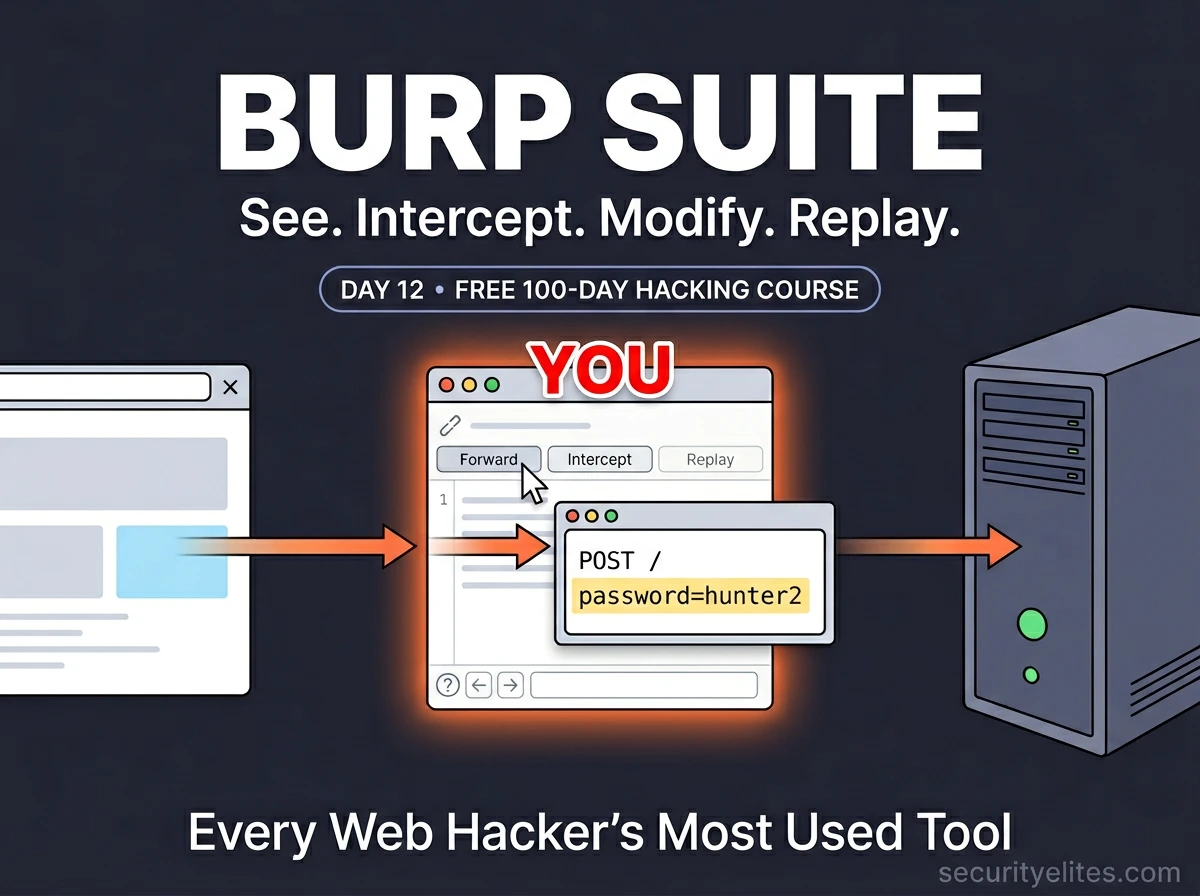
Burp Suite is a proxy — it sits between your browser and the internet. When you configure your browser to route traffic through Burp, every HTTP and HTTPS request your browser makes passes through Burp first, and every response from the server passes back through Burp before your browser renders it.
How Burp Intercepts Traffic
🌐
YOUR BROWSER
Sends requests
YOU ARE HERE
🔍
BURP SUITE
Sees everything
Can freeze, modify,
replay any request
🖥️
WEB SERVER
Receives requests,
sends responses
Without a proxy: Browser ↔ Server directly. With Burp: Browser → Burp (reads/modifies) → Server. Server cannot tell the difference.
This intercepting position gives you extraordinary power. You can read every request — including the POST body with login credentials, the session cookie in every header, the JSON payload in an API call. You can modify any of it before forwarding. Change a user ID. Add a SQL injection payload. Remove a security header. And you can replay any request as many times as you want with different modifications. That’s the testing workflow.
STEP 1
Launch Burp Suite
Burp Suite is pre-installed on every Kali Linux distribution. Launch it from the terminal or the Applications menu.
Launching Burp Suite on Kali Linux
# From terminal (recommended — keeps terminal available)
burpsuite &
# Or with Java arguments for more memory (helps on low-RAM systems)
java -jar /usr/share/burpsuite/burpsuite.jar &
# From Applications menu:
Applications → 03 – Web Application Analysis → burpsuite
# When Burp opens:
1. “Temporary project” → Next
2. “Use Burp defaults” → Start Burp
# Always use Temporary project for day-to-day practice
# Saved projects are for long-running engagements (Pro feature)
You’ll see Burp’s main interface with the Dashboard tab open. The critical tabs are: Proxy (intercept and history), Repeater (manual request replay), Decoder (encoding utilities), Intruder (automated fuzzing — throttled in Community Edition), and Target (site map and scope). We’ll use all of these today.
STEP 2
Configure the Browser Proxy
Burp listens by default on 127.0.0.1:8080. You need to tell Firefox to send its traffic to that address instead of directly to the internet. I recommend installing FoxyProxy — it lets you switch the proxy on and off instantly with one click, rather than digging into Firefox settings every time.
Two ways to configure browser proxy
# ── OPTION A: Firefox built-in proxy (manual) ──────────────
Firefox → ≡ Menu → Settings → scroll to “Network Settings”
→ Settings → Manual proxy configuration
HTTP Proxy: 127.0.0.1 Port: 8080
✓ Also use this proxy for HTTPS
No proxy for: localhost, 127.0.0.1
→ OK
# ── OPTION B: FoxyProxy (recommended — toggle in one click) ──
Firefox → Add-ons (Ctrl+Shift+A) → search “FoxyProxy Standard”
→ Add to Firefox → FoxyProxy icon appears in toolbar
→ Click icon → Options → Add new proxy:
Title: Burp Suite
Host: 127.0.0.1
Port: 8080
Type: HTTP
→ Save → click FoxyProxy icon → select “Burp Suite”
# Now: click icon → “Burp Suite” = proxy ON | “Disabled” = direct
# One click toggle. Much faster in daily use.
💡 Professional habit: Always verify Burp is listening before testing. Go to Burp → Proxy → Proxy settings → confirm “Running” next to 127.0.0.1:8080. If it’s not running, your browser will throw a “connection refused” error. Also — when you’re done testing, remember to turn the proxy off in FoxyProxy or your normal browsing will break.
STEP 3
Install Burp’s CA Certificate — Critical for HTTPS
Without this step, Burp can intercept HTTP but every HTTPS site will throw a certificate warning. Burp generates its own TLS certificate for each HTTPS site you visit — signed by Burp’s own Certificate Authority. By installing Burp’s CA cert in Firefox, you’re telling Firefox to trust those dynamically generated certificates. This is what enables seamless HTTPS interception.
Installing Burp’s CA certificate — do this once per Firefox profile
# Step 1: With Burp running AND proxy active in Firefox
Navigate to: http://burpsuite
# This is Burp’s built-in web interface — only accessible via proxy
Page loads showing “Burp Suite Community Edition” welcome page
# Step 2: Download the certificate
Click “CA Certificate” button (top right)
→ File downloads: cacert.der (about 1KB)
# Step 3: Import into Firefox
Firefox → ≡ Menu → Settings → Privacy & Security
→ Scroll down → “View Certificates” button
→ Authorities tab → Import → select cacert.der
→ ✓ “Trust this CA to identify websites” → OK
# Certificate imported. HTTPS sites now work through Burp.
# Verification: visit an HTTPS site with proxy ON
https://google.com (with proxy enabled)
# No certificate warning = CA cert installed correctly
# “Warning: Potential Security Risk” = CA cert not installed
⚠️ Security note: Burp’s CA certificate gives Burp the ability to decrypt your HTTPS traffic. This is exactly what you want for security testing, but it means you should only install Burp’s CA cert in a dedicated testing browser profile — not your everyday personal Firefox profile. In Kali Linux, Firefox is used exclusively for testing anyway, so this is fine. Never install an unknown CA certificate from an untrusted source.
STEP 4
Your First Intercept — DVWA Login Request Mid-Flight
Now the moment everything has been building to. We’re going to intercept a login request to DVWA — freeze it mid-flight, read the credentials in plain text, and understand what we’re seeing. Then we’ll modify it and see what happens.
First intercept — DVWA login request step by step
# Preparation
1. Burp Suite open, proxy running on 127.0.0.1:8080
2. Firefox proxy set to Burp (FoxyProxy on)
3. Metasploitable 2 running (or DVWA on localhost)
4. In Burp: Proxy tab → Intercept → click “Intercept is off” → turns ON
# Action: navigate to DVWA login
Firefox → http://192.168.56.101/dvwa/login.php
# The page appears to hang — Burp has intercepted the GET request
# In Burp Intercept tab, you see:
GET /dvwa/login.php HTTP/1.1
Host: 192.168.56.101
Cookie: PHPSESSID=abc123; security=low
User-Agent: Mozilla/5.0…
# Click “Forward” to let this request through
# DVWA login page renders. Now type credentials and click Login
Username: admin
Password: password
[Click Login]
# Burp intercepts the POST request — THIS is what you’ve been waiting for
POST /dvwa/login.php HTTP/1.1
Host: 192.168.56.101
Content-Type: application/x-www-form-urlencoded
Cookie: PHPSESSID=abc123; security=low
username=admin&password=password&Login=Login&user_token=3f9a…
# The credentials. In clear text. You could change “admin” to anything.
# Click Forward to complete the login.
Take a moment with that. You just intercepted a live login request. You can see the username, password, and session token. You can modify any field before forwarding. You could change username=admin to username=administrator and see if that user exists. You could add a SQL injection payload to the username field. You could delete the user_token (CSRF token) and see if the server validates it. The testing has begun.
HTTP History — Passive Reconnaissance Without Touching Anything
The Intercept tab catches requests one at a time. HTTP History is different — it silently logs every request and response while you browse normally, without freezing anything. Turn off Intercept and browse through DVWA — every click, every page load, every API call is recorded. This is your first view of the application’s complete traffic pattern.
Using HTTP History for application mapping
# Step 1: Turn Intercept OFF (just click the button)
Proxy → Intercept → “Intercept is on” → click → now says “Intercept is off”
# Step 2: Browse DVWA normally — click every menu item
Click: SQL Injection, XSS, File Upload, Brute Force… everything
# Step 3: Review HTTP History — Proxy → HTTP History
# You’ll see every request logged. Click any row to inspect it.
# │ Method │ URL │ Status │ Length
1 │ GET │ /dvwa/ │ 302 │ 371
2 │ GET │ /dvwa/index.php │ 200 │ 4821
3 │ GET │ /dvwa/vulnerabilities/sqli/ │ 200 │ 5234
4 │ GET │ /dvwa/vulnerabilities/xss_r/ │ 200 │ 4891
# Right-click any request → useful actions:
Send to Repeater # Test this request manually
Send to Intruder # Automated fuzzing (throttled in Community)
Copy as curl command # Reproduce in terminal
# Filter the history to find interesting requests
# Filter bar (top of HTTP History) → type “POST” → shows only POST requests
# Or type “sqli” → shows only SQL injection-related requests
Repeater — Where the Real Testing Happens
The Repeater is where you’ll spend the majority of your testing time. It lets you take any captured request, modify it in any way, send it, and see the full response — instantly. No need to re-navigate the browser, re-fill forms, or re-trigger complex application flows. One click → modified → send → read response. Repeat hundreds of times until you find the vulnerability.
Repeater workflow — testing the DVWA SQL injection page
# Step 1: Capture a request to the SQL injection page
# Browse to DVWA → SQL Injection
# In the User ID field, type: 1
# Click Submit — intercept or find in HTTP History
# Step 2: Send to Repeater
# Right-click request → “Send to Repeater”
# Click the Repeater tab
# Step 3: The request appears in the left panel — editable
GET /dvwa/vulnerabilities/sqli/?id=1&Submit=Submit HTTP/1.1
Host: 192.168.56.101
Cookie: PHPSESSID=abc123; security=low
# Step 4: Modify and send — test with a single quote first
Change: id=1 → id=1′
[Click Send]
# Right panel shows server response
# Response: “You have an error in your SQL syntax…”
# SQL error in the response = SQL injection confirmed
# Test more payloads without leaving Repeater
id=1 OR 1=1– → returns all users
id=1 AND 1=2 → returns nothing (boolean test)
id=1′– – → comment out rest of query
# Each sends instantly. Response appears on the right. No browser needed.
💡 Repeater keyboard shortcut: Ctrl+R sends the current request in Repeater. Ctrl+Shift+R sends with automatic follow of redirects. Learning these shortcuts makes testing dramatically faster — you can send dozens of modified requests per minute without touching the mouse.
Decoder — Unmasking Obfuscated Data
Web applications frequently encode data — URL encoding, Base64, HTML entities, hex. When you encounter a suspicious-looking string in a cookie, a hidden form field, or a URL parameter, the Decoder tab decodes it instantly. It’s also essential for constructing payloads in specific encoding formats.
Decoder — real-world examples from DVWA
# Example 1: URL-encoded form data in a POST request
username=admin&password=p%40ssw0rd%21
# Paste into Decoder → Decode as → URL
username=admin&password=p@ssw0rd!
# %40 = @ and %21 = ! — now readable
# Example 2: Base64-encoded cookie value
Cookie: user=eyJpZCI6MSwicm9sZSI6InVzZXIifQ==
# Paste into Decoder → Decode as → Base64
{“id”:1,”role”:”user”}
# Role is stored in the cookie — change to “admin” → encode back → replace cookie
# Example 3: Construct a payload in the right encoding
# You want to inject: <script>alert(1)</script>
# But angle brackets are filtered. Try HTML encoding:
Paste: <script>alert(1)</script>
Encode as → HTML
<script>alert(1)</script>
# Decoder supports: URL, Base64, HTML, Hex, ASCII, GZIP, and more
# Chain multiple operations (decode Base64 then URL decode)
Setting Target Scope — Professional Discipline in Burp
When you browse with Burp active, it captures traffic from every domain — your lab target, Google, Firefox’s background requests, everything. On a real engagement, this noise makes the HTTP History hard to use. Scope keeps Burp focused on your target and prevents accidentally testing out-of-scope systems.
Setting and using target scope
# Method 1: Add from HTTP History
# Right-click any request → Add to scope
# Burp asks “Do you want to stop logging out-of-scope items?” → Yes
# Method 2: Manual scope definition
Target tab → Scope tab → Include in scope → Add
Protocol: http
Host: 192.168.56.101
Port: 80
File: /dvwa/.* (regex for any DVWA path)
# View your site map — all traffic to scoped targets
Target → Site Map
# Burp builds a tree of every URL, parameter, and form it’s seen
# Right-click any node → “Send to Scanner” (Pro) or inspect manually
# Filter HTTP History to scope only
Proxy → HTTP History → Filter bar → ✓ “Show only in-scope items”
# Now HTTP History only shows your target’s traffic — clean and focused
📋 Burp Suite Quick Reference — Shortcuts Every Tester Uses
| Action | Where | Shortcut / Method |
|---|
| Send to Repeater | Intercept or History | Ctrl+R or Right-click → Send to Repeater |
| Send request in Repeater | Repeater | Ctrl+Enter or click Send button |
| Forward intercepted request | Intercept | Ctrl+F or Forward button |
| Drop request (don’t forward) | Intercept | Drop button (deletes without forwarding) |
| Toggle Intercept on/off | Intercept | Ctrl+T or click Intercept button |
| Send to Intruder | Anywhere | Ctrl+I or Right-click → Send to Intruder |
| Send to Decoder | Anywhere | Ctrl+Shift+D or Right-click → Send to Decoder |
| Search in response | Repeater / History | Ctrl+F in the response panel |
| URL-encode selected text | Any text field | Select text → Ctrl+U |
🎯 Day 12 Practical Task
📋 DAY 12 CHECKLIST — DVWA + Burp Required
1
Complete the full Burp Suite setup (Steps 1–3)
Launch Burp. Configure FoxyProxy. Install the CA certificate. Verify HTTPS works without warnings. Take a screenshot of Burp’s Proxy tab with the proxy running — your setup proof.
2
Intercept and inspect the DVWA login POST request
Turn on Intercept. Log into DVWA. Catch the POST request. Read the credentials. Note the CSRF token (user_token). Forward it to complete login. What headers does the server set in the response? Is the session cookie HttpOnly?
3
Send the SQL Injection request to Repeater and test payloads
# Browse DVWA → SQL Injection → submit id=1
# Send to Repeater, then try:
id=1′ → SQL error?
id=1 OR 1=1– → all users?
What response do you get? This is your first manual SQLi test — we do it properly on Day 13.
4
Decode DVWA’s session cookie in Decoder
Find the PHPSESSID cookie in HTTP History. Copy its value to Decoder. Try Base64 decode — is it encoded? URL decode? What does it look like? Understanding session token format helps assess predictability.
⭐ BONUS CHALLENGE — Modify a Request Mid-Flight
Intercept the DVWA login request. Before forwarding, change the username from admin to wronguser. Forward the modified request. What response do you get? Now try admin' OR '1'='1 as the username (keep the original password). What happens? Share your result in Telegram with #Day12Done 🔍
🔍
Burp Suite is running.
You’re intercepting. You’re modifying. You’re testing.
Day 12 is a milestone — not because Burp is complicated to set up, but because it changes what’s possible. From this point forward, every web vulnerability we study comes with a real Burp Suite demo in DVWA. Day 13 is SQL Injection — one of the most impactful and widely covered vulnerabilities in this field. With Burp ready, we do it properly.
Day 13: SQL Injection →
Frequently Asked Questions — Day 12
Why is Burp Suite Community Edition throttled for Intruder?
PortSwigger throttles Intruder in the free Community Edition to encourage upgrades to Professional (~$449/year). Community Intruder is limited to a very slow request rate, making it impractical for large wordlists. For most learning purposes this is fine — understanding how Intruder works is more important than speed. For lab use, Burp Community + FFUF (a free CLI fuzzer) together cover everything Professional Intruder does.
My browser shows “Connection refused” when Burp is on — why?
This means the browser is trying to connect to 127.0.0.1:8080 but nothing is listening there — Burp isn’t running or the proxy listener stopped. Check: (1) Is Burp Suite open? (2) Go to Proxy → Proxy settings → is 127.0.0.1:8080 listed as Running? If not, click the checkbox to start it. (3) If Burp is still loading, wait for it to fully start before browsing. This is the most common beginner setup issue.
What’s the difference between the Intercept and HTTP History tabs?
Intercept actively pauses requests — when Intercept is ON, every request freezes mid-flight and waits for you to inspect and forward it. HTTP History passively logs — it records every request and response that passes through Burp without stopping them. During active testing, you’ll typically turn Intercept OFF (browse normally to map the application via HTTP History) then turn it ON only when you want to catch a specific request to modify. Leaving Intercept ON while casually browsing is frustrating — everything stalls.
Can I use Burp Suite with Chrome instead of Firefox?
Yes — the proxy configuration is identical (set to 127.0.0.1:8080 in Chrome’s system proxy settings or via extension). To install the CA cert in Chrome: go to chrome://settings/certificates → Authorities → Import → select cacert.der → trust for website identification. Firefox is generally preferred for security testing because it’s easier to control proxy settings independently from the system proxy, which matters on shared or corporate machines.
ME
Mr Elite
Founder, SecurityElites.com | Penetration Tester | Educator
Burp Suite has been open on my second monitor for every web application engagement I’ve run in the past decade. It’s not a tool you master — it’s a tool you grow alongside. The basic setup you did today is exactly what I use on $50,000 engagements. The skill difference is in knowing what to look for, and that’s what the next 23 days build.