

This Kali Linux tutorial teaches how to use Kali Linux, a cybersecurity operating system designed for ethical hacking, penetration testing, vulnerability testing, and digital security analysis. Unlike traditional operating systems like Windows or macOS, Kali Linux is built specifically for security professionals and ethical hackers.
When someone searches for Kali Linux for beginners, they usually want to learn how to install Kali Linux, understand the interface, and start using built-in cybersecurity tools. Kali Linux includes more than 600 security tools used for tasks like network scanning, password auditing, web application security testing, wireless security testing, and digital forensics.
In simple terms, Kali Linux is a cybersecurity training laboratory. Ethical hackers use Kali Linux to simulate real cyberattacks and discover vulnerabilities before criminals exploit them. Learning through a Kali Linux tutorial for beginners is one of the first steps toward becoming a penetration tester, bug bounty hunter, or cybersecurity analyst.
Table of Contents
What is Kali Linux?
We will begin this Kali Linux tutorial with understanding what Kali Linux actually is and why it exists.
Kali Linux is a Debian-based Linux distribution designed for cybersecurity professionals. It was created by Offensive Security, a cybersecurity company known for professional penetration testing training.
Unlike standard operating systems, Kali Linux is designed specifically for security testing and ethical hacking.
It comes preinstalled with hundreds of cybersecurity tools that help security professionals perform tasks such as:
• penetration testing
• vulnerability scanning
• network reconnaissance
• password auditing
• web security testing
• wireless network testing
• exploit development
• digital forensics
For someone starting this Kali Linux for beginners tutorial, the system acts like a complete hacking laboratory.
Instead of installing tools individually, Kali Linux provides everything in one place.
Why Kali Linux Was Created ?
Before Kali Linux existed, ethical hackers had to install tools one by one.
Imagine needing tools for:
• network scanning
• web application testing
• packet analysis
• password auditing
• vulnerability discovery
Installing and configuring each tool individually required significant time and expertise.
To simplify the process, security researchers created BackTrack Linux, which later evolved into Kali Linux.
Now, a beginner following this Kali Linux tutorial can instantly access hundreds of tools.
Understanding Kali Linux for Beginners
Let’s explain Kali Linux so that a begginer can understand it easily.
Imagine a mechanic repairing a car.
A mechanic uses tools like:
• wrench
• screwdriver
• diagnostic scanner
• repair equipment
Without tools, the mechanic cannot diagnose problems.
Similarly, ethical hackers use tools like:
• Nmap → scan networks
• Wireshark → analyze network traffic
• Burp Suite → test websites
• Metasploit → simulate attacks
• John the Ripper → test password strength
Kali Linux is simply a toolbox containing hundreds of cybersecurity tools.
That is why most cybersecurity courses begin with a Kali Linux tutorial for beginners.
Where Kali Linux Is Used in Real Cybersecurity ?
Many beginners think Kali Linux is used only by hackers.
In reality, Kali Linux is primarily used by security professionals and ethical hackers.
Organizations that use Kali Linux include:
• cybersecurity consulting firms
• penetration testing companies
• enterprise security teams
• government cyber defense units
• bug bounty researchers
• digital forensic investigators
For example:
A bank might hire a penetration testing team to test its security.
The ethical hackers may use Kali Linux tools to simulate attacks and identify weaknesses.
This helps organizations fix vulnerabilities before attackers exploit them. We will learn things in detail in this Kali Linux for beginners tutorial.
Kali Linux Interface Overview
When learning this Kali Linux for beginners guide, understanding the interface is important.
Many students searching for Kali Linux for beginners feel confused when they first see the desktop environment. That is completely normal.
Unlike Windows or macOS, Kali Linux is designed for security professionals and ethical hackers, so the interface is organized around cybersecurity tools and system utilities.
Understanding the Kali Linux interface is important because every cybersecurity task — from network scanning to vulnerability testing — starts from the main desktop environment.
In this Kali Linux tutorial, we will break down the Kali Linux interface step-by-step so even a beginner can understand it easily.
Kali Linux Desktop Environment
Most versions of Kali Linux use the XFCE Desktop Environment.
XFCE is chosen because it is lightweight, fast, stable, ideal for penetration testing environments. This makes Kali Linux run smoothly even on virtual machines and low-resource computers.
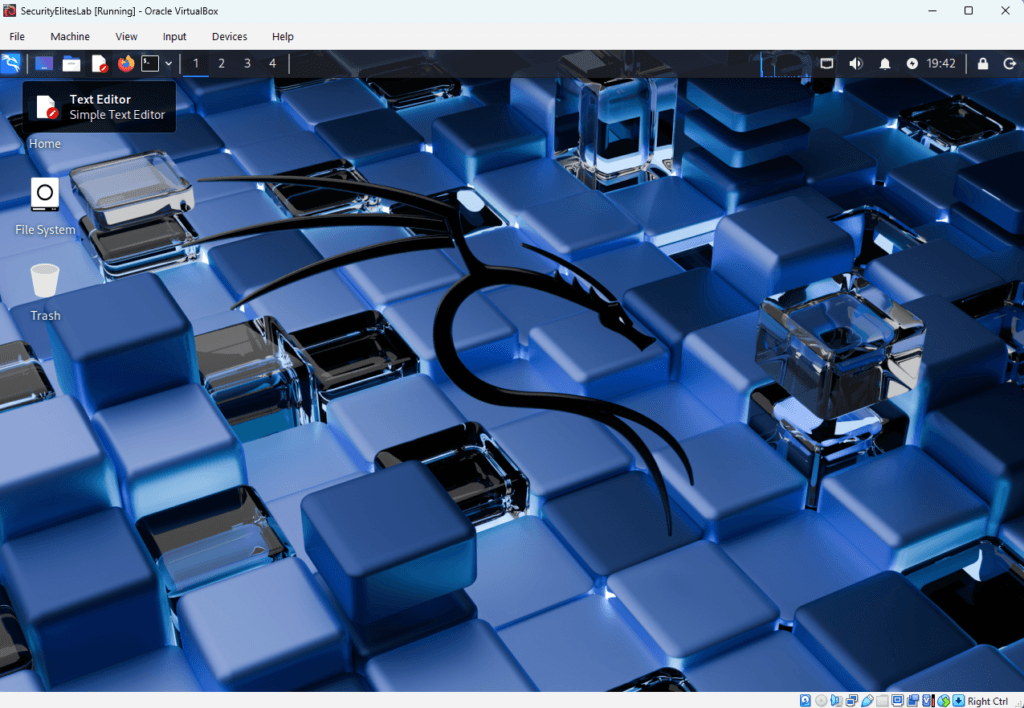
When you start Kali Linux after installation, the screen usually contains:
• top navigation bar
• application menu
• system tray
• desktop workspace
• terminal access
Understanding these components is an essential step in any Kali Linux tutorial.
Kali Linux Top Navigation Bar
At the top of the screen you will see the Kali Linux top navigation bar.
This bar contains quick access to important system features.
On Left hand side of Navigation bar you will find below key items in sequence:
- Applications Menu
- Minimize all open Windows and show Desktop
- User Folder
- Text Editor
- Firefox Browser
- Kali Linux Terminal
Then on right side of Navigation Bar, you will find
- Network Settings
- Volume
- Notifications
- Lock Screen & Poweroff Button
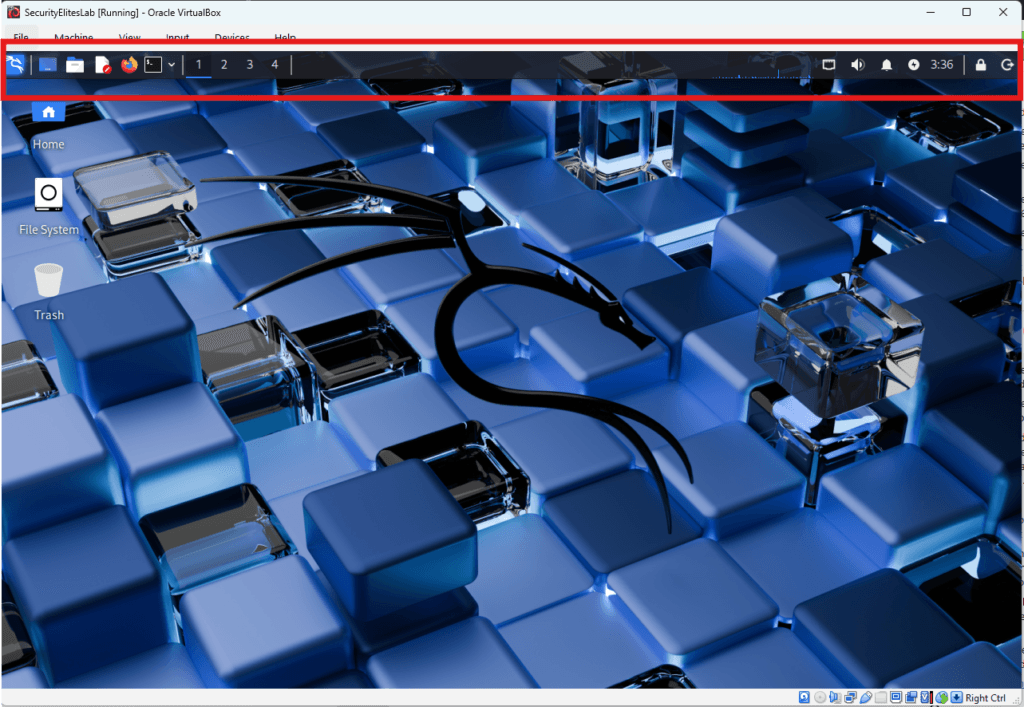
This navigation bar allows ethical hackers to quickly access Kali Linux tools and system settings.
For someone learning Kali Linux for beginners, this bar becomes the control center for launching security tools.
Kali Linux Applications Menu
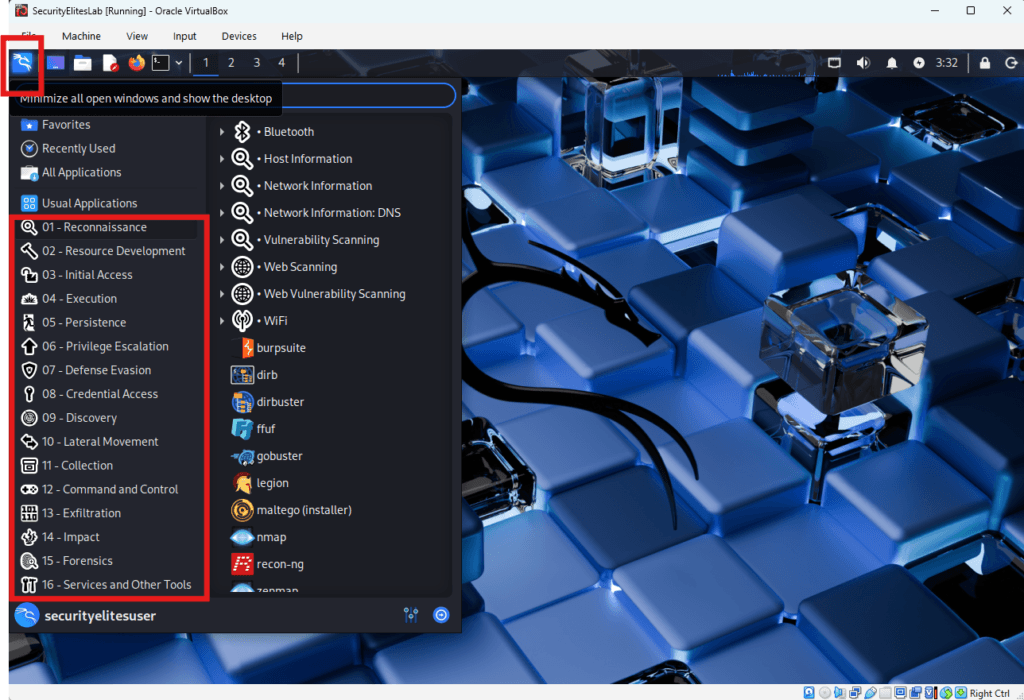
The Applications Menu is one of the most important parts of the Kali Linux interface.
It contains hundreds of penetration testing tools organized into categories.
In a typical Kali Linux, students spend most of their time accessing tools from this menu.
When you click Applications, you will see categories such as shown below:
Note —
In simple terms, the Applications Menu in Kali Linux is like a toolbox.
Instead of hammers and screwdrivers, it contains cybersecurity tools used by ethical hackers.
Kali Linux Terminal
The terminal is the most powerful component of Kali Linux.
Most professional ethical hackers prefer using the terminal because it provides full control over security tools.
In almost every Kali Linux tutorial, students quickly learn that mastering the terminal is essential.
To open the terminal:
Click the terminal icon or press:
CTRL + ALT + T
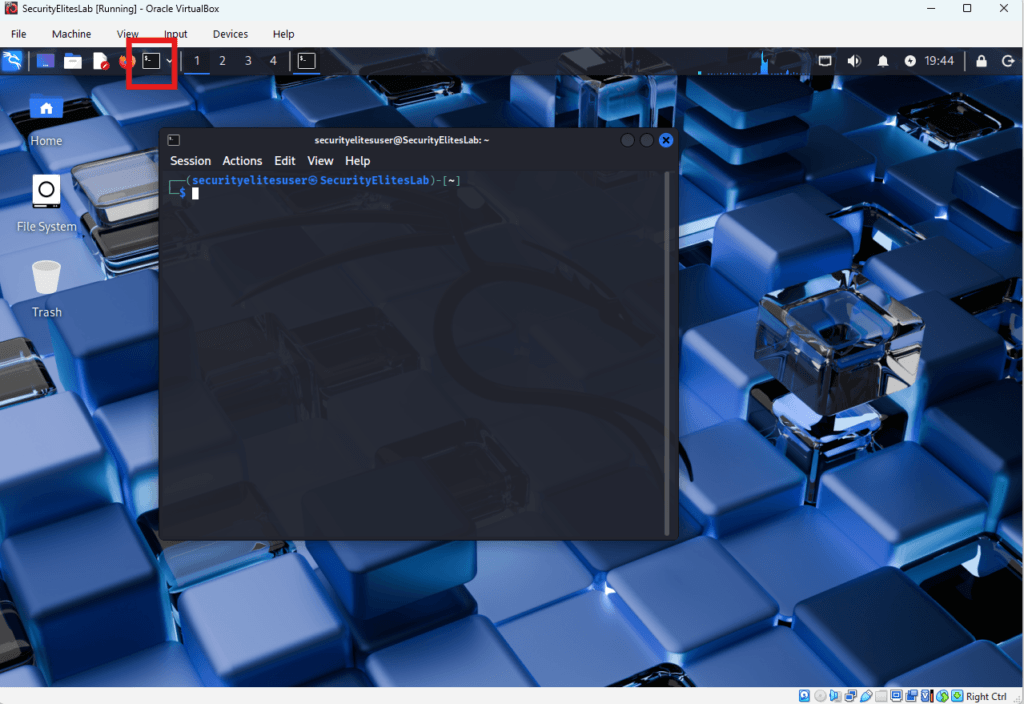
Example command:
nmap -sV 192.168.1.1
This command scans a system and identifies open ports and services.
For beginners learning via Kali Linux for beginners guide, the terminal may look intimidating at first, but it becomes extremely powerful once you understand basic commands.
Learning terminal commands is essential when studying Kali Linux for beginners.
Kali Linux File Manager
The Kali Linux File Manager allows users to navigate files and folders.
It works similarly to:
• Windows File Explorer
• macOS Finder
You can use it to:
• access documents
• manage scripts
• store penetration testing reports
• organize cybersecurity tools
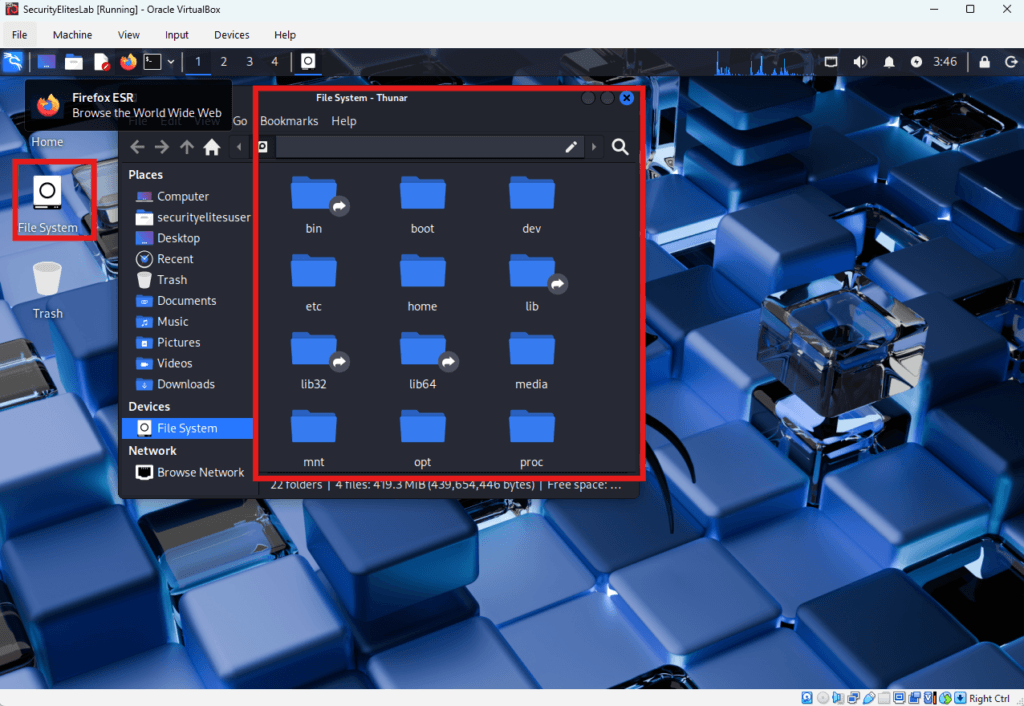
Hackers prefer using the file manager while learning Kali Linux for beginners before moving fully into terminal-based workflows.
SecurityElites Hands-On Lab Exercise : Kali Linux Tutorial for Beginners — Step-by-Step Practical Lab
In this Kali Linux tutorial, we will build a complete ethical hacking lab environment and perform your first cybersecurity reconnaissance scan.
For students searching for Kali Linux for beginners, this practical lab is the most important part of learning. Reading theory is useful, but real cybersecurity skills are developed by performing hands-on exercises.
By completing this Kali Linux tutorial lab, you will learn:
• how to install Kali Linux safely
• how to run Kali Linux in a virtual machine
• how to navigate the Kali Linux desktop
• how to use the Kali Linux terminal
• how to perform your first network scan
This Kali Linux tutorial for beginners simulates the same environment used by penetration testers and ethical hackers in real security assessments.
Lab Environment Setup
Before starting this Kali Linux tutorial, we must prepare a safe cybersecurity lab.
A lab environment allows you to practice ethical hacking without affecting your main operating system.
To complete this Kali Linux tutorial for beginners, you need the following tools.
Required Software
• Kali Linux ISO image
• VirtualBox virtualization software
• Internet connection
Recommended Hardware
• 8GB RAM
• 40GB storage
• CPU virtualization support (Intel VT-x / AMD-V)
Using virtualization is the safest approach when learning Kali Linux for beginners, because it isolates the hacking environment from your normal operating system.
Step 1 — Download Kali Linux
The first step in this Kali Linux tutorial is downloading the official Kali Linux operating system.
Open your browser and visit the official website.
https://www.kali.org/get-kali/
Download the Kali Linux Installer ISO.
The file size is approximately 4GB.
Only download Kali Linux from the official Kali Linux website.
Many beginners learning Kali Linux for beginners accidentally download modified versions from unofficial sources, which can contain malware.
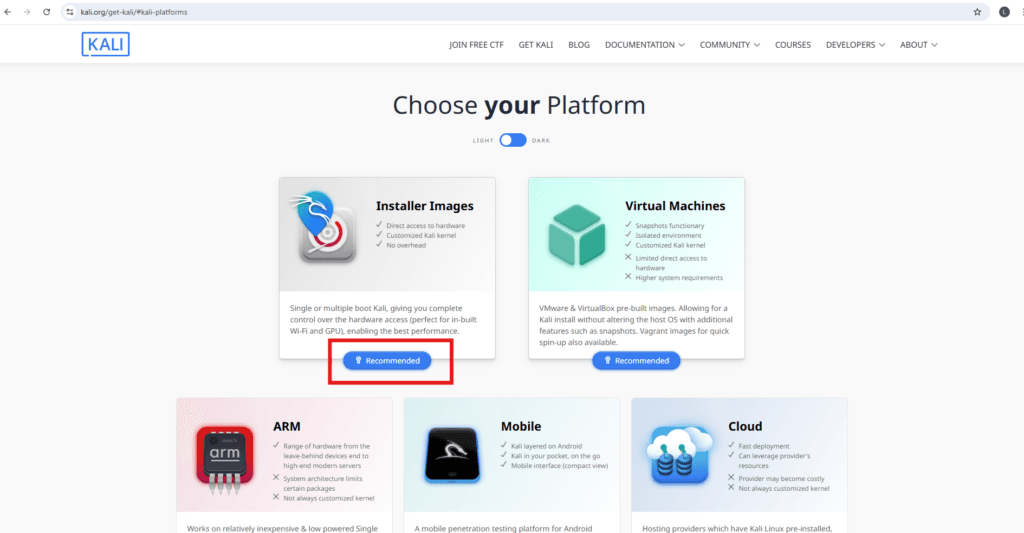
Select Recommended as highlighted in red and then select download icon as shown below :
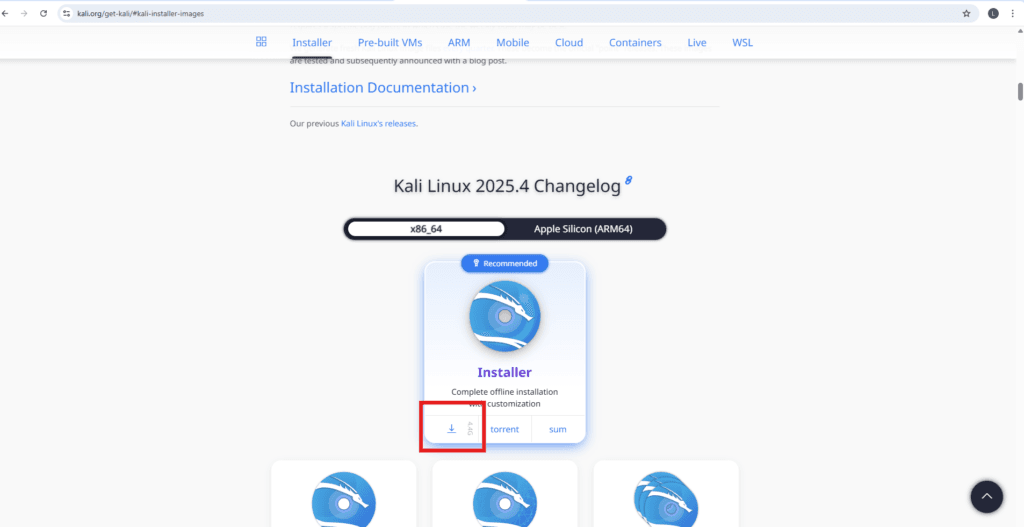
Note —
In this Kali Linux tutorial, we always recommend downloading tools from official sources to maintain security and system integrity.
Step 2 — Install VirtualBox
The next step in this Kali Linux tutorial for beginners is installing VirtualBox.
VirtualBox allows you to run Kali Linux inside your computer safely without modifying your main operating system.
Download VirtualBox from the official website:
https://www.virtualbox.org/wiki/Downloads
Install VirtualBox using the default settings.
After installation completes, launch VirtualBox.
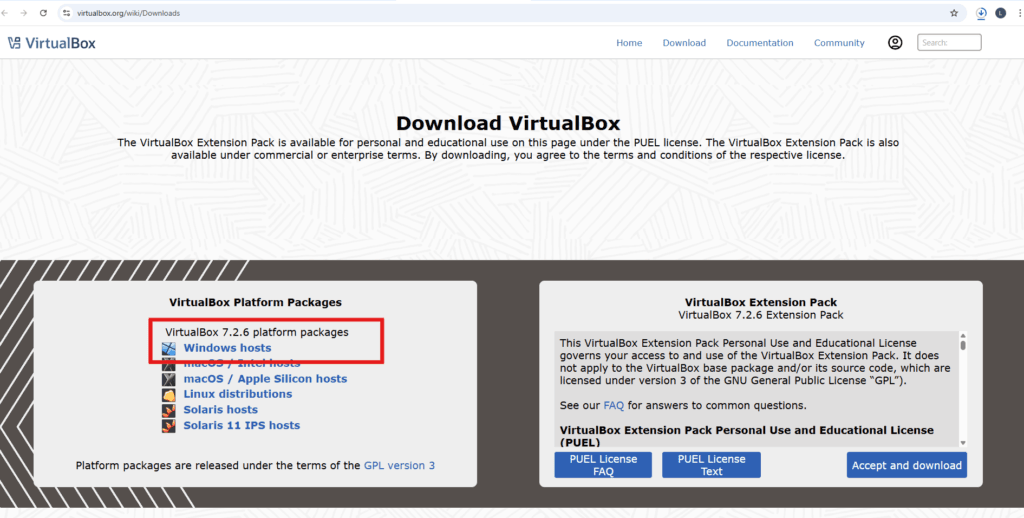
Note —
Every professional Kali Linux tutorial for beginners recommends virtualization because it prevents accidental system damage while learning ethical hacking.
Step 3 — Create a Kali Linux Virtual Machine
Now we will create a virtual machine to run Kali Linux.
Inside VirtualBox click:
New
Configure the virtual machine using the following settings.
Name:
SecurityElitesLab
Type:
Linux
Version:
Debian 64-bit
VM Folder:
Browse to path where you want to keep this Virtual Machine.
ISO Image:
Attach the Kali Linux ISO file you downloaded earlier. Browse to path where you have ISO downloaded.
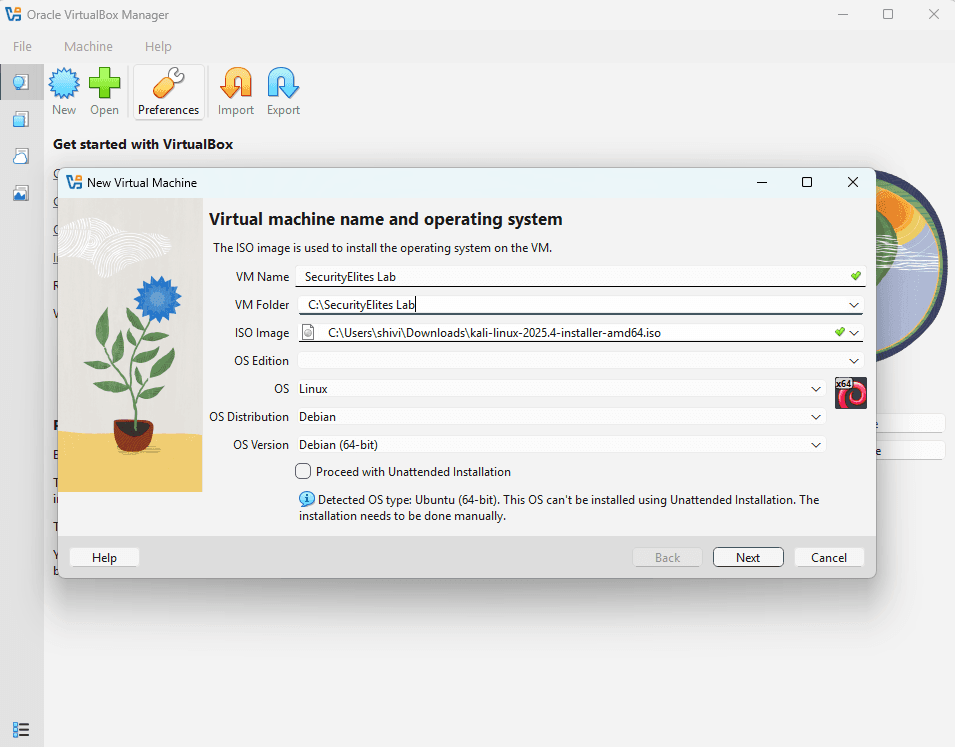
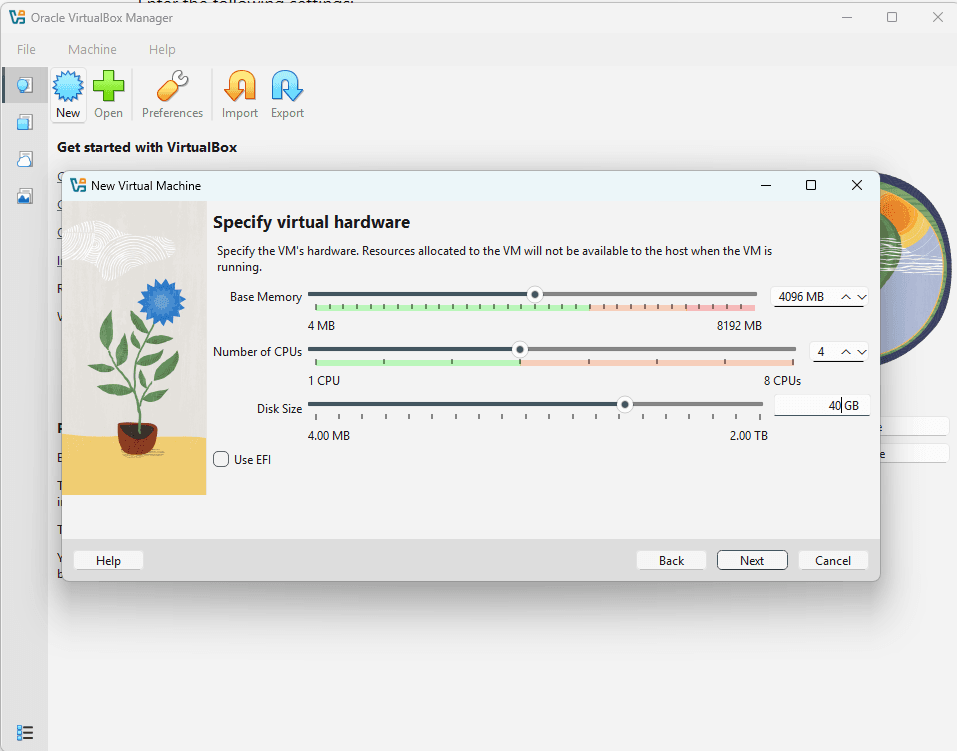
Memory allocation:
4096 MB
Hard disk size:
40GB dynamically allocated
These settings are commonly recommended in most Kali Linux environments.
Note —
This virtual machine becomes your personal cybersecurity training lab when learning Kali Linux for beginners.
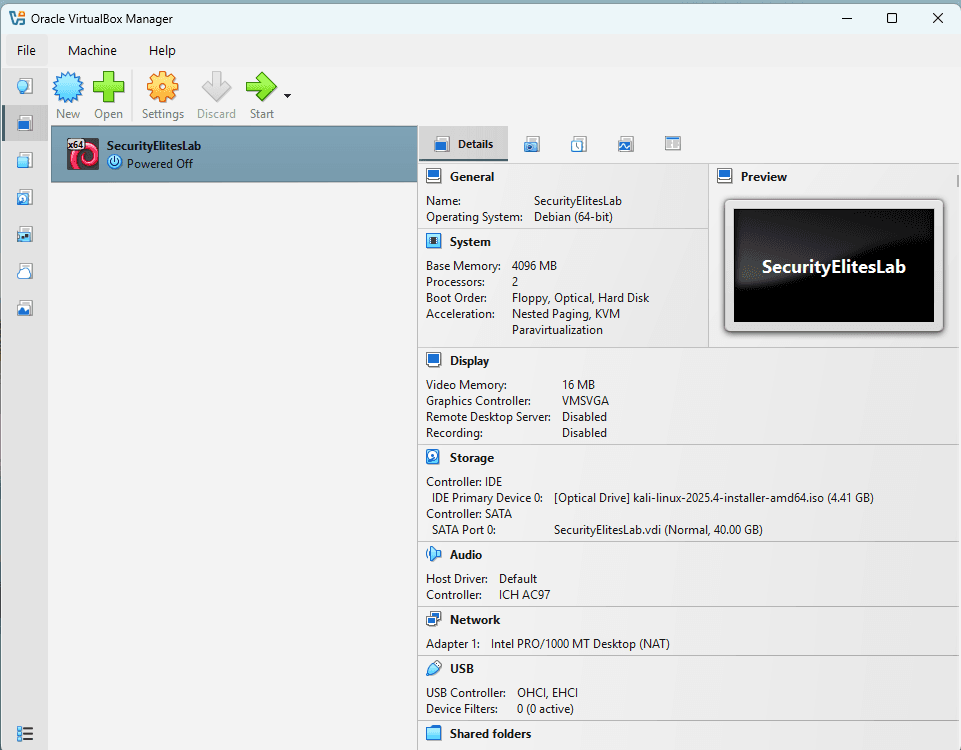
Step 3 — Lab in Powered Off Mode
This step in Kali Linux tutorial shows Lab (Virtual Machine) in Powered off Mode.
Step 5 — Start Kali Linux Installation
Start the virtual machine.
Click:
Start
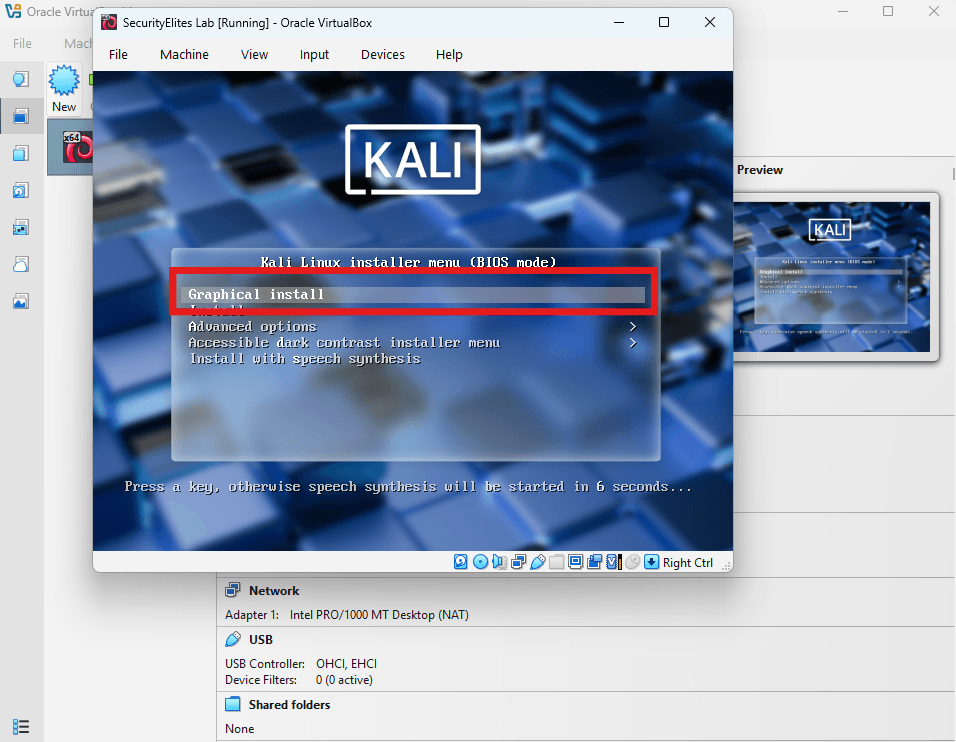
You will now see the Kali Linux boot menu.
Select:
Graphical Install
The graphical installer is recommended in most Kali Linux tutorial for beginners environments because it simplifies the installation process.
Step 6 — Configure Installation Settings
During this stage of the Kali Linux tutorial, the installer will ask several configuration questions.
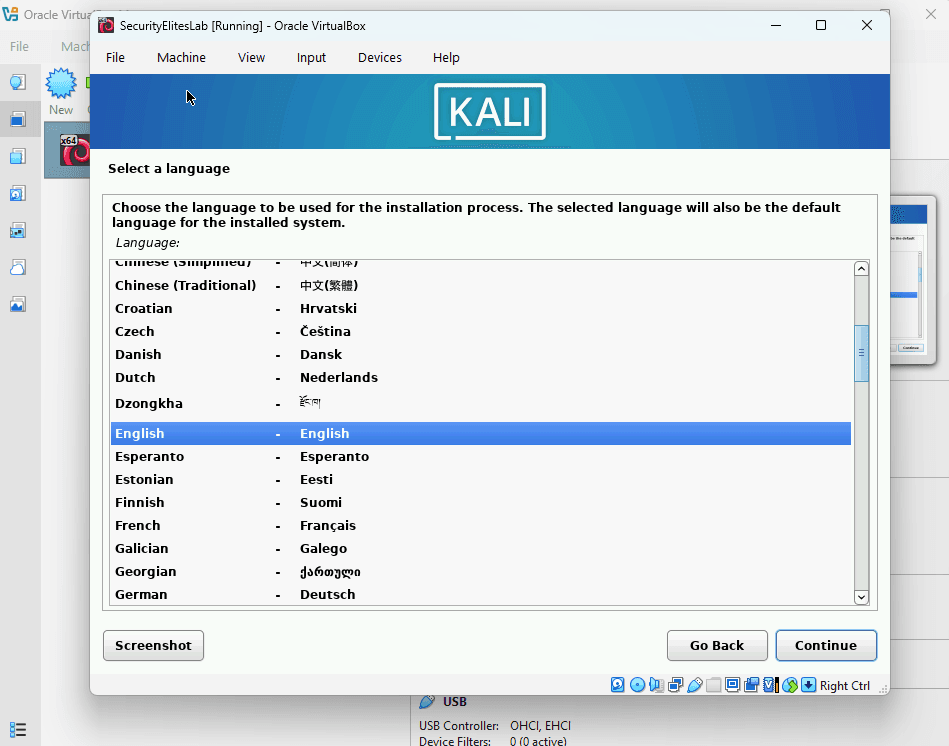
Choose your:
Language
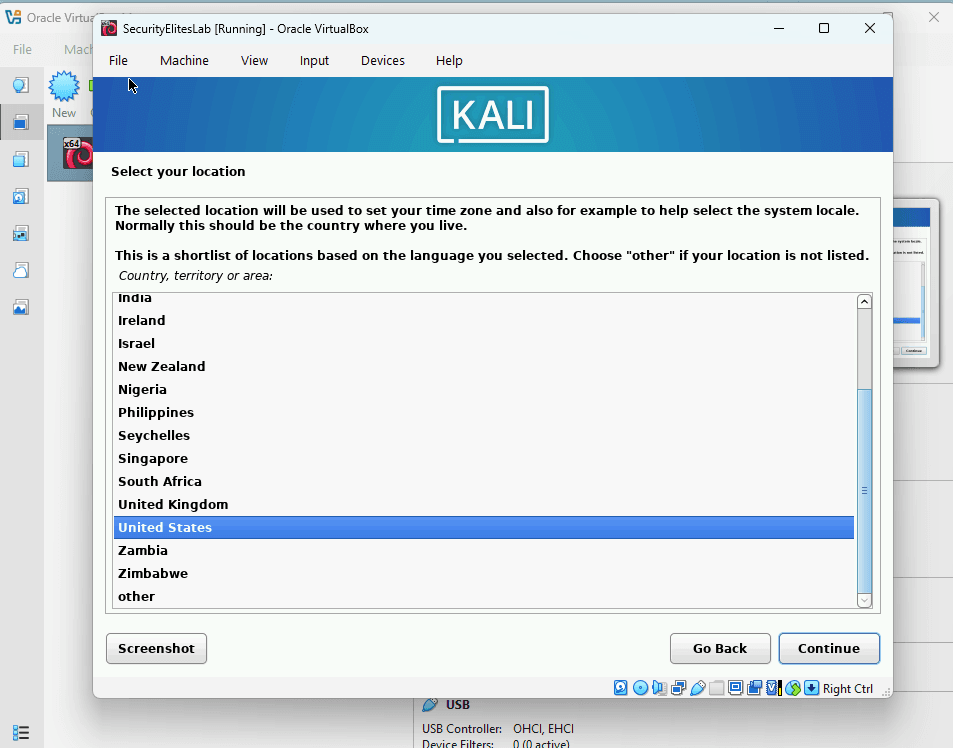
Location
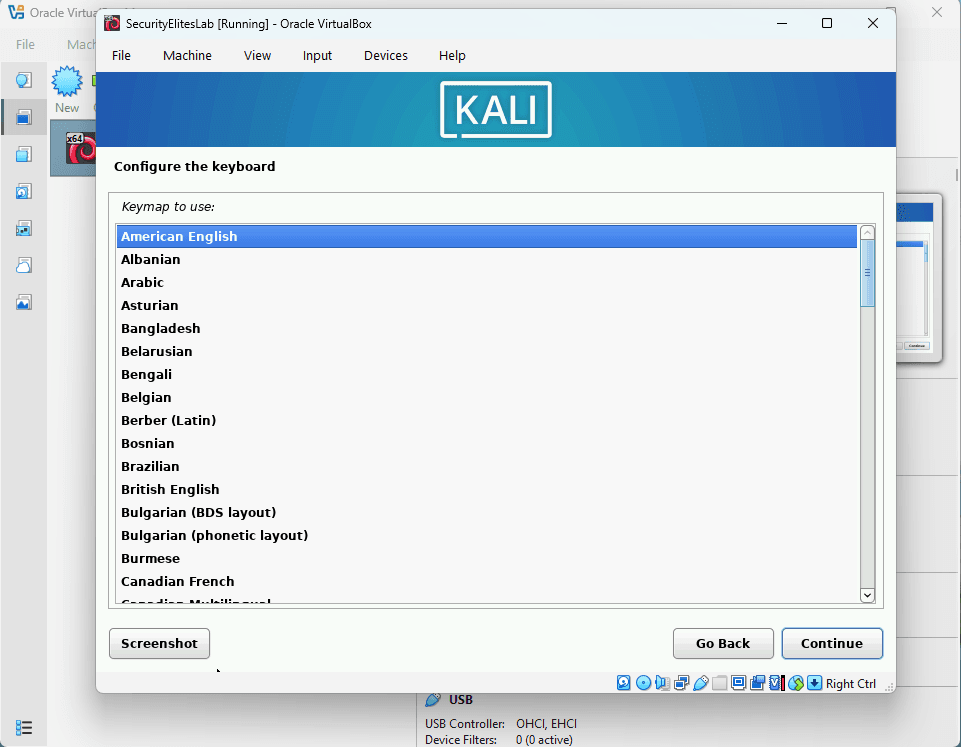
Keyboard layout
Example configuration:
Language
English
Location
United States
Keyboard
American English
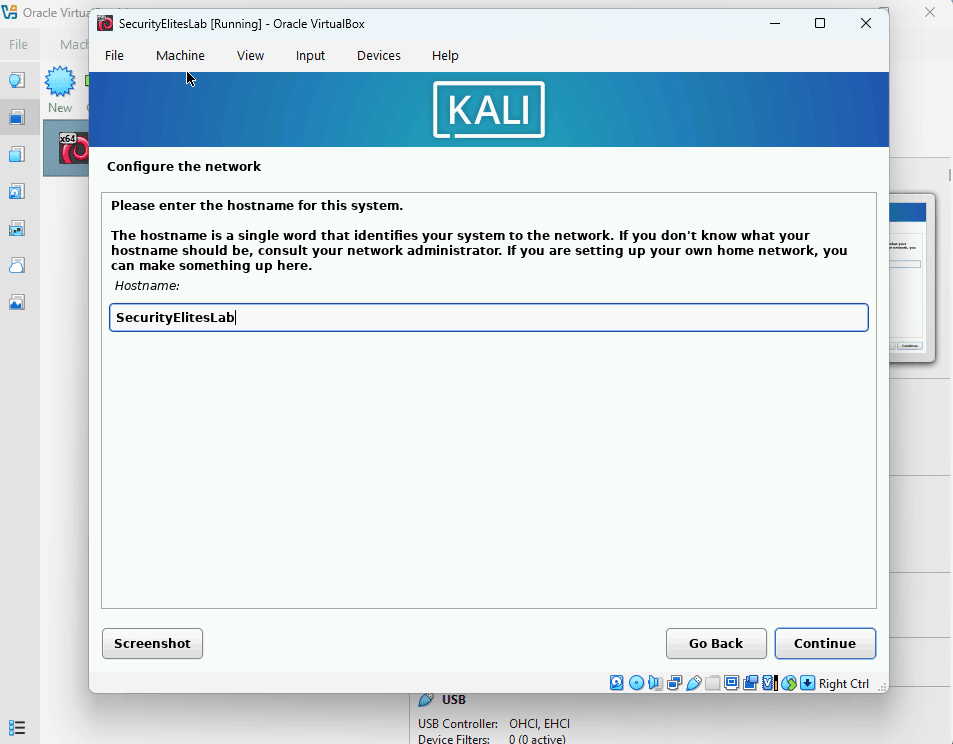
HostName : Example SecurityElites
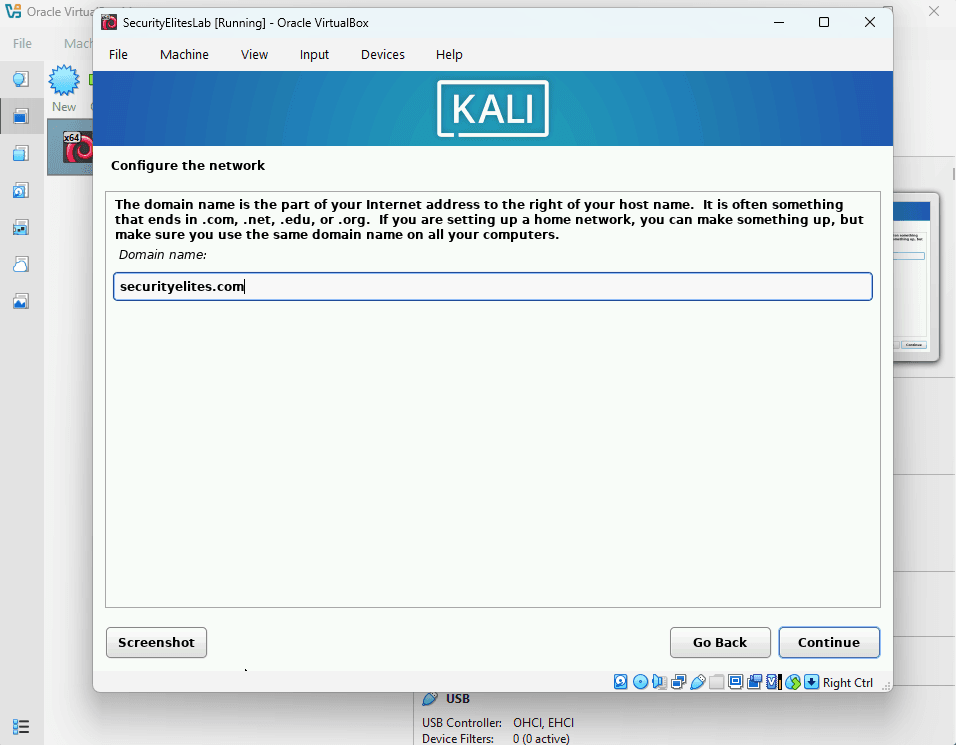
Domain : securityelites.com
These settings can be customized based on your region when learning Kali Linux for beginners.
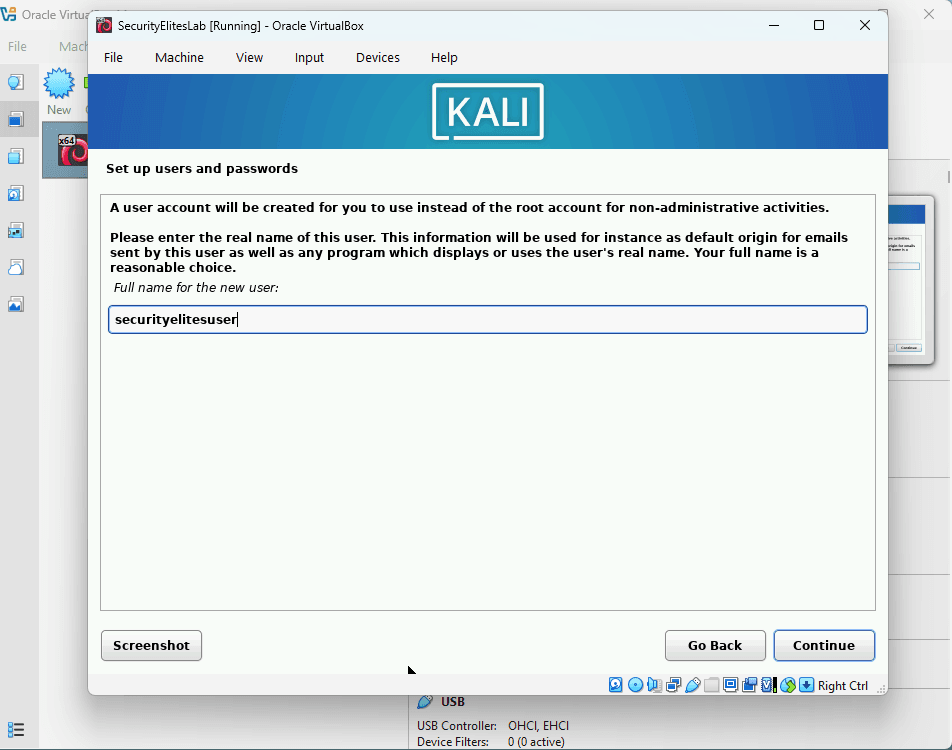
Step 7 — Create Kali Linux User Account
Next, the installer asks you to create a user account.
Example credentials:
Username
securityelitesuser
Password
<SecurityElites16!@, always use strong passwords>
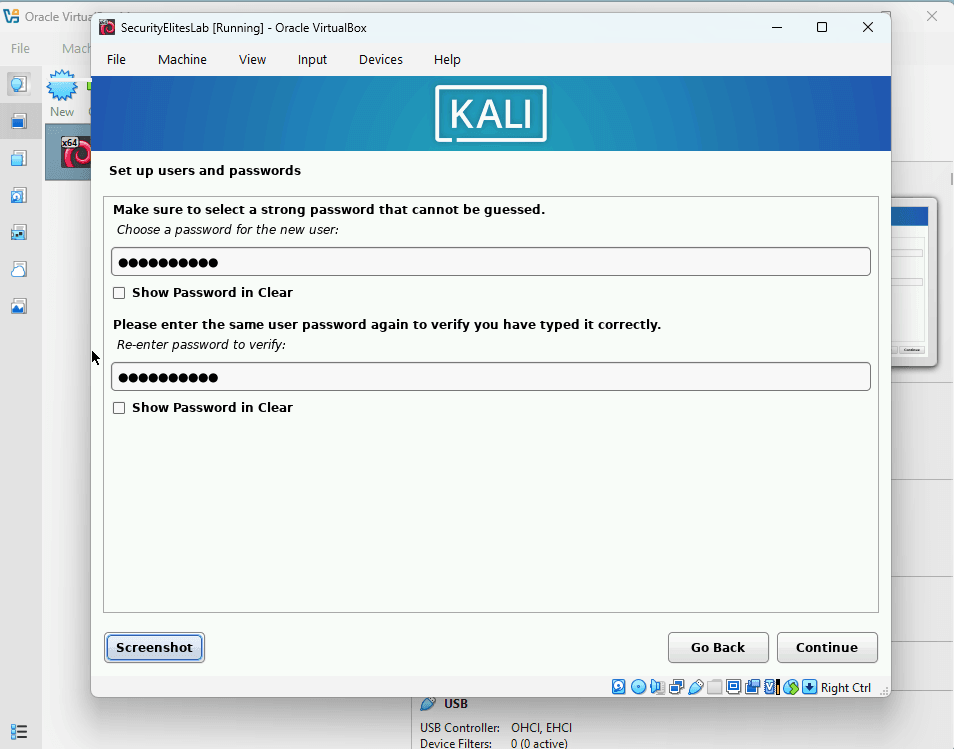
In real penetration testing environments, stronger passwords should always be used. We shown sample just for example.
Next step is
Configure Clock : Eastern < or whichever suits your time zone>
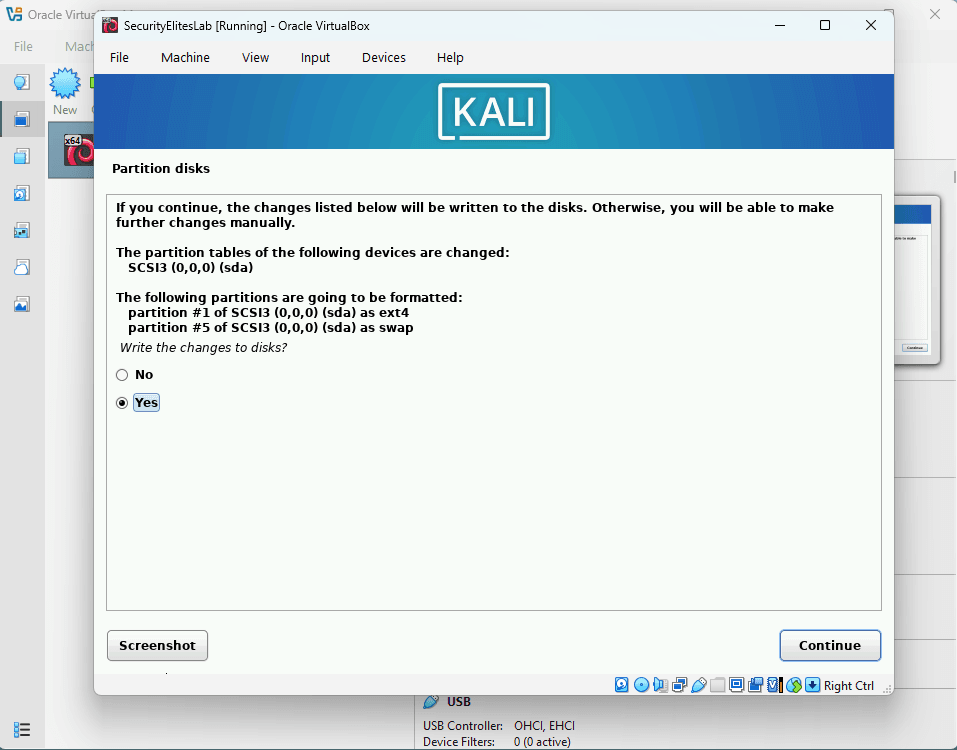
Partition Disk (Steps):
1. Select “Guided – use Entire Disk”
2. Select “Disk to Partition : Example SCSI3(0,0,0)(sda)”
3. Select “All files in One Partition(recommended for new users)”
4. Select “Finish Partitioning and write changes to Disk”
5. At Final Partition disks steps, select “Yes” to proceed as shown below:
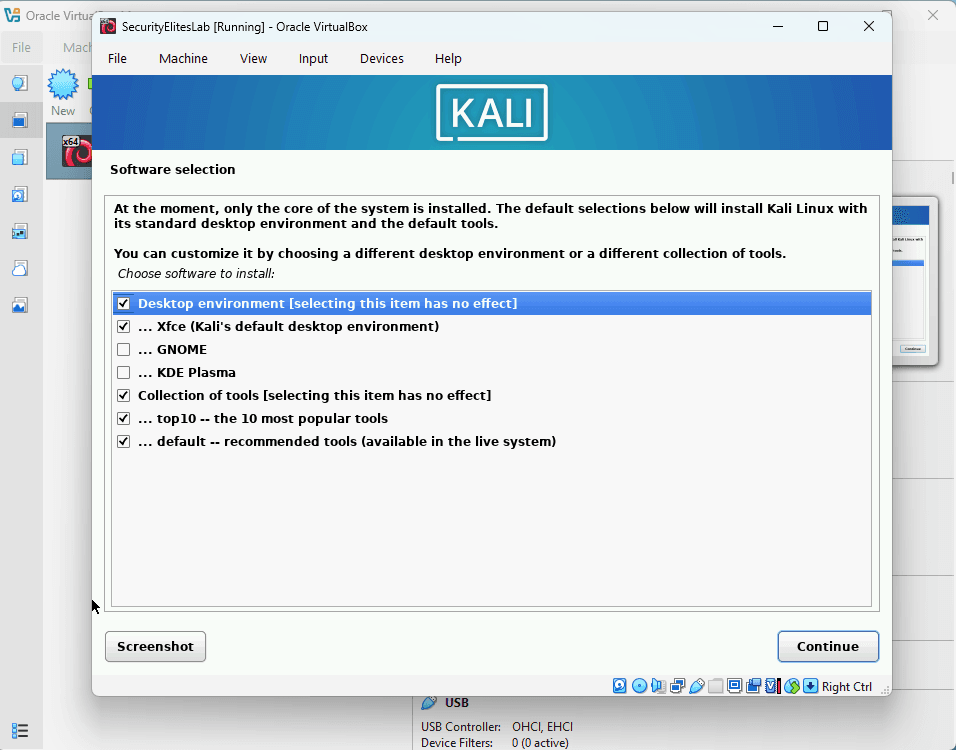
To proceed with Kali Linux for beginners tutorial, next step is “Software Selection”, now select the options as shown below:
Now next screen is “Install the Grub Bootloader”, Select “Yes” to proceed.
In next step, Select “/dev/sda/ (ata-VBOX_HARDDISK_VirtualMachineName)” to complete the basic installation
Now basic installation of Kali Linux is complete.
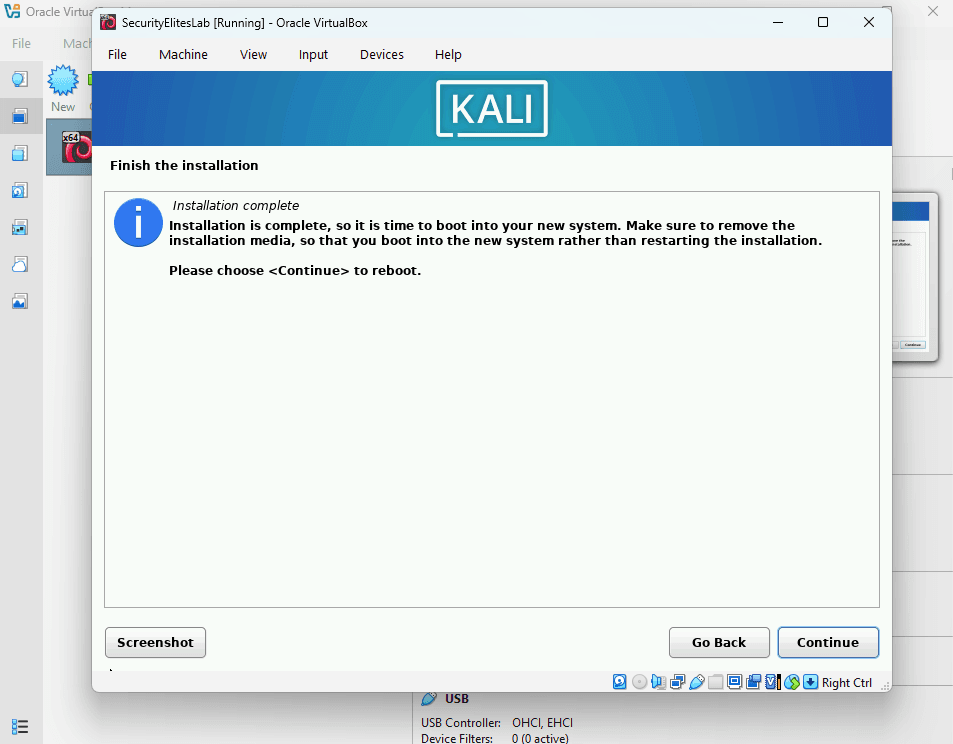
Step 8 — Complete Kali Linux Installation
When installation finishes, the system will ask you to restart the virtual machine.
Click:
Continue
After rebooting, Kali Linux will start automatically.
Step 9 — Login to Kali Linux
After installation, the Kali Linux login screen appears.
Enter your credentials.
Example:
username: securityelitesuser
password: <your selected password>
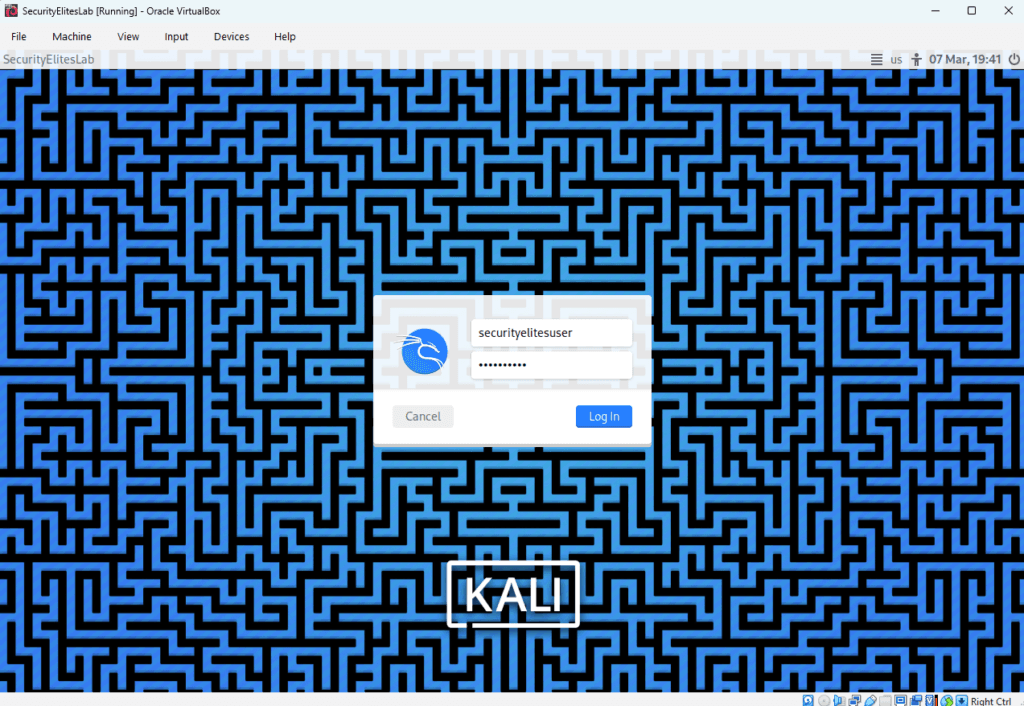
Once logged in, you will see the Kali Linux desktop interface.
Congratulations — you have successfully completed the installation phase of this Kali Linux tutorial for beginners.
Step 10 — Open Kali Linux Terminal
The terminal is the most important tool in this Kali Linux tutorial.
Click the Terminal icon.
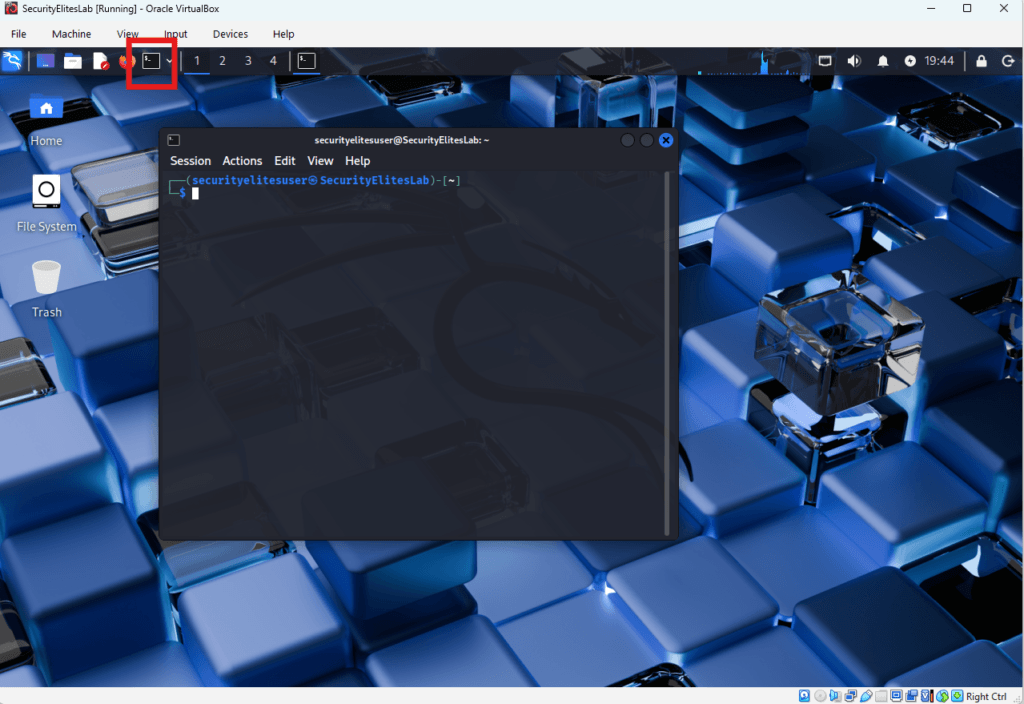
Run the following command.
whoami
Output:
securityelitesuser
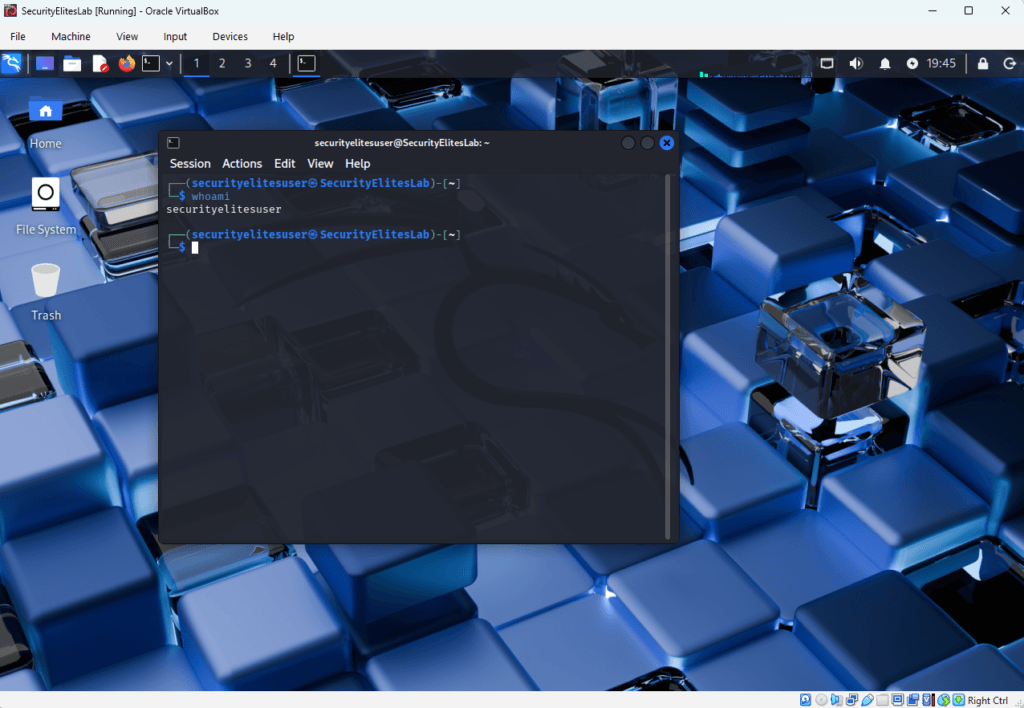
This confirms your logged-in user account.
Note —
Professional penetration testers use the terminal extensively. Learning the terminal is essential when studying Kali Linux for beginners.
Step 11 — Check Network Configuration
Next we verify network connectivity.
Run the command:
ip a
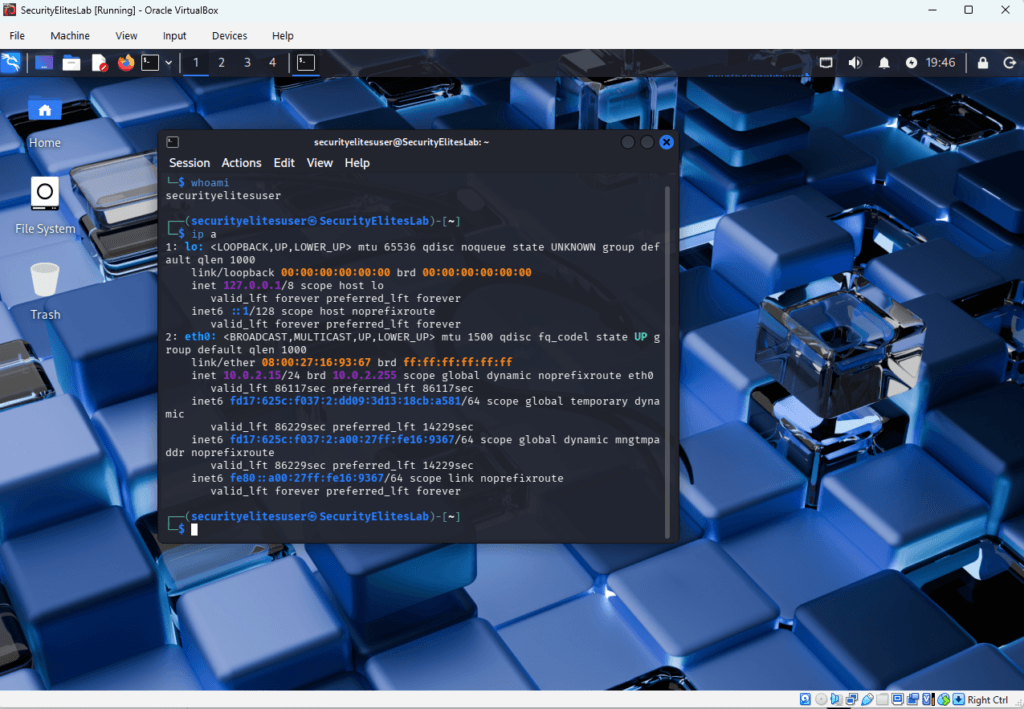
This shows your system’s IP address.
Understanding networking information is a fundamental part of every Kali Linux tutorial.
Step 12 — Install Nmap
Nmap is one of the most important tools used in Kali Linux for beginners.
It is used for network reconnaissance and port scanning.
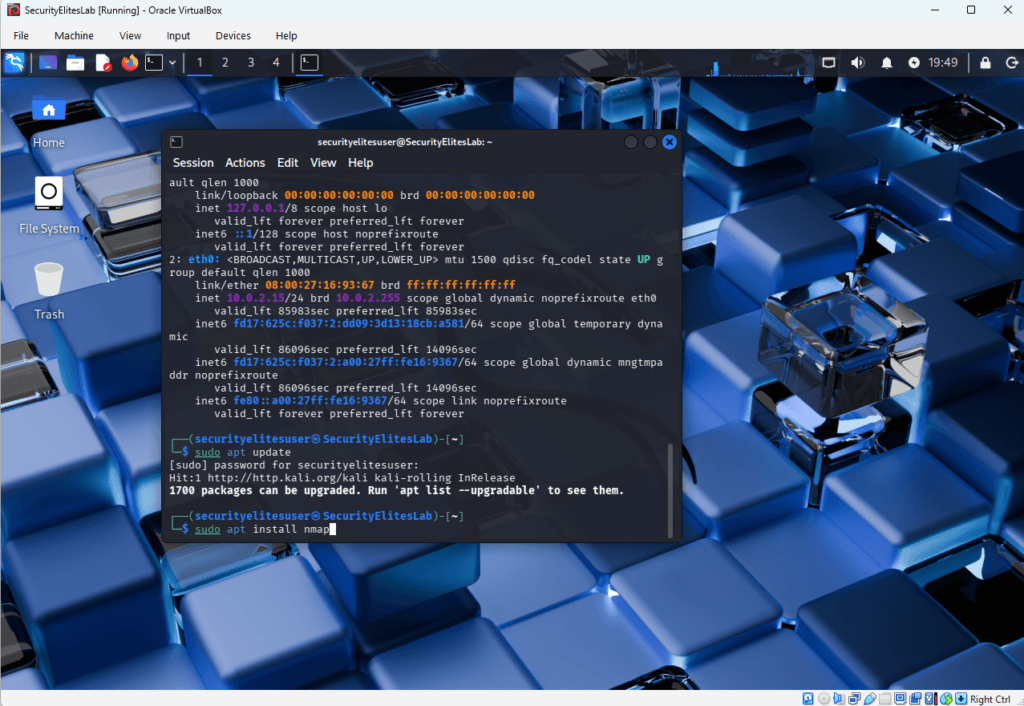
Update package lists.
sudo apt update
Install Nmap.
sudo apt install nmap
Step 13 — Run Your First Network Scan
Now we perform our first scan in this Kali Linux tutorial for beginners.
Run the following command.
nmap scanme.nmap.org
This server is provided by the Nmap project for safe scanning practice.

Example output:
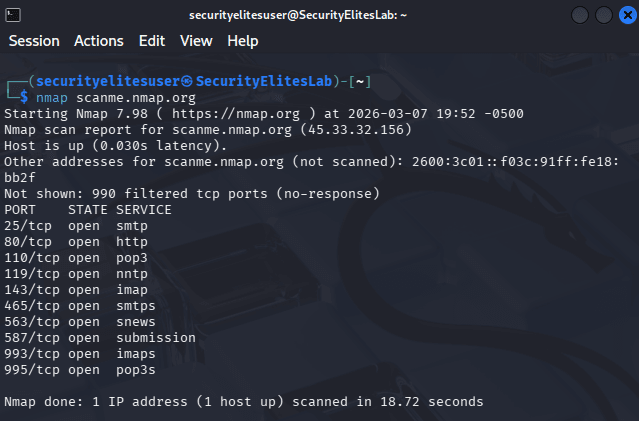
Network scanning is the first step attackers perform during reconnaissance.
Ethical hackers learn the same techniques in a Kali Linux tutorial for beginners to identify vulnerabilities before attackers exploit them.
Common Beginner Mistakes
Students learning Kali Linux for beginners often make these mistakes:
• scanning systems without permission
• ignoring networking fundamentals
• running commands without understanding them
• skipping basic Linux knowledge
Always practice ethical hacking only in authorized lab environments.
Troubleshooting Tips
If Kali Linux does not start:
Enable virtualization in BIOS.
If the internet does not work:
Change network adapter to:
NAT
If Kali Linux is slow:
Increase virtual machine RAM to 6GB or 8GB. If any other issues with this Kali Linux for beginners tutorial, ask questions in comments.
Result of This Kali Linux Tutorial Lab
After completing this Kali Linux tutorial for beginners, you now have:
• a working Kali Linux installation
• a personal cybersecurity lab environment
• basic terminal skills
• your first network reconnaissance scan
This is the foundation of ethical hacking and penetration testing training.
FAQs – Kali Linux Tutorial for Beginners
Is Kali Linux legal?
Yes. Kali Linux is legal because it is an open-source operating system designed for cybersecurity professionals. However, using Kali Linux tools against systems without permission is illegal. Ethical hackers only perform testing in authorized environments such as penetration testing engagements or cybersecurity training labs.
Can beginners learn Kali Linux?
Yes. Many cybersecurity professionals started by learning Kali Linux for beginners tutorials. However, beginners should first understand networking fundamentals, Linux commands, and basic cybersecurity concepts.
Do hackers really use Kali Linux?
Some attackers use Kali Linux because it contains powerful security tools. However, Kali Linux is mainly designed for ethical hackers and penetration testers performing authorized security testing.
What skills should I learn before Kali Linux?
Before learning Kali Linux tutorials, beginners should understand:
• Linux fundamentals
• networking basics
• HTTP and web technologies
• operating system concepts
These skills make learning Kali Linux easier.
Can Kali Linux run on Windows?
Yes.
Kali Linux can run on Windows using:
• VirtualBox
• VMware
• Windows Subsystem for Linux (WSL)
Virtual machines are recommended for beginners.
Is Kali Linux difficult to learn?
Kali Linux itself is not difficult. The challenge lies in understanding cybersecurity tools and concepts. With structured tutorials and practice labs, beginners can gradually master Kali Linux.
Conclusion + Key Takeaways
This Kali Linux tutorial for beginners introduced the foundational concepts of Kali Linux and ethical hacking.
You learned:
• what Kali Linux is
• why cybersecurity professionals use it
• how attackers perform reconnaissance
• how to install Kali Linux
• how to perform your first network scan
Remember something important.
Tools do not make someone a hacker — knowledge and practice do.
Kali Linux simply provides the environment where ethical hackers practice cybersecurity skills.
To continue your journey, learn the following skills next:
• Linux fundamentals
• networking concepts
• Nmap scanning
• web application security
• Burp Suite testing
• bug bounty methodology
Practice on platforms such as:
• Hack The Box
• TryHackMe
• Capture The Flag labs
Cybersecurity is a hands-on discipline.
The more labs you practice, the better you understand how attackers think and how defenders protect systems.
Mastering Kali Linux for beginners is the first step toward becoming a professional ethical hacker