
If you want to scan millions of systems in minutes, cybersecurity professionals use a tool called Masscan. This Masscan Cheat Sheet will help you learn the fastest port scanner used in ethical hacking and penetration testing.
Masscan is often compared to Nmap. However, the difference is speed. While Nmap focuses on deep scanning, Masscan focuses on extreme speed. It can scan the entire IPv4 internet in minutes.
Security professionals use Masscan to quickly identify:
- open ports
- exposed servers
- vulnerable systems
- misconfigured services
Think of Masscan as a radar system for the internet. Instead of checking one machine slowly, it sends millions of probes at high speed.
In this Masscan Cheat Sheet, you will learn:
- How Masscan works
- How to install it on Kali Linux
- 70+ powerful Masscan commands
- Practical penetration testing examples
- Real cybersecurity scenarios
By the end of this guide, you will have a complete Masscan reference you can bookmark during penetration testing.
Table of Contents
How to Install Masscan on Kali Linux
Masscan is available directly inside Kali Linux repositories.
Step 1 — Update Kali
sudo apt update
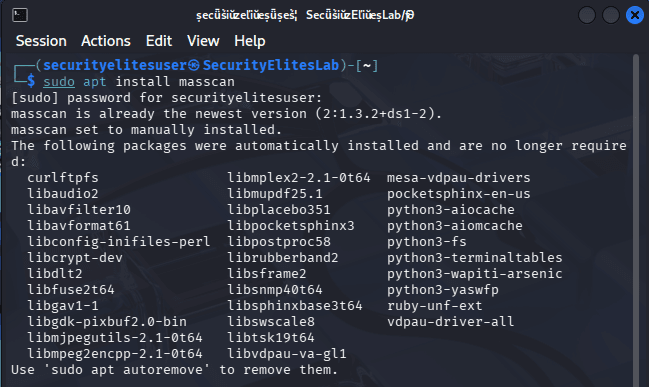
Step 2 — Install Masscan
sudo apt install masscan
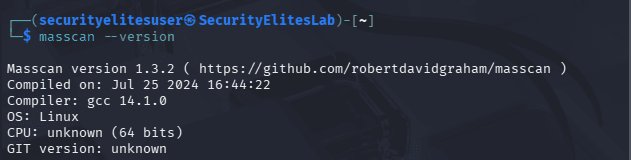
Step 3 — Verify Installation
masscan --version
Expected output:
Masscan version 1.3.2
Step 4 — View All Options
masscan --help
This displays all Masscan commands and configuration options.
Masscan Cheat Sheet – Basic Commands
The following Masscan Cheat Sheet table includes 30 beginner commands that cybersecurity students should practice.
These commands help you understand how Masscan scans networks, ports, and services.
BASIC COMMANDS OF MASSCAN
| Command Syntax | Purpose of Command | Description |
|---|---|---|
masscan 192.168.1.1 | Scan single host | This command runs a basic Masscan scan against a single IP address. It quickly checks for open ports using default scanning behavior. Beginners often use this command first to verify connectivity and understand how Masscan identifies active network services. |
masscan 192.168.1.0/24 | Scan subnet | This command scans an entire subnet containing 256 hosts. Masscan sends packets to each host within the range and identifies open ports. Security professionals often use subnet scans during internal penetration testing or network security audits. |
masscan -p80 192.168.1.1 | Scan port 80 | This command instructs Masscan to scan only port 80 on the target host. It is useful when investigating web servers or verifying whether HTTP services are accessible from the network. |
masscan -p22 192.168.1.1 | Scan SSH port | This command scans port 22 to detect SSH services running on the target machine. Security professionals frequently check SSH exposure to detect misconfigured remote access systems. |
masscan -p443 192.168.1.1 | Scan HTTPS port | This command checks whether HTTPS services are running on the specified host. It is commonly used during web application security assessments to identify secure web servers. |
masscan -p21 192.168.1.1 | Scan FTP port | This command scans port 21 to detect FTP servers. FTP services are often misconfigured and can expose sensitive data, making this scan important for vulnerability discovery. |
masscan -p25 192.168.1.1 | Scan SMTP port | This command checks if an SMTP mail server is running on the system. Security testers use it to identify exposed mail services that may allow relay attacks or misconfigured email servers. |
masscan -p53 192.168.1.1 | Scan DNS port | This command scans port 53 to detect DNS services. Attackers and security researchers analyze DNS exposure to discover open resolvers or misconfigured DNS servers. |
masscan -p3389 192.168.1.1 | Scan RDP port | This command checks whether Microsoft Remote Desktop Protocol is active. RDP exposure is frequently targeted by attackers, so identifying it during scans is critical for security monitoring. |
masscan -p8080 192.168.1.1 | Scan web proxy | This command scans port 8080 which is commonly used by proxy servers and web applications. It helps identify development servers or alternative web service ports. |
masscan -p1-100 192.168.1.1 | Scan first 100 ports | This command scans ports 1 through 100 on the target machine. It is helpful for quickly identifying common network services without scanning the entire port range. |
masscan -p1-1000 192.168.1.1 | Scan top 1000 ports | This command scans the first thousand ports on the host. Many network services run within this range, making it a common approach during initial reconnaissance. |
masscan -p0-65535 192.168.1.1 | Scan all ports | This command scans the entire port range from 0 to 65535. It helps security researchers discover hidden or uncommon services that may run on non-standard ports. |
masscan -p80 192.168.1.0/24 | Scan subnet web servers | This command scans port 80 across a full subnet. It helps identify which hosts are running web servers within a network. |
masscan -p22 10.0.0.0/24 | Scan SSH on subnet | This command scans all hosts in the network for open SSH ports. It is useful for identifying machines allowing remote administrative access. |
masscan -p443 10.0.0.0/24 | Scan HTTPS services | This command scans an entire subnet for HTTPS servers. Security engineers often use this to map internal web infrastructure. |
masscan -p21,22,80,443 192.168.1.1 | Scan multiple ports | This command scans several important ports simultaneously. It allows security testers to quickly check for multiple services without launching separate scans. |
masscan --rate 1000 192.168.1.1 -p80 | Control scan speed | This command sets the packet transmission rate to 1000 packets per second. Adjusting scan speed helps prevent network congestion during scanning operations. |
masscan --rate 5000 192.168.1.0/24 -p80 | Faster subnet scan | This command increases scan speed significantly. Security professionals use it during large-scale reconnaissance to reduce scanning time. |
masscan --open 192.168.1.1 -p80 | Show open ports only | This command filters scan results and displays only open ports. It simplifies output and allows analysts to focus on accessible services. |
masscan --banners 192.168.1.1 -p80 | Grab service banner | This command attempts to retrieve service banners. Banner information reveals software versions and server types, which is useful for vulnerability identification. |
masscan -p80 --source-port 40000 192.168.1.1 | Custom source port | This command sets a custom source port for packets. It is sometimes used to bypass firewall rules that allow traffic from trusted ports. |
masscan -p80 --adapter-ip 192.168.1.5 | Use specific interface | This command instructs Masscan to use a specific network interface IP address when sending scan packets. |
masscan -p80 --adapter-port 60000 | Custom adapter port | This command defines the adapter port used during scanning. It helps customize packet transmission behavior in advanced scanning environments. |
masscan -p80 --adapter-mac 00:11:22:33:44:55 | Custom MAC address | This command allows users to specify a custom MAC address when sending packets during a scan. |
masscan -p80 --wait 10 | Wait before closing | This command forces Masscan to wait before terminating the scan, allowing time to receive responses from slower systems. |
masscan -p80 -oL output.txt 192.168.1.1 | Save results to file | This command saves scan results into a text file. Security analysts often store scan results for documentation and later analysis. |
masscan -p80 -oJ results.json 192.168.1.1 | Export JSON results | This command exports scan results in JSON format, making it easier to integrate with automation tools or security dashboards. |
masscan -p80 -oX results.xml 192.168.1.1 | Export XML output | This command saves results in XML format which can be imported into other security tools like vulnerability scanners. |
masscan -p80 --exclude 192.168.1.5 | Exclude target host | This command excludes a specific IP address from scanning. It prevents scanning critical infrastructure systems that should not be touched during testing. |
Advanced Commands Masscan Cheat Sheet
Once you understand the basics, this Masscan Cheat Sheet moves into advanced scanning techniques used in real penetration testing.
ADVANCED COMMANDS OF MASSCAN
| Command Syntax | Purpose | Description |
|---|---|---|
masscan 0.0.0.0/0 -p80 | Scan entire internet | This command instructs Masscan to scan every IPv4 address on port 80. Researchers use this method carefully for internet measurement studies and large-scale service discovery. |
masscan --rate 1000000 0.0.0.0/0 -p80 | Ultra-fast scanning | This command increases scanning speed dramatically. Masscan is capable of scanning millions of hosts quickly, which makes it one of the fastest internet scanners available. |
masscan --top-ports 100 192.168.1.1 | Scan common ports | This command scans the top 100 most common ports. It focuses scanning effort on ports most likely to be open. |
masscan --top-ports 1000 192.168.1.1 | Scan top 1000 ports | This command scans the most commonly used thousand ports. Penetration testers often use this command during reconnaissance phases. |
masscan -iL targets.txt -p80 | Scan list of targets | This command loads target IP addresses from a file. It enables bulk scanning across many systems during enterprise security assessments. |
masscan -p80 --randomize-hosts | Random host scanning | This command randomizes the scanning order of hosts. It reduces detection by intrusion detection systems monitoring sequential scans. |
masscan --seed 1234 -p80 192.168.1.0/24 | Reproducible scans | This command sets a seed value for randomized scanning. It ensures consistent scanning order when performing repeated security tests. |
masscan --router-mac 00:11:22:33:44:55 | Set gateway MAC | This command specifies the router’s MAC address, ensuring packets are delivered properly when scanning networks using raw packets. |
masscan -p80 --ttl 50 | Set packet TTL | This command adjusts packet time-to-live values which can help bypass certain network restrictions. |
masscan -p80 --retries 5 | Retry packets | This command increases the number of packet retries, improving detection accuracy on unstable networks. |
masscan -p80 --ping | Ping scan | This command sends ping probes before scanning to detect live hosts. |
masscan -p80 --exclude-file exclude.txt | Exclude file targets | This command excludes multiple IP addresses listed in a file. |
masscan -p80 --resume resume.conf | Resume scan | This command resumes an interrupted scan from a saved configuration file. |
masscan -p80 --max-rate 10000 | Limit maximum rate | This command sets an upper limit on scanning speed to prevent network overload. |
masscan -p80 --adapter-ip 10.0.0.5 | Custom adapter IP | This command uses a specific network adapter IP when sending packets. |
masscan -p80 --adapter-port 55000 | Custom adapter port | This command specifies which adapter port should be used during scanning. |
masscan --banners -p80 192.168.1.1 | Banner grabbing | This command retrieves service banners which reveal software details useful for vulnerability discovery. |
masscan --rate 20000 -p443 10.0.0.0/16 | Large network scan | This command scans a large network range efficiently by adjusting packet rate settings. |
masscan --open-only -p80 | Display open ports | This command filters output to show only open ports, making results easier to interpret. |
masscan -p80 --echo | Display configuration | This command prints the current configuration used for scanning. |
SecurityElites Hands-On Lab – Real Masscan Scenarios
Learning commands from a Masscan Cheat Sheet is useful, but the real power comes when you apply those commands in real-world cybersecurity situations.
Below are five practical scenarios that security professionals regularly encounter.
Scenario 1 – Discovering Web Servers in a Network
A penetration tester receives permission to audit a corporate network.
Goal: identify systems running web servers. Direct command you might not be able to run, so use sudo for running as admin.
Command:
sudo masscan 192.168.1.0/24 -p80 --rate 5000

Commands Used for:
- subnet scanning
- port scanning
- rate control
Result:
Masscan quickly identifies which machines expose HTTP services.
Next step:
Use Nmap for deeper service enumeration.
Scenario 2 – Finding Exposed SSH Servers
SSH access is often targeted by attackers.
Security teams must detect exposed servers.
Command:
masscan 192.168.1.0/24 -p22 --rate 2000

Commands Used:
- SSH port scanning
- network scanning
- packet rate tuning
This identifies systems that allow remote login.
Security teams can then verify:
- password policies
- SSH version
- login restrictions
Scenario 3 – Detecting Remote Desktop Exposure
RDP is frequently targeted in ransomware attacks.
Command:
masscan 192.168.1.0/24 -p3389 --rate 3000
Commands Used:
- RDP scanning
- subnet scanning
Security teams use this information to ensure RDP servers are protected behind VPNs.
Scenario 4 – Large Bug Bounty Reconnaissance
Bug bounty hunters sometimes receive large target scopes.
Example:
masscan -iL scope.txt -p80,443 --rate 10000
Commands Used:
- file based targets
- multi-port scanning
- fast scanning
This quickly identifies active web servers across the program scope.
Scenario 5 – Internet-Wide Research Scanning
Researchers sometimes measure internet exposure.
Command:
masscan 0.0.0.0/0 -p443 --rate 100000
Commands Used:
- global scanning
- rate optimization
⚠️ Important:
Internet scanning must follow legal guidelines and responsible disclosure policies.
FAQ – People Also Ask
What is Masscan used for?
Masscan is a high-speed port scanner used in cybersecurity for identifying open network ports across large numbers of systems. Security professionals use it during reconnaissance phases of penetration testing, vulnerability assessments, and bug bounty research. Because Masscan can scan millions of IP addresses very quickly, it is often used to detect exposed services across large networks or even across the entire internet.
Is Masscan legal?
Masscan itself is completely legal software. However, how you use it determines legality. Scanning systems without permission may violate laws or organizational policies. Ethical hackers, penetration testers, and security researchers only use Masscan on systems they own or have explicit permission to test. Always follow responsible disclosure practices and local cybersecurity laws.
Does Kali Linux include Masscan?
Yes. Kali Linux includes Masscan in its software repositories. You can install it easily using the apt install masscan command. Kali Linux is widely used by cybersecurity professionals because it includes hundreds of security tools, including Masscan, Nmap, Metasploit, Wireshark, and many other penetration testing utilities.
Is Masscan used by hackers?
Both ethical hackers and malicious attackers may use Masscan. Ethical hackers use it to identify vulnerabilities and improve security before criminals can exploit them. Security researchers, bug bounty hunters, and SOC teams rely on Masscan to discover exposed services and misconfigured systems quickly.
What are alternatives to Masscan?
Several tools perform similar tasks. The most popular alternatives include Nmap, ZMap, RustScan, and Unicornscan. Nmap focuses on deep network analysis, while Masscan focuses on extreme scanning speed. Many professionals actually combine Masscan and Nmap together — Masscan for fast discovery and Nmap for detailed investigation.
Conclusion
Masscan is one of the most powerful tools in the cybersecurity world.
Its ability to scan the internet at incredible speed makes it a favorite tool for penetration testers, bug bounty hunters, security researchers, SOC analysts and network defenders.
In this Masscan Cheat Sheet, you learned:
- how Masscan works
- how to install it on Kali Linux
- 70+ essential Masscan commands
- real cybersecurity scenarios
- practical penetration testing workflows
If you are serious about learning ethical hacking, this Masscan Cheat Sheet should be bookmarked.
The best way to master Masscan is through hands-on practice.
Start experimenting in cybersecurity labs, virtual machines and penetration testing practice environments
You can also refer other important cheat sheets:
1. NMAP Cheat Sheet2. Amass Cheat Sheet
And if you found this guide helpful:
- bookmark this cheat sheet
- share it with cybersecurity learners
- explore more ethical hacking tutorials on SecurityElites
Your cybersecurity journey has just begun.