🔴 Day 7 — Packet Analysis – Wireshark Tutorial for Beginners
Day 100 — Professional Pentester
07
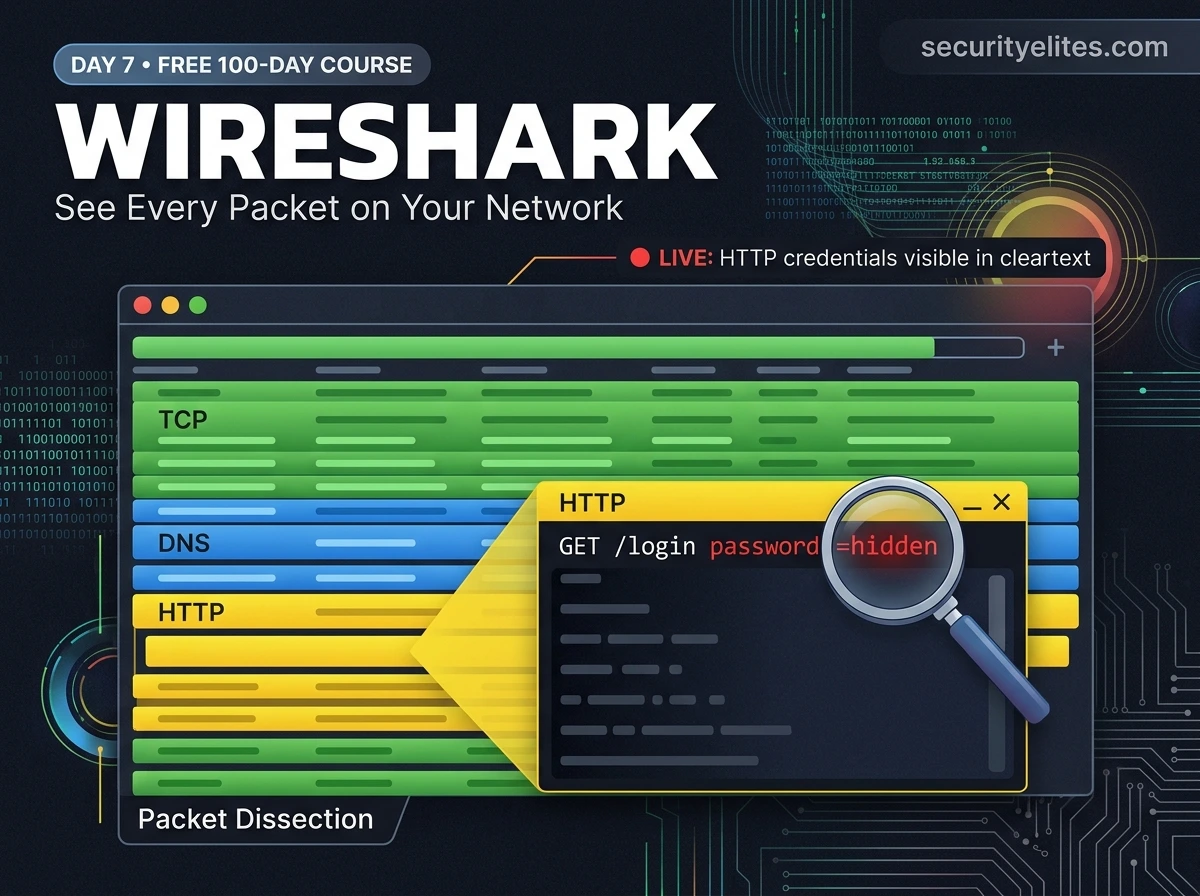
The first time I used Wireshark on a live network and watched an HTTP login scroll past with a username and password sitting in plain text — I genuinely sat back in my chair. Not because I didn’t know it was theoretically possible. Because seeing it actually happen, in real time, on a real network, changes how you think about every unencrypted connection you’ve ever made.
Today you’re going to have that moment. In your own lab. With your own traffic. And you’ll understand — viscerally, not theoretically — exactly why the security concepts we’ve been building toward matter.
Wireshark is the world’s most widely used network protocol analyser. It’s free, open source, and pre-installed on Kali Linux. Security professionals, network engineers, incident responders, and students all use it daily. What it does is simple: it shows you every packet crossing a network interface, decoded into human-readable form.
By the end of today, you’ll know how to launch a capture, navigate Wireshark’s three-pane interface, write display filters to isolate specific traffic, follow a complete TCP conversation, and explain to anyone why HTTP is dangerous and HTTPS matters. These are professional-level skills. Let’s build them.
What Wireshark Does — And Why Every Security Professional Uses It
Your network interface is constantly sending and receiving data. Right now, as you read this, your machine is exchanging DNS queries, TCP keepalives, maybe some HTTP requests and encrypted HTTPS traffic. Most of this is invisible because your operating system only shows you the final result — a webpage, an email, a file download.
Wireshark makes it visible. It puts your network interface into promiscuous mode — a state where it captures every packet crossing the interface, not just the ones addressed to your machine. Every packet is captured, decoded by protocol, and displayed in a format you can read and analyse.
🔍
Network Troubleshooting
See exactly what’s happening when a connection fails, slows down, or behaves unexpectedly
🔬
Protocol Learning
See how TCP, DNS, HTTP, TLS actually work by watching real exchanges packet by packet
🐛
Malware Analysis
Observe what a suspicious process communicates — command-and-control servers, data exfil
⚠️
Security Demonstration
Show clients exactly how their HTTP traffic exposes credentials — nothing convinces like seeing it live
⚖️ Legal reminder: All Wireshark captures in this course happen within your own Kali VM and local lab network. Capturing traffic on networks you don’t own — including shared WiFi at cafes, hotels, or workplaces — without explicit permission is illegal under computer crime laws globally. The techniques we learn are for understanding and defending, not surveillance.
Launching Wireshark & The Three-Pane Interface
Wireshark is pre-installed on Kali Linux. Open a terminal and launch it — we’ll run it with sudo to ensure we have permission to put interfaces into promiscuous mode.
Launching Wireshark in Kali Linux
# Launch with root privileges (needed for promiscuous mode)
sudo wireshark &
# The & runs it in the background so your terminal stays usable
# Or from Applications menu:
Applications → 09 – Sniffing & Spoofing → Wireshark
# If you see a permission error, add your user to wireshark group:
sudo usermod -aG wireshark $USER
newgrp wireshark
When Wireshark opens, you see the interface selection screen. Before starting a capture, you need to choose which network interface to listen on. You’ll recognise these from Day 5’s networking lesson.
Wireshark’s Three-Pane Interface — What Each Section Does
PANE 1
Packet List — The Stream of Captures
No.TimeSourceDestinationProtoLengthInfo
10.000192.168.56.18.8.8.8DNS73Standard query A google.com
20.0128.8.8.8192.168.56.1DNS89Standard query response A 142.250.185.46
30.013192.168.56.1142.250.185.46TCP6649234→80 [SYN] Seq=0
40.024142.250.185.46192.168.56.1TCP6680→49234 [SYN, ACK] Seq=0
50.025192.168.56.1142.250.185.46HTTP412GET /login HTTP/1.1
Each row = one packet. Click any row to inspect it in Panes 2 and 3.
PANE 2
Packet Details — Decoded Protocol Layers
▶ Frame 5: 412 bytes on wire
▶ Ethernet II: Src 08:00:27:aa:bb:cc → Dst 52:54:00:dd:ee:ff
▶ Internet Protocol: Src 192.168.56.1 → Dst 142.250.185.46
▶ Transmission Control Protocol: 49234 → 80 [PSH, ACK]
▼ Hypertext Transfer Protocol
GET /login HTTP/1.1\r\n
Host: target.com\r\n
Cookie: session=abc123\r\n
Expandable tree of every OSI layer — click arrows to drill into each protocol.
PANE 3
Packet Bytes — Raw Hexadecimal + ASCII
000045 00 01 9c 00 01 40 00 40 06 78 9a c0 a8 38 01E…..@.@.x…8.
00108e fa b9 2e c0 64 00 50 00 00 00 00 00 00 00 00…..d.P……..
002047 45 54 20 2f 6c 6f 67 69 6e 20 48 54 54 50 2fGET /login HTTP/
003031 2e 31 0d 0a 48 6f 73 74 3a 20 74 61 72 67 651.1..Host: targe
Raw bytes — hex on left, ASCII translation on right. HTTP in red shows readable text.
Your First Live Capture — Start Here
Open Wireshark now in your Kali VM. On the welcome screen, you’ll see a list of network interfaces with a live activity graph. You want to select the interface that’s actually moving — the one with the wiggly line — because that’s where traffic is flowing.
Starting your first capture — step by step
# Step 1: Identify your active interface
ip a # Run this first to know your interface names
eth0: 192.168.56.101 ← this is likely your active interface in VirtualBox
# Step 2: In Wireshark, double-click your interface (eth0) to start
# Packets will immediately start flowing. This is normal — your
# machine is always sending background traffic (ARP, DNS, etc.)
# Step 3: Generate some interesting traffic — open a terminal alongside
ping -c 5 8.8.8.8 # Generates ICMP packets — easy to spot
nslookup google.com # Generates DNS queries
curl http://example.com # Generates HTTP traffic
# Step 4: Stop the capture
Click the red ■ Stop button (or press Ctrl+E)
# Step 5: Save for later analysis
File → Save As → first_capture.pcap
# .pcap is the standard packet capture format — all tools read it
💡 You’ll see hundreds of packets immediately. Don’t panic — that’s normal. Your machine is constantly sending and receiving background traffic even when you’re not actively using any app. ARP requests, DNS TTL refreshes, TCP keepalives — all of it shows up. The display filter system (next section) is how you find the signal in this noise.
Colour Coding — Reading Traffic at a Glance
Wireshark colour-codes packets by protocol and status. Learning the default colour scheme lets you scan the packet list visually and immediately spot the traffic type you’re looking for. These are the colours you’ll see most often.
Light Blue — TCP traffic (general) — most web and service communication
Light Purple — UDP traffic — DNS, streaming, VoIP
Light Green — HTTP traffic — unencrypted web requests
Light Orange — TCP segments with SYN/FIN/RST flags — connection setup and teardown
Light Red / Pink — TCP errors, resets, connection problems — investigate these
Black (dark) — TCP retransmissions — packet was lost and resent
Display Filters — The Most Important Wireshark Skill
A live capture on an active network can generate thousands of packets per minute. Without filters, finding what you’re looking for is like searching for a word in a 1,000-page book without an index. Display filters are that index. Learn these and you’ll never feel lost in a capture again.
The filter bar is the long input field at the top of the Wireshark window. Type a filter expression and press Enter — the packet list instantly shows only matching packets. Clear the filter and all packets return. Nothing is deleted.
Essential Wireshark display filters — use these on every capture
# ── PROTOCOL FILTERS ──────────────────────────────────────
http # Show only HTTP traffic
dns # Show only DNS queries and responses
tcp # Show only TCP packets
udp # Show only UDP packets
icmp # Show only ICMP (ping) packets
arp # Show only ARP requests/responses
tls # Show TLS/SSL encrypted traffic
ftp # FTP control traffic (often cleartext passwords)
smtp # Email traffic
# ── IP ADDRESS FILTERS ─────────────────────────────────────
ip.addr == 192.168.56.101 # Traffic to OR from this IP
ip.src == 192.168.56.101 # Traffic FROM this IP only
ip.dst == 8.8.8.8 # Traffic TO this IP only
ip.addr == 192.168.56.0/24 # Traffic from/to entire subnet
# ── PORT FILTERS ────────────────────────────────────────────
tcp.port == 80 # HTTP traffic
tcp.port == 443 # HTTPS traffic
tcp.port == 22 # SSH connections
tcp.dport == 4444 # Destination port 4444 (common shell port)
# ── COMBINING FILTERS WITH AND / OR ─────────────────────────
http and ip.addr == 192.168.56.101 # HTTP from specific IP
dns or icmp # Either DNS or ICMP
tcp and not arp # TCP but excluding ARP
http.request.method == “POST” # Only HTTP POST requests (logins!)
# ── CONTENT SEARCH ──────────────────────────────────────────
frame contains “password” # Any packet with “password” in it
http contains “login” # HTTP traffic mentioning “login”
tcp.flags.syn == 1 and tcp.flags.ack == 0 # Pure SYN packets (port scan!)
💡 Filter autocomplete: As you type in the filter bar, Wireshark suggests completions. The bar turns green when your filter syntax is valid and red when it’s wrong. You don’t need to memorise exact syntax — start typing a protocol name and let autocomplete guide you.
Reading DNS, HTTP & ICMP Traffic — Protocol by Protocol
Let’s look at specific protocols through Wireshark’s lens. Generate each type of traffic in a terminal alongside Wireshark, filter to see it, then click into the packet details to understand what you’re seeing.
DNS — Watching Domain Resolution in Real Time
DNS in Wireshark — generate and filter
# Terminal — generate DNS traffic
nslookup securityelites.com
dig google.com MX
# Wireshark filter
dns
# What you’ll see in Pane 1:
12 0.001 192.168.56.101 → 8.8.8.8 DNS Standard query A securityelites.com
13 0.014 8.8.8.8 → 192.168.56.101 DNS Standard query response A 203.0.113.10
# Click packet 13 → Pane 2 → expand “Domain Name System (response)”
▼ Answers
securityelites.com: type A, class IN, addr 203.0.113.10
Time to live: 300 seconds
# You’re reading a real DNS response — the IP and its TTL
ICMP — Watching Ping Packets
ICMP in Wireshark — ping visualised
# Terminal
ping -c 4 8.8.8.8
# Wireshark filter
icmp
# You’ll see pairs — one request, one reply per ping
20 1.000 192.168.56.101 → 8.8.8.8 ICMP Echo (ping) request id=0x1234, seq=1
21 1.012 8.8.8.8 → 192.168.56.101 ICMP Echo (ping) reply id=0x1234, seq=1
# Click into the request packet → expand “Internet Control Message Protocol”
Type: 8 (Echo (ping) request)
Sequence number: 1
Data (48 bytes)
HTTP — The Cleartext Protocol That Reveals Everything
HTTP in Wireshark — reading a web request
# Terminal — make an HTTP request (not HTTPS)
curl -v http://example.com
# Wireshark filter
http
# You’ll see the full HTTP conversation
30 0.025 192.168.56.101 → 93.184.216.34 HTTP GET / HTTP/1.1
31 0.140 93.184.216.34 → 192.168.56.101 HTTP HTTP/1.1 200 OK
# Click packet 30 → Pane 2 → expand “Hypertext Transfer Protocol”
GET / HTTP/1.1\r\n
Host: example.com\r\n
User-Agent: curl/7.88.1\r\n
Accept: */*\r\n
# Everything readable. Headers, user agent, even cookies if set.
Follow TCP Stream — See the Full Conversation
Individual packets show you one piece of a conversation. Follow TCP Stream reassembles all the packets in a TCP connection and shows you the complete exchange — request and response together, in the order they happened. This is one of the most powerful features in Wireshark for understanding what two hosts actually said to each other.
Follow TCP Stream — how to do it
# Step 1: Right-click any packet in an HTTP conversation
Right-click → Follow → TCP Stream
# Or click a packet and press Ctrl+Alt+Shift+T
# Step 2: A window opens showing the complete conversation
# Red text = data sent FROM client (your machine)
# Blue text = data sent FROM server
# ─── CLIENT (red) ────────────────────────────────────
GET /login HTTP/1.1
Host: dvwa.local
Cookie: PHPSESSID=abc123; security=low
# ─── SERVER (blue) ───────────────────────────────────
HTTP/1.1 200 OK
Content-Type: text/html
<html><title>DVWA – Login</title>…
# Use “Find” in the stream window to search for keywords
Ctrl+F → “password” → highlights all matches
🔴 HTTP Credentials in Cleartext — The Demo That Changes Everything
This is the practical demonstration I want every student to run in their DVWA lab. It proves — visually, undeniably — why HTTP login forms expose credentials to anyone on the same network. Set up DVWA (we covered this in the lab setup guide) and follow these steps.
Capturing HTTP login credentials in DVWA — lab exercise
# Step 1: Ensure DVWA is running on your Kali VM
sudo service apache2 start
sudo service mysql start
# Open browser → http://localhost/dvwa/login.php
# Step 2: Start Wireshark capture on the loopback interface (lo)
# In Wireshark → select “Loopback: lo” → Start capture
# Set filter: http and tcp.port == 80
# Step 3: Submit the login form in your browser
# Username: admin Password: password
# Click Login
# Step 4: In Wireshark, find the POST request
http.request.method == “POST”
# Step 5: Right-click the POST packet → Follow → TCP Stream
POST /dvwa/login.php HTTP/1.1
Host: localhost
Content-Type: application/x-www-form-urlencoded
username=admin&password=password&Login=Login&user_token=abc123
# There it is. Username and password. In the clear.
# Anyone on the network running Wireshark would see this.
# This is why every login form must use HTTPS. No exceptions.
🎯 The lesson: This is not a theoretical attack. It is trivially easy to execute on any network where HTTP is used. In a professional engagement, showing a client this exact screenshot — their users’ credentials in Wireshark — is one of the most compelling pieces of evidence that forces remediation. Understanding the attack is what lets you make the argument that it needs to be fixed.
Saving Captures, Exporting & Professional Tips
Saving and exporting — professional workflow
# Save a full capture
File → Save As → capture_name.pcap
# .pcap is universal — all security tools read it
# Save only currently filtered packets (e.g. only HTTP)
File → Export Specified Packets → “Displayed” → Save
# Open a capture from command line
wireshark capture.pcap &
tshark -r capture.pcap -Y “http” # tshark = CLI Wireshark
# tshark — command line Wireshark for scripting
tshark -i eth0 -w capture.pcap # Capture to file from CLI
tshark -r capture.pcap -Y “http.request.method == POST”
tshark -r capture.pcap -T fields -e http.request.uri
# tshark is useful in headless (no GUI) server environments
# Extract files from HTTP traffic (e.g. downloaded files)
File → Export Objects → HTTP → Save All
# Wireshark reassembles downloaded files from packets
# Malware analysts use this to extract binaries from capture files
📋 Quick Reference — Filters for Common Security Scenarios
| Scenario | Display Filter |
|---|
| Find login POST requests | http.request.method == “POST” |
| Detect port scan (SYN flood) | tcp.flags.syn==1 and tcp.flags.ack==0 |
| Find DNS queries to suspicious domains | dns.qry.name contains “suspicious” |
| Show all traffic except ARP noise | not arp |
| Find FTP credentials | ftp.request.command == “PASS” |
| Detect TCP retransmissions (network issues) | tcp.analysis.retransmission |
| Find large data transfers (potential exfil) | tcp.len > 1000 |
| Find HTTP 401 Unauthorized responses | http.response.code == 401 |
| Traffic between two specific hosts | ip.addr == 10.0.0.1 and ip.addr == 10.0.0.2 |
🎯 Day 7 Practical Task – Wireshark Tutorial for Beginners
📋 DAY 7 CHECKLIST
1
Start a capture and generate all three traffic types
sudo wireshark &
# Select eth0 → Start
ping -c 4 8.8.8.8
nslookup google.com
curl http://example.com
Stop the capture. Apply the filter icmp — do you see 4 request/reply pairs? Apply dns — can you see the google.com lookup?
2
Follow the HTTP TCP stream from example.com
Filter to http. Click the GET packet. Right-click → Follow → TCP Stream. Can you read the full HTTP response including the HTML? Screenshot this for your notes.
3
Write 3 display filters from scratch without looking at the guide
Try to write filters for: (1) traffic from your VM’s IP, (2) only DNS, (3) TCP port 80. Check the filter bar — does it turn green? If not, fix the syntax until it does.
★
Save your capture and open it with tshark
File → Save As → ~/Day7/first_capture.pcap
tshark -r ~/Day7/first_capture.pcap -Y “dns” | head -20
You just used the CLI version of Wireshark — useful for scripting and headless servers. Does the output match what you saw in the GUI?
⭐ BONUS CHALLENGE — Detect a Port Scan
Start a Wireshark capture, then open a second terminal and run nmap -sS 127.0.0.1. Apply the filter tcp.flags.syn==1 and tcp.flags.ack==0. You will see every SYN packet Nmap sent — the exact fingerprint of a port scan. This is what a network defender’s IDS sees when a scan happens. Share a screenshot in Telegram with #Day7Done 📡
🔬
You can now see the invisible.
Every packet on your network tells a story.
Seven days in — and you’ve just used the same tool that every network engineer, security analyst, and penetration tester relies on daily. Day 8 is where we first pick up an offensive tool: Nmap. Using everything you know about TCP, ports, and subnets, we’ll scan networks properly and understand exactly what every result means.
Day 8: Nmap Network Scanning →
Frequently Asked Questions — Day 7
Why does Wireshark need root/administrator privileges?
Putting a network interface into promiscuous mode — capturing all traffic rather than just traffic addressed to you — requires elevated privileges because it’s a system-level operation. Without root, Wireshark can still capture packets addressed directly to your machine but will miss other traffic on the network segment. On Kali, adding your user to the wireshark group grants the necessary permissions without needing full root.
What is promiscuous mode?
Normally, a network interface only processes packets addressed to its own MAC address and drops everything else. Promiscuous mode tells the interface to capture every packet passing through — regardless of the destination address. This is what enables Wireshark to capture traffic beyond just your own. On a switched network, promiscuous mode still only shows traffic that reaches your port — to see all traffic between other devices, you’d need either a network tap, a span/mirror port on the switch, or to perform ARP poisoning first.
Can Wireshark capture traffic from other devices on my WiFi?
On a wired switched network, normally no — switches deliver traffic only to the intended port. On a WiFi network in monitor mode (not standard promiscuous mode), a compatible wireless adapter can capture all 802.11 frames including traffic from other devices. However, capturing other devices’ traffic without permission is illegal regardless of the technical method. For this course, all captures are within your own lab network.
What is a .pcap file and how is it used in security work?
PCAP (Packet Capture) is the standard file format for storing network packet data. Tools like Wireshark, tshark, tcpdump, Scapy, and Zeek all read and write pcap files. In security work, pcap files are used to: preserve evidence of network incidents for forensic analysis, share captures with colleagues for review, practice analysis skills on pre-captured traffic, and reproduce network behaviour in a lab. CTF competitions frequently provide pcap files as challenges — you’re expected to find hidden data or credentials inside them.
ME
Mr Elite
Founder, SecurityElites.com | Penetration Tester | Educator
Wireshark is where networking stops being abstract. When students run their first capture and see the HTTP credentials scroll past — that’s the look I teach for. Not alarm. Understanding. Because once you’ve seen it, you know exactly why every security control we’ll build over the next 93 days actually matters.