Day 180 — Expert Kali Operator
All Wireshark captures in this guide are performed on your own home lab network, your own virtual machine interfaces, or authorised practice platforms. Capturing network traffic on networks belonging to others without explicit written permission is illegal under the Computer Misuse Act (UK), CFAA (US), and equivalent laws globally. Lab setup guide: SecurityElites — Ethical Hacking Lab Setup.
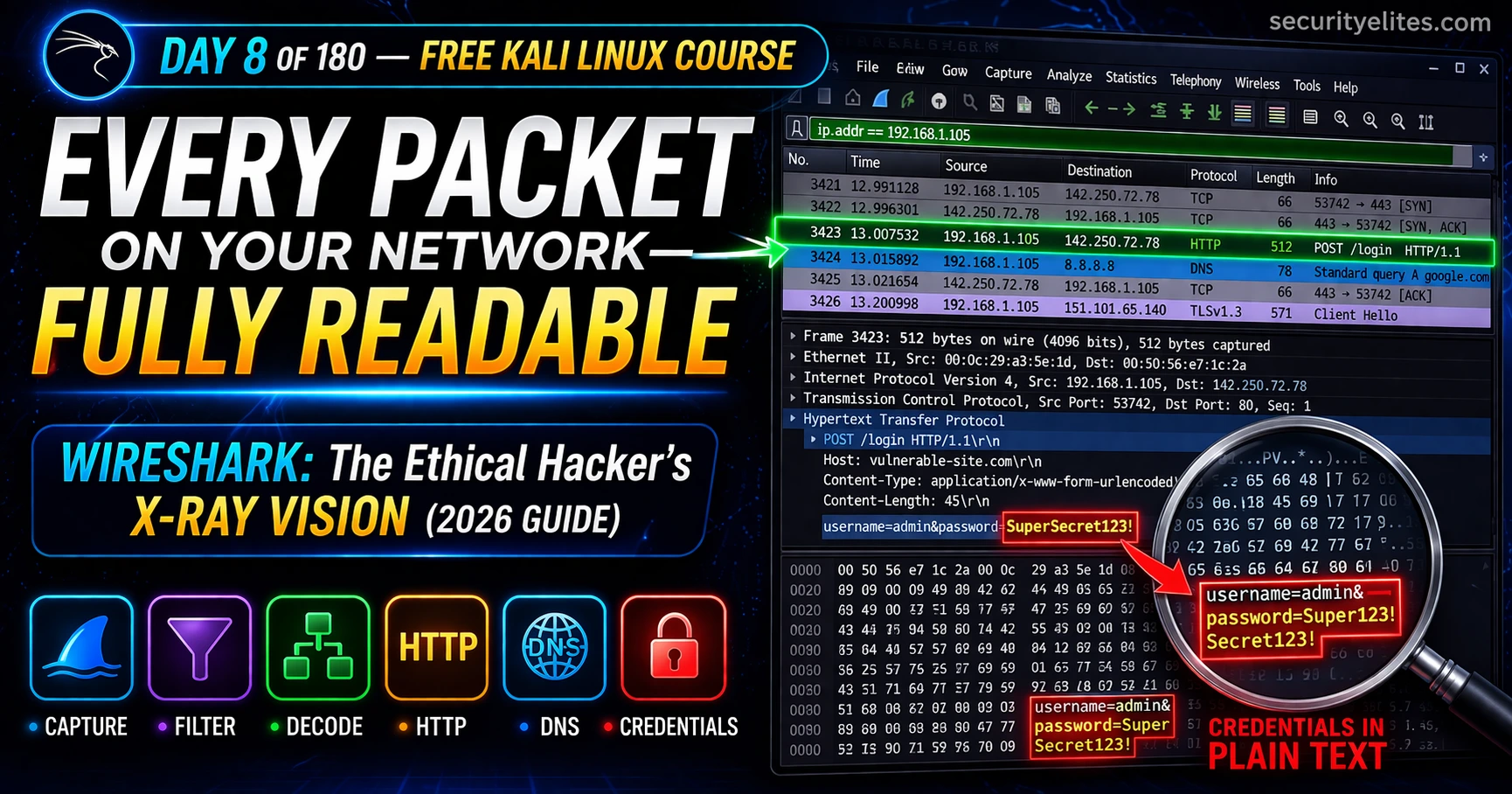
On Day 7 you used SQLmap to attack databases. Today’s tool shows you everything moving across the network in real time. Wireshark is the ethical hacker’s X-ray vision — every packet, every protocol, every conversation on the wire made completely visible. In professional engagements it captures cleartext credentials from unencrypted protocols, validates that encryption is working, and produces undeniable evidence for client reports. Day 8 teaches you to read the wire like a professional.
- What Wireshark Does and Why Ethical Hackers Need It
- Launching Wireshark — Interface Selection & First Capture
- The Three-Panel Interface Explained
- Display Filters — Isolating Traffic You Care About
- Capture Filters — Limiting What Gets Recorded
- Protocol Analysis — HTTP, DNS, FTP, TCP Decoded
- Following TCP Streams — Full Conversation Reconstruction
- Finding Cleartext Credentials in Captures
- Statistics & IO Graphs — Network Anomaly Detection
- Saving & Exporting Captures for Reports
- Day 8 Lab Task
The Wireshark tutorial for Kali Linux is not about memorising UI buttons — it’s about developing the ability to look at raw network traffic and ask: what is this machine doing, who is it talking to, and is it doing anything suspicious? From Day 7’s SQLmap you know how to attack. Wireshark teaches you how to see. Let’s open the wire.
What Wireshark Does and Why Ethical Hackers Need It
Wireshark is a network protocol analyser — it captures every packet crossing your network interface and presents them in human-readable format with full protocol decode. It doesn’t attack anything. It doesn’t send anything. It listens — and makes what it hears completely visible.
For ethical hackers, Wireshark has three professional uses: credential capture from unencrypted protocols (FTP, HTTP, Telnet, SNMP) during authorised network assessments, traffic validation confirming encryption is actually working and sensitive data isn’t leaking in cleartext, and network reconnaissance understanding what services and conversations are happening on a target network segment.
Launching Wireshark — Interface Selection & First Capture
Wireshark is pre-installed in Kali Linux. Launch from Applications → Sniffing & Spoofing, or from the terminal. It requires elevated privileges on most interfaces — Kali’s default configuration handles this automatically.
# Launch Wireshark GUI
wireshark &                    # runs in background, returns prompt
sudo wireshark &               # if permission denied on interfaces

# Add user to wireshark group (permanent fix)
sudo usermod -aG wireshark $USER && newgrp wireshark

# List available interfaces
ip link show                   # Linux interface list
tshark -D                      # Wireshark CLI interface list

# Common interfaces:
eth0    # wired Ethernet — use for lab captures
wlan0   # wireless — WiFi analysis
lo      # loopback — capture local machine traffic
any     # all interfaces simultaneously

# Quick CLI capture with tshark (Wireshark's terminal cousin)
tshark -i eth0 -w capture.pcapng       # capture to file
tshark -i eth0 -f "port 80" -c 100     # 100 HTTP packets then stop
The Three-Panel Interface Explained
Wireshark’s main window is divided into three panels. Once you internalise their roles, the interface becomes intuitive instantly.
Display Filters — Isolating Traffic You Care About
Display filters are the most important Wireshark skill to master. Without filters, a busy network produces thousands of rows per minute. With the right filter, you isolate exactly the traffic you need. The filter bar sits above the packet list — type and press Enter. Green = valid syntax. Red = error. Wireshark has autocomplete.
# ── Protocol filters ─────────────────────────────────────────────
http                         # all HTTP traffic
dns                          # all DNS traffic
ftp                          # FTP control channel (credentials here)
ftp-data                     # FTP file transfer data
tcp                          # all TCP
udp                          # all UDP
icmp                         # ping traffic
tls                          # TLS/HTTPS (encrypted)
arp                          # ARP requests/replies

# ── IP and host filters ──────────────────────────────────────────
ip.addr == 192.168.1.5       # traffic to OR from this IP
ip.src == 192.168.1.5        # FROM this IP only
ip.dst == 8.8.8.8            # TO this IP only
ip.addr == 192.168.1.0/24   # entire subnet

# ── Port filters ─────────────────────────────────────────────────
tcp.port == 80               # HTTP
tcp.port == 443              # HTTPS
tcp.port == 21               # FTP
tcp.port == 22               # SSH
tcp.port == 3389             # RDP
udp.port == 53               # DNS

# ── HTTP-specific filters ─────────────────────────────────────────
http.request.method == "POST"# POST requests (login forms)
http.request.method == "GET" # GET requests
http.response.code == 200    # successful responses
http.response.code == 401    # auth failures
http contains "password"     # packets containing "password"
http.authorization           # Basic Auth headers

# ── Combining filters ────────────────────────────────────────────
http and ip.addr == 192.168.1.5   # HTTP from specific host
http.request.method == "POST" and ip.dst == 192.168.1.10
not arp and not dns                # exclude noise
tcp.port == 80 or tcp.port == 443  # all web traffic
Capture Filters — Limiting What Gets Recorded
Capture filters apply before packets are stored — only matching packets enter the buffer. Display filters filter the view of already-captured data. Use capture filters when you only want specific traffic to keep file sizes manageable. They use BPF (Berkeley Packet Filter) syntax — simpler than display filter syntax.
host 192.168.1.5             # one host only
net 192.168.1.0/24           # entire subnet
port 80                      # HTTP only (BPF — no tcp. prefix)
port 21 or port 20           # FTP control + data
not port 22                  # exclude SSH noise
tcp                          # TCP only
udp port 53                  # DNS
host 192.168.1.5 and port 80 # HTTP from specific host

# KEY DIFFERENCE
# Capture filter → port 80        (BPF, set BEFORE capture starts)
# Display filter → tcp.port==80   (Wireshark syntax, applied AFTER)
# When in doubt: capture all, display filter later — you can't retrieve
# packets filtered out at capture time
Protocol Analysis — HTTP, DNS, FTP, TCP Decoded
Every protocol has a specific structure Wireshark decodes automatically. Knowing what each protocol reveals makes you faster at analysis — you know exactly which field to look at for each type of information.
Following TCP Streams — Full Conversation Reconstruction
“Follow TCP Stream” reconstructs the entire conversation — all packets in both directions — as readable text. Instead of reading individual fragments, you see the complete HTTP request, server response, login form data, session tokens, and any cleartext data exchanged. Right-click any TCP packet → Follow → TCP Stream.
# GUI — right-click any TCP packet
Right-click → Follow → TCP Stream
Right-click → Follow → HTTP Stream   # HTTP-aware reconstruction

# Stream window colour coding:
# RED  = data sent FROM the client (your interest: form data, credentials)
# BLUE = data sent FROM the server (responses)

# What you see in a cleartext HTTP POST stream:
POST /login HTTP/1.1
Host: 192.168.1.10
Content-Type: application/x-www-form-urlencoded

username=admin&password=SuperSecret123!    ← credentials in plaintext

# tshark CLI — follow stream number 5
tshark -r capture.pcapng -q -z "follow,tcp,ascii,5"

# Export all HTTP objects (files transferred over HTTP)
# GUI: File → Export Objects → HTTP
tshark -r capture.pcapng --export-objects http,/tmp/http-objects/
Finding Cleartext Credentials in Captures
Capturing cleartext credentials is one of the most impactful findings in a network penetration test — and it requires no exploitation, just a passive capture on the same segment. The evidence is undeniable. Three methods to find credentials efficiently:
# ── Method 1: Filter cleartext protocols ─────────────────────────
http.request.method == "POST"   # → Follow TCP Stream on each result
ftp.request.command == "USER"   # FTP username
ftp.request.command == "PASS"   # FTP password — plaintext!
telnet                          # entire Telnet session visible

# ── Method 2: Search for credential strings ──────────────────────
# Ctrl+F → Find Packet → Packet bytes → String
Search: "password"
Search: "pass="
Search: "USER "
Search: "PASS "

# ── Method 3: HTTP Basic Auth — instantly decodable ──────────────
http.authorization               # shows Basic Auth headers
# Value: "Basic YWRtaW46cGFzc3dvcmQ="
# Decode immediately:
echo "YWRtaW46cGFzc3dvcmQ=" | base64 -d
# → admin:password   (base64 is encoding, NOT encryption)

# ── tshark credential hunt from CLI ─────────────────────────────
tshark -r capture.pcapng -Y "http.request.method==POST" \
  -T fields -e http.host -e http.request.uri -e http.file_data

tshark -r capture.pcapng -Y "ftp.request.command==PASS" \
  -T fields -e ftp.request.arg   # prints FTP passwords directly
Authorization: Basic YWRtaW46U2VjcmV0MTIz. How do you get the credentials?Statistics & IO Graphs — Network Anomaly Detection
Wireshark’s Statistics menu provides high-level views revealing patterns impossible to spot by reading individual packets — scanning activity, bandwidth spikes from data exfiltration, periodic beacons from malware C2, and protocol distribution anomalies.
# Statistics → Protocol Hierarchy
# Breakdown of all protocols — spot unusual volumes
# High DNS % = possible tunnelling? High HTTP = data exfil?

# Statistics → Conversations
# All host pairs, bytes exchanged
# Spot top talkers, identify scanning (many short connections)

# Statistics → IO Graph
# Packets/bytes over time as line graph
# Traffic spikes = exfiltration. Periodic patterns = C2 beacon

# Statistics → Endpoints
# All hosts seen, bytes sent/received
# Map active hosts, find unusual external IPs

# Statistics → HTTP → Requests
# All HTTP requests with URI, host, packet number
# Quickly find interesting URLs without manual scrolling

# tshark equivalents
tshark -r cap.pcapng -q -z conv,tcp        # TCP conversations
tshark -r cap.pcapng -q -z io,stat,1      # IO stats per second
tshark -r cap.pcapng -q -z ptype,tree     # protocol hierarchy
tshark -r cap.pcapng -q -z endpoints,ip   # IP endpoints
Saving & Exporting Captures for Reports
Pcap files are the standard deliverable format for network capture evidence. The client’s security team can open your pcap in Wireshark to verify findings — and it serves as irrefutable evidence that credentials were transmitted in cleartext.
# Save full capture
# GUI: File → Save As → [filename].pcapng
# .pcapng = newer format (supports comments, timestamps)
# .pcap  = legacy (wider tool compatibility)

# Save only displayed packets (apply display filter first)
# Apply filter → File → Export Specified Packets → Displayed → Save

# Naming convention for pentest reports
target-ftp-credentials-2026-04-02.pcapng
engagement-http-cleartext-login.pcapng
client-internal-network-scan.pcapng

# tshark save from command line
tshark -i eth0 -w capture.pcapng -a duration:60 # 60-second capture
tshark -i eth0 -w capture.pcapng -b filesize:10000# rotate at 10MB

# Open existing pcap
wireshark -r capture.pcapng &
tshark -r capture.pcapng -Y "http" | head -50
Day 8 Lab Task
eth0. Browse your Metasploitable VM in Firefox. Stop after 2 minutes. Apply filter http and count HTTP packets. Apply dns and identify domains resolved. Use Statistics → Protocol Hierarchy for the full breakdown.ftp [metasploitable-IP] and log in with msfadmin/msfadmin. Stop capture. Apply ftp.request.command == "PASS". Follow TCP Stream. Read the full authentication sequence in plaintext.http://[metasploitable-IP]/dvwa/login.php and log in. Stop capture. Filter http.request.method == "POST". Follow TCP Stream. Screenshot the credentials visible in the stream.dvwa-cleartext-login-[date].pcapng. This is exactly how you include packet evidence in a real penetration test report.
# ── LAUNCH & SETUP ───────────────────────────────────────────────
wireshark &                          # launch GUI
tshark -D                            # list interfaces
tshark -i eth0 -w out.pcapng         # CLI capture to file
sudo usermod -aG wireshark $USER     # fix permission errors

# ── KEY DISPLAY FILTERS ──────────────────────────────────────────
http                                 # all HTTP
http.request.method == "POST"        # POST only (login forms)
http.authorization                   # Basic Auth headers
dns                                  # DNS queries
ftp                                  # FTP control
ftp.request.command == "PASS"        # FTP passwords
ip.addr == 192.168.1.5               # specific host
tcp.port == 80 or tcp.port == 443    # web traffic
not arp and not dns                  # exclude noise
http contains "password"             # search for credential strings

# ── CAPTURE FILTERS (BPF) ────────────────────────────────────────
port 80                              # HTTP only
host 192.168.1.5                     # one host
port 21 or port 20                   # FTP
not port 22                          # exclude SSH

# ── CREDENTIAL HUNTING ───────────────────────────────────────────
echo "base64value==" | base64 -d     # decode Basic Auth instantly
tshark -r cap.pcapng -Y "ftp.request.command==PASS" -T fields -e ftp.request.arg
tshark -r cap.pcapng -Y "http.request.method==POST" -T fields -e http.file_data

# ── STREAM & STATS ───────────────────────────────────────────────
tshark -r cap.pcapng -q -z "follow,tcp,ascii,5" # follow stream 5
tshark -r cap.pcapng -q -z conv,tcp             # conversations
tshark -r cap.pcapng -q -z ptype,tree           # protocol hierarchy
Network traffic is no longer invisible to you.
Day 9 brings theHarvester — the OSINT tool that collects emails, subdomains, names, and IPs from public sources. Where Wireshark reads what’s on the wire, theHarvester maps what’s publicly visible about a target before you touch the network at all.
Frequently Asked Questions — Day 8 Wireshark Tutorial
SecurityElites — Wireshark Tutorial Full Guide 2026 — extended reference covering advanced analysis techniques
SecurityElites — Wireshark Lab Exercises — 7 hands-on lab exercises from beginner to advanced
Wireshark Official User Guide — the complete reference for all features and display filter syntax →
Wireshark Display Filter Reference — complete list of all filterable protocol fields →
The most impactful deliverable I ever handed a client was a pcap file. Not a written report — a pcap. I sat with their CTO and opened it in Wireshark, filtered on FTP, and watched her expression change as she read their own internal credentials scrolling in plaintext. Nothing I could have written would have communicated the severity as clearly as that real-time demonstration. Wireshark is the tool that makes the invisible visible and the abstract concrete. Learn to use it well and your penetration test reports become undeniable. See you on Day 9 — theHarvester is next.