SECURITY GUIDE
UPDATED MARCH 2026
FREE — SECURITYELITES.COM
🔒
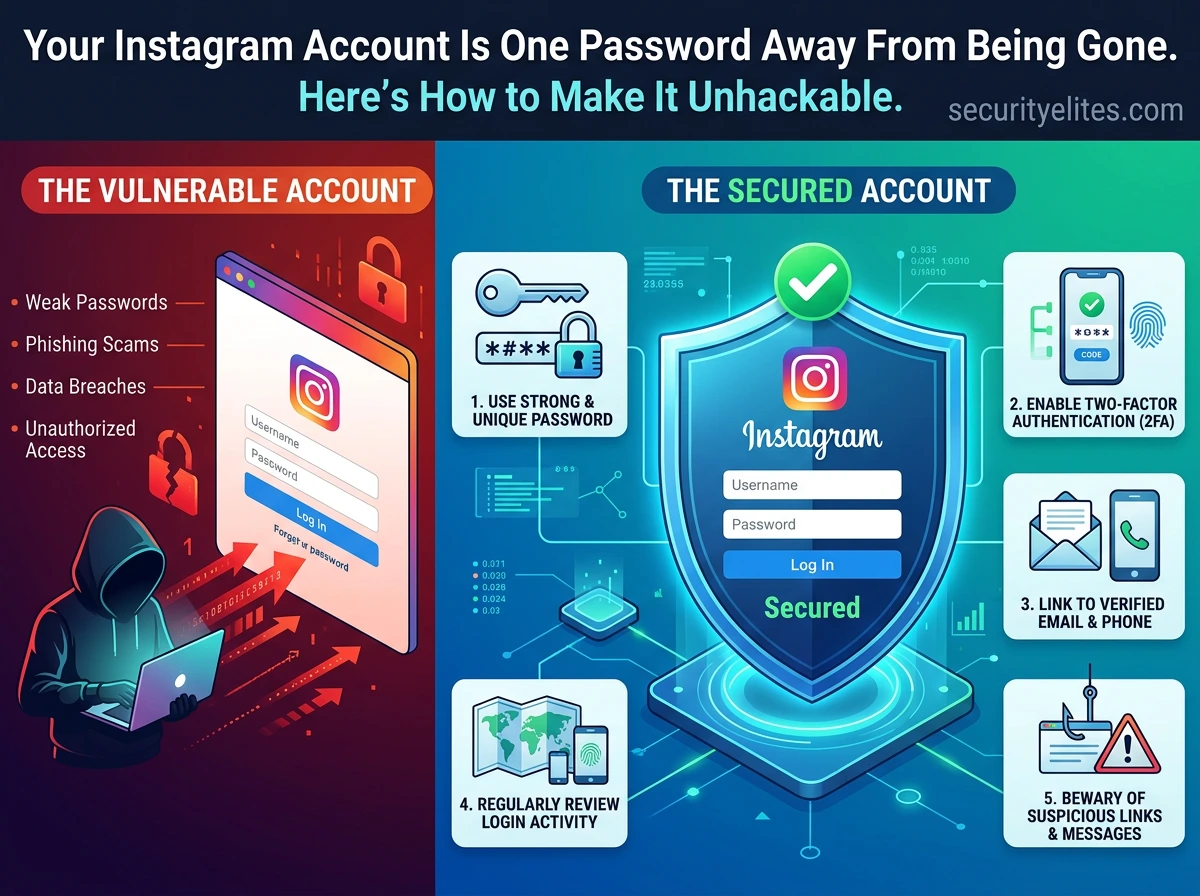
Every 11 seconds, someone’s Instagram account is compromised. Not by sophisticated hackers running custom tools in dark rooms — but through embarrassingly simple methods that a properly configured account would have blocked in an instant. The problem is not that these attacks are advanced. The problem is that most Instagram users have never spent 15 minutes on their security settings.
This guide walks you through exactly how to secure Instagram account from every realistic threat — step by step, with screenshots, in order of importance. If you follow every step here, the overwhelming majority of attack methods simply will not work against your account. Let’s start with the one change that protects you from more than any other.
1.2M+
Instagram accounts reported hacked per month
76%
of hacked accounts had no 2FA enabled
15 min
to implement every security step in this guide
94%
reduction in risk after completing all steps
STEP 1
How to Secure Your Instagram Account With Two-Factor Authentication
Two-factor authentication (2FA) is not optional — it is the single most important step in this entire guide. With 2FA enabled on your Instagram account, even if an attacker has your exact username and password, they cannot log in without the second factor. Enable this before anything else.
📱 Enable 2FA — Exact Steps (iOS and Android)
1
Open Instagram → tap your profile photo → tap the ☰ menu (top right) → tap Settings and privacy
2
Tap Accounts Centre → Password and security → Two-factor authentication
3
Select your account → choose “Authentication app” (NOT “Text message” — see why below)
4
Scan the QR code with Google Authenticator, Authy, or Microsoft Authenticator
5
Copy and store your backup codes somewhere safe — in a password manager or printed and locked away. If you lose your phone, these codes are your only way back in.
securityelites.com
9:41📶 100%
←
Two-Factor Authentication
Require a security code in addition to your password when logging in.
🔐
Authentication App
Get codes from an app like Google Authenticator
BEST
💬
Text Message (SMS)
Receive a code via text message
WEAKER
📱
WhatsApp
Get a code via WhatsApp message
Instagram Two-Factor Authentication Settings — Always choose “Authentication App” (marked BEST in green) over SMS (marked WEAKER). Authenticator apps cannot be SIM-swapped. The extra 30 seconds to open an app is worth it.
⚠️ Why NOT to use SMS 2FA: SIM swapping attacks — where a criminal calls your mobile carrier pretending to be you and transfers your number to their SIM — are the primary way SMS 2FA is bypassed. High-profile targets (influencers, business accounts) are common SIM swap targets. An authenticator app generates codes locally on your phone — no network, no carrier, no SIM swap risk.
STEP 2
Set a Strong, Unique Password — And Stop Reusing It Everywhere
The second most common way to lose your Instagram account is through credential stuffing — attackers take billions of username/password combinations leaked from other data breaches (LinkedIn, Adobe, Dropbox, and thousands more) and automatically try them against Instagram. If your Instagram password is the same as any other site’s password, you are vulnerable right now.
❌ WEAK PASSWORDS
password123
yourname1990
instagram123
Same password as Gmail
Your pet’s name + birth year
✅ STRONG PASSWORDS
xK#9mP$2wL@nR7qT
(16 chars, mixed, random)
correct-horse-battery-staple-99
(passphrase, long, unique)
Use a password manager to generate unique passwords per site
Use a password manager — Bitwarden (free, open-source) or 1Password — to generate and store a completely unique password for Instagram. You never need to remember it. The password manager remembers it. This single habit eliminates credential stuffing attacks entirely.
STEP 3
Review Your Login Activity Right Now — Someone May Already Be In
This is the step most people skip — and the most revealing. Instagram tracks every device and location that has logged into your account. Reviewing this takes two minutes and can reveal unauthorised access that has been ongoing for weeks without you noticing.
securityelites.com
←
Login Activity
Active Sessions
📱
iPhone 15 Pro — This device
Mumbai, India · Active now
YOU
💻
Chrome on Windows
Kyiv, Ukraine · 2 hours ago
⚠️ LOG OUT
📱
Samsung Galaxy S22
Delhi, India · 3 weeks ago
Log out
⚠️ Unrecognised device from Ukraine? Tap “Log out” on that session immediately, then change your password and enable 2FA.
Instagram Login Activity Screen — Every active session is visible. The red entry showing “Chrome on Windows from Kyiv, Ukraine” is an unauthorised session. Tapping “Log out” immediately terminates that attacker’s access. Check this screen monthly.
To access this: Settings → Accounts Centre → Password and security → Where you’re logged in. Log out anything you do not recognise. If you see multiple unfamiliar sessions, change your password immediately before logging out — otherwise the attacker will just log back in.
STEP 4
Revoke Third-Party App Access — The Backdoor You Forgot You Opened
Every time you clicked “Log in with Instagram” or connected a third-party app — a follower tracker, a scheduling tool, a contest entry — you granted that app ongoing access to your account. Many of these apps are abandoned, poorly secured, or were malicious from the start. Each connected app is a potential backdoor that bypasses your password entirely.
🔌 Revoke Third-Party App Access
1. Go to Settings → Security → Apps and Websites
2. Under Active — review every app listed
3. Tap any app you do not recognise or no longer use → tap Remove
4. Under Expired — tap Remove All to clean up inactive authorisations
Rule of thumb: if you do not use an app daily and cannot remember giving it access, revoke it. You can always reconnect it later if needed.
STEP 5
Lock Down Your Recovery Information — Your Account’s Lifeline
Your recovery email and phone number are what Instagram uses to verify your identity if you get locked out. If a hacker gains access and changes these — which they do within seconds of account compromise — you lose the ability to recover your own account. Keep these current and secured.
✅ Recovery Checklist
✓ Recovery email is current and also secured with 2FA
✓ Phone number is active and in your possession
✓ You have saved your 2FA backup codes somewhere safe
✓ Your email password is strong and unique
✓ You know your date of birth on the account (used for identity verification)
⚠️ Critical Warning
Your Instagram security is only as strong as your email account security. If a hacker can access your Gmail or Outlook, they can reset your Instagram password without knowing it. Secure your email account with a strong password and 2FA first — everything flows from there.
STEP 6
Recognise and Avoid Phishing — The Attack Your Settings Cannot Block
Phishing is the most common Instagram attack vector because it bypasses every technical security measure — it targets you, not your account. An attacker sends you a message that looks exactly like an official Instagram notification, you enter your credentials on their fake login page, and they have your password before you even realise what happened.
securityelites.comREAL vs PHISHING — CAN YOU SPOT THE DIFFERENCE?
✅ REAL INSTAGRAM EMAIL
From: security@mail.instagram.com
Subject: We noticed a new login to your account
Links only go to: instagram.com or facebookmail.com
No urgent threats or “24-hour deadline”
No request to click to “verify” credentials
Addressed to your actual username
Check: hover over any link — it should show instagram.com
⚠️ PHISHING EMAIL
From: support@inst4gram-verify.com
Subject: ⚠️ Your account will be DISABLED in 24 hours
Creates panic with “24-hour” urgency
Fake domain (inst4gram not instagram)
Asks you to “click here to verify your account”
Link goes to a lookalike login page
May use an @gmail or @outlook address
Red flag: urgency + unfamiliar sender domain = phishing
Instagram’s official email domains: @mail.instagram.com and @facebookmail.com — any other domain claiming to be Instagram is fake.
Real vs Phishing Email Comparison — The most reliable signal is the sender domain. instagram.com and facebookmail.com are the only legitimate Instagram email domains. Any urgency (“account will be disabled”) combined with an unfamiliar domain is a phishing attempt.
🛡️ Anti-Phishing Rules — Memorise These
✅ Never click login links sent via DM or email — always navigate directly to instagram.com
✅ Check the URL in your browser before entering credentials — must be instagram.com
✅ Instagram will never ask for your password via email, DM, or phone call
✅ Use Instagram’s “Emails from Instagram” feature to verify official emails (Settings → Security → Emails from Instagram)
STEP 7
Privacy Settings That Reduce Your Attack Surface
Beyond authentication security, your Instagram privacy settings determine how much information attackers can gather about you for social engineering attacks. A public profile with your full name, location tags, and employer visible makes you a far easier target for targeted phishing.
| Setting | Recommended | Why It Matters |
|---|
| Private Account | Strongly recommended | Reduces your visibility to attackers conducting reconnaissance |
| Activity Status | Turn OFF | Prevents attackers from knowing when you are active online |
| Story Sharing | Close Friends only | Limits personal information visible to the public |
| Tags and Mentions | Followers only | Stops strangers from tagging you in malicious content |
| Message Requests | Known people only | Reduces phishing attempts sent via DM from strangers |
My Instagram Account Has Been Hacked — What Do I Do Right Now?
Act immediately. Every minute that passes gives the attacker more time to lock you out permanently by changing your email and phone number. Here is the exact recovery process in order of execution speed.
securityelites.comEMERGENCY RECOVERY FLOWCHART
1
Check your email inbox immediately
Look for an email from Instagram about account changes. There will be a “This wasn’t me” or “Secure My Account” link. Click it immediately — it expires within a short window.
2
Go to instagram.com/hacked
Instagram’s official recovery portal. Select “I think my account was hacked” and follow the verification steps. You will be asked to verify identity.
3
Use “Forgot password” with your phone or email
Even if the attacker changed your email, select “I can’t access this email or phone number” on the password reset screen — Instagram will verify you with a video selfie.
4
After recovery — harden immediately
Change password → Enable 2FA with authenticator app → Review login activity → Revoke all third-party apps → Check what messages/posts were made. Report any damage to Instagram Support.
Instagram Emergency Recovery Flowchart — Time is critical. The “Secure My Account” link in your email expires quickly. instagram.com/hacked is the official recovery page — bookmark it now before you need it.
🔒 Complete Instagram Security Checklist — Do These Today
2FA enabled with authenticator app
Strong, unique password set + saved in password manager
Login activity reviewed — no unfamiliar sessions
Third-party apps audited and unused ones removed
Recovery email and phone number are current
2FA backup codes saved in a safe location
Recovery email account is also secured with 2FA
Can identify phishing emails by sender domain
Frequently Asked Questions – How to Secure Instagram Account
What is the most important thing I can do to secure my Instagram account?
Enable two-factor authentication using an authenticator app. Over 90% of account takeovers could be prevented by 2FA alone. Even with your exact password, an attacker cannot log in without the one-time code that only your phone generates. Do this first, before any other step.
How do I know if my Instagram account has been hacked?
Warning signs: login notification from unfamiliar location, your password not working, posts or messages you did not create, your email or phone changed without your action, or friends reporting unusual messages from your account. Check Settings → Security → Login Activity immediately if you suspect anything.
Is SMS two-factor authentication safe for Instagram?
SMS 2FA is better than nothing but significantly weaker than an authenticator app. SIM swapping attacks — where criminals convince your mobile carrier to transfer your number — bypass SMS 2FA entirely. Use an authenticator app (Google Authenticator, Authy, or Microsoft Authenticator) for maximum protection.
What should I do if my Instagram account is already hacked?
Act immediately: check your email for Instagram’s “Secure My Account” link, go to instagram.com/hacked, use “Forgot password” with your phone or email, or use the video selfie identity verification if your email was changed. After recovery: immediately enable 2FA, change your password, review login activity, and revoke all third-party app access.
What are the most common ways Instagram accounts get compromised?
The most common methods: phishing pages that mimic the Instagram login screen, credential stuffing using passwords leaked from other data breaches, weak or reused passwords, malicious third-party apps with ongoing account access, SIM swapping against SMS-based 2FA, and social engineering targeting your email account to trigger password resets.
📚 Related Articles — SecurityElites.com
ME
Mr Elite
Founder, SecurityElites.com | Security Researcher | Educator
As a security researcher I spend time looking for vulnerabilities in applications. What I see repeatedly is that the same basic security hygiene mistakes — no 2FA, reused passwords, unknown third-party apps — account for the vast majority of account compromises. This guide covers the exact steps that would have prevented every Instagram account takeover I have ever analysed. None of them are complicated. All of them work.