🟢 Day 5 — Burp Suite Deep Dive
Day 60 — Pro Hunter $$$$
✅
Days 1–4 Quick Check
By now you should have: a HackerOne account with a program selected, Burp Suite installed and working with Firefox + FoxyProxy + CA certificate, core HTTP knowledge (methods, status codes, cookies, SOP), and all 10 OWASP categories memorised. If you’re missing any of these — do the earlier days first. Day 5 builds directly on the Burp Suite setup from Day 2.
05
On Day 2 you installed Burp Suite and intercepted your first HTTP request. That was the introduction. Today is the masterclass. Every professional bug bounty hunter — every single one who earns consistently — lives in Burp Suite. They know its tabs the way a surgeon knows their instruments. Not just what each tool does in theory, but exactly when to reach for it and how to use it to get the result they need.
Today you will learn every major Burp Suite tab in operational depth — not surface-level descriptions but actual workflows. Scanner, Repeater, Intruder with all four attack types, Decoder, and Comparer. Then you will use everything you just learned to find a real vulnerability in a practice environment. By the end of this session you will have demonstrated your first web vulnerability — a finding that, in a real bug bounty programme, would earn you a real bounty.
This is the burp suite tutorial for beginners that professional hunters wish they had when they started. No skipped steps. No assumed knowledge. Let’s go.
Burp Suite Interface Overview — All the Tabs, All Their Purposes
When Burp Suite opens, beginners are often overwhelmed by the tab bar. Every professional hunter has had that moment of “where do I even start?” Let’s eliminate that feeling permanently with a clear map of every major component and its exact role in a bug bounty workflow.
securityelites.comB
Burp Suite Community Edition — Temporary Project
Proxy
Repeater
Intruder
Scanner
Decoder
Comparer
Sequencer
Target
Logger
USE DAILY
PROXY
Intercept & History. Your window into all browser traffic. Set Intercept ON to pause requests, OFF to passively capture them.
USE DAILY
REPEATER
Manually modify and resend any request. Your primary testing workspace — tweak parameters, headers, bodies and observe how the application responds.
POWERFUL
INTRUDER
Automated payload delivery. Send a wordlist through any parameter. Used for brute force, fuzzing, and enumeration. 4 attack types covered today.
SCANNER
Passive (free): analyses traffic already captured. Active (Pro only): actively sends attack payloads to find vulnerabilities automatically.
DECODER
Convert between encodings: Base64, URL, HTML, hex, gzip. Decode JWT tokens, cookies, hidden fields. Essential for understanding obfuscated data.
COMPARER
Side-by-side diff of two requests or responses. Find the exact difference between a successful login and a failed one — crucial for authentication testing.
Burp Suite Interface Map — The three tabs highlighted with colour borders (Proxy, Repeater, Intruder) are the ones you will use in every single testing session. Decoder and Comparer are used frequently but situationally. Scanner passive mode runs automatically. All covered in depth today.
STEP 1
Proxy and HTTP History — The Foundation of All Testing
The Proxy tab has two operational modes that you will switch between constantly. Understanding when to use each is the single most important Burp Suite habit to build from Day 5 onwards.
INTERCEPT OFF — Browse Mode
Browser works normally. Every request still flows through Burp and appears in the HTTP History tab — but nothing is paused. Use this mode for initial
reconnaissance and mapping the application’s surface. Browse the entire target with Intercept OFF first, then use History to pick interesting requests for testing.
Use for: initial mapping, passive capture
INTERCEPT ON — Pause Mode
Every request pauses in Burp before reaching the server. You read, modify, or drop it, then click Forward. Use this when you want to intercept and modify a specific request in real time — for example, to change a parameter the moment you click a button in the browser.
Use for: real-time modification, specific requests
📋 HTTP History — Your Hunting Ground
Every request in HTTP History is a potential finding. Here is the professional’s approach to reviewing History:
1.
Filter by Method = POST — POST requests submit data and are primary injection targets
2.
Filter by URL contains “id” — any parameter containing an ID is a potential IDOR target
3.
Look for status codes 302 redirects — redirects can indicate authentication bypasses
4.
Look for large response sizes — unusually large responses may contain more data than intended
5.
Right-click any interesting request → Send to Repeater to begin testing it
STEP 2
Repeater — Your Primary Manual Testing Workspace
Repeater is where you spend most of your time when manually testing a target. You send a captured request here, modify it, and observe how the application responds. The left panel is the editable request — everything in it can be changed. The right panel is the server’s response. Click Send to fire the modified request.
securityelites.com
Proxy
Repeater
Intruder
▶ Send
Tab 1: GET /api/user/profile
|
Tab 2: POST /api/orders
REQUEST (EDITABLE)
GET /api/user/profile?user_id=1044 HTTP/2
Host: target-app.com
Authorization: Bearer eyJhbGci…
Cookie: session=abc123
↑ Changed user_id from 1044 to 1043.
Whose profile do we get back?
RESPONSE — 200 OK
HTTP/2 200 OK
Content-Type: application/json
{
“user_id”: 1043,
“email”: “alice@example.com”,
“phone”: “+44 7700 900123”,
“address”: “14 Rose Lane…”
}
✓ IDOR CONFIRMED — Another user’s PII returned
Burp Repeater — IDOR Test Walkthrough. Request on left shows user_id=1043 highlighted in red (we changed it from our own ID 1044). Response on right shows another user’s full profile — email, phone, address — all returned without error. This is an IDOR vulnerability confirmed. This workflow is the foundation of manual bug bounty testing.
💡 Mr Elite’s Repeater Tips:- Use Ctrl+Shift+Space to render the response as HTML (see it like a browser would)
- Right-click the response → Send to Comparer to compare it with another response
- Use the ▲ ▼ arrows at the top of Repeater to navigate through your request history
- Name each Repeater tab (double-click the tab name) — keep one tab per parameter you’re testing
STEP 3
Intruder — Automated Payload Delivery, All 4 Attack Types Explained
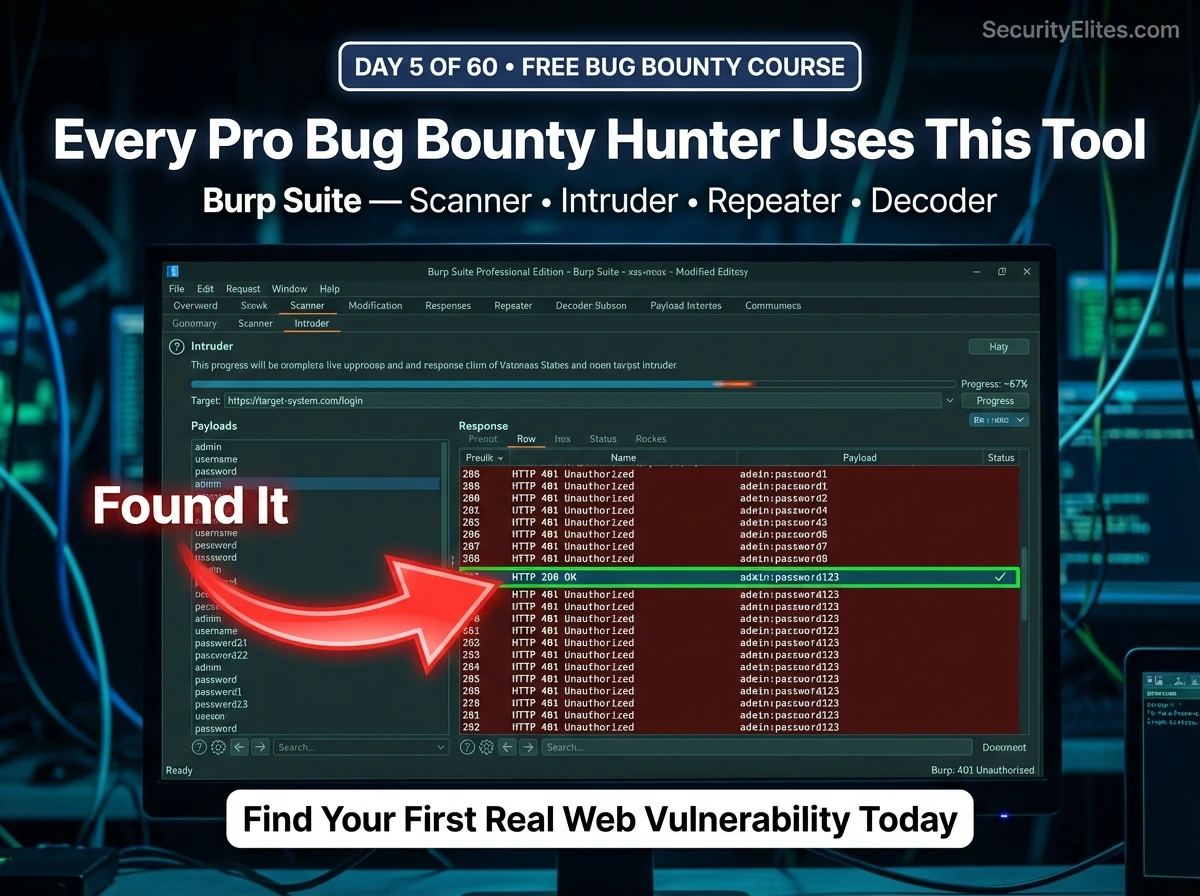
Intruder is Burp’s automated attack tool. Where Repeater lets you manually send one modified request at a time, Intruder sends hundreds or thousands of them automatically — cycling through a payload list. This is how you test every item in a wordlist against a parameter, brute-force login forms, enumerate user IDs, or fuzz input fields for injection vulnerabilities.
How to set up Intruder: Right-click a request in Proxy History → Send to Intruder. In the Intruder tab, go to the “Positions” sub-tab. Burp will automatically highlight what it thinks are good injection points — but always clear these and mark your own by selecting the value and clicking “Add §”. The § delimiters mark where payloads are inserted.
securityelites.comBURP INTRUDER — 4 ATTACK TYPES EXPLAINED
SNIPER
1 payload list
1 position at a time
Cycles through each marked position one at a time. While testing position 1, position 2 keeps its original value. Then switches to test position 2, position 1 reverts.
Positions: username=§PAYLOAD§ & password=admin
Then: username=admin & password=§PAYLOAD§
Best for: Single-parameter fuzzing, XSS testing, path traversal
BATTERING RAM
1 payload list
all positions at once
The same payload goes into every marked position simultaneously. All positions receive identical values from the list in sync.
Payload: admin
Result: username=§admin§ & password=§admin§
Best for: Testing when same value needs to appear in multiple places
PITCHFORK
Multiple lists
iterated together
Multiple payload lists, one per position, iterated in lockstep. List A item 1 goes to position 1 while List B item 1 goes to position 2. Then both advance to item 2 together.
List A: admin, alice, bob
List B: pass1, pass2, pass3
Result: admin:pass1 → alice:pass2 → bob:pass3
Best for: Matched credential pairs (username list + corresponding password list)
CLUSTER BOMB
Multiple lists
ALL combinations
Every combination of every item from every list — the full Cartesian product. 100 usernames × 100 passwords = 10,000 requests. The most thorough but slowest attack type.
List A: admin, alice
List B: pass1, pass2
Result: admin:pass1 → admin:pass2 → alice:pass1 → alice:pass2
Best for: Unknown credential combinations — try every username with every password
Community Edition note: Intruder in Community Edition is rate-limited to approximately 1 request per second. For large wordlists this is slow — use ffuf or hydra for high-speed fuzzing. For bug bounty testing (where you want controlled, careful testing anyway), 1 req/sec is often fine and actually more considerate toward target servers.
Burp Intruder — All 4 Attack Types. The most commonly used in bug bounty are Sniper (single-parameter testing) and Cluster Bomb (credential testing). Pitchfork is essential when you have matched username/password pairs from a data leak. Battering Ram is the most situational.
STEP 4
Decoder — Read What the Application Is Hiding in Plain Sight
Web applications constantly encode data — cookies are Base64-encoded, URL parameters have percent-encoding, HTML entities appear in responses, and tokens may have multiple encoding layers. Decoder converts between all of these formats, making it easy to see what an application is actually transmitting — and to craft modified values that the application will accept.
🔓 Common Decoder Use Cases in Bug Bounty
Decode a session cookie to see what’s inside it
Cookie: eyJ1c2VyX2lkIjoxMDQ0LCJyb2xlIjoidXNlciJ9
Paste into Decoder → Decode as Base64 →
{“user_id”:1044,”role”:”user”}
# Now modify “role”:”admin”, re-encode Base64, replace cookie → test if accepted
Decode URL-encoded parameters
URL param: redirect=%2Fadmin%2Fdashboard%3Ftoken%3Dabc
Decode as URL →
redirect=/admin/dashboard?token=abc
# Reveals hidden redirect — potential open redirect or SSRF
Chain multiple decodes (double-encoded XSS)
Input: %253Cscript%253Ealert(1)%253C%252Fscript%253E
Decode URL → %3Cscript%3Ealert(1)%3C%2Fscript%3E
Decode URL again →
<script>alert(1)</script>
# Double URL-encoded XSS payload — bypasses single-decode filters
STEP 5
Comparer — Find the One Line That Proves the Vulnerability
Comparer performs a diff between two requests or responses, highlighting exactly what changed between them. This is invaluable for authentication testing — you can compare a successful login response with a failed one to see precisely what the server includes differently. It is also useful for comparing two users’ data responses to identify what one user can see that the other cannot.
How to Use Comparer — Step by Step
1
In Repeater or History, right-click a response → “Send to Comparer”
2
Modify the request (e.g., wrong password, different user ID) and send again → right-click the new response → “Send to Comparer”
3
Go to the Comparer tab. Both responses appear in the list. Select both and click “Words” (for text comparison) or “Bytes”
4
Burp highlights every difference in colour. Green = only in response 1. Red = only in response 2. Orange = modified. The diff tells the story.
Practical example: You suspect a password reset endpoint is vulnerable because the application returns slightly different responses for existing vs non-existing email addresses — a classic user enumeration vulnerability. Send the response for a known email address to Comparer, then send the response for a random non-existent email. Compare Words. If there is any difference — even one word, even the response length — that difference is the user enumeration finding.
STEP 6
Scanner — Passive vs Active and When to Use Each
The Scanner in Community Edition runs in passive mode only — it analyses the traffic you browse through Burp and flags potential issues it notices without sending any additional requests. Active scanning (which sends attack payloads automatically) requires the Professional edition. Understanding what passive scanning gives you — and what it misses — shapes how you approach testing.
PASSIVE SCANNING (FREE)
✅ Runs automatically as you browse
✅ Flags missing security headers
✅ Identifies information disclosures in responses
✅ Detects SSL/TLS issues
✅ Spots suspicious cookie attributes (no HttpOnly)
✅ No additional requests sent — completely passive
Results appear in Target → Issues tab
ACTIVE SCANNING (PRO ONLY)
⚡ Sends thousands of attack payloads automatically
⚡ Detects SQLi, XSS, SSRF, path traversal
⚡ Tests all parameters in all discovered endpoints
⚡ Significantly faster than manual testing
⚠️ Generates noisy traffic — triggers IDS/IPS
⚠️ Only use on authorised targets with permission
Requires Burp Suite Pro (~$449/year)
Community Edition Strategy: Make passive scanning work harder by browsing every part of the target application. The more traffic you generate through Burp, the more the passive scanner has to analyse. Check the Target → Issues tab after every browsing session — findings flagged there are real starting points for manual testing. Many passive scan findings lead to medium-severity bug bounty reports with minimal additional effort.
STEP 7
Find Your First Vulnerability — A Complete Walkthrough on a Practice Lab
Theory becomes skill through practice. PortSwigger Web Security Academy provides free, interactive labs with deliberately vulnerable web applications specifically designed for practising exactly what you have learned today. Here is a complete walkthrough of finding an SQL Injection vulnerability using Burp Suite — the same process you will use on real bug bounty targets.
securityelites.com🔒 portswigger.net/web-security/sql-injection/lab — Lab running
PRACTICE LAB — PRODUCT FILTER PAGE
URL when “Gifts” clicked:
/filter?category=Gifts
The “category” parameter goes into a SQL query. We will test if it is injectable.
BURP REPEATER — TESTING THE PARAMETER
# Test 1: Normal request
GET /filter?category=Gifts HTTP/2
→ 200 OK — 3 products shown
# Test 2: Add single quote
GET /filter?category=Gifts’ HTTP/2
→ 500 Internal Server Error ← SQL error!
# Test 3: SQL payload to return all
GET /filter?category=‘+OR+1=1– HTTP/2
→ 200 OK — ALL products returned!
✓ SQL INJECTION CONFIRMED
The ‘ triggers an error (injectable)
‘+OR+1=1– bypasses the WHERE clause
Returns all rows from the database
PortSwigger Lab — SQL Injection Walkthrough. Single quote (‘) in the category parameter causes a 500 error (injectable). The payload ‘+OR+1=1– makes the SQL condition always true, returning all products. This three-step confirmation process (normal → error → exploit) is the standard injection verification workflow.
The Professional Bug Bounty Burp Workflow — How Real Hunters Use This Tool
Understanding each Burp tab in isolation is the foundation. Understanding how they connect into a coherent workflow is what makes you effective. Here is the workflow professional bug bounty hunters follow every time they open a new target:
The Professional Burp Workflow — In Order
1
Map the application (Intercept OFF)
Browse every page, click every button, use every feature. Fill in forms. Log in and out. This populates HTTP History with the application’s complete surface area.
2
Review HTTP History for interesting requests
Filter by POST, look for ID parameters, watch for unusual status codes, note endpoints that handle sensitive operations (payments, user data, admin functions).
3
Test with Repeater
Send interesting requests to Repeater. Modify parameters one at a time. Change IDs, add special characters, modify headers, change HTTP methods. Observe every response carefully.
4
Automate with Intruder when manual testing reveals a promising target
If a parameter looks injectable, use Intruder Sniper with a relevant wordlist. If testing authentication, use Cluster Bomb with credential lists. Let Intruder run while you continue manual testing.
5
Decode suspicious data with Decoder
Whenever you see Base64, URL encoding, or obfuscated values in requests or responses — paste them into Decoder. What the application is hiding in encoded form is often where the vulnerability lives.
6
Diff responses with Comparer to confirm findings
When you suspect a vulnerability — compare the expected response against the anomalous one. Comparer shows exactly what changed. Use this to prove impact and document the finding for your report.
🎯 Day 5 Task — Use Burp Suite to Find Real Vulnerabilities
📋 COMPLETE ALL TASKS BEFORE DAY 6
1
Complete PortSwigger’s SQL Injection Lab 1
Go to
portswigger.net/web-security/sql-injection → Lab: “SQL injection vulnerability in WHERE clause allowing retrieval of hidden data.” Follow the walkthrough from Step 7 in this lesson. Use Burp Suite Repeater to confirm the injection and solve the lab. Take a screenshot of the “Congratulations” banner.
✅ Goal: Lab solved and “Congratulations” confirmed
2
Use Intruder Sniper to fuzz a parameter on any PortSwigger lab
Send any request from a PortSwigger lab to Intruder. Clear existing positions, mark one parameter with § delimiters. Set attack type to Sniper. Load a small payload list (use a built-in Burp list under the Payloads tab). Start the attack. Analyse the results table — look for any response with a different status code or length from the others. That difference is what you investigate in Repeater.
✅ Goal: Run an Intruder attack and identify the anomalous response
3
Decode a JWT token using Burp Decoder
Log into any website that uses JWT authentication (many PortSwigger labs do). Find the JWT token in Burp HTTP History — it starts with eyJ. Copy the token’s payload section (the middle part, between the first and second dot). Paste it into Burp Decoder → Decode as Base64. Read what the token contains. Can you identify the user_id, role, or expiry time?
✅ Goal: JWT payload decoded and user data identified
★
BONUS: Complete the Access Control lab on PortSwigger (IDOR)
Go to
portswigger.net/web-security/access-control → Lab: “Insecure direct object references.” Use Burp Repeater to modify the user identifier and retrieve another user’s data. This is the IDOR technique covered in Day 4’s OWASP A01 section — now applied in a real lab environment using the exact Burp workflow from today. Share your lab completion with #Day5Done 🎯
🎯
Day 5 done. Burp Suite is no longer a mystery.
You know every tab and exactly how to use it.
Day 6 is Google Dorking — the art of using Google’s advanced search operators to find exposed files, admin panels, login pages, and sensitive information on your target’s domains without ever touching the target’s servers. It is the most underrated reconnaissance technique in bug bounty, it requires zero tools, and it consistently surfaces findings that no scanner finds.
Day 6: Google Dorking →
Frequently Asked Questions — Burp Suite Deep Dive
What is Burp Suite and why do bug bounty hunters use it?
Burp Suite is a
web application security testing platform that intercepts, inspects, and modifies all HTTP/HTTPS traffic between a browser and web applications. Bug bounty hunters use it because it provides a complete testing toolkit: Proxy for traffic capture, Repeater for manual request modification, Intruder for automated payload delivery, Decoder for encoding analysis, and Comparer for response diffing. It is the industry standard tool for web security testing, used by professionals and beginners alike.
What is the difference between Burp Suite Community and Professional?
Community Edition is free and includes Proxy, Repeater, Intruder (rate-limited to ~1 req/sec), passive Scanner, Decoder, and Comparer. Professional (~$449/year) adds the active Scanner (automated vulnerability detection), removes the Intruder speed limit, and includes Collaborator for out-of-band testing. For bug bounty beginners, Community Edition covers everything needed for the first 6–12 months.
What are the four Burp Suite Intruder attack types?
Sniper: one payload list, tests each position sequentially. Battering Ram: one payload list, same payload in all positions simultaneously. Pitchfork: multiple payload lists iterated together in lockstep (list A item 1 + list B item 1, then item 2 + item 2). Cluster Bomb: multiple payload lists, every combination of every item — the most thorough and slowest attack type. For bug bounty, Sniper is used most often for parameter fuzzing, and Cluster Bomb for credential testing.
How do I use Burp Suite Decoder?
Paste encoded data into the Decoder input field, then use the “Decode as” dropdown to select the encoding type — Base64, URL, HTML, hex. The decoded output appears below. You can chain multiple operations for doubly-encoded data. Common uses: decoding session cookies and JWT tokens (Base64), reading URL-encoded parameters, and analysing obfuscated hidden fields. Use “Encode as” to re-encode modified values to send back to the application.
What is Burp Suite Collaborator and how is it used in bug bounty?
Collaborator is a Professional-only feature providing unique URLs that detect out-of-band interactions — when a target server makes a DNS lookup or HTTP request to your Collaborator URL, even without returning anything visible to you. Essential for blind SSRF, blind XSS, and blind command injection. Community Edition alternative: use https://webhook.site or https://interactsh.com as free out-of-band interaction detection services.
📚 Further Reading and Resources
ME
Mr Elite
Founder, SecurityElites.com | Bug Bounty Hunter | Educator
The first time I sent a request to Repeater, changed a user ID by one digit, and got back someone else’s data — I sat back from my screen for a full minute. Not because I had done something wrong (it was a PortSwigger lab, entirely authorised). But because I had just understood, viscerally, what “web vulnerability” actually means. It is not abstract. It is one number in a URL returning a real person’s real information. Burp Suite makes that visible. Day 5 is the day this course stops being theoretical.