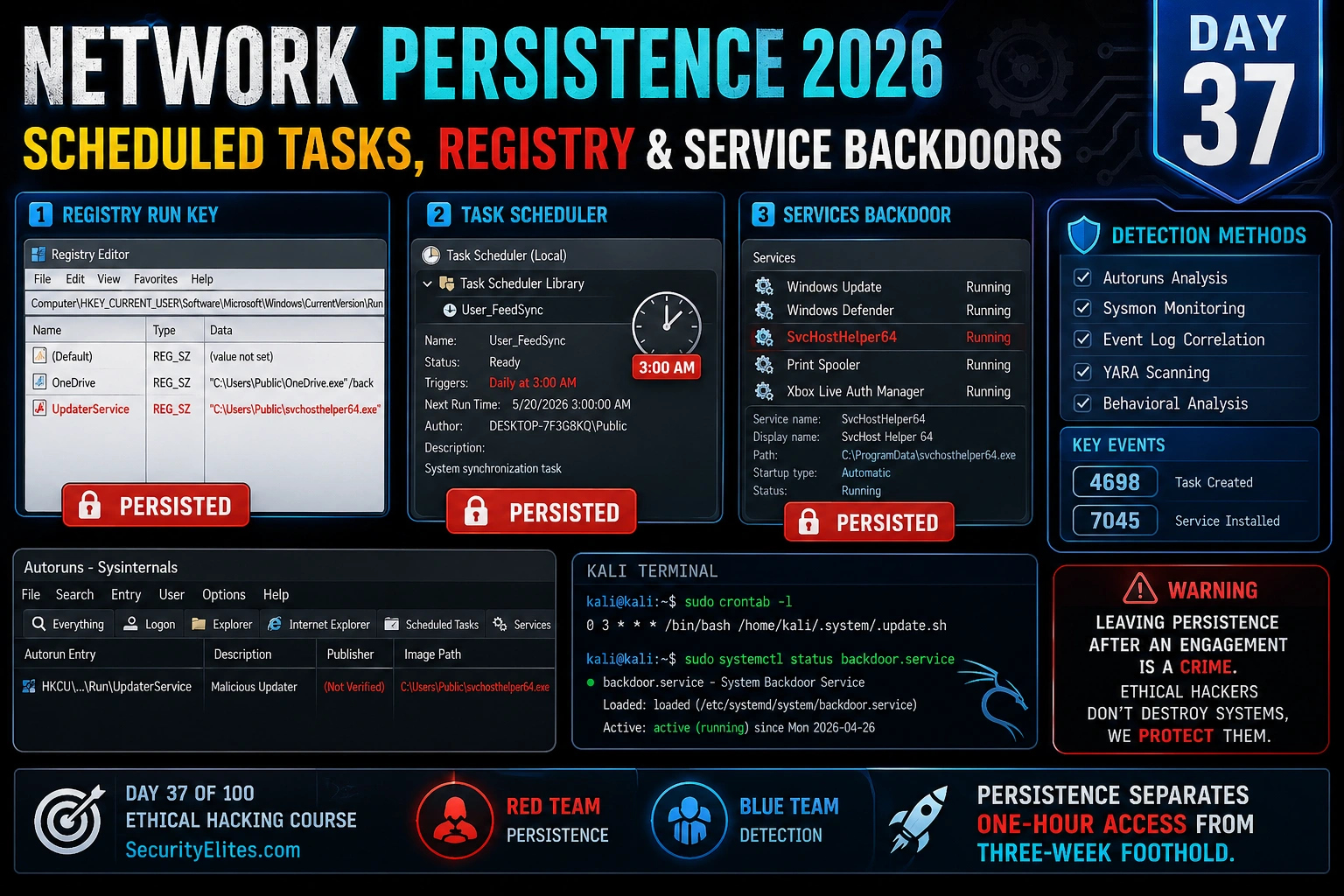
This article from Day 37 of a 100-day ethical hacking course teaches Windows and Linux persistence mechanisms—techniques that maintain post-exploitation access across reboots and session interruptions. It covers scheduled tasks, registry Run keys, Windows services, cron jobs, and systemd services, emphasizing that persistence is a critical red team capability and equally important for incident responders hunting compromise. The material is authorised-engagement-only, with labs demonstrating both establishment and detection using tools like Autoruns.
- Persistence as engagement differentiatorThe article argues that persistence transforms a temporary shell into a sustainable foothold. Without persistence, every reboot or session interruption loses access that may have taken days to establish; with persistence, compromised hosts automatically reconnect to command-and-control infrastructure. The author notes from real experience that maintaining a 3-week foothold versus losing access on day one depends entirely on persistence mechanisms being established before conducting other post-exploitation actions.
- Privilege-trigger-detectability strategy matrixThe article presents persistence as a tradeoff across three dimensions: privilege level (user vs SYSTEM vs service account), trigger mechanism (boot, logon, schedule, event), and detectability. High-privilege SYSTEM-level persistence is powerful but generates detectable Windows Event Log entries (4698 for scheduled tasks, 7045 for services). The optimal red team approach establishes both SYSTEM-level for capability and user-level as a backup that survives password changes—the backup is what saves the engagement when the primary gets cleaned.
- Windows scheduled task persistence mechanismsScheduled tasks offer fine-grained control via triggers: boot startup, logon, specific times, or system events. User-level tasks require only user privileges; boot and SYSTEM-level tasks require Administrator. The article shows three command examples: user-triggered at logon, SYSTEM-level at startup, and recurring every 5 minutes. Detection occurs via Event ID 4698 (task created) and 4702 (task updated), plus manual enumeration with Get-ScheduledTask. PowerShell methods use New-ScheduledTaskAction and Register-ScheduledTask, which are harder to detect by task name alone.
- Registry Run key persistence implementationRun keys in HKCU and HKLM registry hives execute configured payloads at user logon. HKCU requires only user privileges; HKLM requires Administrator. The article demonstrates syntax using both `reg add` commands and PowerShell's Set-ItemProperty. RunOnce variant executes once then deletes itself. Detection relies on registry auditing (if enabled) and tools like Autoruns. User-level HKCU registry keys are described as lower-signal and frequently preferred for stealth against mature SOCs because they don't generate admin-level event log entries.
- Windows service backdoors and restart behaviorServices run as SYSTEM by default, operate without requiring a user session, survive reboots automatically, and can be configured to restart on failure using `sc.exe failure` commands with reset intervals. Service creation requires Administrator and generates Event ID 7045 in System event logs. The article shows `sc.exe create` syntax with `start= auto` for automatic startup and describes configuring recovery actions (restart/60000 repeated). Services are the most privileged persistence mechanism but also the most detectable on properly configured SIEMs.
- Linux persistence across cron and systemdLinux persistence uses three primary mechanisms depending on privilege: user crontab (runs as current user, survives reboots), /etc/crontab or /etc/cron.d/ (requires root), and systemd service units (Linux equivalent of Windows service backdoors). The article shows user crontab syntax with pipe-to-crontab installation, system crontab drop-in files, and systemd .service file creation. SSH authorized_keys persistence is mentioned as an alternative that persists across reboots. Detection involves checking crontab -l, /etc/cron.d/, systemctl list-units, and finding unauthorized SSH keys.
- Autoruns as unified persistence enumeration toolAutoruns (Sysinternals) enumerates every Windows auto-start location: registry Run keys, scheduled tasks, services, browser extensions, boot execute entries, known DLL hijacking paths, WMI event subscriptions, and startup folders. It colour-codes unsigned binaries in yellow, integrates VirusTotal lookups, and supports baseline comparison. The article identifies Autoruns as the single most comprehensive Windows persistence detection tool, used in both red team and incident response contexts. A baseline before and after suspected compromise reveals exactly what persistence was added.
- Detection-aware strategy thinking before deploymentThe article emphasizes that selecting a persistence mechanism without considering detection context gets engagements caught unnecessarily. Exercise 1 presents a scenario against a mature SOC with Splunk, CrowdStrike EDR, and security monitoring, asking whether to use SYSTEM-level service (high detection), scheduled task (high detection), HKCU registry (lower signal), or WMI subscription (widely missed). The article argues WMI subscriptions and LOLBins-based approaches minimize EDR detection risk, and timing execution during business hours provides noise cover versus executing during quiet peri
Bottom line: Persistence is not optional post-exploitation—it determines whether a red team engagement maintains access across reboots or loses the foothold on day one; the same knowledge that enables effective red team persistence is essential for incident responders hunting compromise, making dual-use understanding of both establishment and detection techniques critical to both roles. Establish multiple independent persistence mechanisms using different privileges and triggers before conducting other post-
FREE
Part of the 100-Day Free Ethical Hacking Course
🎯 After Day 37
⏱️ 45 min read · 3 labs · Day 37 of 100
✅ Before You Start
- Day 36: Pivoting & Tunneling — complete this first. The tools and concepts from that session are assumed here.
- Windows 10/11 VM with admin access for persistence labs. Sysinternals Autoruns downloaded. Kali Linux for Linux persistence labs.
📋 Day 37 — Network Persistence
On Day 36 I covered pivoting and tunnelling — maintaining network connectivity through compromised hosts. Today I’m addressing what happens when that connectivity drops: persistence mechanisms that re-establish access after system reboots or session terminations. These aren’t optional post-exploitation steps — on a red team engagement, persistence is the difference between maintaining a 3-week foothold and losing access on day one.
Why Persistence Matters in Red Team Operations
A reverse shell gives me a session. Persistence gives me a foothold that survives beyond the current session. The distinction matters enormously: without persistence, every reboot, logoff, or network interruption loses the access it took potentially days to establish. With persistence, the compromised host reconnects to my command-and-control infrastructure automatically.
My persistence strategy on a real engagement considers three dimensions: privilege level (user vs SYSTEM vs service account), trigger (boot, logon, schedule, event), and detectability. High-privilege SYSTEM-level persistence is powerful but generates more detectable events. User-level persistence is more stealthy but limited in capability. I establish both: SYSTEM-level for capability, user-level as a backup that survives password changes. The backup is the one that saves the engagement when the primary gets cleaned.
⏱️ 20 minutes · No tools required
Before setting up persistence mechanically, I want you to think through the strategy decisions that shape which mechanism to use. A persistence mechanism chosen without considering detection and operational context gets the engagement caught unnecessarily.
department employee at a financial services firm. You have local admin
privileges. The firm runs a mature SOC with Splunk SIEM, CrowdStrike EDR,
and a security team that reviews Autoruns alerts.
OBJECTIVE: Maintain access for 3 weeks while conducting an authorised
red team engagement simulating a nation-state APT.
QUESTION 1 — Primary Persistence
What is your primary persistence mechanism and why?
Consider: privilege needed, trigger needed, how long before detection?
a) Windows service running as SYSTEM
b) Scheduled task as SYSTEM on boot
c) Registry HKCU Run key as current user
d) WMI event subscription
QUESTION 2 — Backup Persistence
What backup mechanism would you establish?
It should use a different trigger and method than your primary.
Which mechanism would the SOC be least likely to detect?
QUESTION 3 — Persistence Payload
What would you use as the payload?
a) Meterpreter reverse shell executable on disk
b) PowerShell one-liner in registry (fileless)
c) Legitimate LOLBins (living off the land) with malicious arguments
Which minimises the EDR detection risk?
QUESTION 4 — Operational Security
What time would you execute the persistence installation?
a) 9 AM — during normal business hours, lots of activity noise
b) 11 PM — after hours, quiet period on endpoints
c) Immediately after gaining initial access, regardless of time
What difference does timing make for SIEM alert triage?
QUESTION 5 — Recovery
If your primary persistence is discovered and cleaned on day 5,
how does your backup ensure you maintain the engagement?
What’s your procedure for re-establishing the primary?
📸 Write your complete persistence strategy decision and share in #ethical-hacking.
Windows Scheduled Task Persistence
Windows Task Scheduler is one of the most powerful and commonly used persistence mechanisms because it provides fine-grained control over triggers (boot, logon, specific times, system events) and runs with configurable privilege levels. Creating a scheduled task requires either user-level access (for user-triggered tasks) or Administrator (for boot-trigger and SYSTEM-level tasks).
Key path / command
Detection
Get-ScheduledTask | Where State -ne Disabled
Evt 4698
HKCU\Software\Microsoft\Windows\CurrentVersion\Run
Reg audit
HKLM\SOFTWARE\Microsoft\Windows\CurrentVersion\Run
Reg audit
Get-Service | Where StartType -eq Automatic
Evt 7045
%APPDATA%\Roaming\Microsoft\Windows\Start Menu\Programs\Startup
File audit
Get-WMIObject __EventFilter -Namespace root/subscription
Often missed
Registry Run Key Persistence
Registry Run keys are one of the oldest and most commonly used Windows persistence mechanisms because they’re simple to set up and don’t require creating files in obvious locations. HKCU Run keys require only user privileges; HKLM keys require Administrator. Both execute their configured payload every time a user logs on.
Windows Service Backdoors
Windows services are the most privileged persistence mechanism — by default they run as SYSTEM, operate without a user session, survive reboots, and can be configured to restart automatically on failure. The privilege and persistence combination makes services the preferred mechanism for long-term access on a compromised server. The cost: service creation requires Administrator privileges and generates Event ID 7045 in the System event log.
Linux Persistence — Cron, Systemd, and RC
Linux persistence mechanisms parallel Windows in concept but differ in implementation. I use three primary approaches depending on the privilege level achieved: user crontab for user-level persistence, /etc/crontab or /etc/cron.d/ for system-level (root required), and systemd service units for the Linux equivalent of a Windows service backdoor.
⏱️ 25 minutes · Windows VM (local lab only — never on systems you don’t own)
This lab establishes all three primary Windows persistence mechanisms in sequence and then hunts them using Autoruns. The objective is to see what each mechanism looks like both from the attacker side (creating it) and the defender side (finding it).
Download Autoruns: download.sysinternals.com/files/Autoruns.zip
SETUP: Create a dummy executable to use as the payload
echo @echo off > C:\Windows\Tasks\svc.exe
Note: In a real lab, this would be a Meterpreter payload
PERSISTENCE 1 — Scheduled Task:
schtasks /create /tn “TestPersistenceTask” /tr “C:\Windows\Tasks\svc.exe” /sc ONLOGON /ru %USERNAME% /f
Verify: schtasks /query /tn “TestPersistenceTask”
Check Event Viewer: Windows Logs → Security → Filter by Event ID 4698
PERSISTENCE 2 — Registry Run Key:
reg add “HKCU\Software\Microsoft\Windows\CurrentVersion\Run” /v “TestPersistence” /d “C:\Windows\Tasks\svc.exe” /f
Verify: reg query “HKCU\Software\Microsoft\Windows\CurrentVersion\Run”
PERSISTENCE 3 — Windows Service:
sc.exe create “TestPersistSvc” binPath= “C:\Windows\Tasks\svc.exe” start= auto
Verify: sc.exe query TestPersistSvc
Check Event Viewer: Windows Logs → System → Filter by Event ID 7045
DETECTION — Run Autoruns:
Run Autoruns.exe as Administrator
Screenshot: Logon tab (shows Run keys and scheduled tasks)
Screenshot: Services tab (shows new TestPersistSvc)
Notice: How does Autoruns highlight non-Microsoft entries?
CLEANUP (important — clean your lab):
schtasks /delete /tn “TestPersistenceTask” /f
reg delete “HKCU\Software\Microsoft\Windows\CurrentVersion\Run” /v “TestPersistence” /f
sc.exe stop TestPersistSvc
sc.exe delete TestPersistSvc
del C:\Windows\Tasks\svc.exe
📸 Screenshot your Autoruns Logon tab showing all three persistence entries. Share in #ethical-hacking.
Detection — Finding and Removing Persistence
Persistence detection is the incident responder’s side of this knowledge. When I’m brought in for an IR engagement, my first task is enumerating all persistence mechanisms on compromised systems. My toolkit for this is Autoruns (Windows) and a manual checklist of Linux persistence locations.
⏱️ 20 minutes · Linux VM (Kali or Ubuntu) — local lab only
This lab establishes all four Linux persistence mechanisms in sequence, then conducts a full persistence hunt using the detection commands. The goal is to build the muscle memory for both sides: establishing persistence as a red teamer and finding it as an incident responder.
PERSISTENCE 1 — User Crontab:
(crontab -l 2>/dev/null; echo “*/5 * * * * echo ‘test’ > /tmp/persist.txt”) | crontab –
Verify: crontab -l
Wait 5 min or check: watch -n30 cat /tmp/persist.txt
PERSISTENCE 2 — System Crontab (sudo required):
sudo bash -c ‘echo “*/10 * * * * root echo testroot > /tmp/root-persist.txt” > /etc/cron.d/testjob’
Verify: cat /etc/cron.d/testjob
PERSISTENCE 3 — Systemd Service (sudo required):
sudo bash -c ‘cat > /etc/systemd/system/testpersist.service << EOF
[Unit]
Description=Test Persistence Service
[Service]
ExecStart=/bin/bash -c "echo started >> /tmp/service-persist.txt”
Restart=always
RestartSec=300
[Install]
WantedBy=multi-user.target
EOF’
sudo systemctl enable testpersist.service
PERSISTENCE 4 — Authorized Keys:
mkdir -p ~/.ssh
echo “ssh-rsa AAAA… testkey” >> ~/.ssh/authorized_keys
cat ~/.ssh/authorized_keys
HUNT PHASE — Find all persistence:
crontab -l
cat /etc/crontab; ls /etc/cron.d/
systemctl list-units –type=service –state=enabled
cat ~/.ssh/authorized_keys
CLEANUP:
crontab -r
sudo rm /etc/cron.d/testjob
sudo systemctl disable testpersist.service
sudo rm /etc/systemd/system/testpersist.service
sudo sed -i ‘/testkey/d’ ~/.ssh/authorized_keys
📸 Screenshot your hunt phase output showing all 4 persistence entries. Share in #ethical-hacking. Tag #Day37
📋 Persistence Commands Reference — Day 37
🏆 Day 37 Complete — Network Persistence
Scheduled tasks, registry Run keys, Windows services, Linux cron and systemd persistence, and the full detection methodology using Autoruns and manual hunt commands. The dual-use framing — establishing persistence as a red teamer, detecting it as an incident responder — is the core of how I approach every post-exploitation technique. Day 38 digs deeper into registry persistence specifically, covering COM hijacking, Boot Execute entries, and the less-monitored registry locations that avoid basic Autoruns detection.
🧠 Quick Check
❓ Frequently Asked Questions — Network Persistence
What is network persistence in ethical hacking?
What is the difference between user-level and system-level persistence?
What Windows Event IDs indicate persistence was established?
How does Autoruns help detect persistence?
Is persistence allowed in bug bounty programs?
What is the most detectable persistence mechanism?
Day 36: Pivoting & Tunneling 2026
Day 38: Registry Persistence — COM Hijacking & Boot Execute
📚 Further Reading
- Day 36 — Pivoting & Tunneling 2026 — The network connectivity phase that precedes persistence. Pivot channels through compromised hosts enable C2 communications that persistence mechanisms maintain across reboots.
- Day 38 — Registry Persistence Advanced — Day 38 covers the advanced registry persistence locations: COM hijacking, Boot Execute, AppInit DLLs, and Image File Execution Options — the less-monitored mechanisms that evade basic Autoruns detection.
- Privilege Escalation Hub — Privilege escalation techniques that provide the elevated access needed for system-level persistence mechanisms — services, HKLM registry, system cron — that user-level access cannot establish.
- MITRE ATT&CK — Persistence Tactic — The authoritative reference for persistence techniques used by real threat actors. Every technique covered in this series has a corresponding MITRE ATT&CK ID used by defenders for detection rule mapping and threat intelligence correlation.
- Microsoft Sysinternals — Autoruns — The official download and documentation for Autoruns, the most comprehensive Windows persistence enumeration tool. Essential reading for both red teamers establishing persistence and defenders hunting it.