FREE
Part of the Kali Linux Course — 180 Days
Every time I land on a new engagement, Shodan is the third tab I open — right after the scope document and the client’s LinkedIn. That order is not random. On a red team for a financial firm three years ago, I found an unprotected Cisco router management interface in eleven seconds. The client had 40+ public IPs, a dedicated security team, and fourteen years of annual audits. Nobody had flagged that router because it sat on a secondary IP block that the security team had forgotten existed. Shodan found it. I found it. The client’s attacker would have found it too — and they wouldn’t have written a report.
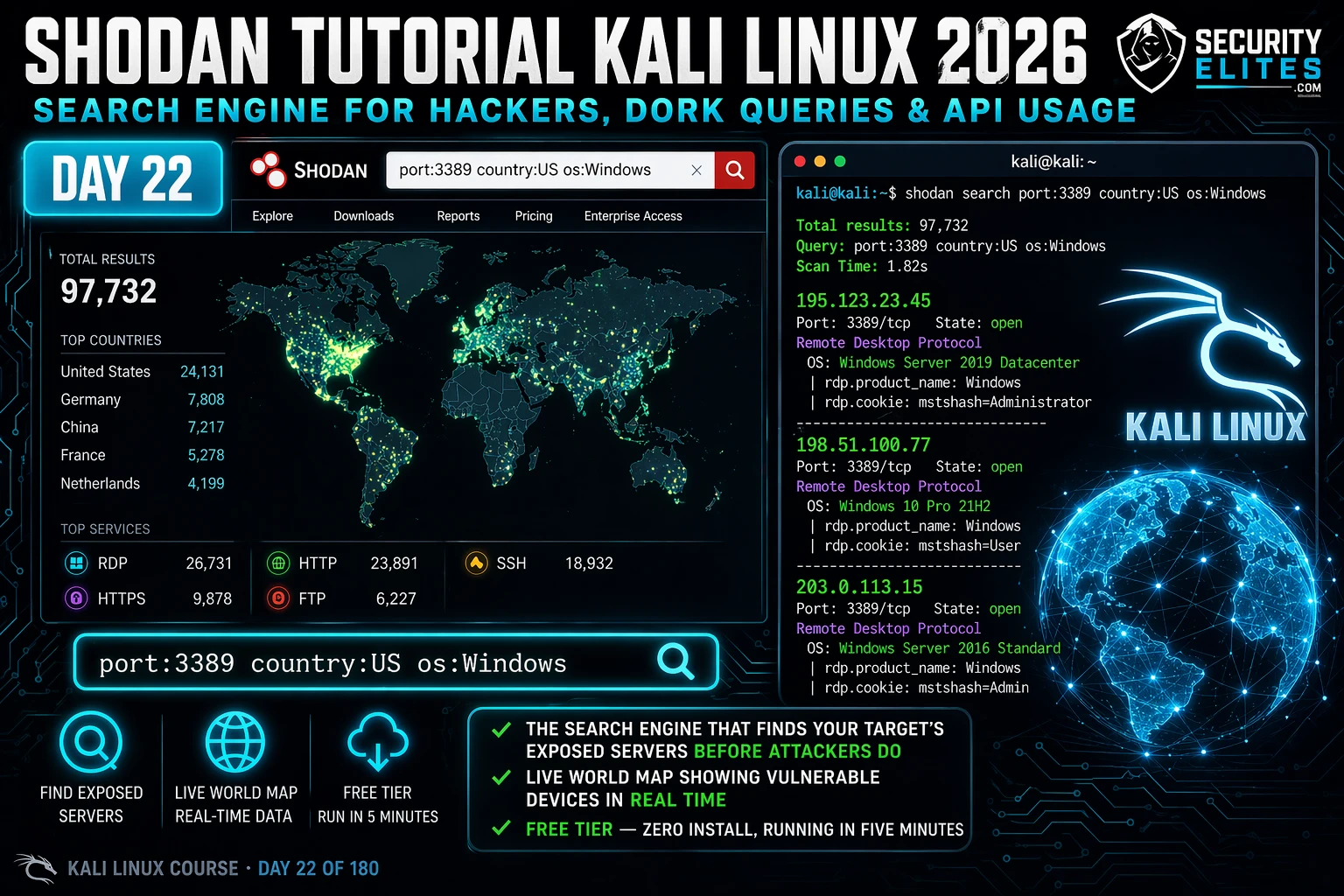
That’s what this Shodan tutorial for Kali Linux 2026 is about. Not the tool for the sake of the tool — but Shodan as a practitioner weapon that closes the gap between what your client thinks their attack surface is and what it actually is. By the end of Day 22, you’ll be running targeted Shodan dork queries, pulling full host fingerprints from the CLI, and automating searches through the Shodan API. That’s the kind of recon output that belongs in a professional report.
🎯 What You’ll Master in Day 22
⏱️ 90 min · 3 exercises
- Kali Linux running (VM or native) — Day 21: Recon-ng completed
- A free Shodan account — register at shodan.io before continuing
- Python 3 installed (standard in Kali — verify with
python3 --version) - Internet connection from your Kali instance
📋 Shodan Tutorial Kali Linux 2026 — Contents
Yesterday in Day 21 you built a modular OSINT framework with Recon-ng — pulling contacts, subdomains, and credentials from passive sources. Today you’re adding the most powerful passive recon tool in the game. Shodan does something no other tool in your Kali Linux course does: it shows you what’s actually exposed on the internet right now, across every port, every protocol, every country — indexed continuously, searchable in seconds.
What Shodan Actually Is — And Why It Changes Recon
Most people describe Shodan as “a search engine for the internet of things.” That description undersells it by about ninety percent. Shodan crawls the entire internet — every routable IP address — and records what each one responds with on common ports. Port 80, 443, 22, 21, 23, 3306, 3389, 8080, and dozens more. Whatever the service sends back — HTTP headers, SSH banners, FTP prompts, database connection strings, industrial control system prompts — Shodan stores it, indexes it, and makes it searchable.
Here’s why that matters for your recon. When I run Nmap against a target, I’m scanning what’s live right now, from my IP, making noise, taking time. When I run a Shodan query, I’m querying a database that was already built — passively, from Shodan’s infrastructure, before my engagement even started. No traffic from me to the target. No logs. No detection. The target has no idea I’ve just mapped their exposed services.
What Shodan surfaces would surprise most clients. I’ve found: forgotten staging servers still running production database ports; industrial control systems with Telnet open to the internet; network cameras with default credentials published in the banner; printers announcing their model, firmware version, and network path in their HTTP headers; VPN concentrators running firmware from 2019 with three known critical CVEs. Every one of those was found before I touched the client’s network.
The scale is staggering. As of 2026, Shodan has indexed over 800 million internet-facing services. That includes 20 million+ exposed databases, 4 million+ industrial control systems, and somewhere in the region of 600,000 exposed remote desktop interfaces in the US alone. When your client says “we don’t have anything exposed,” Shodan is how you prove them wrong — professionally, with evidence, in your report.
Search Engine for Internet-Connected Devices
🔍
Getting Started: Shodan CLI in Kali Linux 2026
Shodan’s web interface is useful for quick searches, but the CLI is where the real workflow lives. You can chain it with other tools, pipe output into scripts, and automate the entire thing. Here’s how to get it running in under five minutes.
First, the account. Go to shodan.io and register — the free tier gets you 100 results per query and enough API credits to complete everything in this guide. Once you’re logged in, navigate to Account → API Key and copy that string. Keep it somewhere safe. You’ll use it in the CLI and in your Python scripts.
The shodan info output is your first sanity check. Free accounts start with 100 query credits — each search against the API costs one. The web interface is unlimited for browsing but the CLI and Python API draw from this credit pool. For the exercises in Day 22 you’ll use a handful at most.
A critical detail: shodan count doesn’t use a query credit. Use it first to gauge the size of a result set before you spend a credit on a full search. I always count before I search — it tells me whether my dork is precise enough or whether I’m about to pull 40 million irrelevant results.
shodan search call costs one query credit and returns a maximum of 100 results. The shodan download command can retrieve up to 1,000 on free, more on paid. For serious engagements, the Freelancer plan ($59/month) is worth every cent.🧠 EXERCISE 1 — THINK LIKE A HACKER (15 MIN · NO TOOLS)
Before you touch the CLI, I want you to think like the attacker who found that Cisco router I mentioned in the opening. You’ve been handed a scope document with the target org name and a /24 IP range. Your job is to map their full internet footprint before your engagement starts — using only passive tools.
Scenario: Target is “AcmeCorp Ltd.” They operate a /24 block (203.0.113.0/24), have a website at acmecorp.com, and run a mix of Windows and Linux servers. Your pre-engagement call mentioned they use Cisco networking gear and run a SAP environment.
- What Shodan queries would you run first to map AcmeCorp’s internet footprint? Write out three specific dork queries using the org:, port:, and product: filters.
- If Shodan returns an IP in their range running port 4848 (GlassFish Admin Console), what’s the immediate implication? What would you do with that finding before touching the system?
- You find an IP outside their declared /24 that Shodan attributes to “AcmeCorp Ltd.” via the org: field. Is it in scope? What do you do with it?
- The client says “we don’t use any legacy protocols.” Shodan shows port 23 (Telnet) open on two of their IPs. How do you raise this professionally in your pre-engagement communication?
- You see a banner that reads: “SAP NetWeaver 7.40 · build 2018-03-12”. Without touching the system, what do you know about the risk profile of this finding?
org:"AcmeCorp", org:"AcmeCorp" port:3389, org:"AcmeCorp" product:"Cisco" — start broad, narrow with filters. (2) GlassFish Admin on 4848 is a critical finding — note it for scope clarification, document the banner, don’t connect. (3) Flag the IP to the client and request written scope expansion before testing. (4) Present it as a discovery in your kickoff notes — frame it as a risk observation, not an accusation. (5) SAP NetWeaver 7.40 from 2018 has multiple critical CVEs including authentication bypasses — it’s a high-priority target the moment it enters scope.📸 Screenshot your scenario notes and post to #day22-shodan on Discord.
Shodan Dork Queries That Find Real Targets
The difference between a junior recon analyst and an experienced pentester isn’t the tools — it’s the queries. Here are the Shodan dork filters I actually use on engagements, with explanations of why each one matters.
Shodan filters follow the format filter:value. You can chain multiple filters in a single query. The more specific the combination, the sharper the results. Here are the core filters worth knowing:
Three filters I want to highlight because they surface findings that other tools miss entirely.
http.title: — This searches the HTML title tag of the web interface. When a router, camera, or admin panel loads in a browser, whatever is in its <title> tag gets indexed. Searching http.title:"Admin Panel" or http.title:"Sign In" surfaces login pages for systems that have no business being internet-facing.
ssl.cert.subject.cn: — SSL certificates contain the Common Name the cert was issued for. Searching this field against a target organisation reveals every subdomain they’ve ever had a certificate for — including internal hostnames, staging environments, and decommissioned services that someone forgot to take down.
before: and after: — Shodan stores historical data. You can search for services that were exposed six months ago but are no longer live. This tells you what the org has been cleaning up — and whether they cleaned it up properly or just closed the port while leaving the service running internally.
Reading a Full Host Fingerprint
Once a Shodan search surfaces an interesting IP, the next step is the full host lookup. This is where Shodan shows you everything it’s collected for that address — and it’s a lot more than a port list.
Read that output carefully. Shodan has given me the hostname (corp-vpn.acmecorp.com), the org, every open port with service version, and — critically — it’s flagged a known CVE in the banner. OpenSSH 7.4 is end-of-life and associated with several high-severity vulnerabilities. The Cisco ASA on 4443 is running a firmware version vulnerable to a path traversal that allows unauthenticated file reads. I have two pre-identified CVEs on an internet-facing VPN concentrator before I’ve sent a single packet.
That’s what a good pentest report looks like at the discovery phase. Not “we found port 443 open.” The findings with version numbers, CVE references, and direct business impact.
--history to your host lookup to see historical data. shodan host 203.0.113.47 --history shows you every time Shodan crawled that IP and what changed. Services that appear then disappear are often signs of patching activity — or an attacker covering their tracks.⚡ EXERCISE 2 — KALI TERMINAL (25 MIN)
This exercise builds your core Shodan CLI workflow — the exact sequence I run at the start of every recon phase. Work through it exactly as I’ve laid it out. The quality of what you find in Step 4 depends on how precise your filters are in Step 3.
- Open your Kali terminal. Verify Shodan is installed:
shodan --version. If it returns “command not found”, runpip install shodanfirst. - Initialise with your API key:
shodan init YOUR_KEY. Confirm withshodan info— you need at least 5 query credits remaining. - Count results before searching. Run each of these count queries (free — no credits used):
shodan count "port:3306", thenshodan count "port:3306 country:GB", thenshodan count "port:3306 country:GB org:\"BT\"". Watch how the number drops from millions to thousands to dozens as you add filters. - Run your first real search (costs 1 credit):
shodan search "port:27017 country:GB" --fields ip_str,port,org,timestamp --limit 10. These are MongoDB instances in the UK. Note the orgs that appear. - Pick one of the returned IPs and run a full host lookup:
shodan host IP_ADDRESS. Write down every port, service, and version you see. Flag any version that you know to be out of date. - Run a search for exposed Jenkins instances:
shodan search 'http.title:"Jenkins" port:8080' --fields ip_str,port,org --limit 10. How many results come back? What does finding an unauthenticated Jenkins on port 8080 mean for a penetration test?
📸 Screenshot your host lookup output and post to #day22-shodan on Discord.
The Shodan API — Automate Your Recon Pipeline
The CLI is good for manual queries. The Python API is where Shodan becomes a professional recon tool. I use a simple Python wrapper to feed Shodan results directly into my recon pipeline — alongside theHarvester output from Day 9, Recon-ng modules from Day 21, and the subdomain lists from Amass. Everything ends up in one structured output that goes into my report.
Here’s the workflow I actually use at the start of a web application pentest:
The error handling matters. Shodan throws an APIError when the IP isn’t in the database, your credits are exhausted, or the query format is wrong. Always wrap API calls in a try/except — especially when you’re iterating through a list of 50+ IPs and you don’t want the script to die on the first one that returns nothing.
That CSV output feeds directly into my engagement report template. IP, port, org, product name, version — structured data that maps to the findings table without manual formatting. This script alone saves me 45 minutes per engagement.
🧠 Quick Check — Shodan API
You run api.search('org:"AcmeCorp" port:3389') and get 12 results. Before you do anything else, what is the correct next step?
⚡ EXERCISE 3 — KALI TERMINAL (30 MIN)
You’re building the Python component of your recon pipeline. This exercise takes you from a basic API query to a structured output file that can plug into any reporting workflow. Work through each step — the final script is something you’ll reuse on every engagement.
- Create a new Python file:
nano shodan_recon.pyin your Kali terminal. - Import the shodan library and initialise the API with your key. Add a try/except block around the main logic.
- Write a search function that accepts a query string as an argument and returns the matches list. Test it with the query
'port:8080 http.title:"Jenkins"'. - Extend the script to print, for each result: IP address, port, org, product name, and the first 150 characters of the banner data.
- Add CSV output as shown in the command block above. Run the script and open the resulting CSV to confirm the structure.
- Add a second function that takes an IP from your results and runs
api.host(ip)to pull the full host fingerprint. Print all ports and banners for that IP. This is your “drill down” function — use it when a result looks interesting.
📸 Screenshot your CSV output showing real Shodan results and post to #day22-shodan on Discord.
How I Use Shodan on Real Engagements
My actual Shodan workflow on a real external pentest runs in three phases. This is the sequence — not a theoretical framework, but exactly what happens from the moment the scope document lands in my inbox.
Phase 1 — Passive Footprint (pre-engagement). Before the engagement officially starts, I run org:"CLIENT_NAME" to build a complete picture of their internet-facing footprint. I’m not testing anything. I’m building a list of IPs and services that I’ll compare against the declared scope. Nine times out of ten, there are assets in Shodan that aren’t in the scope document — forgotten IPs, cloud services spun up by a developer and never documented, legacy servers that haven’t been decommissioned.
Phase 2 — Service Enumeration (day one). Once scope is confirmed, I go deep on each in-scope IP using shodan host. I’m looking for service version numbers, SSL certificate CN fields (which reveal internal hostnames and other subdomains), and historical data showing what the service has exposed in the past. This gives me my initial vulnerability hypothesis before I run a single active scan.
Phase 3 — Report Evidence. Shodan outputs are evidence. I export results as CSV and screenshots, timestamp them, and include them in the reconnaissance section of my report. A finding that says “Shodan query org:AcmeCorp port:3306 returned 3 database servers internet-facing as of 2026-04-23″ carries weight. It shows the client that this isn’t a theoretical risk — it’s documented, dated, and reproducible by any attacker.
What Defenders Need to Know About Shodan
Every client asks me how to prevent their services from appearing in Shodan. The honest answer: you can’t stop Shodan from indexing what you expose. The solution is to stop exposing it.
Three controls that actually work. First, run shodan search 'org:"YOUR_ORG"' against yourself. Audit what Shodan sees. Anything that appears and shouldn’t be exposed — close the port, restrict by IP, put it behind a VPN. Do this quarterly at minimum.
Second, remove information from service banners. Apache’s default configuration announces version numbers in HTTP response headers. Nginx does the same. Shodan indexes those banners — so does every attacker looking for targets running a specific vulnerable version. Suppress version disclosure in your web server and application config. It won’t stop a determined attacker but it removes you from mass-scanning target lists.
Third, set up a Shodan Alert on your own IP ranges. When something appears that shouldn’t — and it will, because developers make mistakes — you want to know about it before an attacker does. That’s not paranoia. That’s a reasonable security operations baseline.
📋 Commands Used Today — Day 22 Reference Card
Shodan Tutorial FAQ — Kali Linux 2026
Is Shodan legal to use for ethical hacking?
How do I install Shodan in Kali Linux?
pip install shodan in your Kali terminal. Then initialise your API key with shodan init YOUR_KEY. Get your free API key from shodan.io after creating an account. Verify the installation worked by running shodan info — it should return your plan details and remaining query credits.What can Shodan find that Nmap cannot?
What are the best Shodan dork queries for ethical hackers in 2026?
org:"TARGET" for full footprint mapping; port:3389 country:US for exposed RDP; port:27017 for unauthenticated MongoDB; http.title:"Jenkins" port:8080 for exposed CI pipelines; product:"Cisco IOS" for exposed network gear; and ssl.cert.subject.cn:"targetdomain.com" for certificate-based subdomain enumeration. Chain org: with any port filter for precise client-specific recon.Can Shodan be used for bug bounty hunting?
What is the difference between Shodan free and paid plans?
📚 Further Reading
- Recon-ng Tutorial 2026 — The modular OSINT framework that feeds Shodan results into a structured database for automated reporting.
- theHarvester Tutorial 2026 — Pair theHarvester’s email and subdomain output with Shodan host lookups for a complete passive recon pipeline.
- Passive vs Active Reconnaissance — Understand exactly where Shodan fits in the recon kill chain and when to switch from passive to active techniques.
- Shodan Python Library — GitHub — Official repository with full API documentation, advanced query examples, and streaming API usage.
- OWASP Web Security Testing Guide — The industry standard methodology that maps directly to how Shodan findings slot into a professional pentest report structure.