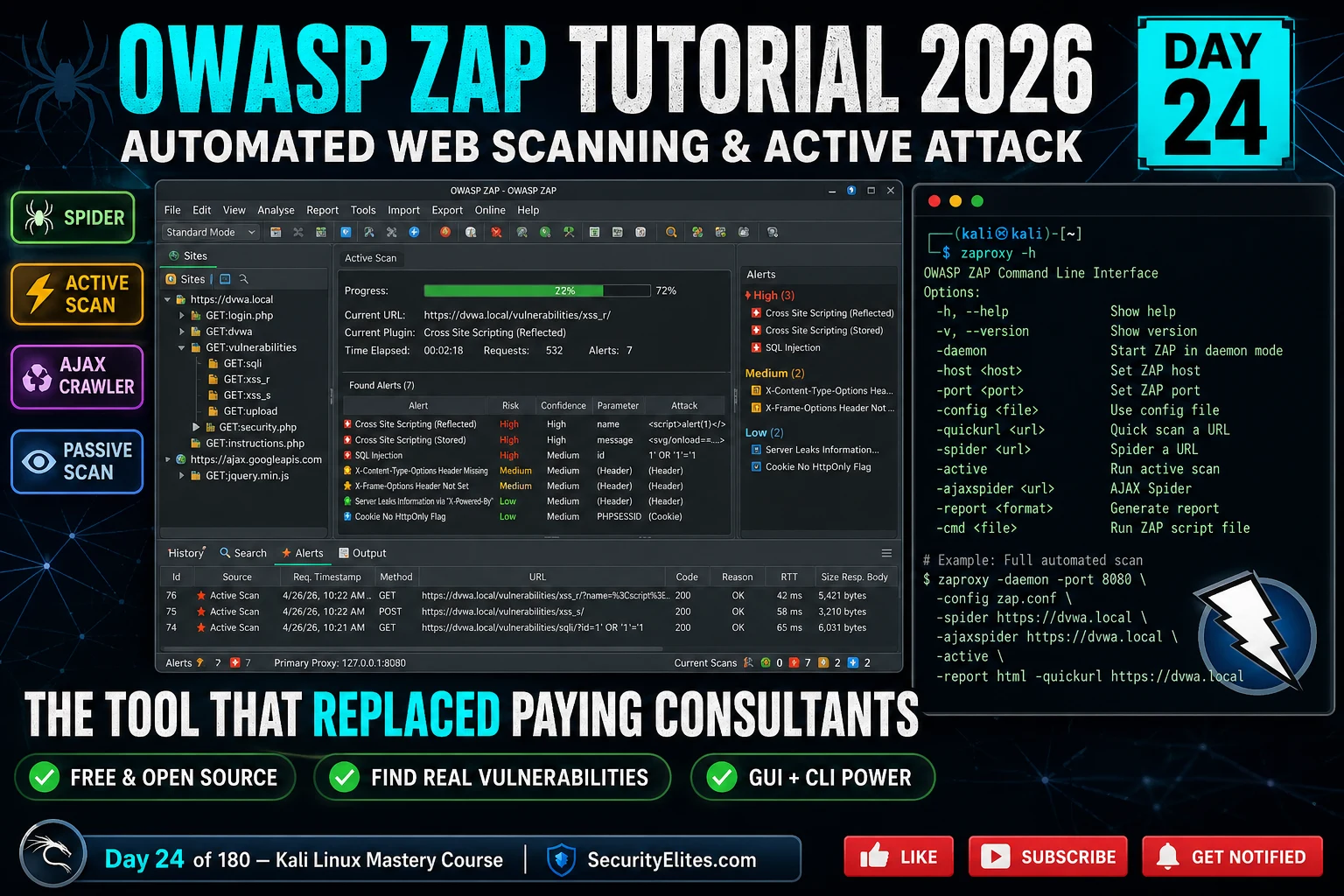
⚠️ Authorised Targets Only. OWASP ZAP active scanning sends attack payloads — never run active scans against systems without explicit written authorisation. Use DVWA, HackTheBox, TryHackMe, or your own lab for all exercises. Passive scanning and spidering against your own applications in development is fine.
Fierce gave me the DNS map. Shodan gave me the service fingerprint. Now I’ve got a list of live web applications and I need to find what’s actually vulnerable in them. That’s where OWASP ZAP comes in — it’s the automated scanner I run before I start manual testing. Not because it finds everything (it doesn’t), but because it finds the obvious misconfigurations and baseline vulnerabilities in 20 minutes so I can spend my manual testing time on the interesting, logic-layer stuff that no scanner touches. Free, open source, and good enough to have replaced commercial scanners on plenty of engagements. Let me show you exactly how I use it.
🎯 What You’ll Master in Day 24
Configure OWASP ZAP as a browser proxy and understand its scanning architecture
Run spider, passive scan, and active scan against a practice target
Use the AJAX Spider for JavaScript-heavy single-page applications
Interpret ZAP’s alert severity and confidence ratings correctly
Generate professional scan reports and integrate ZAP into a CLI pipeline
After Day 23’s Fierce DNS recon surfaced the live web applications on my target scope, the next phase is systematic vulnerability scanning. ZAP is where I start — it’s the closest thing to ‘run it and see what lights up’ that I trust in a professional context. The Kali Linux Mastery Course builds the complete assessment workflow: recon → scanning → manual exploitation.
ZAP’s Architecture — The Four Scanning Modes
ZAP operates as an intercepting proxy sitting between your browser and the target. Every request and response passes through it. That’s the foundation for all four of its scanning modes.
Passive scanning runs continuously as you browse — ZAP analyses traffic without sending any additional requests to the target. Active scanning sends deliberate attack payloads. The spider crawls the application to discover URLs. The AJAX spider uses a headless browser to render JavaScript and discover dynamically loaded content that a traditional spider misses.
This runs: spider + passive scan + active scan in sequence
# Proxy setup — route browser through ZAP
Browser proxy: 127.0.0.1 port 8080
Or use ZAP’s built-in browser: Tools → Open Browser
# Four modes summary
1. Passive scan — analyses traffic, no extra requests, safe for prod
2. Spider — follows HTML links to map URLs
3. AJAX Spider — headless browser for JS-rendered content
4. Active scan — sends attack payloads — AUTHORISED ONLY
Installation and Proxy Setup in Kali 2026
ZAP is pre-installed in Kali Linux 2026. The main thing you need to configure is the SSL certificate — without it, ZAP can’t inspect HTTPS traffic and you’ll see certificate errors in your browser.
ZAP SETUP — PROXY AND SSL CERTIFICATE
# Verify ZAP is installed
which zaproxy # /usr/bin/zaproxy if installed
sudo apt install -y zaproxy # Install if missing
# Generate and export ZAP root CA certificate
ZAP → Options → Network → Server Certificates → Save Root CA Certificate
Save as: zap-root-ca.cer
# Import CA cert into Firefox (for HTTPS interception)
# Or use ZAP’s built-in browser (no proxy config needed)
ZAP → Tools → Open Browser → Chromium
🧠 EXERCISE 1 — THINK LIKE A HACKER (15 MIN · NO TOOLS)
Design Your ZAP Scan Strategy Before Touching the Tool
⏱️ 15 minutes · No tools required
Before running any scan, the professional decision is: which mode do I use and in what order? Your answer changes the quality of results and the risk to the target. Work through this before you open ZAP.
SCENARIO: You have authorised access to test a web application.
The target has three environments:
– Production (live users, real data): api.target.com
– Staging (test data, same codebase): staging.target.com
– Dev (local Docker, no users): localhost:8080
QUESTION 1 — Mode selection by environment
Which ZAP modes are safe on PRODUCTION without risk of disruption?
Which modes should NEVER run on production?
What is the maximum safe action on a live production endpoint?
QUESTION 2 — Scan order
You’re testing staging.target.com. What order do you run the modes?
a) Active scan first → spider → passive
b) Spider → passive → active
c) AJAX spider → spider → passive → active
d) Passive only then manual testing
Explain why your chosen order is correct.
QUESTION 3 — AJAX Spider need
Target is a React SPA (single-page application). The traditional
spider finds 3 URLs. You know the app has 40+ routes.
What does this tell you about the spider results?
Which ZAP feature do you need and why?
QUESTION 4 — Alert triage
ZAP returns: 2 High (SQLi) at High confidence, 1 High (XSS) at Low
confidence, 14 Medium at Medium confidence, 40 Low at High confidence.
In what order do you manually verify these? What does Low confidence mean?
Are the 40 Low/High alerts worth investigating?
Document your scan strategy for a typical staging target.
✅ The confidence rating question is where most new ZAP users get tripped up. High Risk / Low Confidence means ZAP thinks a serious vulnerability exists but isn’t certain — these need manual verification. High Risk / High Confidence means ZAP has strong evidence — these get manual verification first, but they’re usually real. The order that wastes the least time: High/High first, High/Medium second, skip Low risk entirely on initial triage. Low alerts are almost always informational findings like missing headers that you address in remediation, not exploitable vulnerabilities.
📸 Write your scan strategy and share in #kali-labs.
Spider and AJAX Spider — Mapping the Attack Surface
The spider is your URL discovery phase — it builds the site map that active scanning then attacks. A spider that misses 60% of the application’s endpoints is useless. Traditional HTML spiders miss everything rendered by JavaScript. The AJAX spider runs a headless browser, clicks buttons, navigates routes, and catches dynamic content the standard spider never sees.
📸 Spider coverage comparison on a React SPA. The traditional HTML spider finds 3 static pages. The AJAX spider finds 47 endpoints by running a headless browser, navigating routes, and clicking interactive elements. The /admin/settings endpoint — highest-value target — only appears with AJAX spider. For any modern JavaScript-heavy application, skipping the AJAX spider means missing most of the attack surface.
Active Scan — Finding Real Vulnerabilities
Active scanning is where ZAP tests each discovered endpoint with attack payloads. It’s the most impactful part of automated scanning and the part that requires authorisation. Running it against DVWA or any practice target shows you exactly what ZAP’s scanner is capable of finding.
ZAP ACTIVE SCAN — CONFIGURATION AND EXECUTION
# Active scan from GUI
Sites tree → right-click target → Attack → Active Scan
ZAP’s alerts panel is where the value sits. Every finding has a Risk (High/Medium/Low/Informational) and Confidence (High/Medium/Low/False Positive). The combination tells me how to triage: I manually verify High/High first, then High/Medium. Low confidence findings need manual testing to confirm — the scanner isn’t sure. False Positive markers let you suppress known safe findings from reports.
📸 ZAP alert triage by risk/confidence combination. SQL Injection at High/High gets verified immediately — ZAP has strong evidence. XSS at High/Low needs manual verification — the scanner suspects it but isn’t sure, and false positives at High risk are common for reflected XSS. Medium/High header findings are real but not exploitable vulnerabilities — they go in the report as hardening recommendations. Low/High findings are config issues to address in a remediation pass rather than pentest findings.
ZAP CLI and Pipeline Integration
ZAP’s CLI mode is what makes it genuinely useful in 2026 — it integrates into CI/CD pipelines to catch vulnerabilities before code reaches staging. The Docker image makes this clean and reproducible. For security engineers, this means running ZAP on every pull request that touches authentication or API endpoints.
ZAP CLI AND DOCKER PIPELINE
# ZAP baseline scan (passive only — safe for CI/CD)
docker run -t ghcr.io/zaproxy/zaproxy zap-baseline.py \
-t http://staging.target.com \
-r zap-baseline-report.html
# ZAP full scan (active — staging only)
docker run -t ghcr.io/zaproxy/zaproxy zap-full-scan.py \
-t http://staging.target.com \
-r zap-full-report.html \
-I # Continue even if High alerts found
# ZAP API scan (for OpenAPI/Swagger targets)
docker run -t ghcr.io/zaproxy/zaproxy zap-api-scan.py \
⚡ EXERCISE 2 — KALI TERMINAL (30 MIN · DVWA REQUIRED)
Run a Full ZAP Scan Against DVWA — Spider, Passive, Active
⏱️ 30 minutes · Kali Linux + DVWA running at localhost
This is the hands-on core of Day 24. Run ZAP’s complete scan workflow against DVWA and compare what the automated scanner finds vs what you found manually in earlier labs. The gap teaches you both what ZAP is good at and where manual testing is irreplaceable.
PREREQUISITE: DVWA running at http://localhost/dvwa/ with security set to Low.
ZAP launched (zaproxy &) with browser proxy configured to 127.0.0.1:8080.
Step 1: Log into DVWA through ZAP proxy
Browse to http://localhost/dvwa/ via your ZAP-proxied browser.
Log in as admin/password. This authenticates the session ZAP uses.
Check Sites tree — DVWA URLs should appear.
Step 2: Run traditional spider
Sites tree → right-click http://localhost → Attack → Spider
Max Depth: 5, Max Children: 10
Watch the Sites tree populate with DVWA module URLs.
Count: how many URLs discovered?
Step 3: Run AJAX Spider
Spider tab → AJAX Spider → Target: http://localhost/dvwa/
Let it run for 2 minutes.
Count: how many NEW URLs appeared vs traditional spider?
Step 4: Review passive scan alerts
Alerts tab → sort by Risk
What Medium/Low alerts appeared from passive scanning?
List the missing security headers ZAP detected.
Step 5: Run active scan
Sites tree → right-click localhost → Attack → Active Scan
Scan Policy: Default Policy
Wait for scan to reach ~50% then check Alerts tab.
What High-risk alerts has ZAP found so far?
Compare to what you found manually: SQLi, XSS, CMDi?
Step 6: Generate report
Report → Generate Report → HTML
Save as dvwa-zap-report.html
Open in browser — how many total alerts by severity?
How many did ZAP miss that you found manually?
✅ The comparison in Step 6 is the most instructive moment. ZAP typically finds all the SQL injections and many of the XSS findings in DVWA, but misses CSRF entirely (it can’t understand application business logic), misses stored XSS in some contexts, and finds zero IDOR vulnerabilities. That’s the boundary of automated scanning: it excels at injection flaws with clear signal, fails completely at logic-layer vulnerabilities. Manual testing fills the gap. Your ZAP report from this exercise is also good practice for reading automated scan output the way a client expects to receive it.
📸 Screenshot your ZAP Alerts panel showing High findings. Share in #kali-labs.
docker run ghcr.io/zaproxy/zaproxy zap-full-scan.py -t URL -r report.html # Docker full scan
⚡ EXERCISE 3 — KALI TERMINAL (20 MIN)
ZAP + Nikto Pipeline — Two Scanners, One Assessment
⏱️ 20 minutes · Kali Linux + DVWA
No single scanner covers everything. Running ZAP and Nikto together takes 5 extra minutes and catches what each misses. Nikto is fast, has great server misconfiguration coverage, and produces output you can grep. ZAP has superior injection detection. Together they’re the standard automated scanning baseline before manual testing begins.
TARGET: http://localhost/dvwa/ (DVWA at Low security)
Step 1: Nikto scan (run while ZAP active scan is running)
nikto -h http://localhost -port 80 -output nikto-dvwa.txt -Format txt
What does Nikto find that ZAP’s passive scan missed?
Any server headers or configuration issues?
Step 3: Compare findings
Nikto findings: list all Medium+ severity
ZAP findings: list all High + Medium
Findings in Nikto only (not in ZAP)?
Findings in ZAP only (not in Nikto)?
Total unique findings = ZAP_unique + Nikto_unique + overlap
Step 4: Combine into unified finding list
Create a text file: combined-scan-findings.txt
List: Finding | Tool | Severity | URL
How many total unique vulnerabilities across both tools?
Step 5: Generate ZAP report
curl “http://localhost:8080/OTHER/core/other/htmlreport/?apikey=mykey” \
-o zap-report.html
Open and compare against your Nikto output.
✅ The coverage comparison (Step 3) reliably shows Nikto finding server version disclosure, CGI vulnerabilities, and HTTP method abuse that ZAP misses, while ZAP finds SQLi and XSS that Nikto misses. Neither tool alone provides complete coverage — running both takes 5 extra minutes and significantly improves your baseline before manual testing begins. Your combined finding list is the kind of output that goes into the automated scanning section of a professional pentest report.
📸 Screenshot your combined findings list with source tool column. Share in #kali-labs. Tag #Day24
🏆 Day 24 Complete — OWASP ZAP Tutorial
Spider vs AJAX spider, passive vs active scan, alert triage by risk/confidence, report generation, CLI mode, and the ZAP + Nikto combined pipeline. ZAP is now in your standard pre-manual assessment workflow. Day 25 moves to BeEF-XSS — the Browser Exploitation Framework that turns an XSS vulnerability into a full remote browser control channel.
🧠 Quick Check
You’re assessing a React single-page application. ZAP’s traditional spider finds 4 URLs. You know the application has over 50 routes. What should you do, and why does this matter for the active scan that follows?
❓ Frequently Asked Questions — OWASP ZAP 2026
What is OWASP ZAP used for?
ZAP is a free open-source web application security scanner used for automated and manual testing. Key capabilities: intercepting proxy, spider and AJAX spider for URL discovery, passive scan (no attack traffic — safe for prod), active scan (attack payloads — authorised targets only), and API scanning with OpenAPI import support.
Is ZAP better than Burp Suite?
They serve different primary roles. ZAP excels at automated scanning, CI/CD pipeline integration, AJAX spider, and budget-constrained environments (fully free). Burp Pro excels at manual web app pentesting with superior Repeater and Intruder. Professional pentesters use both — ZAP for automated baseline, Burp for manual deep testing.
What does the active scanner test for?
40+ vulnerability classes including: SQL injection (error/boolean/time-based), XSS reflected/stored/DOM, command injection, path traversal, remote file inclusion, LDAP injection, XML injection, and security header misconfigurations. Configurable via scan policies to enable/disable categories.
How do I configure ZAP for HTTPS scanning?
Export ZAP’s root CA: Options > Network > Server Certificates > Save Root CA. Import into Firefox: Preferences > Privacy & Security > Certificates > Import > trust for websites. ZAP then decrypts and analyses HTTPS traffic transparently.
Can ZAP scan APIs?
Yes. Import OpenAPI/Swagger spec via Import > Import OpenAPI from URL/file to auto-populate all endpoints. GraphQL add-on available for schema introspection and scanning. Without specs, use ZAP as proxy during Postman/curl exploration to capture and then scan all endpoints.
What is passive scan vs active scan?
Passive scan analyses traffic passing through ZAP without sending additional requests — safe for production. Active scan sends attack payloads to test for exploitable vulnerabilities — significant traffic, authorised targets only, never production. Run spider + passive on prod; save active scan for test/staging with explicit permission.
← Previous
Day 23: Fierce — DNS Recon & Zone Transfers
Next →
Day 25: BeEF-XSS — Browser Exploitation Framework
📚 Further Reading
Day 23 — Fierce DNS Recon— The DNS recon phase that precedes ZAP scanning. Fierce surfaces the live web applications that ZAP then scans — the two tools connect directly in a professional assessment workflow.
Day 25 — BeEF-XSS Framework— Day 25 takes the XSS findings ZAP surfaces and escalates them using the Browser Exploitation Framework — turning a scanner finding into a live browser control channel.
Web Application Security Hub— The vulnerability classes ZAP scans for — SQLi, XSS, command injection — each covered in depth with manual exploitation methodology and bug bounty reporting guides.
OWASP ZAP Official Documentation— The authoritative ZAP reference covering all scan modes, API documentation, scan policy configuration, add-ons, and CI/CD integration guides. Essential reading for building ZAP into a professional assessment workflow.
ZAP GitHub Releases — Docker Images— ZAP’s official Docker images (zap-baseline.py, zap-full-scan.py, zap-api-scan.py) for CI/CD pipeline integration. The source for the docker run commands used in today’s CLI section.
ME
Mr Elite
Owner, SecurityElites.com
The engagement that changed how I use ZAP was on a microservices platform with 23 API endpoints. I ran ZAP’s traditional spider, got 6 URLs, ran the active scan, found nothing interesting. Three hours of manual testing later, I’d found 4 Medium findings. Then I imported the OpenAPI spec into ZAP and ran it again. In 20 minutes it found 2 High findings — authentication bypass and IDOR — that I’d completely missed manually because I hadn’t tested those endpoints in the right parameter order. ZAP didn’t replace my manual testing. But it found two things I didn’t. Now importing the spec is the second thing I do on every API engagement, right after reading the documentation.
Founder of Securityelites and creator of the SE-ARTCP credential. Working penetration tester focused on AI red team, prompt injection research, and LLM security education.