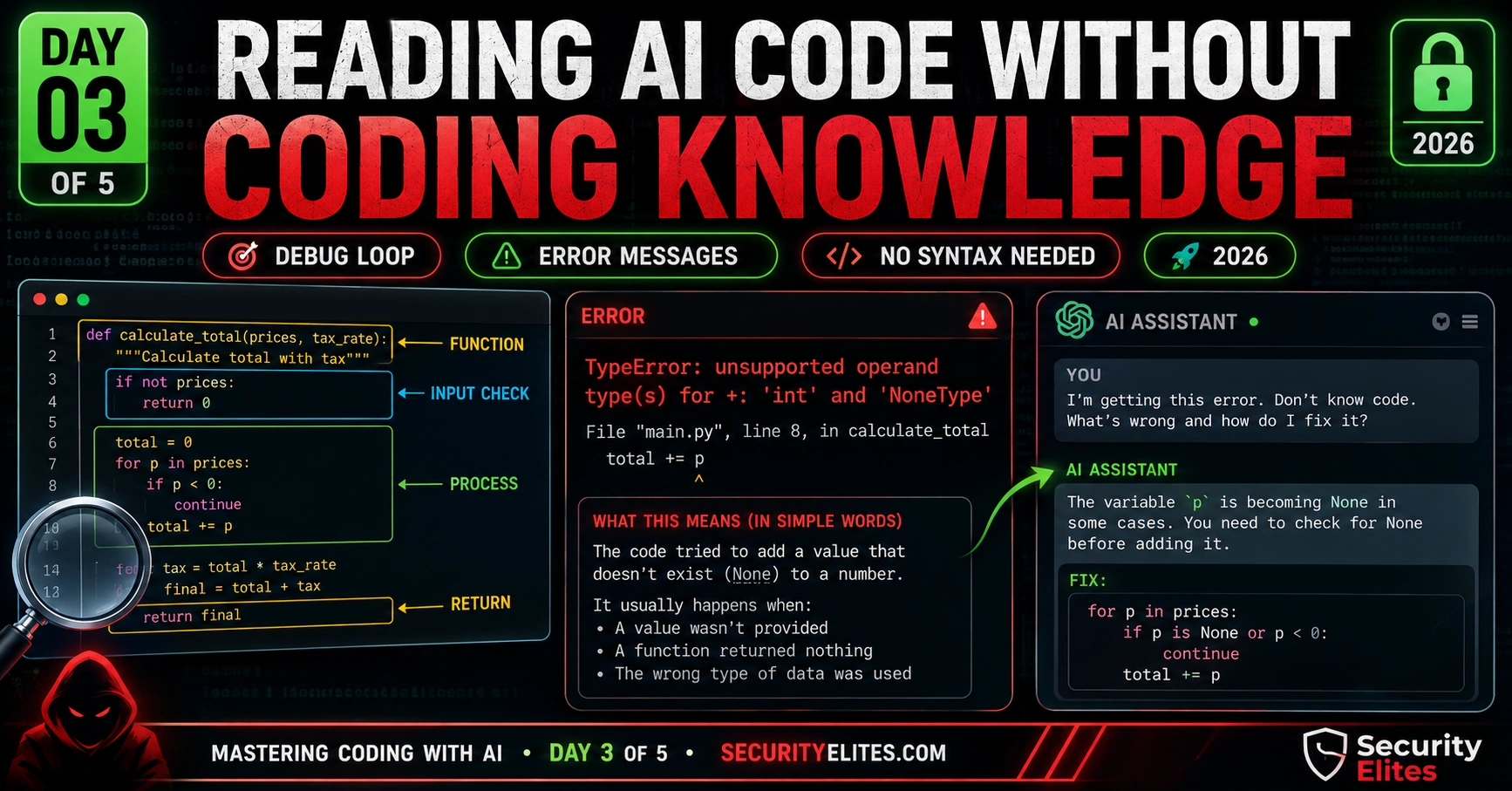
This article teaches non-developers how to read, understand, debug, and verify AI-generated code without programming knowledge. It addresses the critical gap between code that runs without errors and code that actually functions correctly and securely, providing structural reading techniques, common mistake patterns, and systematic debugging workflows that enable users to transition from passive tool users to active verifiers of their AI-generated tools.
- Structural reading reveals code logic without syntax knowledgeThe article identifies four consistent structural patterns that appear across programming languages: Definition blocks (named functions at the top), Input handling blocks (if-statements for edge cases), Processing blocks (core logic), and Output blocks (where results go). By recognizing these patterns and asking AI targeted questions about each section, readers can audit code architecture without understanding any syntax—the article demonstrates this audit catches approximately 40% of problems before code ever runs.
- Five specific AI code mistake categories enable targeted diagnosisThe article categorizes recurring AI failures: Missing edge case handling (code crashes on empty or unusual input), Wrong environment assumption (code assumes unavailable servers or databases), Missing security controls (no input sanitization or password encryption—silent failures), Wrong output format (correct calculation but wrong display format), and Undeclared dependencies (required libraries not installed by default). Understanding these five patterns allows readers to identify exactly where to look when problems occur.
- Error messages become debuggable once decomposed into componentsError messages contain three elements: what type of error occurred, where it occurred, and sometimes why. The article teaches readers to treat error messages as debugging tools by copying the complete traceback, pasting it to AI with the phrase 'What does this mean and how do I fix it,' and adding context about what triggered the error—rather than attempting manual interpretation. The article explicitly warns against summarizing errors and emphasizes that copied complete messages provide maximum diagnostic information.
- Copy-error-back-to-AI loop fixes 90% of bugs systematicallyThe five-step debugging loop involves: running code to trigger the problem reproducibly, capturing the exact error or wrong behavior with specific inputs and expected versus actual outputs, returning to the original AI conversation (not starting fresh), describing the problem precisely using a template, and testing the replacement code. The article establishes a 'three-round rule': if the same code requires three rounds of fixes without getting closer to working, restart with an improved specification rather than continuing to patch.
- Behavioral testing verifies correctness through known input-output pairsBehavioral testing requires creating test cases for each specification element: happy path (valid input produces expected output), empty input test, invalid input test, edge case test (boundary values), repeat test (consistency across multiple runs), and security test (special characters like ``, quotes, and semicolons). The article specifically highlights that typing `` into a field that displays user input signals an XSS (Cross-Site Scripting) vulnerability if it executes as code rather than displaying as text.
- Structural audit questions bypass code reading entirelyThe article provides five specific questions to ask AI when auditing any code: List every function and describe what each does in one sentence; where does it handle empty or invalid input; does it send data to external servers; what happens with edge cases like empty strings, very long inputs, or special characters; does it sanitize input, store passwords securely, or implement rate limiting. These five questions constitute a complete structural security and functional audit without requiring the reader to understand any code.
- Distinguish between restart and continued debugging with clear criteriaThe article provides specific decision criteria: Keep debugging when core logic works and only specific edge cases need fixing, the error is clearly identifiable, the code worked for most cases, and each debugging round fixed something real. Start fresh when after three rounds the code produces different errors without progress, the fundamental behavior completely differs from the specification, AI patches complexity instead of fixing root causes, or the structural audit reveals architecture mismatch with the specification. Starting fresh with an improved specification informed by failed attem
- Running code and working correctly are fundamentally different outcomesThe article distinguishes between code that executes without crashing (running) and code that produces correct output for specified inputs including edge cases (working correctly). Silent bugs—wrong output without error messages—are more dangerous than explicit errors because users may trust incorrect results. The security test in behavioral testing is particularly critical because characters like backticks, quotes, and semicolons reveal injection vulnerabilities that produce no error but create real security risks.
Bottom line: Non-developers can verify and debug AI-generated code through structural pattern recognition, systematic error handling, and behavioral testing without learning programming syntax. The practical workflow—auditing code structure before running, applying the copy-error-back-to-AI loop, and running behavioral test cases—enables users to catch 40% of problems before execution and fix the remaining 90% efficiently, transitioning them from passive tool users to confident code verifiers.
The most common problem I see with non-developers using AI coding tools is understanding the structure, results and debugging the code generated by AI. For Example, The form submits, but no email arrives. The password checker passes everything, including “123.” The data displays, but the total column is off by exactly the kind of rounding error that hides in plain sight.
You don’t need to know Python to catch these problems. You need to know how to read code structurally — understand what each block is supposed to do, check whether it matches your specification, and spot when AI has made a plausible-but-wrong implementation choice. That’s a learnable skill that doesn’t require any syntax knowledge.
Today is the day that turns you from “I run AI code and hope it works” to “I run AI code, verify it’s doing what I said, and know how to fix it when it isn’t.” That’s the difference between a tool user and a tool builder. By the end of today, you’ll master it like professional coders and that’s too even if you don’t know coding.
🎯 What You’ll Master in Day 3
⏱ 25 min read · 3 exercises · Browser needed for exercises
Reading AI Code Without Coding Knowledge— Day 3 of 5
Day 2 was about getting code that works. Day 3 is about confirming it actually does what you intended — and fixing it efficiently when it doesn’t. Our email breach checker is a good example of a tool with clear, testable behaviour: you put in an email, you get a result. Testing AI code is the same: specify expected outputs for known inputs, run the test, check whether what you get matches what you expected. This is called behavioural testing and you can do it without any programming knowledge.
Structural Reading — Understanding Code Without Syntax
I’ve been reading code for years, but the way I first learned to make sense of code wasn’t by learning syntax — it was by learning structure. Code has consistent structural patterns that appear across almost every language. Once you recognise the patterns, you can understand roughly what any block of code does without knowing its exact syntax.
The four patterns I look for when I open any piece of AI-generated code:
Pattern 1 — Definition blocks. Lines at the top that set up named things: “function doSomething()”, “def calculate_score(password)”, “const validateEmail = (email) =>”. These are the named operations your code can perform — like labelled tools on a workbench. Each one does one thing. If the name is unclear, ask the AI: “Explain what [function name] does in one sentence.”
Pattern 2 — Input handling blocks. Look for “if” statements and checks near the start of functions. These are where the code handles different cases: “if input is empty, do this; if input is invalid, do that.” This is where your edge cases from Day 1 should appear. If your spec said “handle empty input gracefully” and there’s no if-empty check, that’s a bug.
Pattern 3 — Processing blocks. The core logic — calculations, comparisons, lookups, transformations. Usually the longest section. If you understand your IPO model, you know what this section should do even if you can’t read it line by line. Ask AI to explain it: “What does this block of code do in plain English?”
Pattern 4 — Output blocks. Where the result goes — returned from a function, displayed on screen, written to a file, sent to a database. Often contains “return”, “document.getElementById”, “print”, or “response.send”. Check that the output matches your specification: does it produce what you specified as Output in your IPO model?
Step 2: Compare the function list to your IPO spec. Is there a function for each part of your process? Are there functions you didn’t ask for?
Step 3: Ask: “Where does this code handle empty or invalid input? What does it do in that case?”
Step 4: Ask: “Does this code send any data to external servers or make any network requests?”
Step 5: Ask: “What would happen if I passed in [edge case] — for example, an empty string? A very long input? A special character?”
These five questions give you a complete structural audit of any piece of AI code without requiring you to understand a single line of syntax. I run this audit on every tool before I ship it — and it catches about 40% of problems before the code ever runs.
The Five Most Common AI Code Mistakes
After building dozens of tools with AI assistants across multiple projects, I’ve noticed the same categories of mistake appearing repeatedly. Knowing these five patterns in advance means you know exactly where to look first when something doesn’t work.
Mistake 1 — Missing edge case handling. The code works perfectly for valid, expected input and completely breaks for anything unusual. Empty string crashes it. A number where text is expected throws an uncaught error. Input that’s too long causes it to hang. AI generates the happy path by default. Edge cases need to be explicitly specified in your Constraints. When you find this: ask “update this code to handle [specific edge case] — show a clear user-friendly error message rather than crashing.”
Mistake 2 — Wrong assumption about the environment. The code assumes a feature of the environment that doesn’t exist in your context. Tries to use a database you don’t have. Writes to a file on a server you don’t control. Uses a browser API that only works over HTTPS. This usually shows up as a hard error immediately on first run. When you find this: paste the error, explain your actual environment, and ask for the code to be rewritten for your specific setup.
Mistake 3 — Security controls left out. The code does what was asked but skips things that should be standard — password stored in plain text, no rate limiting on a form, no input sanitisation on a field that gets stored or displayed. These are silent failures: the code works correctly and still creates vulnerabilities. This is why your structural audit step (asking “does this sanitise input? does this store passwords securely?”) matters even when code appears to work.
Mistake 4 — Wrong output format. The code calculates correctly but shows the result in a way that’s not what you specified. Numbers without decimal places when you needed two. Dates in American format when you’re in India. Error messages in technical language when you asked for user-friendly ones. When you find this: describe exactly what format you expected and what format you got, and ask for the output formatting to be corrected.
Mistake 5 — Undeclared dependencies. The code imports a library or package that isn’t installed by default. It works when the AI tests it mentally but produces “module not found” errors when you run it. When you find this: paste the exact error message. Also: ask upfront — “does this code require any libraries to be installed? If so, list the exact installation commands.”
Works on valid input; crashes on empty, invalid, or unusual input
Assumes a server/database/API that doesn’t exist in your setup
Works functionally but no input sanitisation, plain-text storage, or rate limiting
Calculates correctly; shows in wrong format, language, or decimal places
“Module not found” — requires library not installed by default
Error Messages — Your Best Debugging Friend
Error messages have a bad reputation for being intimidating and cryptic. That reputation is partially deserved — they often contain technical jargon that means nothing to a non-developer. But the underlying structure is usually simple, and once you understand it, error messages become the most useful thing in your debugging toolkit.
Every error message contains three things: what type of error occurred, where it occurred, and sometimes why.
Here’s a typical Python error message broken down:
File “myapp.py”, line 24, in validate // WHERE: file “myapp.py”, line 24, in function “validate”
score = int(password_length) // THE LINE that caused the problem
ValueError: invalid literal for int() // WHAT: ValueError = wrong type of value; invalid literal = wasn’t a number
You don’t need to understand any of that to use it. You just need to copy the entire error message and paste it to AI with the words: “I got this error. What does it mean and how do I fix it?” The AI will explain it in plain English and suggest a fix.
My three rules for error messages:
Rule 1: Never try to interpret an error message yourself first. Paste it directly to AI. Interpreting error messages is a skill that takes time to develop — using AI to do it instantly costs you nothing.
Rule 2: Copy the complete error message, not a summary. “It says something about type error” tells the AI almost nothing. The full error message, including the traceback lines before the actual error, tells it everything.
Rule 3: Add context about what you were doing when the error appeared. “I got this error when I clicked the Submit button after entering an empty text field” is far more useful than the error message alone. Context localises where the bug is and how to reproduce it.
Structural reading is a skill you build by doing it, not by reading about it. I want you to take the AI code from your Day 2 exercises and audit it structurally — using AI as your interpreter. This is exactly what I do before deploying any tool: I audit before I run, not after things break.
- Open the code from your Day 2 Exercise 1 tool. If you don’t have it handy, regenerate it from your prompt.
- Open a new AI conversation. Paste your code and ask: “List every function or major block of code in this file and describe what each one does in one sentence.”
- Compare the list to your original IPO specification from Day 1. Does every part of your specification appear in the function list? Are there functions in the code you didn’t ask for?
- Ask: “For each function, tell me what it does if the input is empty, if the input is very long (over 1000 characters), or if the user types special characters like < > ‘ “. Does it handle these safely?”
- Ask: “Does this code make any network requests or send data anywhere external? List every external call in the code, if any.”
- Based on your audit: write one improvement you’d make to the code and how you’d ask AI to implement it.
The Copy-Error-Back-to-AI Loop
Ninety percent of debugging with AI follows the same loop. Learn this loop and you can fix almost any AI code problem without understanding the code at all.
Step 1 — Run the code and trigger the problem. Open the tool. Do the specific thing that causes the issue. Make sure the error or wrong behaviour is reproducible — happens every time you do that action, not just occasionally.
Step 2 — Capture the exact error. Copy the complete error message if there is one. If the issue is wrong behaviour (no error, but wrong result), note exactly: what input you provided, what you expected to happen, and what actually happened.
Step 3 — Return to the original AI conversation. Not a new conversation — the same one where you generated the code. The AI has the full context of what it built.
Step 4 — Describe the problem precisely. Use this template: “When I [exact action], I expected [expected result] but instead [actual result]. I got this error: [paste error]. Please fix this and give me the complete updated file.”
Step 5 — Replace the old file with the new one. Save the new code, open it, test the same thing that caused the error. Did it fix? If yes, test a few other cases too. If no, repeat with the new error.
This loop handles the vast majority of AI code problems. The rare case where it doesn’t work after three rounds is usually a sign that the underlying specification needs to change — which leads to the restart decision in the next section.
When to Debug Further vs When to Start Fresh
This is one of the most practically important decisions in AI-assisted coding: when do you keep trying to fix the existing code and when do you scrap it and start over with a better specification?
I have clear criteria I use for this decision, developed from watching debugging sessions spiral into wasted hours when a fresh start would have been faster.
Keep debugging when:
The core logic works correctly and only a specific edge case or formatting issue needs fixing. The error is clearly identifiable — you know what triggered it and the description in Step 4 is specific. The code has been working for most cases and one case is broken. You’ve done two rounds of the debug loop and each round fixed something real.
Start fresh when:
After three rounds of debugging, the code is producing different errors on each round without getting closer to working. The fundamental behaviour is wrong — the code does something completely different from your IPO model. The AI keeps adding complexity to patch problems rather than fixing root causes. You can see from the structural audit that the code’s architecture doesn’t match your specification at all.
Starting fresh isn’t a failure. It’s an architectural decision. When I start fresh, I always write a better specification than the first time — because the debugging session revealed exactly what the first specification missed. The new prompt, informed by what I learned from the failed first attempt, typically gets working code in one pass.
Verify, Don’t Just Run — The Behavioural Testing Habit
The most dangerous assumption in AI-assisted coding is that “it runs” means “it works correctly.” Running and working correctly are different things. Running means the code executes without crashing. Working correctly means it produces the right output for the inputs you specified, including edge cases.
Behavioural testing is how you verify this without knowing how to write tests in code. The process: for each part of your IPO specification, create a test case — a known input with a known expected output — and run the code with that input to see if you get the expected output.
My testing checklist for any tool before I consider it “done”:
Empty input test: Empty or blank input → what happens? Error? Crash? Graceful message?
Invalid input test: Wrong type/format input → handled correctly or broken?
Edge case test: Boundary values — minimum, maximum, exactly at the limit
Repeat test: Run the same thing twice — consistent output both times?
Security test: Input with special characters: < > ” ‘ ; — → handled or exploitable?
The security test deserves special attention. Characters like `<`, `>`, `’`, and `”` are used in injection attacks — places where user input is used to construct HTML, database queries, or system commands. If your tool displays user input on screen, storing input, or using it in a query, testing these characters reveals whether the code is sanitising input correctly.
The AI generated code security audit covers this at a much deeper level. For now: if typing `<script>alert('test')</script>` into your tool causes a popup box to appear — that’s a security vulnerability called XSS, and you should tell the AI to fix it before using the tool with real data.
Diagnosis before debugging is the habit that separates fast fixers from slow ones. I want you to read five failure scenarios and identify which of the five common AI code mistakes each one represents — then prescribe the fix. This builds the diagnostic pattern recognition that makes debugging much faster in practice.
- Read each scenario. Identify which of the five mistakes it represents. Write the debug loop Step 4 message you’d send to AI.
- Scenario A: A phone number validator works perfectly when you type a normal number. When you click submit with nothing typed, the page goes blank.
- Scenario B: A data summary tool generates a beautiful chart in the AI demo but when you run it locally, it says “ImportError: No module named ‘plotly'”.
- Scenario C: A currency converter calculates correct amounts but shows “1.23456789” instead of “1.23” for dollar amounts.
- Scenario D: A notes app saves and displays notes correctly. When you type `<b>hello</b>` as a note, it displays “hello” in bold instead of showing the actual text.
- Scenario E: A weather display tool shows accurate weather for one city. When you enter a city name in a different country with the same name, it always returns the first city’s weather.
- Which scenario has the most serious security implication? Why?
The best way to build debugging confidence is to debug something that’s already broken — so you know what success looks like and you get the satisfaction of fixing it. I’m going to give you a deliberately broken piece of code and walk you through the full debug loop. This is the exercise that makes Day 3 real.
- Open any AI. Paste this prompt exactly: “Here is some broken Python code. Do NOT fix it — just show it to me as-is. I want to practise debugging it myself.” Then paste this code:
def check_password_strength(password): score = 0 if len(password) > 12: score = score + 1 if any(c.isupper() for c in pasword): score = score + 1 if any(c.isdigit() for c in password): score = score + 1 if score == 3: return "Strong" elif score == 2: return "Fair" else return "Weak" result = check_password_strength("MyP4ssw0rd!") print(result) - Now run this code. On your computer if you have Python, or paste it into Replit.com (free, no install). Copy the exact error you get.
- Use the debug loop: return to AI and paste: “I got this error: [paste the error]. What does it mean and how do I fix it? Give me the corrected complete code.”
- Get the fixed code. Run it. Does it produce “Strong” for “MyP4ssw0rd!”? Does it produce “Weak” for “abc”?
- Run the behavioural testing checklist on the fixed code: empty string, very short password, very long password, no uppercase, no numbers, all criteria met.
Questions and Answers
What’s the difference between an error and a bug?
An error is when the code crashes and produces an explicit error message — it stops running and tells you something went wrong. A bug is when the code runs successfully but produces incorrect output. Errors are easier to debug because the error message tells you where things went wrong. Bugs require behavioural testing to discover — you have to know what the correct output should be to notice that what you got was wrong. From a risk perspective, silent bugs (wrong output without errors) are more dangerous than explicit errors, because you might use the tool’s output without realising it’s incorrect.
Can I use a tool to run Python code without installing anything?
Yes — Replit.com is the easiest option. Create a free account, create a new Repl, choose Python, paste your code, and click Run. No installation, no terminal, just a browser. Google Colab (colab.research.google.com) is another excellent option if you have a Google account — good for data-related Python code. For HTML/JavaScript, you don’t need anything — just save the file and open it in any browser. For more complex tools later, Day 4 will walk through deployment options including what to use for what type of project.
The AI keeps giving me different code each time I ask it to fix the same bug. Why?
AI code generation has some randomness built in — the same prompt can produce different responses. When debugging, this can result in different fixes being tried each round. Two things help: first, keep the conversation continuous (don’t start new conversations). The AI has context about what it previously tried. Second, be more specific about what the fix should look like — “the problem is that empty input crashes the code; I need it to instead show a red message saying ‘please enter a value'” is more specific than “fix the empty input bug.” More specific instructions reduce the solution space and produce more consistent fixes.
What does XSS mean and how do I know if my tool is vulnerable?
XSS stands for Cross-Site Scripting — it’s a security vulnerability where a web page executes code that came from user input instead of treating it as text. If your HTML tool takes user input and displays it on the page, and it doesn’t “escape” special characters like < and >, then input containing `<script>` tags can get executed as real JavaScript code. The simple test: type `<b>hello</b>` into any input field that gets displayed. If it appears as bold text (hello) instead of the literal characters, your tool is not escaping output and is potentially vulnerable. The fix: tell AI “this tool displays user input; please update it to escape all HTML special characters in user-provided text before displaying it.”
How do I know when AI code is “good enough” to use?
Run through the behavioural testing checklist from this day’s content: happy path, empty input, invalid input, edge cases, repeat test, and the security test. If the tool passes all six categories and the structural audit shows no unexpected network requests or missing security controls, it’s good enough for personal use or low-stakes applications. For tools that handle other people’s data, process financial information, or run on a server, you want an additional security review — either from a developer you trust or by running it through the AI security audit process from Day 5. The threshold scales with the consequences of getting it wrong.
My code is working but it’s really slow. Can AI help with performance?
Yes — describe the performance problem to AI the same way you’d describe a bug: “This tool takes 8 seconds to sort a list of 1000 items. I expected it to be near-instant. Here’s the code. Can you make it faster?” AI understands performance optimisation and can often rewrite slow code with more efficient approaches. More usefully: it can explain why the current code is slow, so you understand whether slowness is inherent to what you’re doing or a fixable implementation choice. For browser-based tools, performance issues are usually in loops and repeated DOM operations. For Python scripts, they’re usually in inefficient data processing. Both are fixable with the right description and an iterative prompt.
Further Reading
- How to Audit AI Generated Code Security — the full security review process beyond today’s basics
- AI Powered Exploit Code Generation — what attackers do with the same tools you’re learning
- Vibe Coding Security Risks — the broader consequences of skipping verification
- Replit — run and test code online without any installation
- PortSwigger Web Security — learn about XSS and other vulnerabilities that affect the code you build