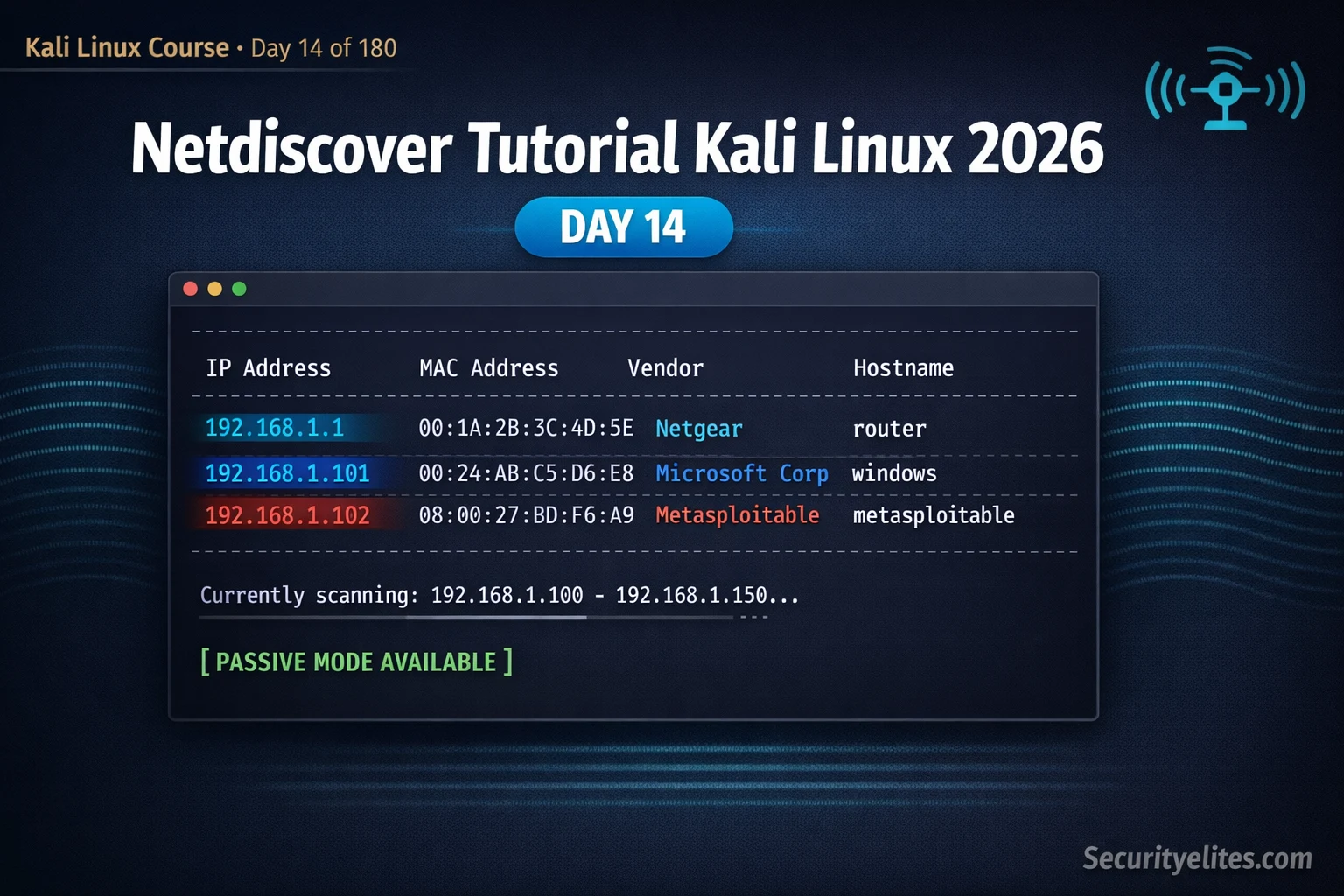
This tutorial teaches Netdiscover, an ARP-based network discovery tool in Kali Linux that identifies live hosts on local network segments. The article explains why ARP scanning finds hosts that ICMP-based methods like Nmap miss, demonstrates active and passive scanning modes, and shows how to integrate Netdiscover results into Nmap service enumeration workflows. This matters because internal network assessments must identify all live hosts before testing, and firewalled devices that block ICMP remain invisible to conventional scanning without ARP-layer discovery.
- ARP finds hosts ICMP cannot reachNetdiscover operates at Layer 2 using ARP requests, which every device on a subnet must answer to receive any IP traffic. Firewalls cannot block ARP without breaking network connectivity. In contrast, Nmap's default host discovery uses ICMP ping, which host firewalls silently drop. The article's real-world example shows Netdiscover found 51 hosts on a financial institution segment where Nmap found only 31—the missing 20 were accounting workstations with Windows Firewall configured to block all ICMP traffic.
- Passive mode provides zero-packet discoveryNetdiscover passive mode places the network interface in promiscuous mode and listens for ARP broadcasts that devices generate naturally during normal communication, sending zero packets from the attacker's machine. This eliminates IDS signatures but is slower and misses idle hosts with no recent ARP traffic. The article recommends running passive mode for 10–15 minutes first, then active scanning to catch hosts that remain silent.
- MAC vendor column enables device classificationNetdiscover output includes hardware vendor identification derived from the MAC address OUI (Organizationally Unique Identifier). Cisco Systems indicates network infrastructure (router/switch/firewall), Dell/HP/Lenovo indicates workstations or servers, Apple indicates macOS devices, and VMware/VirtualBox identifies virtual machines. This vendor information allows immediate device-type intelligence before running any port scans.
- Active scanning syntax for specific rangesThe -r flag specifies a target range, -i flag specifies the network interface, -P flag switches output to parseable format (one host per line), and -N suppresses headers. A typical command is 'sudo netdiscover -i eth0 -r 192.168.56.0/24 -P -N'. The parseable format is essential for piping results into grep, awk, or Nmap for automation.
- Netdiscover-to-Nmap workflow eliminates wasted scanningThe article describes a two-phase approach: first run Netdiscover with ARP to identify all live IP addresses, save results to a file, then pipe those confirmed-live IPs directly into Nmap for service enumeration using 'nmap -iL live_ips.txt -sV'. This avoids Nmap wasting time on dead addresses and reduces the risk of missing hosts that block ICMP but must respond to ARP.
- Scan completion timing and output readingA /24 subnet completes in under 30 seconds for active Netdiscover scans. Output displays four columns: IP address, MAC address, ARP packet count, and vendor name. The interactive table updates in real-time; users press 'q' to exit. Parseable output (-P flag) produces one host per line with no cursor movement, making it suitable for scripting and redirection.
- Legal and ethical usage boundariesThe article emphasizes using Netdiscover only on authorized networks: personal lab networks, networks with explicit written authorization, or isolated VirtualBox Host-Only environments. Running Netdiscover on any network without permission violates computer fraud laws worldwide. This ethical boundary is stated at the article's beginning and reinforces professional penetration testing standards.
Bottom line: Netdiscover is the first tool internal penetration testers run within 60 seconds of connecting to a client network because ARP scanning reveals every live host, including those invisible to ICMP and TCP-based scanning; the Netdiscover-to-Nmap pipeline—discovering with ARP, then enumerating services on confirmed-live hosts—is the professional standard for complete and efficient internal network assessment.
FREE
Part of the 180-Day Kali Linux Mastery Course
🎯 What You’ll Master in Day 14
⏱️ 45 min read · 3 hands-on exercises
📊 Have you used Netdiscover before?
📋 What You’ll Master — Netdiscover Tutorial Kali Linux 2026
- What Is Netdiscover and Why ARP Beats ICMP for Local Discovery
- Install and Launch Netdiscover on Kali Linux
- Active ARP Scanning — Ranges, Interfaces and Output Formats
- Netdiscover Passive Mode — Stealthy Host Discovery
- Reading MAC Vendors — Device Identification Without Nmap
- Netdiscover to Nmap — The Complete Internal Discovery Workflow
In Day 13 we used Maltego to map external internet-facing infrastructure from a single domain entity. Today we shift perspective entirely — from external OSINT to internal network discovery. Netdiscover operates on the same network segment you are connected to and uses ARP, the protocol that every device on that segment must respond to. This is the starting point for every internal network assessment in the 180-Day Kali Linux Mastery Course.
What Is Netdiscover and Why ARP Beats ICMP for Local Discovery
Netdiscover is an ARP reconnaissance tool pre-installed in Kali Linux. It discovers active hosts on a local network by sending ARP (Address Resolution Protocol) requests and recording which IP addresses respond. ARP is a Layer 2 protocol — it operates below the IP layer — which gives it a fundamental advantage over ICMP-based host discovery.
When you run Nmap’s default host discovery, it sends ICMP echo requests (ping). Every properly configured firewall can drop those packets silently. The host appears offline to Nmap. But ARP works differently. When your machine sends an ARP request for an IP address, it is asking the network “who has this IP, tell me your MAC address.” Every device that owns that IP address must respond — because if it does not, it cannot receive any IP traffic at all. You cannot configure a firewall to block ARP without breaking your own network connectivity.
This means Netdiscover finds hosts that appear dead to every other scanning method. Firewalled Windows machines that drop ICMP, printers that ignore TCP probes, IoT devices with no management interface — all respond to ARP and all show up in Netdiscover’s output. On an internal network segment, Netdiscover’s ARP scan gives you the definitive list of every live host.
Install and Launch Netdiscover on Kali Linux
⏱️ Time: 8 minutes · No tools required
network on a penetration test. You have a /24 subnet.
Think through these scenarios and decide which tool is better for
each situation — Netdiscover or Nmap:
1. You need to find ALL live hosts on the 192.168.10.0/24 segment
as quickly as possible. You know some Windows machines have host
firewall rules that drop ICMP.
→ Which tool, and why?
2. You want to identify which discovered hosts are likely printers,
routers, and workstations WITHOUT running any service scans.
→ What Netdiscover output column helps you do this?
3. You are in a highly sensitive environment where IDS alerts on
unusual port scanning. You need to discover hosts with zero
active packet transmission from your machine.
→ Which Netdiscover mode do you use?
4. You have found 12 live hosts with Netdiscover. Now you need to
know which services are running on each one.
→ Is Netdiscover the right tool for this next step?
5. A host shows a MAC vendor of “Cisco Systems” in Netdiscover.
What type of device is this likely to be and how does that
change your testing approach?
📸 Write your scenario answers and share in #day-14-netdiscover on Discord.
Active ARP Scanning — Ranges, Interfaces and Output Formats
Netdiscover’s active mode sends ARP requests across the specified IP range and displays results in a live-updating table. The scan is fast — a /24 subnet completes in under 30 seconds — and captures every host that was live during the scan window.
-P flag switches to a print-only format that outputs one line per discovered host with no cursor movement, making it easy to grep, awk, or pipe directly into other tools.Netdiscover Passive Mode — Stealthy Host Discovery
Passive mode is Netdiscover’s most tactically important feature for professional penetration testing. In passive mode, Netdiscover sends zero packets — it simply places your network card in promiscuous mode and listens for ARP broadcasts that other devices on the network generate naturally as they communicate. Every time any device broadcasts an ARP request (which happens constantly on active networks), Netdiscover records both the sender and the target IP.
Reading MAC Vendors — Device Identification Without Nmap
The hardware vendor column in Netdiscover output is derived from the OUI (Organizationally Unique Identifier) — the first three bytes of every MAC address, assigned to a specific manufacturer. This gives you immediate device-type intelligence before you run a single port scan. Cisco MACs indicate network infrastructure. Dell/HP/Lenovo indicate workstations or servers. Apple indicates MacOS devices. VMware/VirtualBox identify virtual machines.
Netdiscover to Nmap — The Complete Internal Discovery Workflow
Netdiscover and Nmap are complementary tools — Netdiscover identifies which IP addresses have live hosts using ARP, Nmap then performs service enumeration on exactly those hosts. This two-phase approach is faster and more accurate than running Nmap’s host discovery directly because you avoid Nmap scanning dead IP addresses and wasting time on hosts that block its default probes.
⏱️ Time: 20 minutes · Kali VM with Host-Only network · Metasploitable running
📸 Screenshot your Netdiscover output showing discovered hosts and share in #day-14-netdiscover on Discord. Tag #netdiscover2026
⏱️ Time: 15 minutes · Kali VM, live_ips.txt from Exercise 2
📸 Screenshot the Nmap service scan output against your lab hosts and share in #day-14-netdiscover on Discord.
🧠 QUICK CHECK — Day 14
sudo nmap -sn 192.168.1.0/24 and get 8 live hosts. You then run sudo netdiscover -r 192.168.1.0/24 and get 12 live hosts. Why does Netdiscover find more hosts?
📋 Commands Used Today — Day 14 Reference Card
🏆 Mark Day 14 as Complete
You now have the complete internal network host discovery workflow: ARP scanning with Netdiscover, passive mode for stealth, MAC vendor identification, and the pipeline into Nmap service enumeration. This is the first 5 minutes of every internal network assessment.
❓ Frequently Asked Questions
What is Netdiscover and how does it work?
What is the difference between Netdiscover and Nmap for host discovery?
Does Netdiscover work across routed networks?
Is Netdiscover passive mode truly undetectable?
What information does Netdiscover display about discovered hosts?
What comes after Netdiscover in the Kali Linux course?
Day 13: Maltego Tutorial 2026
Day 15: Enum4linux Tutorial 2026
📚 Further Reading
- Maltego Tutorial Kali Linux 2026 — Day 13 covers Maltego for external OSINT and internet-facing infrastructure mapping — the external reconnaissance counterpart to Netdiscover’s internal discovery.
- Nmap Commands With Examples 2026 — Complete Nmap reference covering all flags, NSE scripts, and output formats — the service enumeration tool that follows Netdiscover in the assessment workflow.
- 180-Day Kali Linux Mastery Course — The complete course hub with all 180 days indexed — Netdiscover at Day 14 is part of the internal reconnaissance module covering Days 13–22.
- Nmap Host Discovery Documentation — Official Nmap guide to host discovery techniques including ARP ping, ICMP, and TCP/UDP probes — explains exactly where Nmap’s discovery and Netdiscover’s ARP scanning complement each other.
- Netdiscover GitHub Repository — The official Netdiscover source code and documentation covering all flags, passive mode implementation, and MAC OUI database management.