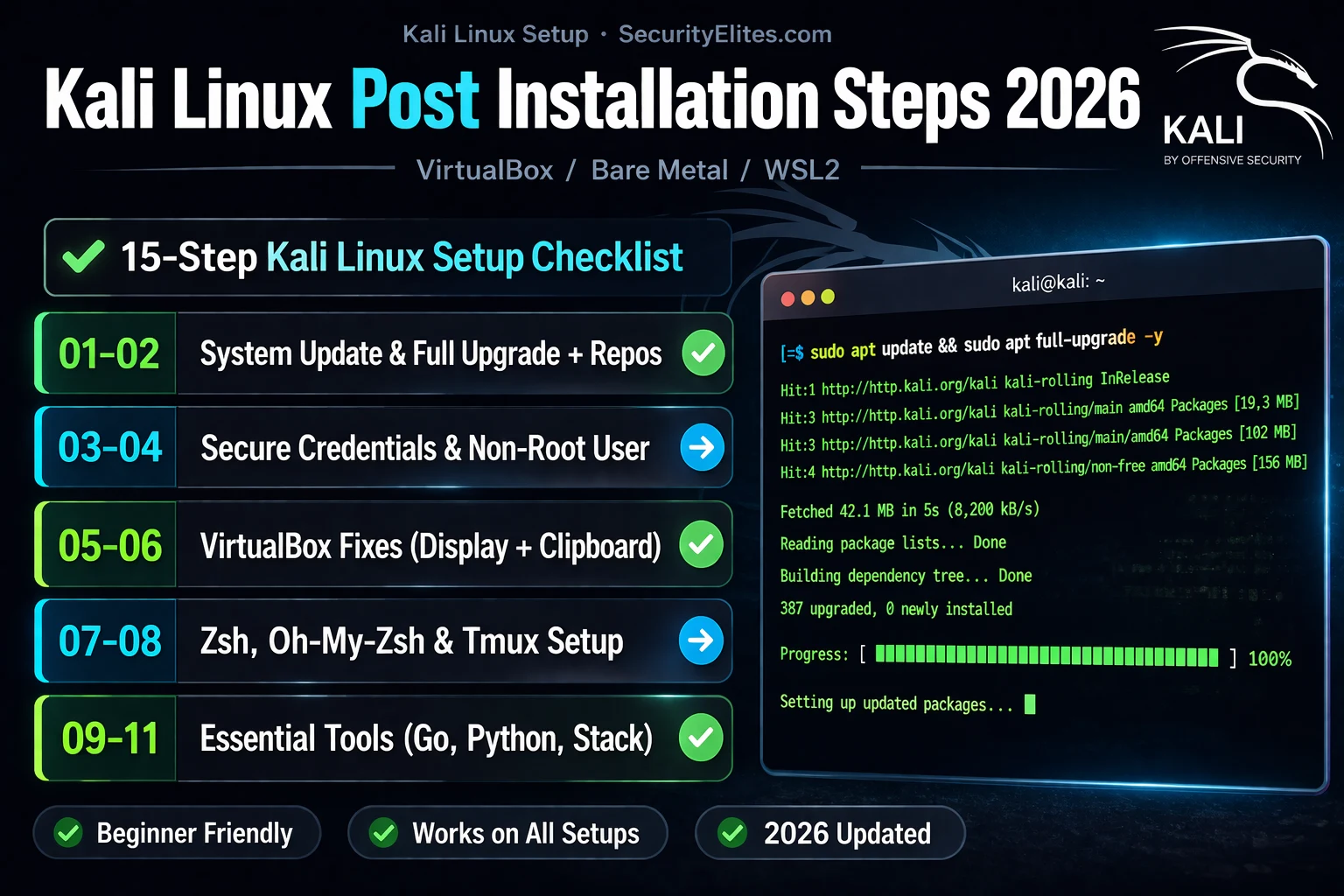
This article provides a systematic post-installation configuration guide for Kali Linux, addressing the gap between a fresh install and a professional, production-ready penetration testing environment. It covers 15 essential steps organized into functional categories: system updates, security hardening, virtualization optimization, terminal workflow enhancement, tool installation, and project organization. The guide matters because each unconfigured element—outdated packages, broken clipboard sharing, missing tools, default credentials—creates friction and lost productivity in real security testing sessions.
- Rolling release requires full-upgrade not upgradeKali uses rolling-release packages where dependency relationships change continuously. The article explains that apt upgrade will not install or remove packages to resolve dependency conflicts, whereas apt full-upgrade does. This distinction is essential for Kali because its continuously updated security tool packages depend on each other in ways that require full-upgrade to maintain system integrity and tool functionality.
- Default credentials and root user expose systemsThe default kali/kali credentials are publicly known and documented. The guide recommends both changing the default password and creating a non-root user for routine work, using sudo only when necessary. This approach follows modern security practices by limiting the scope of damage if the account is compromised and aligning with how professional penetration testers operate.
- VirtualBox Guest Additions eliminate four friction pointsWithout Guest Additions installed, Kali VMs suffer from fixed screen resolution, broken clipboard sharing between VM and host, unavailable shared folders, and poor mouse integration. Installing virtualbox-guest-x11 via apt resolves all these simultaneously in approximately four minutes, then requires reboot and either manual resolution setting with xrandr or persistent configuration in ~/.xsessionrc.
- Terminal configuration provides functional productivity gainsThe article distinguishes terminal enhancements as non-cosmetic by highlighting specific functionality: oh-my-zsh with zsh-autosuggestions and zsh-syntax-highlighting plugins provide intelligent command autocompletion and syntax validation. Tmux adds session persistence (surviving disconnections) and split-pane layouts for running multiple security tools simultaneously—capabilities experienced testers consider essential, not optional.
- Sequencing matters for independent section navigationThe guide structures 15 steps into eight sections where later sections build on earlier ones, but each section is independently complete. The article explicitly notes that Steps 7–8 (tmux and API key configuration) are most commonly skipped by experienced users who later regret missing them, suggesting these configurations have unexpected value discovered through practice.
- Shared folders require group membership and fstab entryAfter installing Guest Additions and creating a shared folder in VirtualBox settings, Kali requires three steps for functional shared folder access: creating the mount point directory, mounting with vboxsf filesystem type, and adding the user to the vboxsf group via usermod. Persistent mounting requires an /etc/fstab entry specifying uid and gid to ensure correct permissions across reboots.
- Practical audit exercise validates post-install completenessExercise 1 provides eight-minute browser and terminal-based verification tasks: checking Kali version and kernel against kali.org/blog announcements, running apt list --upgradable to quantify pending updates, verifying Python and Go installations, and measuring /usr/share disk usage as a baseline. The article establishes a concrete threshold: more than 50 upgradable packages indicates the full-upgrade step must execute before other configuration.
- Estimated time investment saves hours in subsequent sessionsThe article claims 15 steps require 30–45 minutes on a fast connection and prevent hours of accumulated frustration across every subsequent testing session. This framing positions initial configuration as a high-ROI investment where eliminating small daily friction points compounds into significant time savings over a penetration testing career.
Bottom line: A fresh Kali Linux install requires systematic post-installation configuration across system updates, security defaults, virtualization optimization, terminal workflow tools, and project structure—each element independently addressing a specific source of friction or missing functionality. Executing these 15 steps in sequence takes 30–45 minutes but eliminates recurring productivity losses that accumulate significantly across professional penetration testing engagements.
🎯 What You’ll Configure in This Guide
⏱️ 48 min read · 3 exercises · full setup complete by end
📊 Where are you with your Kali setup?
📋 All 15 Kali Linux Post Installation Steps 2026
- Steps 1–2: System Update, Full Upgrade and Repository Configuration
- Steps 3–4: Change Default Credentials and Create a Non-Root User
- Steps 5–6: VirtualBox Guest Additions, Screen Resolution and Clipboard
- Steps 7–8: Zsh, Oh-My-Zsh, Tmux and Terminal Productivity
- Steps 9–11: Essential Tools Installation — Go, Python and Security Stack
- Steps 12–15: Git Configuration, API Keys, Directory Structure and Wordlists
This guide complements the 180-Day Kali Linux Mastery Course — it is the setup layer that every course day assumes is already in place. If you are also running DVWA and Metasploitable for practice, the complete hacking lab setup guide covers the full virtual network configuration. These 15 steps take 30–45 minutes on a fast connection and save you hours of frustration across every subsequent session.
Steps 1–2: System Update, Full Upgrade and Repository Configuration
Kali is a rolling release distribution — the ISO you downloaded may already be 2–6 months behind the current package versions. Running a full upgrade immediately after installation ensures you have the latest tool versions, security patches, and kernel updates. This is non-negotiable and takes priority over everything else.
apt upgrade will not install or remove packages to resolve dependency conflicts. apt full-upgrade does — which is essential for Kali’s continuously updated security tool packages. Always use full-upgrade on Kali.Steps 3–4: Change Default Credentials and Create a Non-Root User
The default Kali credentials (kali/kali) are publicly known and documented. Changing your password is essential whether you are running Kali on bare metal, in a VM, or on a cloud instance. More importantly, modern Kali strongly recommends working as a non-root user and using sudo only when needed — not running an entire session as root.
Steps 5–6: VirtualBox Guest Additions, Screen Resolution and Clipboard
If you are running Kali in VirtualBox (the most common setup for beginners), the single most annoying missing configuration is VirtualBox Guest Additions. Without them: your screen is stuck at a fixed small resolution, clipboard sharing between VM and host does not work, shared folders are not available, and mouse integration is clunky. Installing Guest Additions takes four minutes and fixes all of these simultaneously.
⏱️ Time: 8 minutes · Browser and your Kali terminal
cat /etc/os-release | grep VERSION
uname -r
Record: current Kali release and kernel version
Step 2: Go to kali.org/blog/ in your browser
Find the most recent Kali release announcement
Compare it to your installed version
Step 3: In your Kali terminal, check what packages need upgrading:
apt list –upgradable 2>/dev/null | wc -l
Record: how many packages are pending upgrade
Step 4: Go to kali.org/tools/ and browse the tool categories
Find 3 tools in your interest area that you have never used
Check if they are installed: which [toolname]
Step 5: Check your Python version and pip:
python3 –version
pip3 –version
go version
Step 6: List the size of your Kali tools directory:
du -sh /usr/share/
Note how much disk space the current tools use
📸 Screenshot your version audit output and share in #kali-setup on Discord.
Steps 7–8: Zsh, Oh-My-Zsh, Tmux and Terminal Productivity
The default Kali terminal works. But a properly configured zsh with oh-my-zsh, sensible aliases, and tmux for session management will genuinely make you more productive in every single testing session. These are not cosmetic changes — autocompletion for tool flags, persistent terminal sessions that survive disconnections, and split-pane layouts for running multiple tools simultaneously are functional improvements that experienced testers consider essential.
Steps 9–11: Essential Tools Installation — Go, Python and Security Stack
Kali’s default meta-package installs hundreds of tools — but the modern security toolkit has evolved significantly towards Go-based and Python-based tools that are not part of the default image. These 10 tools fill the most important gaps in the default toolkit for bug bounty and penetration testing workflows in 2026.
⏱️ Time: 8 minutes · No tools required
Recon, Scanning, Exploitation, and Post-Exploitation.
For each phase below, check: do you have at least one tool
installed and configured for each task?
RECON:
□ Passive subdomain discovery (Subfinder / Amass)
□ Certificate transparency querying (crt.sh / curl)
□ OSINT and link analysis (Maltego)
□ Email/domain intelligence (theHarvester)
SCANNING:
□ Port scanning (Nmap / Rustscan)
□ Web directory bruteforce (Feroxbuster / Gobuster)
□ Vulnerability scanning (Nuclei)
□ Web app scanning (Nikto / ZAP)
EXPLOITATION:
□ Web application testing (Burp Suite)
□ Network exploitation (Metasploit)
□ Password cracking (Hashcat / John)
□ SQL injection (SQLmap)
POST-EXPLOITATION:
□ AD attack path mapping (BloodHound)
□ Credential dumping (Impacket)
□ Windows remote access (Evil-WinRM)
□ Lateral movement (CrackMapExec)
Count your ✓ out of 16.
Which phase has the most gaps? That is your next install priority.
📸 Share your toolkit audit results in #kali-setup on Discord with your phase coverage score.
Steps 12–15: Git Configuration, API Keys, Directory Structure and Wordlists
The final four steps transform a functional Kali install into a professional workflow environment. Git configuration enables you to save custom scripts and tool configurations across sessions. API keys unlock the paid-tier features of free tools. A standard directory structure ensures you never lose recon data between engagements. A local wordlist library ensures tools like Feroxbuster, Gobuster, and Hydra have the right dictionaries available instantly.
⏱️ Time: 20 minutes (after downloads complete) · Kali Linux fresh install
📸 Screenshot your verification script output showing all ✅ and share in #kali-setup on Discord. Tag #kalisetup2026
🧠 QUICK CHECK — Kali Post-Installation
go install github.com/projectdiscovery/subfinder@latest but the command is not found. What is the most likely cause and fix?
📋 All 15 Steps — Quick Reference Card
❓ Frequently Asked Questions
What is the first thing to do after installing Kali Linux?
Should I run Kali Linux as root?
How do I fix small screen resolution in Kali Linux VirtualBox?
How do I enable clipboard sharing between Kali VM and host?
What tools should I install after setting up Kali Linux?
How do I set up Kali Linux on a Mac with Apple Silicon in 2026?
How to Install Kali Linux 2026
How to Set Up a Hacking Lab 2026
📚 Further Reading
- How to Install Kali Linux 2026 — The complete Kali Linux installation guide covering VirtualBox, dual-boot, bare metal, WSL2, and Apple Silicon — the step before this guide.
- How to Set Up a Hacking Lab 2026 — Builds on this post-installation guide by adding Metasploitable 2, DVWA, and the isolated Host-Only VirtualBox network needed for safe practice.
- 180-Day Kali Linux Mastery Course — The complete structured Kali Linux learning path from Nmap through advanced exploitation — the curriculum this post-installation setup enables.
- Kali Linux Metapackages Documentation — Official Kali documentation explaining the different tool metapackages — kali-linux-default, kali-linux-everything, and kali-linux-headless — and when to install each.
- Oh My Zsh Official Site — The official Oh My Zsh documentation covering the full plugin and theme library, configuration options, and the community-maintained plugin ecosystem.